Who can do what
For: Owner, Admin, Cashier, Production, Courier
The work each role can open, and how to change someone's role.
Every member has one role in each business, and that role decides the work they can open. The server checks every action, so a hidden button is never the only guard.
For every role. Only owners and admins change roles.
The work of each role
| Task | Owner | Admin | Cashier | Production | Courier |
|---|---|---|---|---|---|
| Create orders | |||||
| Take payments | |||||
| Send the receipt on WhatsApp | |||||
| Add and edit customers | |||||
| Reply to customer chats | |||||
| Arrange pickups and drop-offs | |||||
| Run pickups and drop-offs | |||||
| Move laundry between stages | |||||
| Weigh online orders | |||||
| Scan laundry bags | |||||
| Manage supply stock | |||||
| Record supplies used | |||||
| Read reports | |||||
| Clock in and out | |||||
| See team attendance | |||||
| Plan work schedules | |||||
| Invite and manage team members | |||||
| Add and manage branches | |||||
| Set services and prices | |||||
| Manage WhatsApp numbers | |||||
| Work out and pay wages | |||||
| Choose and pay for the plan | |||||
| Withdraw the balance to a bank account | |||||
| Delete the business |
Each role's guide: owner, admin, cashier, production and courier.
Steps to see roles
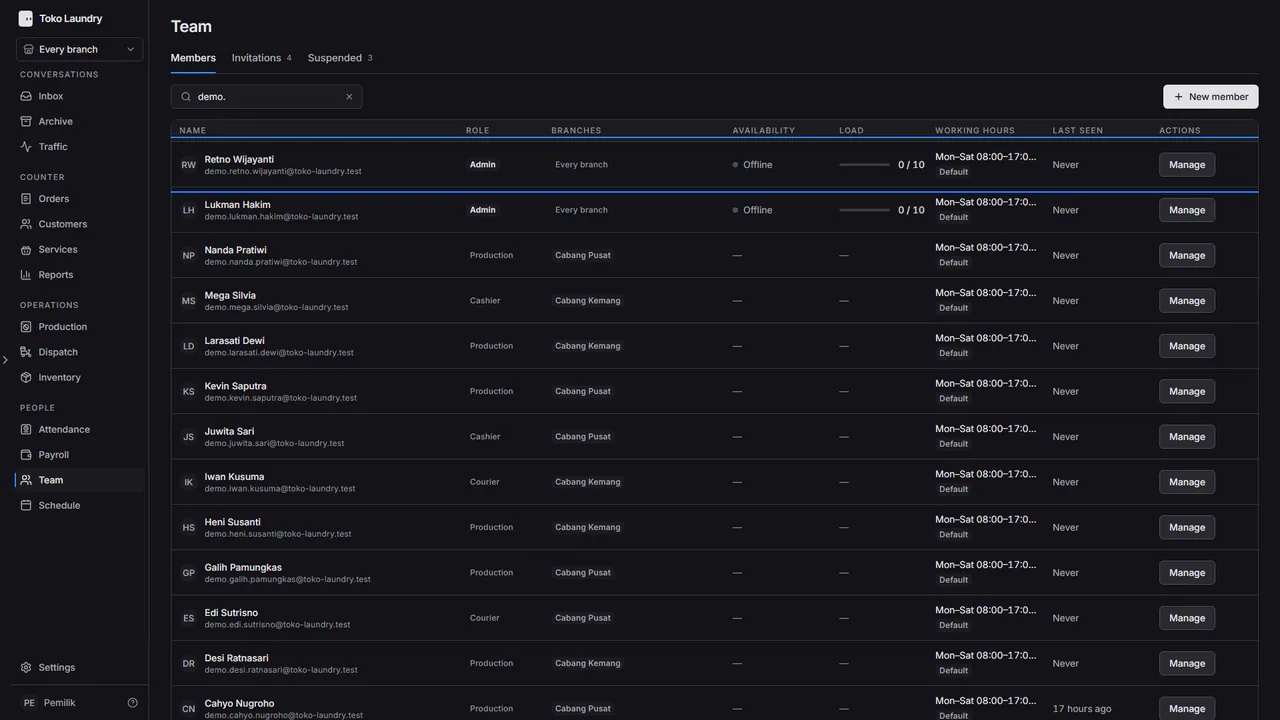
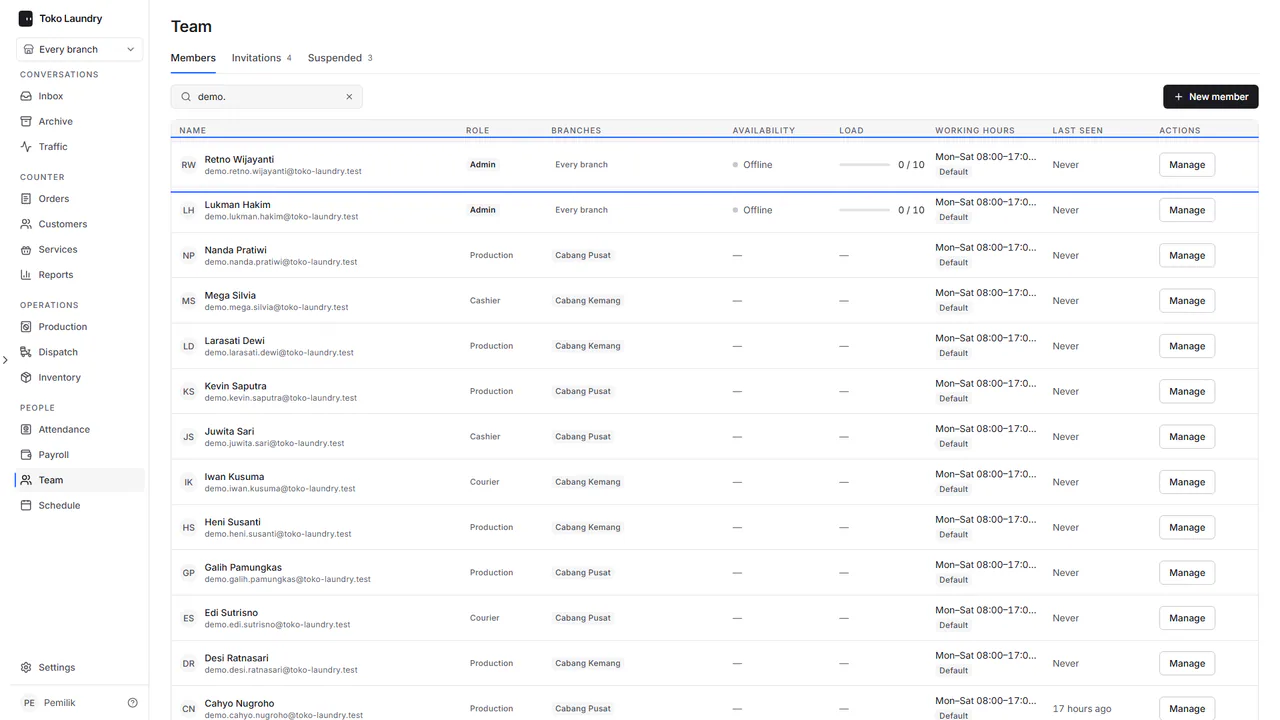
Open Team. The Role and Branch columns show each member's role and the branches they may open.
Steps to change a role
Press Manage on the member's row, then pick Role.
Pick the new role, then press Save. A session already open on that person's phone changes at once.
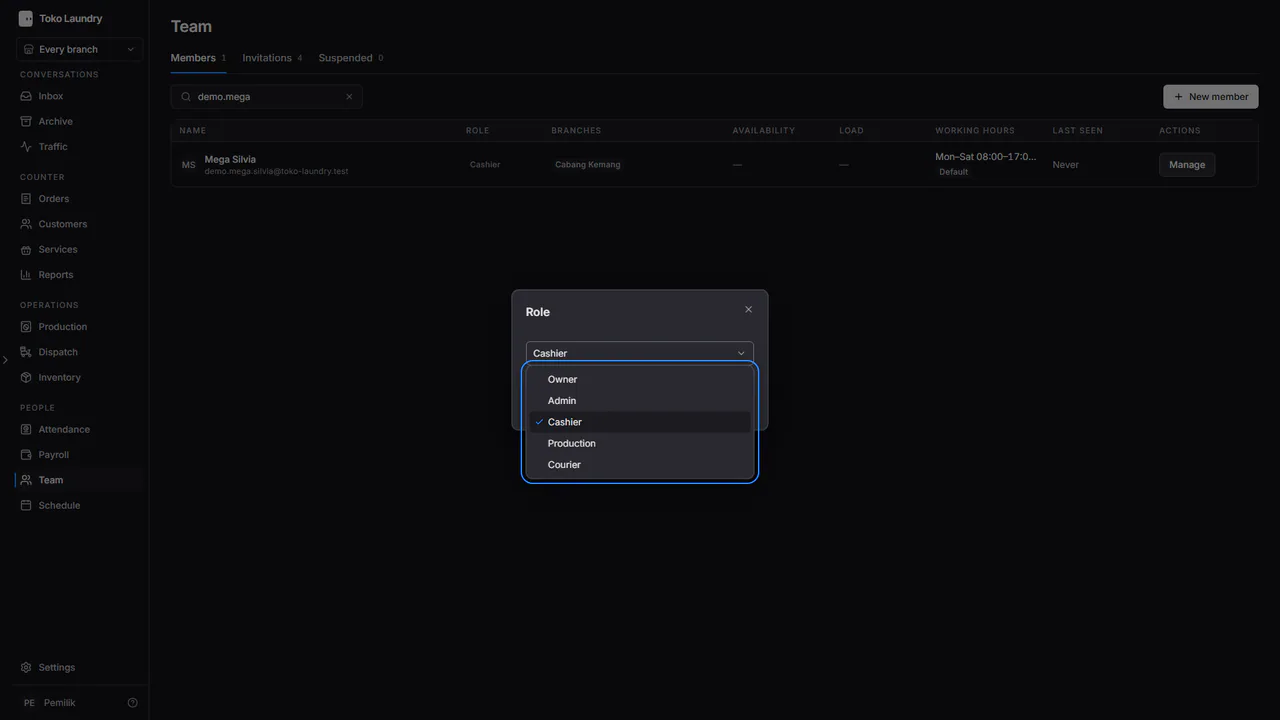
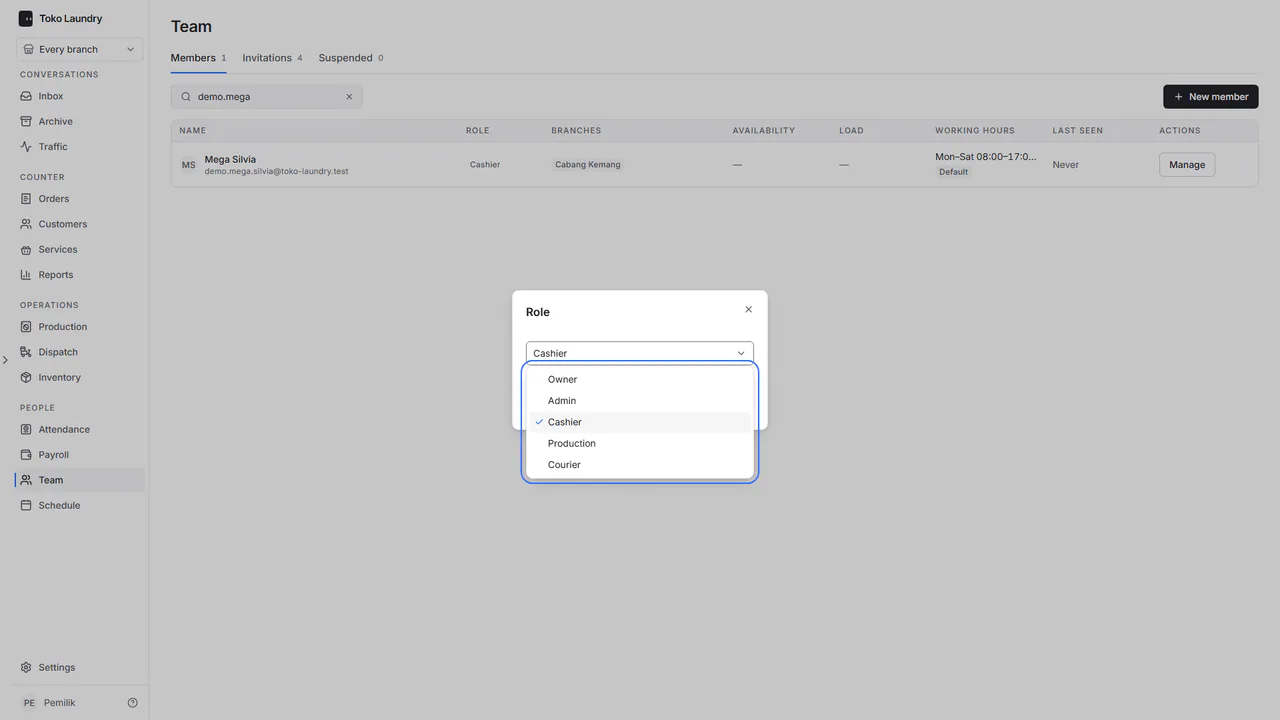
Only an owner sees the Owner choice. An admin changes other members' roles but cannot make anyone an owner.