Receipts
Send the receipt on WhatsApp, open the digital receipt and print it, in the customer's language.
Every order has one receipt, built from the same data: a WhatsApp message with a small WebP receipt image, the digital receipt page, a PNG image and a 58 mm or 80 mm thermal print. The receipt goes to the customer's WhatsApp when the order is created. The business logo from Settings > Business appears on the print, the receipt image and the digital receipt page; without a logo the receipt stays as it was.
For owners, admins and cashiers.
Steps to resend a receipt
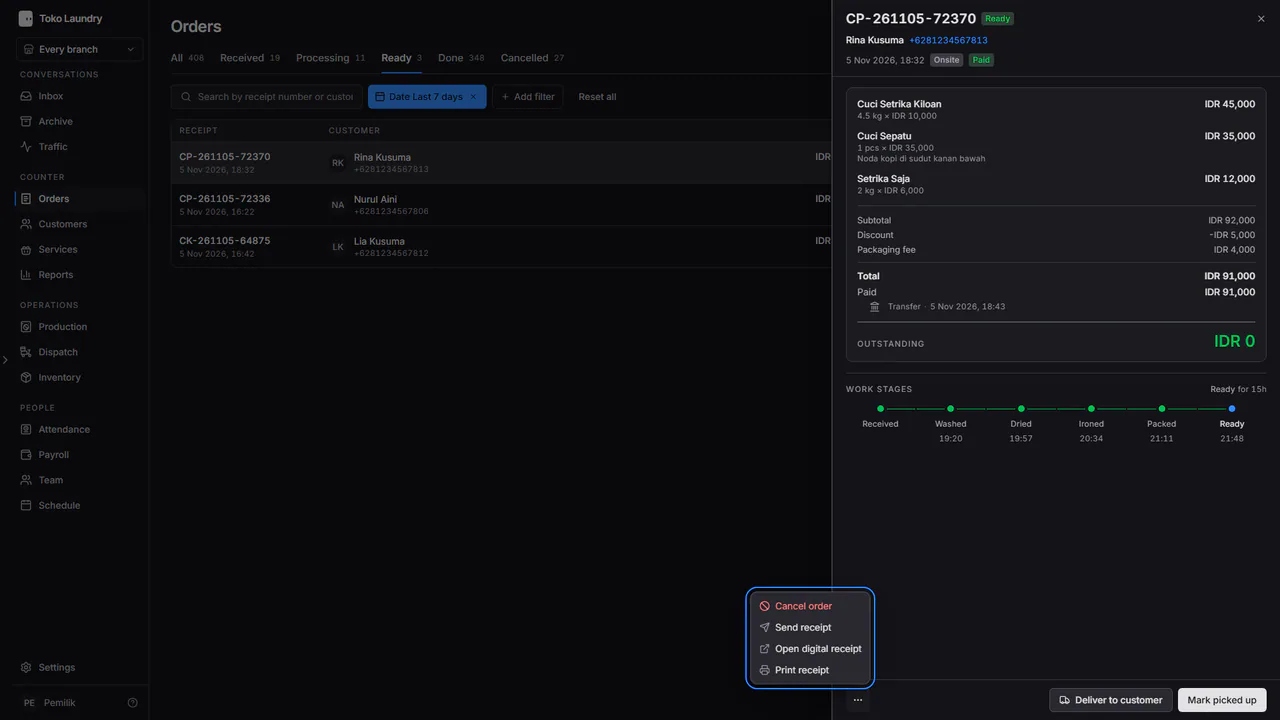
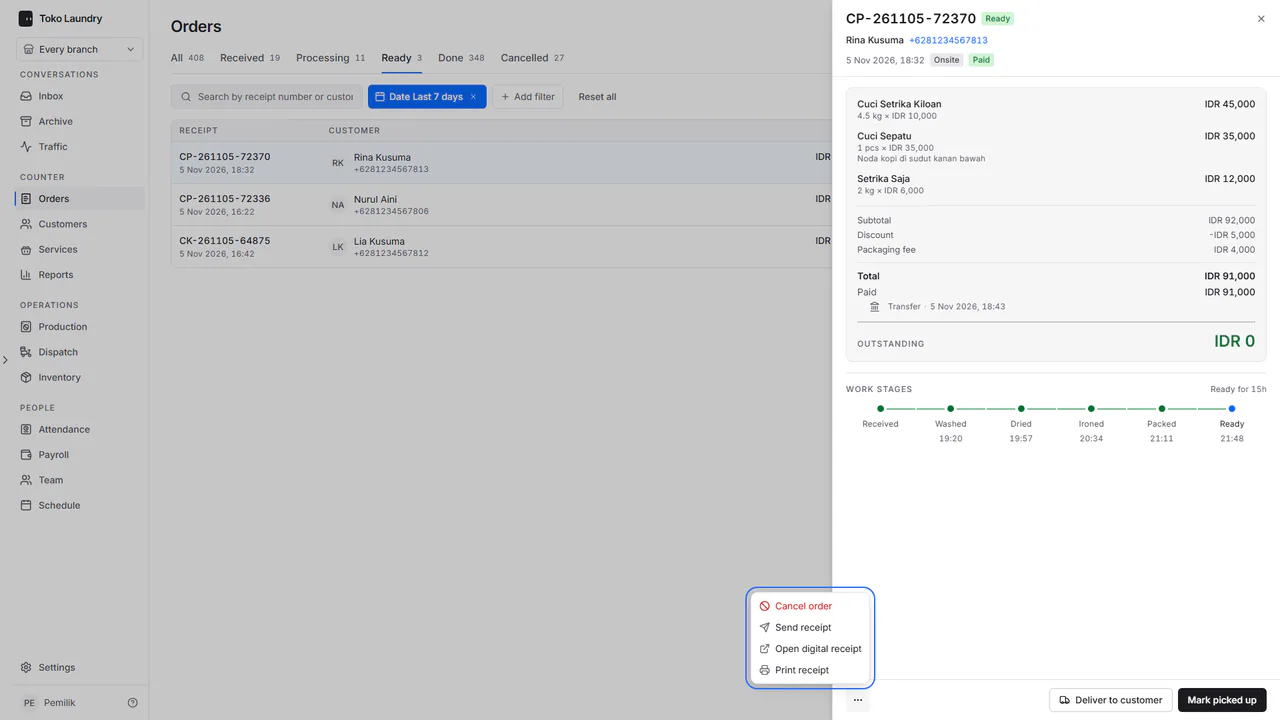
Open the order in Orders, then press ⋯ at the bottom left of its panel.
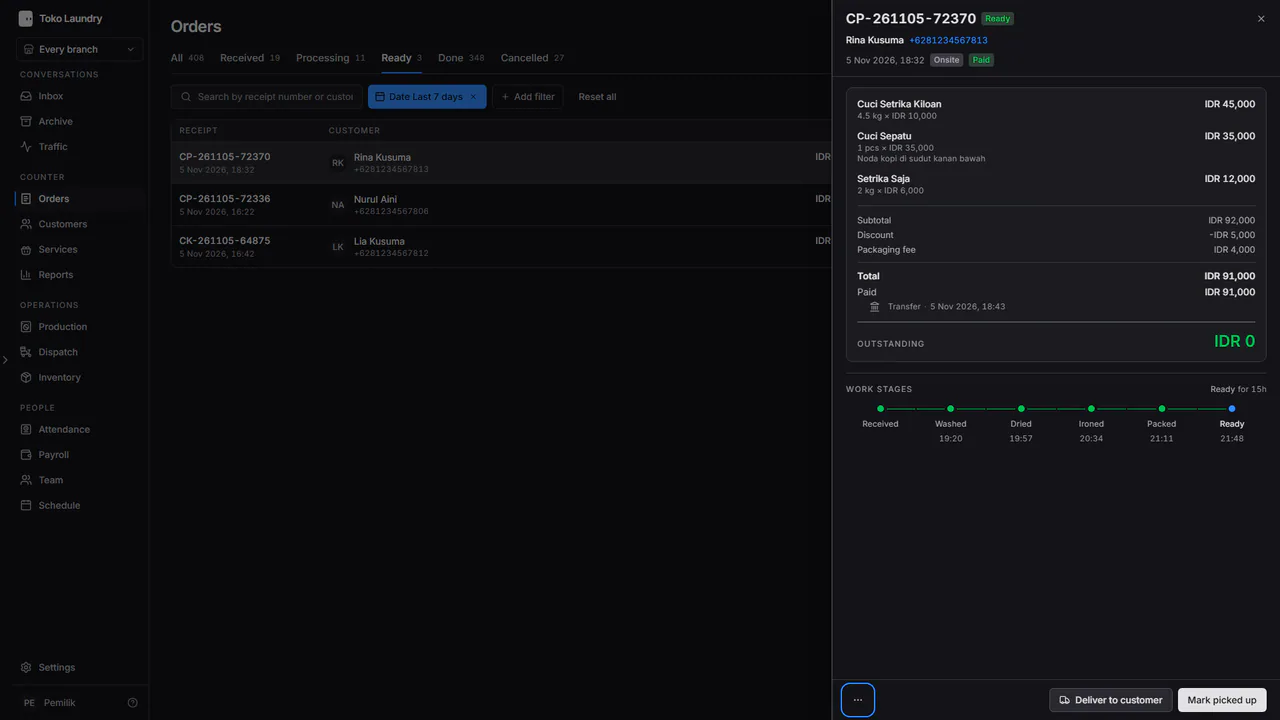
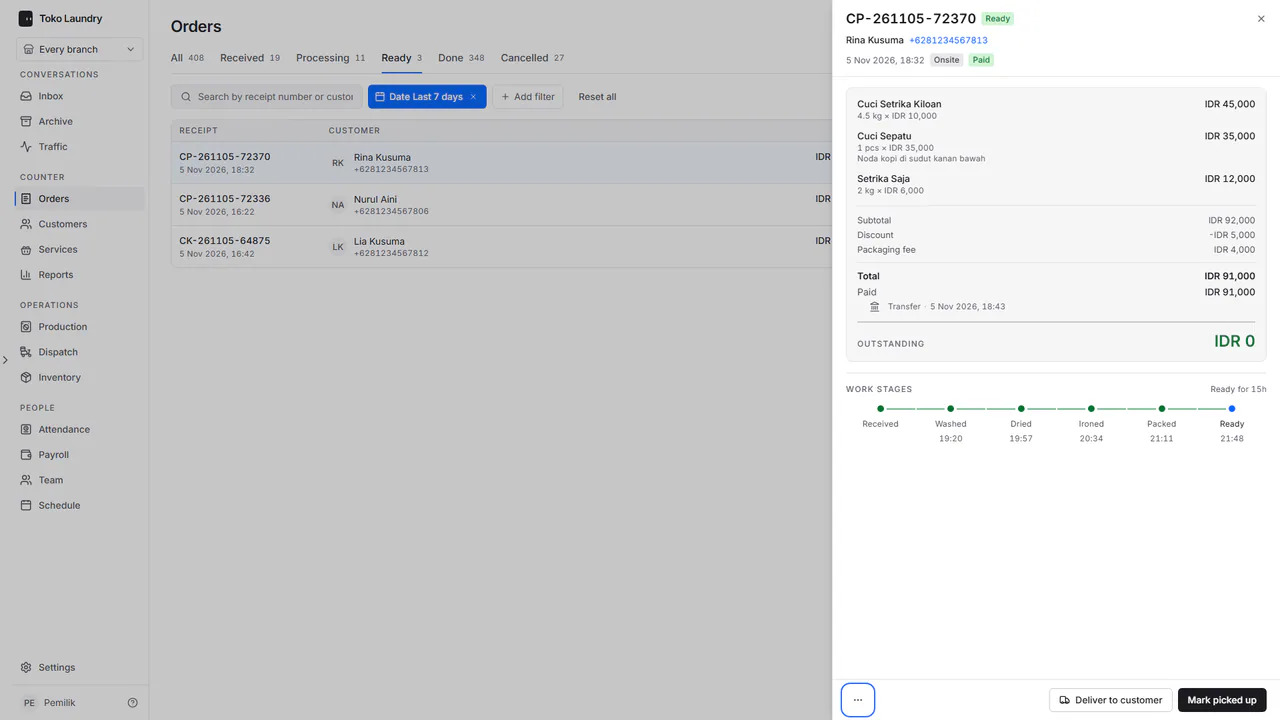
The menu holds Send receipt, Open digital receipt and Print receipt. An order that can still be cancelled also has Cancel order in red at the very top. Pick Send receipt.
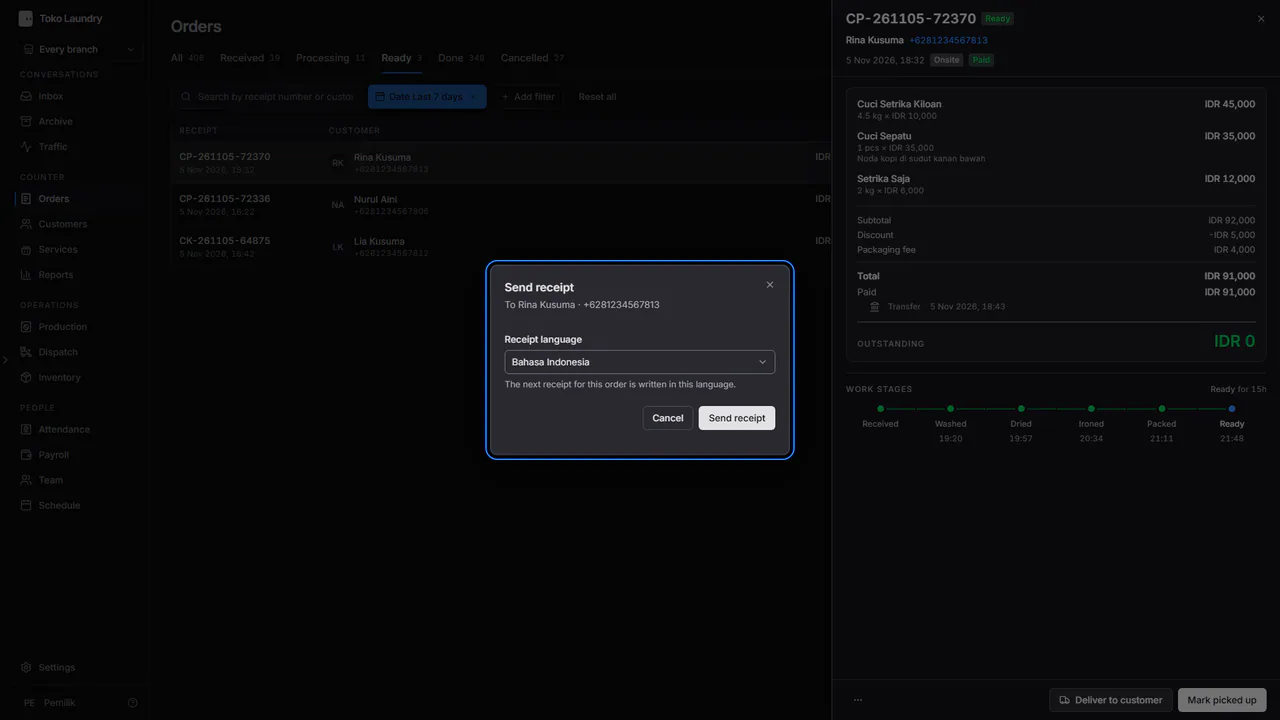
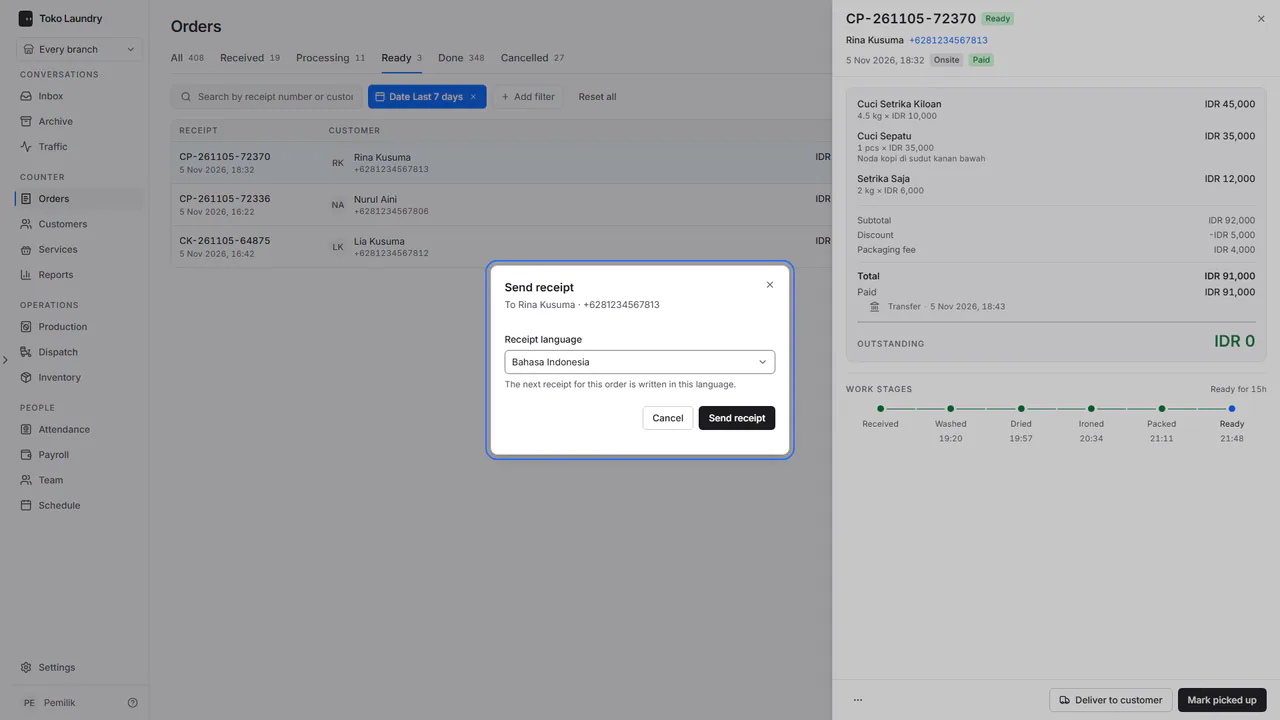
Pick the Receipt language if needed, then press Send receipt. The screen answers The receipt is queued for WhatsApp: the message is handed over, not necessarily delivered.
A customer who does not accept WhatsApp is refused, and the dialog says This customer does not accept WhatsApp. The order can still be printed with Print receipt.
Steps to open the digital receipt
In the same ⋯ menu, pick Open digital receipt. This is the page the customer opens, with no sign-in: the logo and business name on top, then the order status, the bill and the branch.
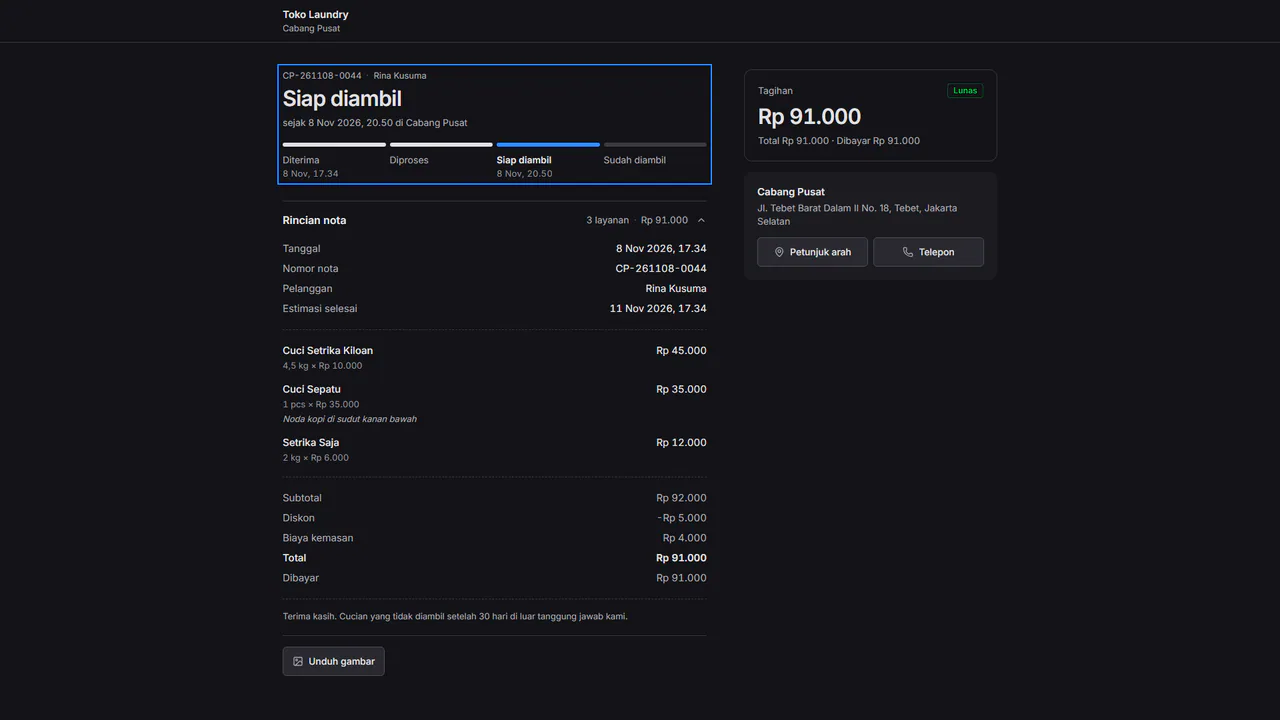
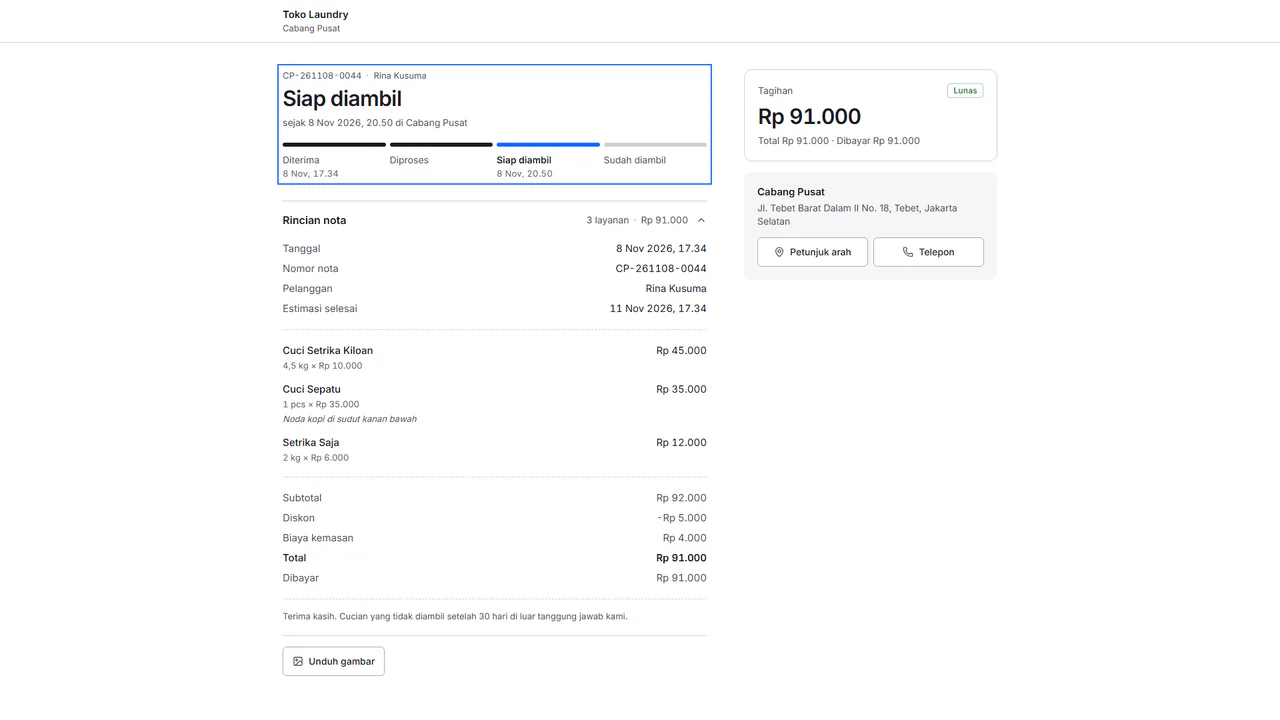
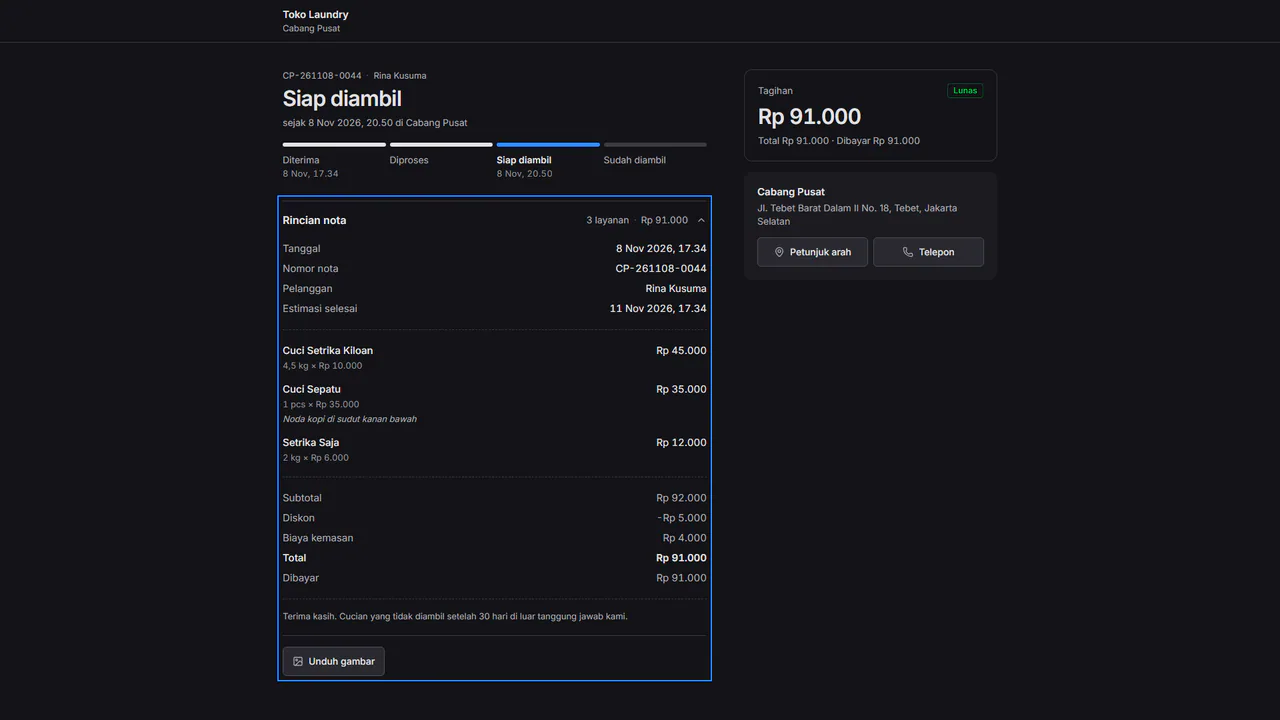
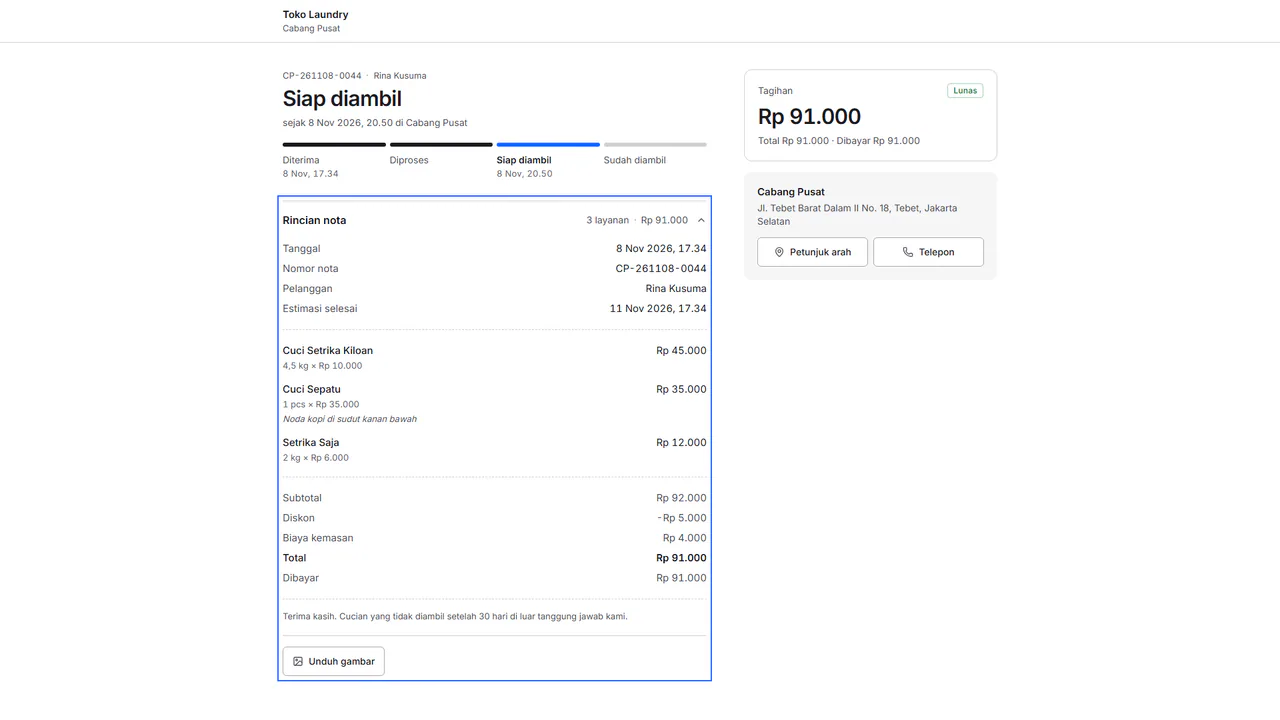
Receipt details below it holds the date, receipt number, every service, the subtotal, discount and fees, the total and what is paid. Press its title to fold or open it. Press Save image to keep the receipt as a PNG. On the branch card, Directions and Call sit side by side.
Steps to pick the receipt language
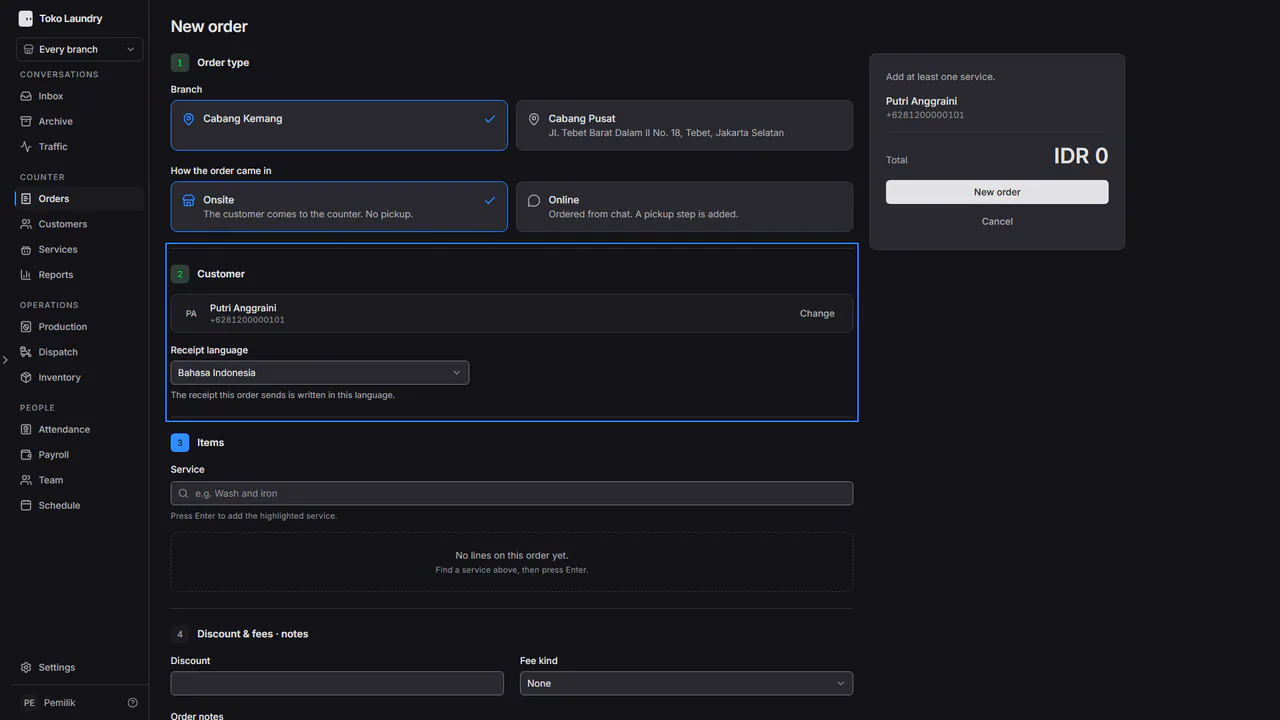
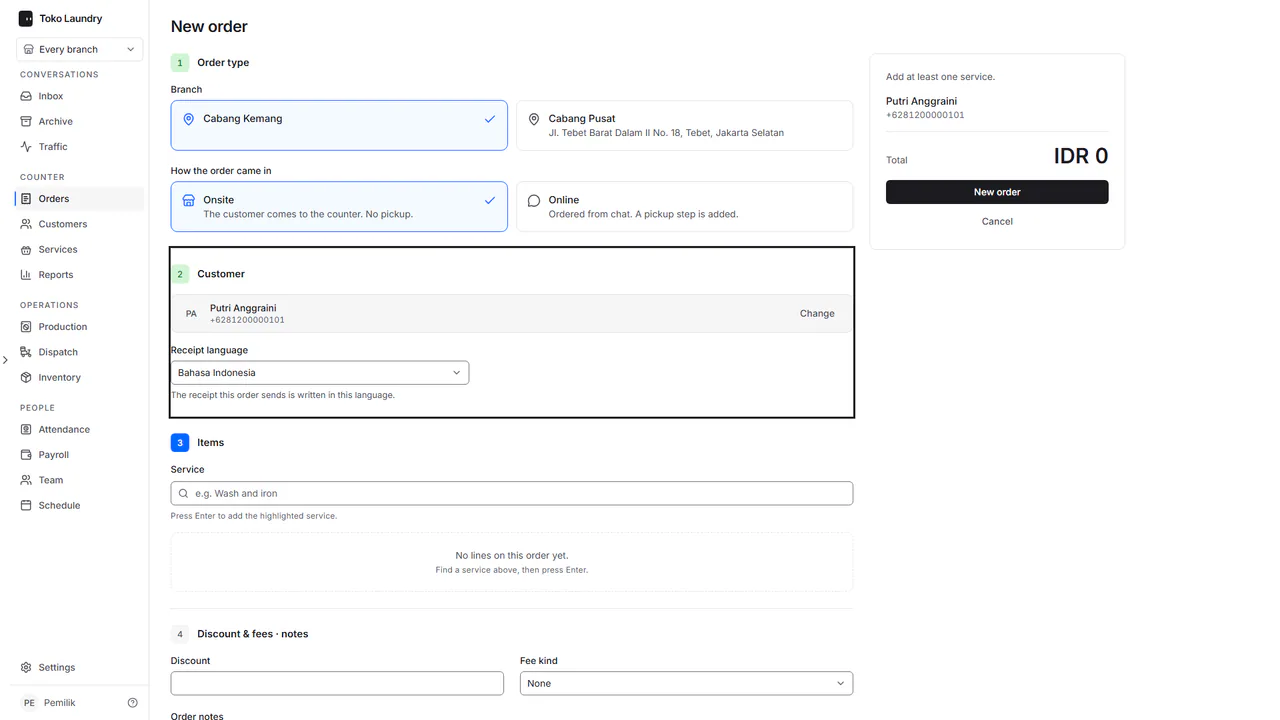
In New order, pick a customer who accepts WhatsApp. The Receipt language row appears in the Customer section.
Pick the language. The message, the receipt image and the digital receipt use it. The thermal print follows the branch's language.