Account and profile
For: Owner, Admin, Cashier, Production, Courier
Accept an invitation, sign in, then set your language, theme, photo and password.
How to join the laundry that invited you, sign in to the app, then set up your own profile.
For every role.
Steps to accept an invitation
Open the invitation link from the email. The Join page for the laundry opens and names your role, such as "You have been invited as Cashier."
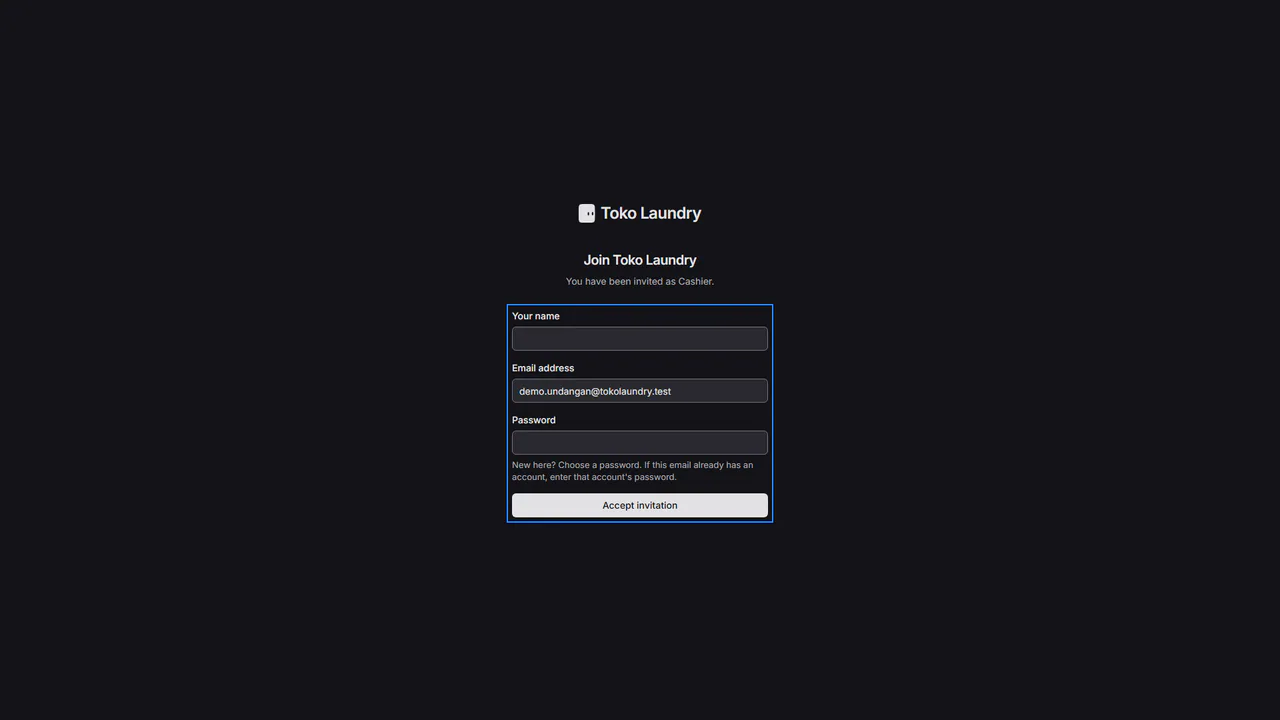
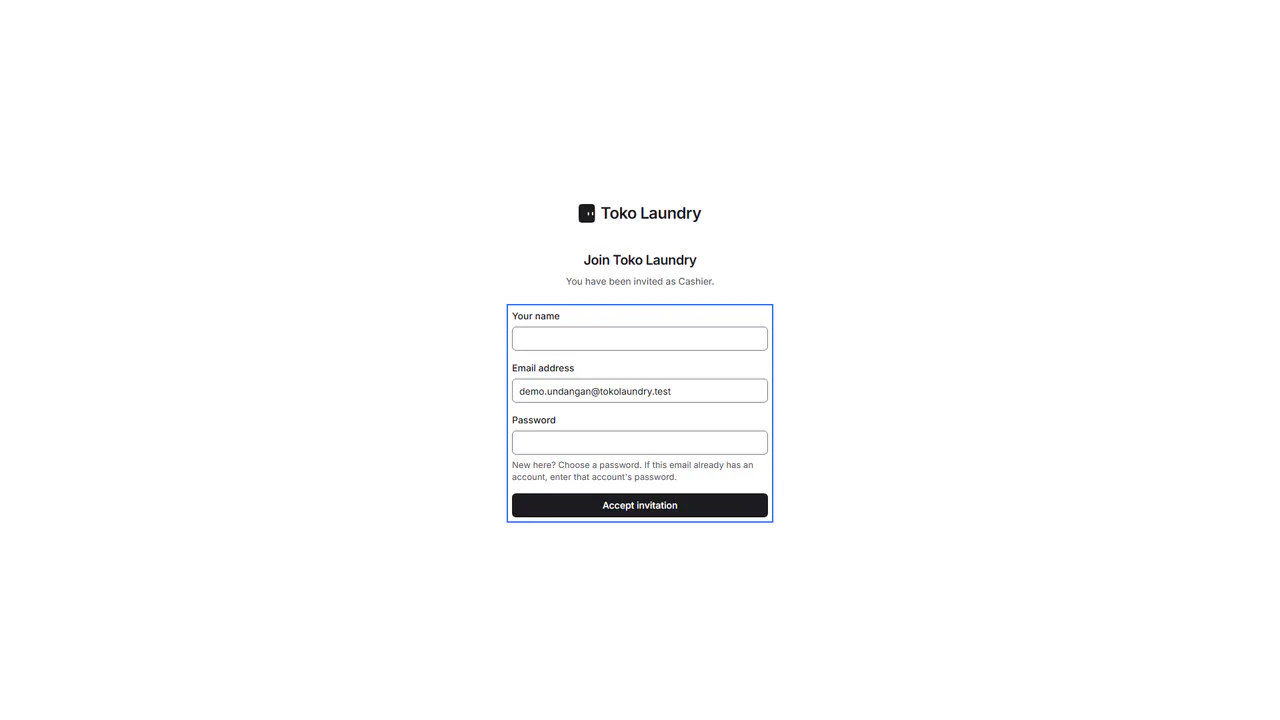
Fill in Your name. Email address is filled in from the invitation and cannot be changed, because an email invitation is only valid for that address.
Fill in Password. New here? Choose a new password. Does this email already have an account? Enter that account's password. Press Accept invitation, then sign in.
If your laundry signs in through Biwara, the invitation page holds an Accept with Biwara button. Press it, then sign in to Biwara with the invited email.
The page says "This invitation is no longer open." when it has expired, been revoked or been used. Ask whoever invited you to send a new one from Team.
Steps to sign in
Open the Sign in page. If it asks for Email address and Password, fill in both, then press Sign in. A member the owner made with Create account on Team signs in with the email and password the owner gave them.
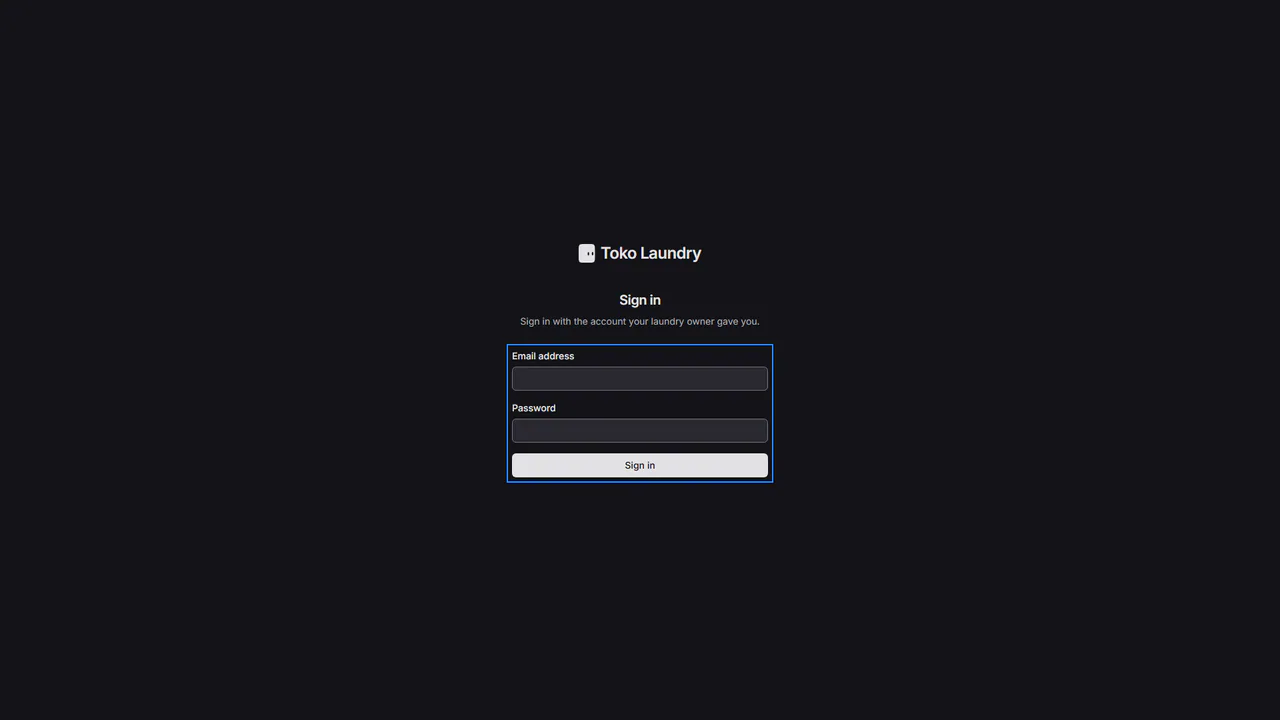
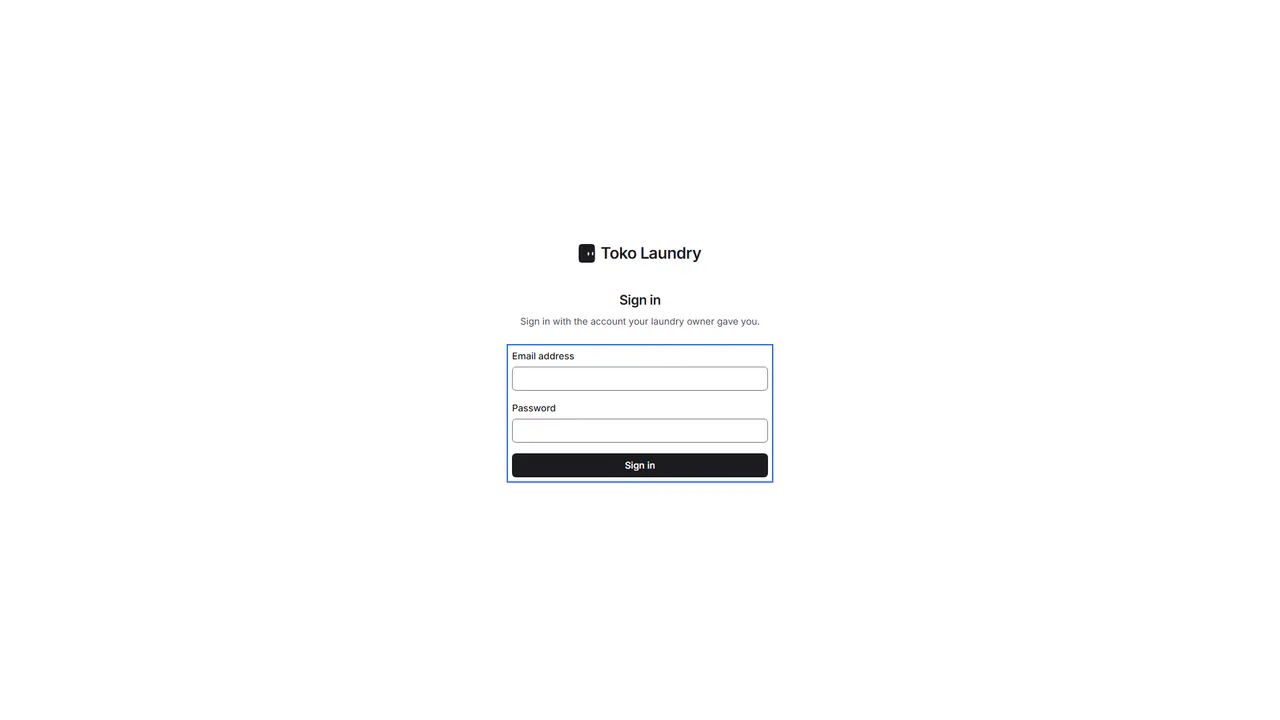
If your laundry signs in through Biwara, the Sign in page opens Biwara. Press Sign in with Biwara if asked, then sign in with your Biwara account. Its email must be verified.
Steps to set up your profile
Open Settings > Profile. Under Appearance, pick the Language, Bahasa Indonesia or English, and the Theme, Light or Dark. Receipts keep the branch's language.
Pin the brand rail keeps the brand rail, the thin column at the far left holding your businesses, open. When it is off, the rail appears when the pointer comes near. Production and couriers do not have this choice.
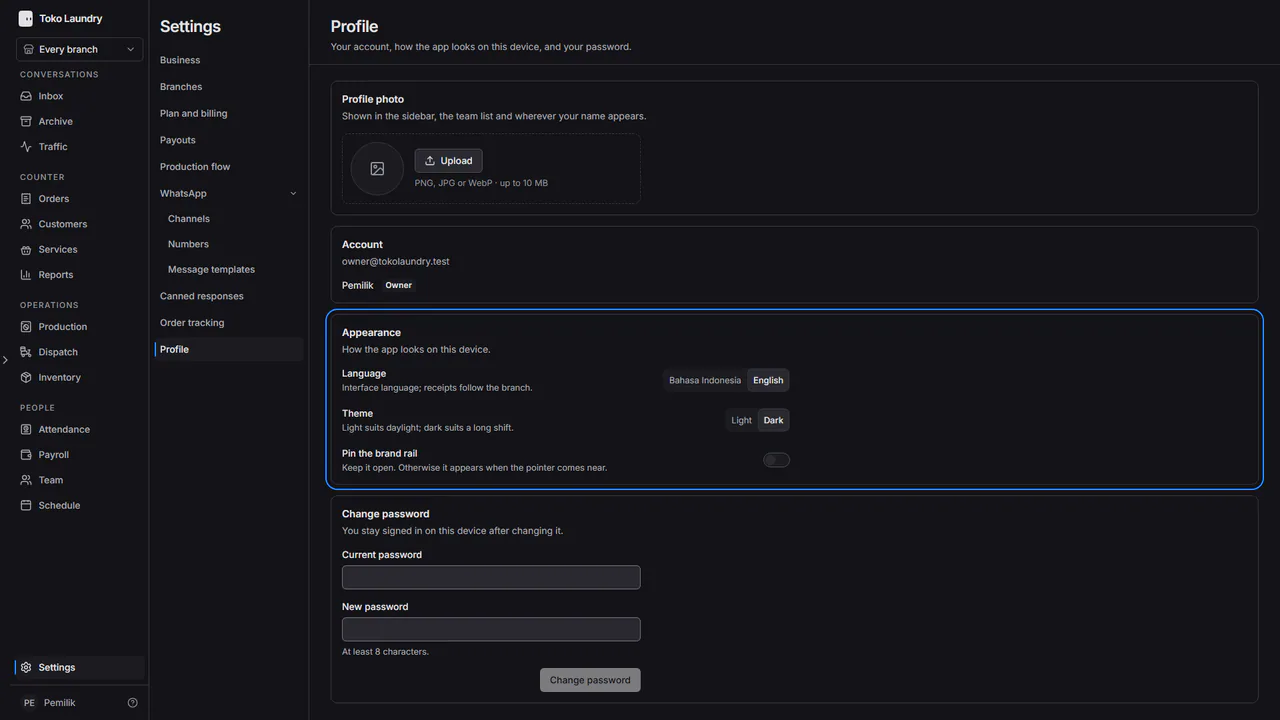
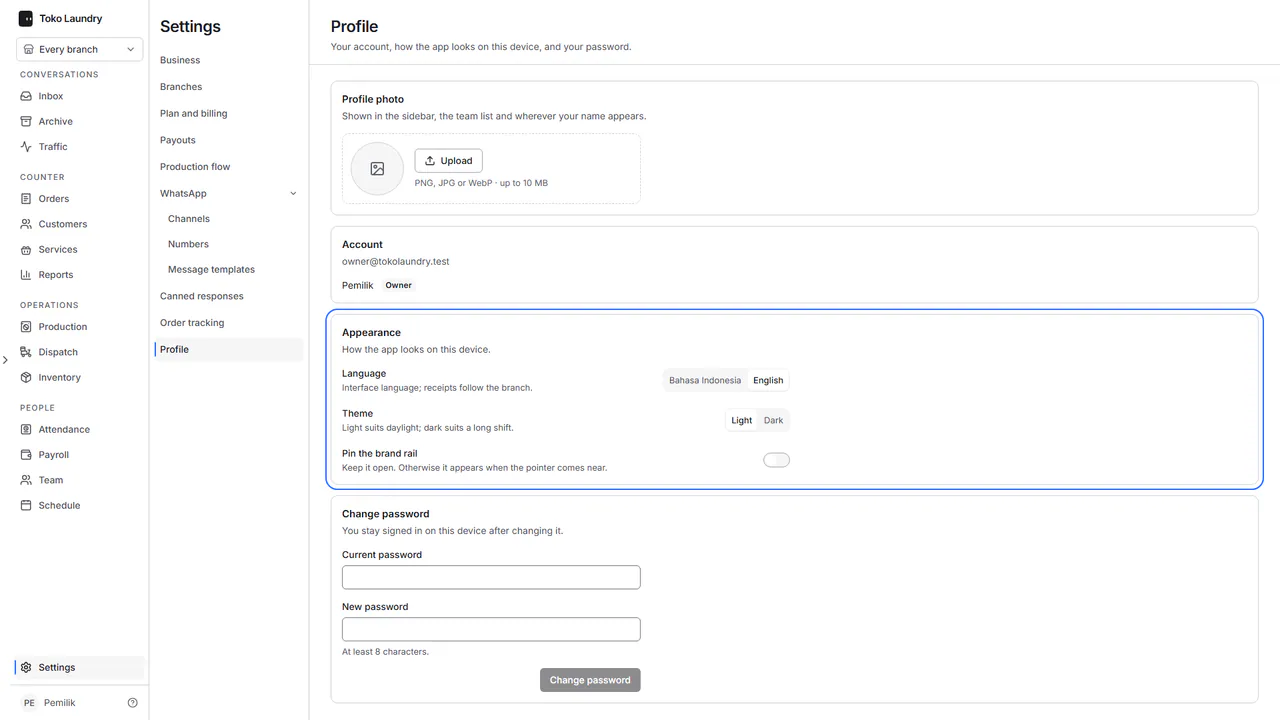
Under Profile photo, your photo is managed only in Biwara Accounts. Press Change in Biwara Accounts, or Add in Biwara Accounts if you have no photo yet, and change the photo on the Biwara page that opens in a new tab. The new photo shows up in Toko Laundry when you open the app again or return to this tab, in the sidebar, the team list and wherever your name appears. When your laundry does not sign in through Biwara, this section still has an Upload button for a PNG, JPG or WebP image.
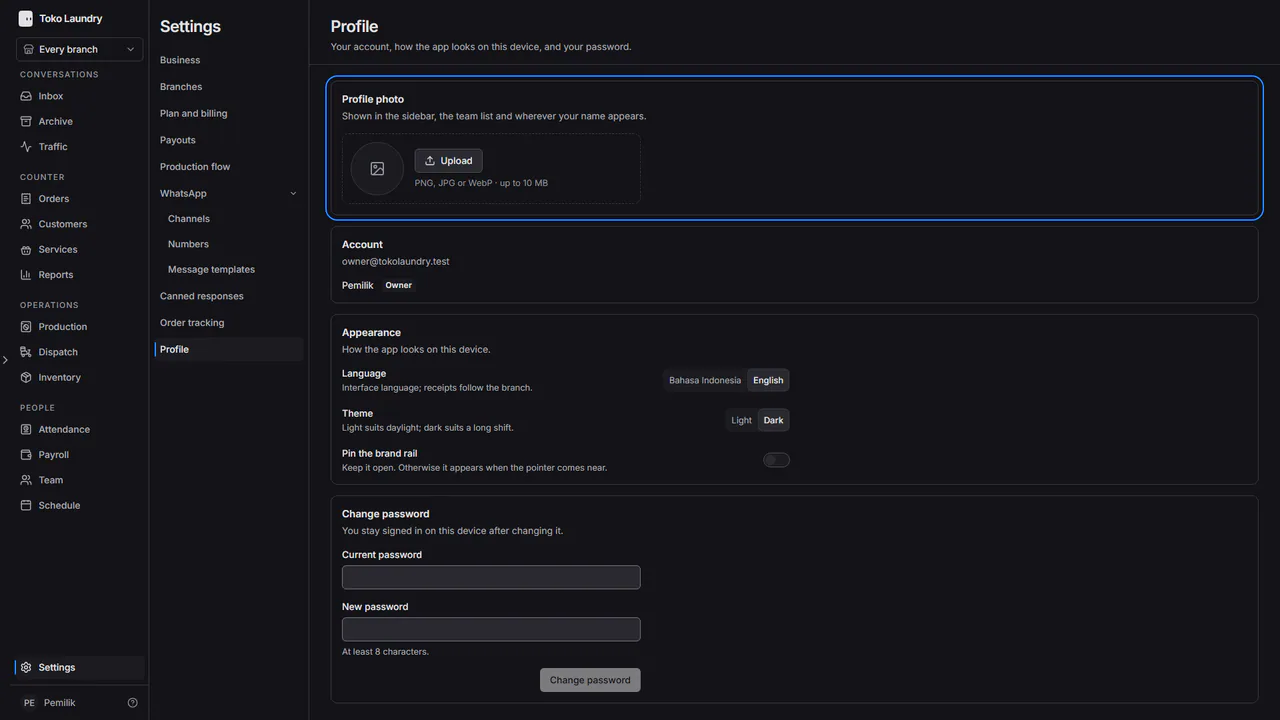
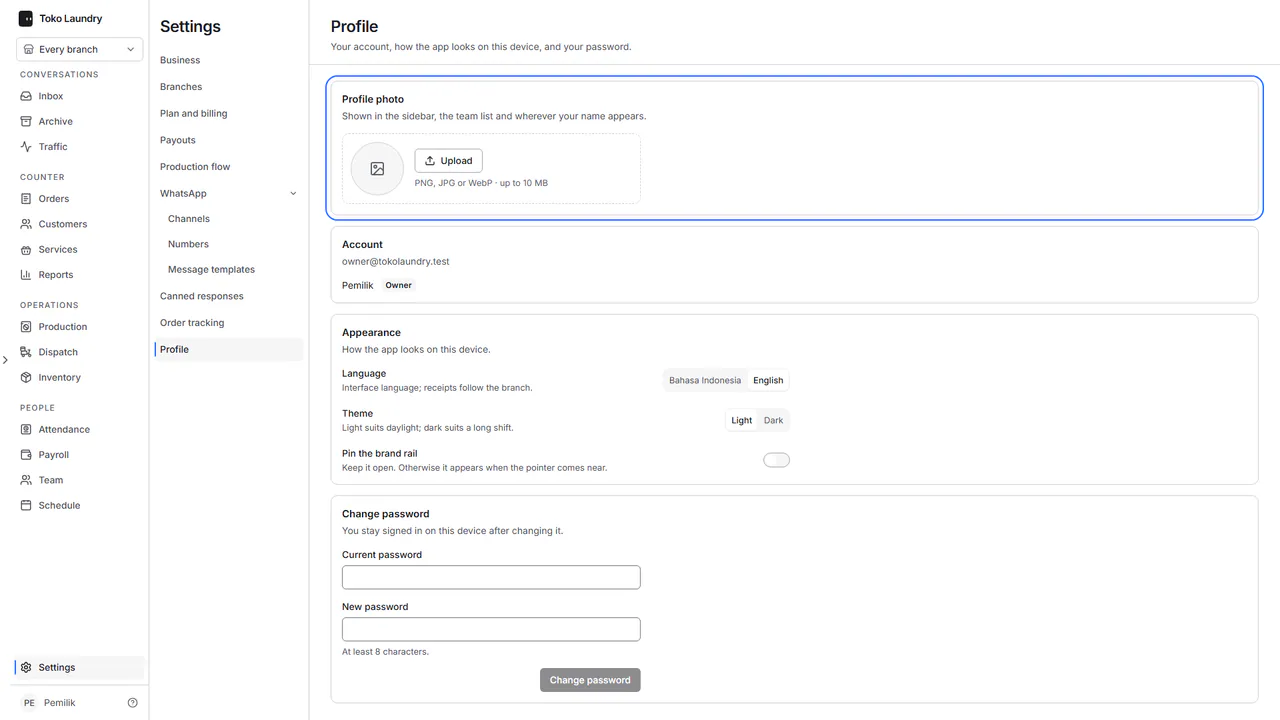
Under Change password, fill in Current password and New password, at least 8 characters, then press Change password. You stay signed in on this device. This section is missing when your laundry signs in through Biwara.
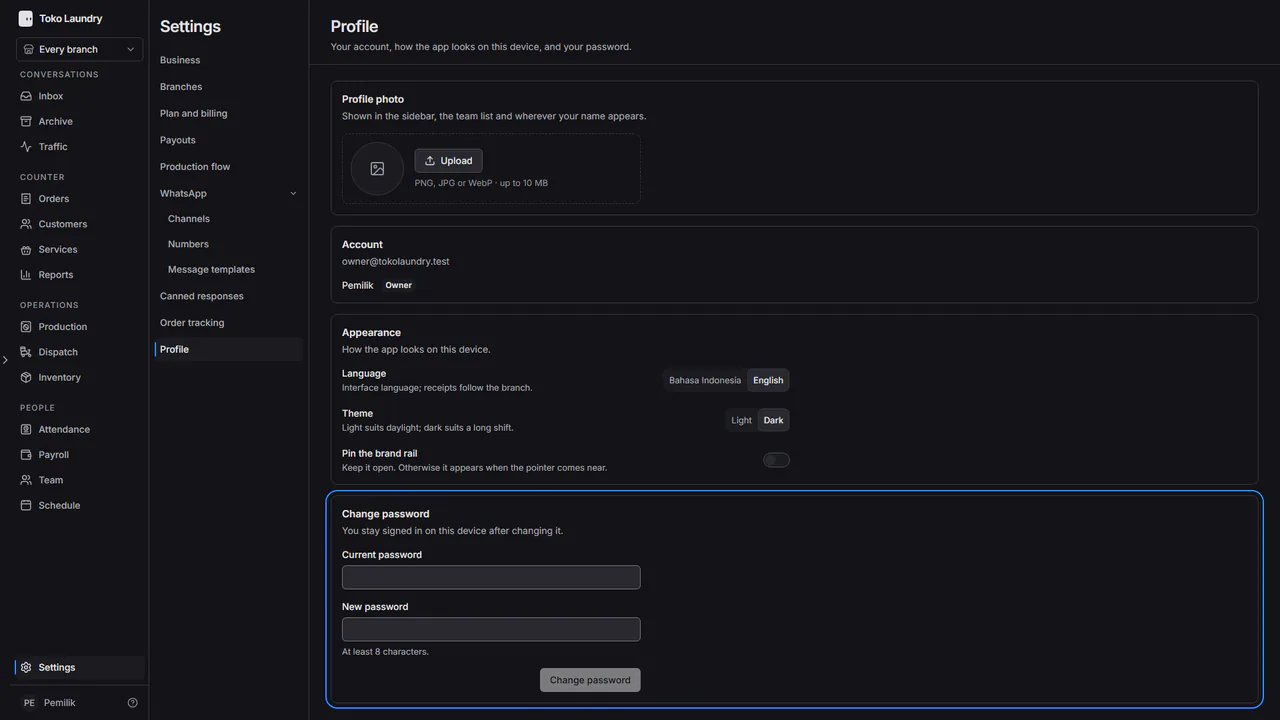
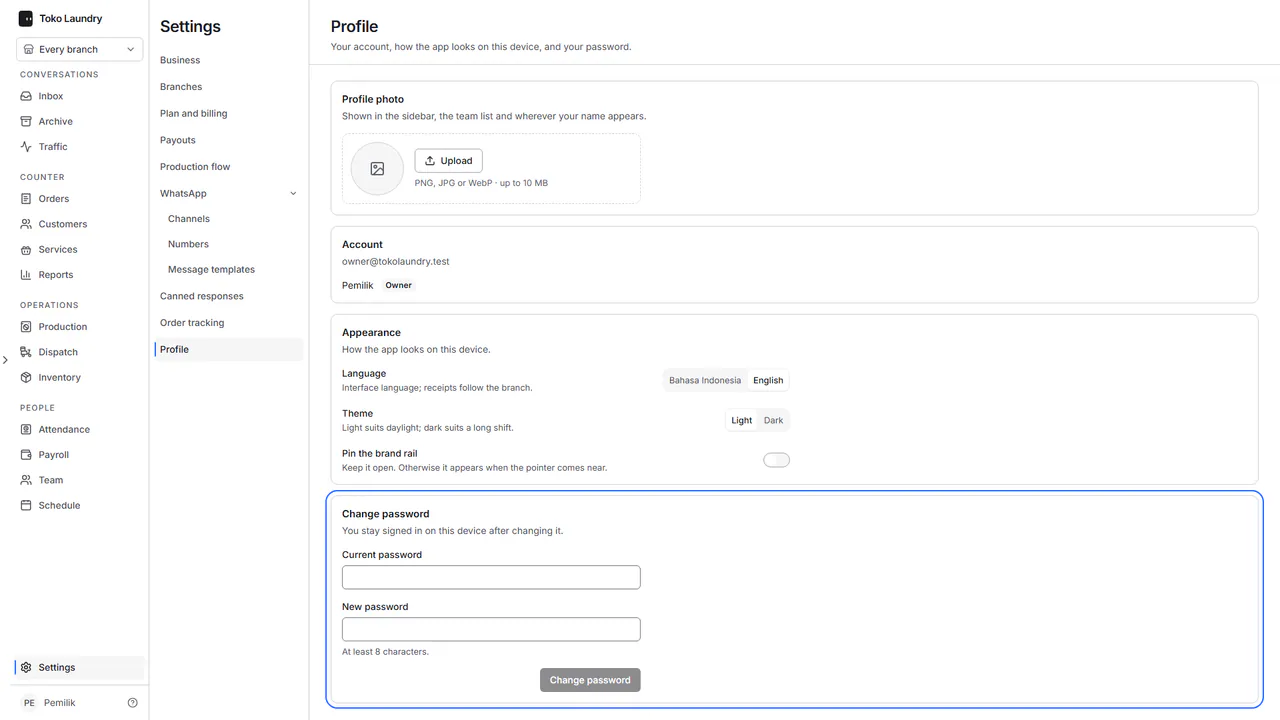
The Account section on the same page shows your email and role. The list of keyboard keys is in keyboard shortcuts.