Plans and billing
For: Owner
Choose, change and stop a plan, and the branches that lock above the plan limit.
The plan sets how many branches you may run, counted across every business you pay for. Every feature is in every plan. Current prices are on the pricing page.
For the owner who pays for the plan. Other owners see the plan and Paid by, with no choices.
| Plan | Branches | Businesses |
|---|---|---|
| Free | 1 | 1 |
| Pro | up to 3 | up to 3 |
| Enterprise | 10 to 20, you pick the size | up to 5 |
Steps to choose a plan
Open Settings > Plan and billing. The top line shows Plan, Branches in use and the Renews date with its monthly price. Beside the Your plan heading is its state, such as Active.
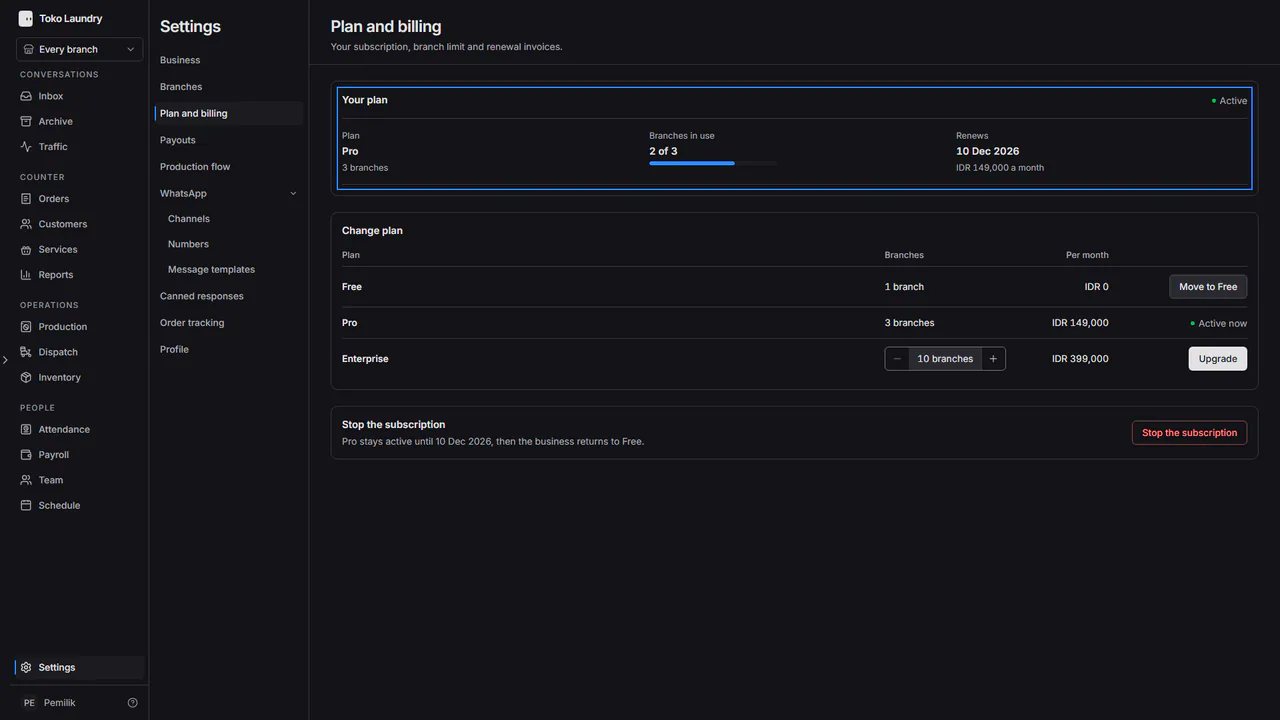
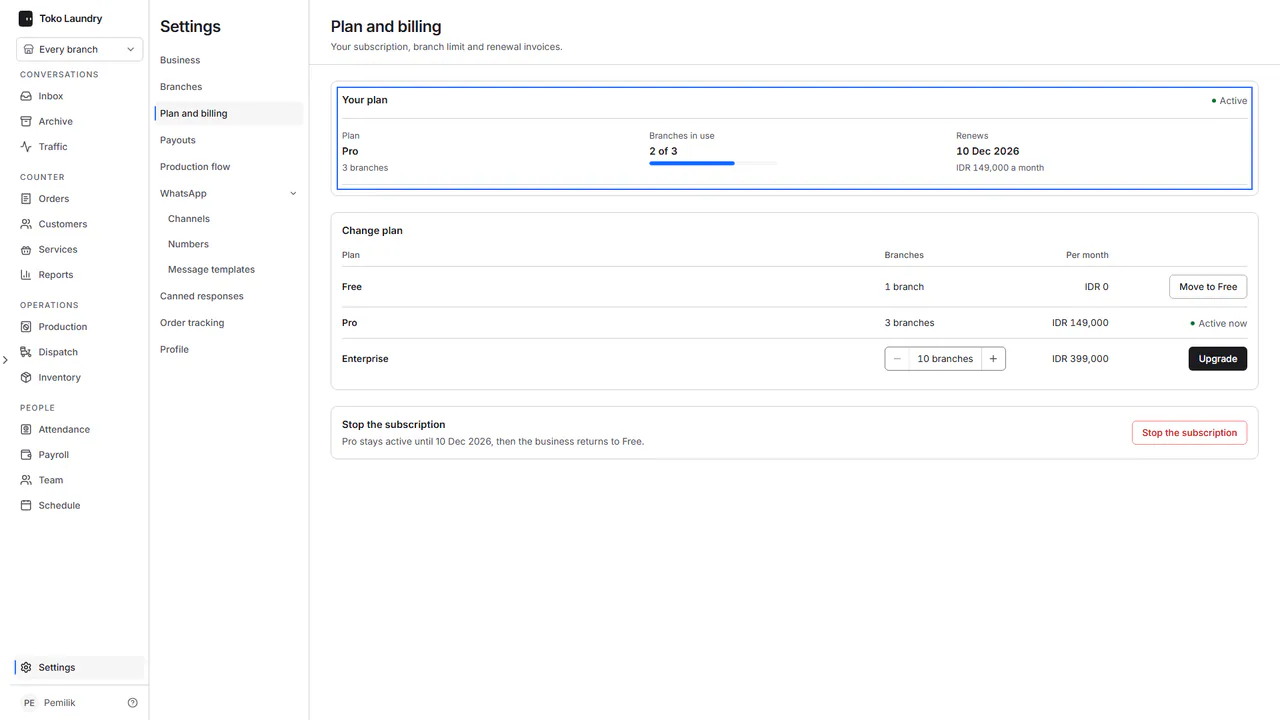
For Enterprise, press − or + until the branch count fits. The price follows.
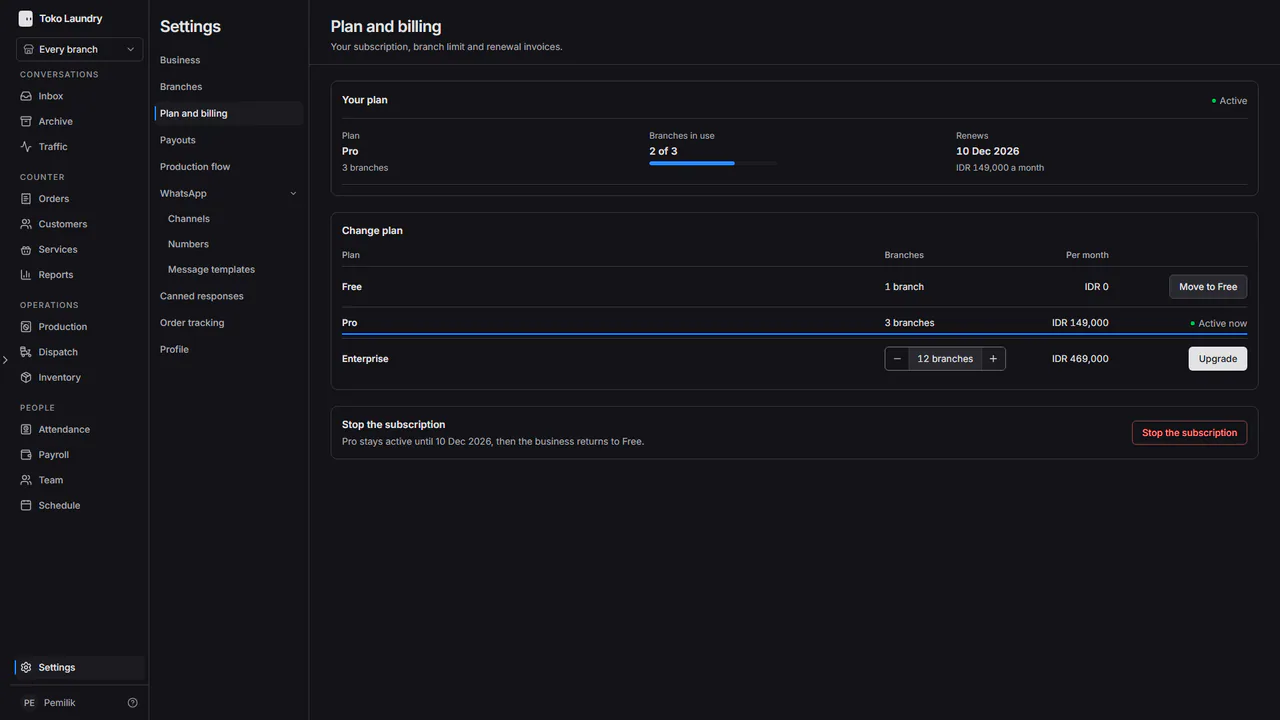
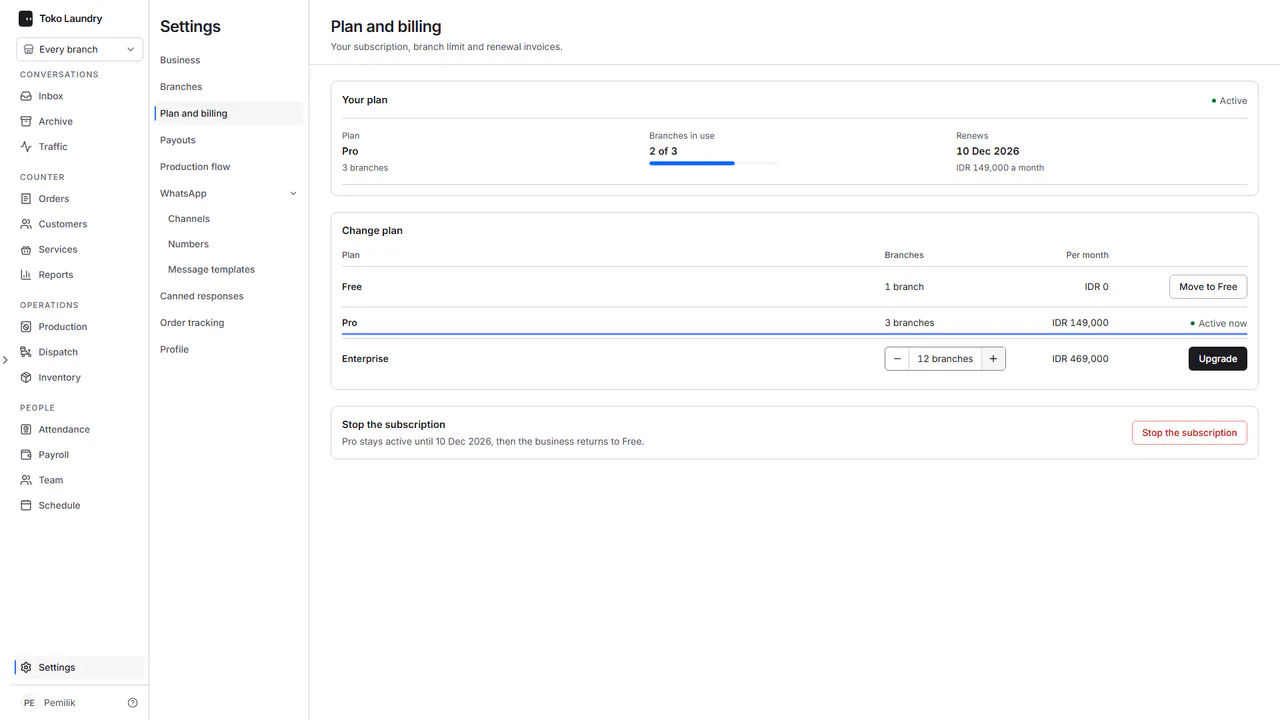
Press Upgrade on a bigger plan, or Switch to a smaller paid plan. The plan in use is marked Active now. While a paid plan runs, Free has a Move to Free button that opens the Stop the subscription dialog: the business returns to Free once the subscription stops.
After Upgrade, the Your plan card reads Preparing the Pro bill…, then Opening the payment page…, and the payment page opens by itself in the same tab. Finish paying there. If it does not open, press Open it yourself. When you come back before paying, the bill sits under the plan facts with its amount and due time, and Pay the bill opens it again.
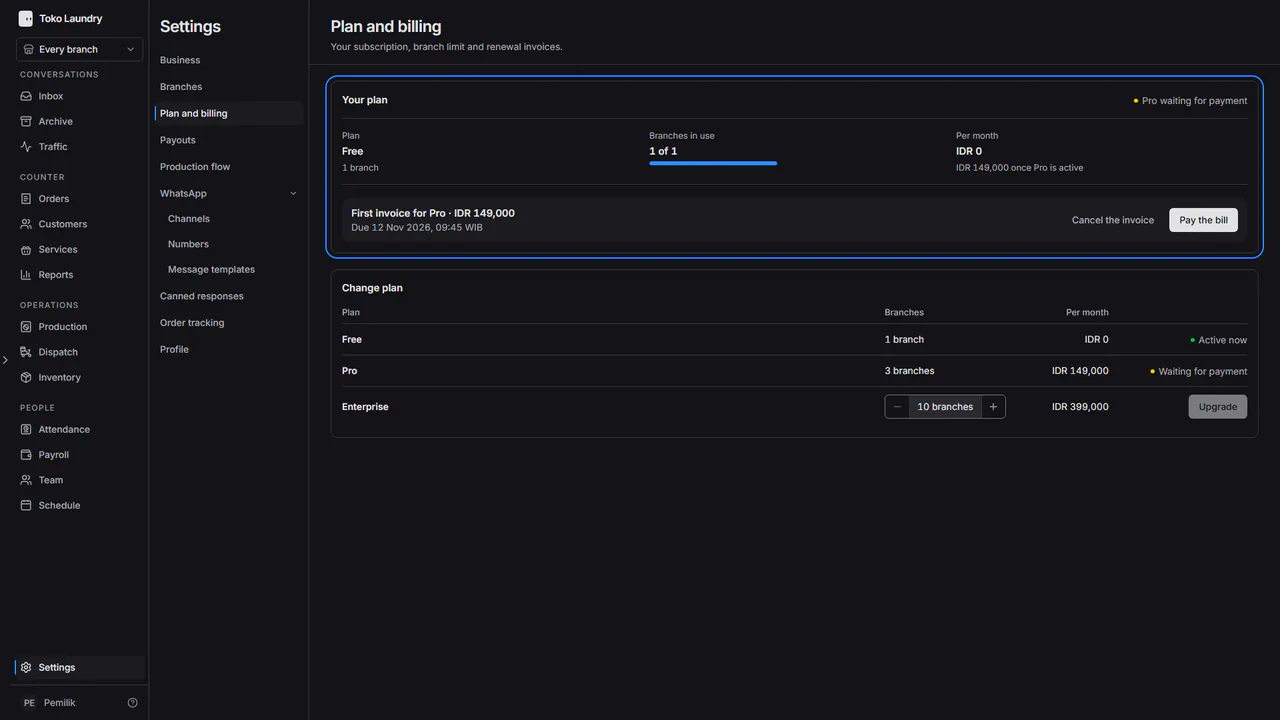
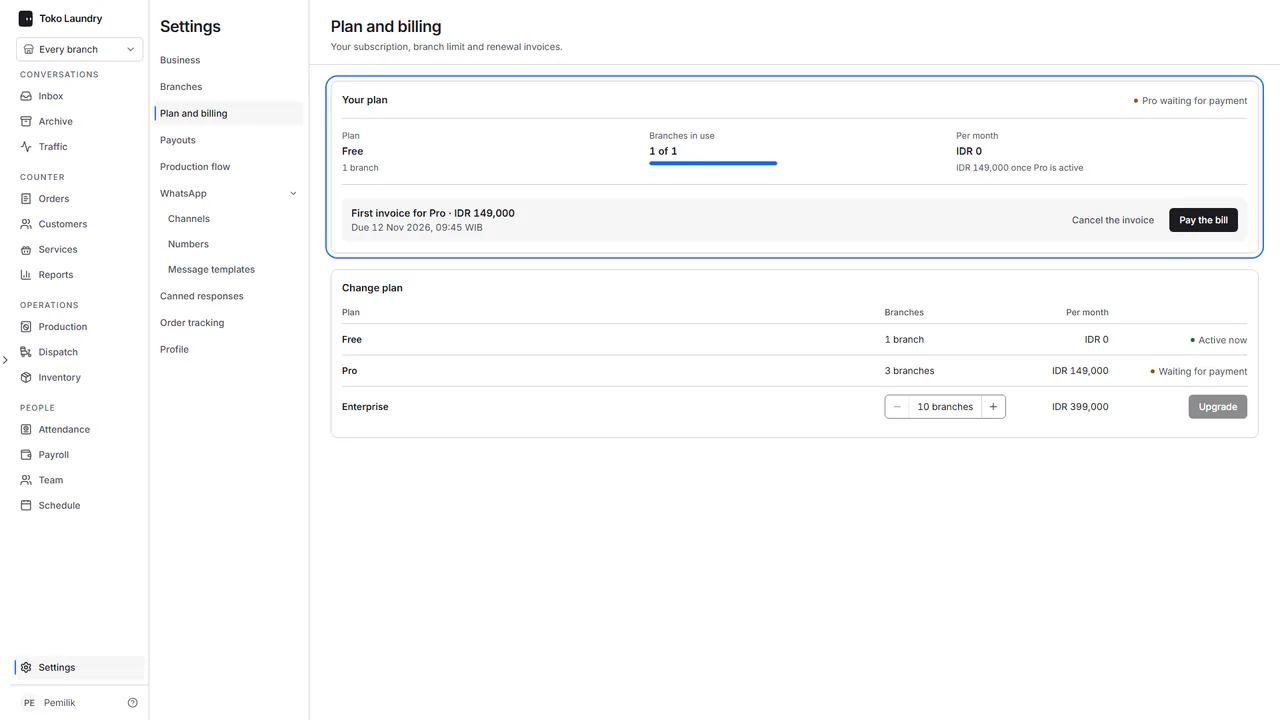
Nothing is taken from you on its own: you pay only when you open the bill. The renewal bill appears 3 days before the plan runs out and is sent by email. An open bill must be paid before the plan changes.
Cancelling the first invoice
Until the first invoice is paid, the business stays on Free. The page reads Pro waiting for payment, that plan's row reads Waiting for payment, and no other plan can be chosen.
In the invoice block, press Cancel the invoice.
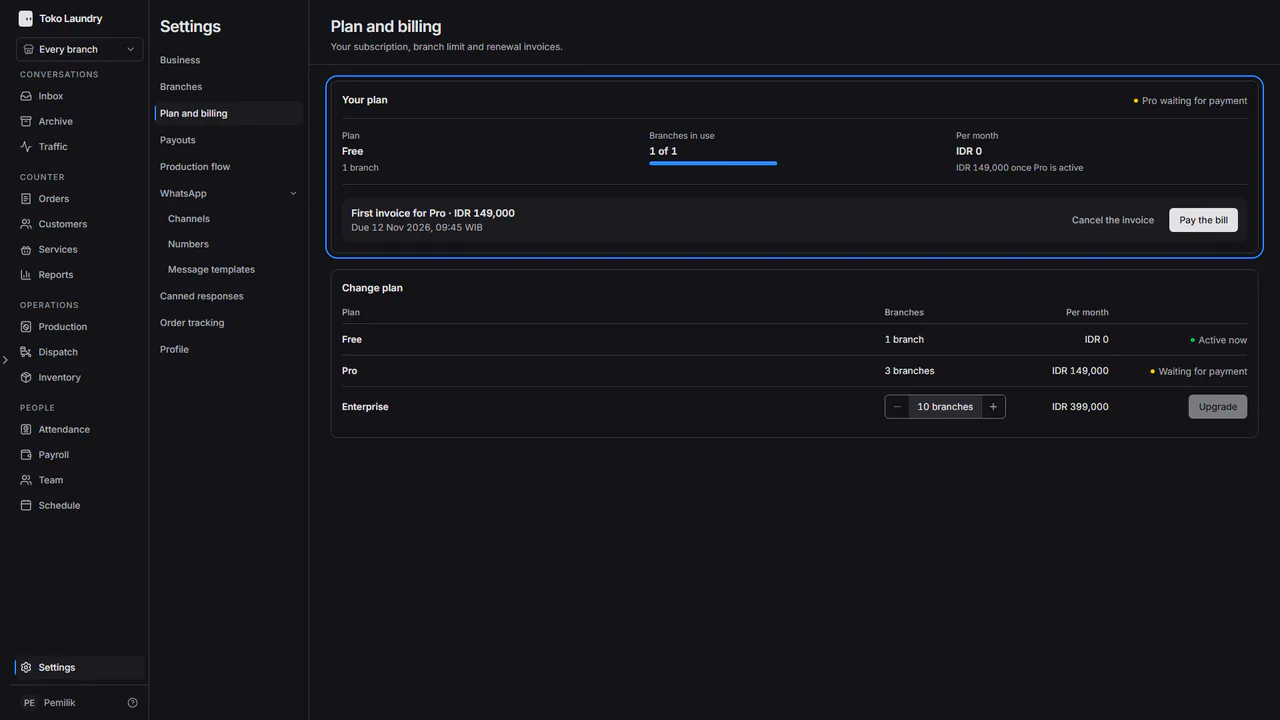
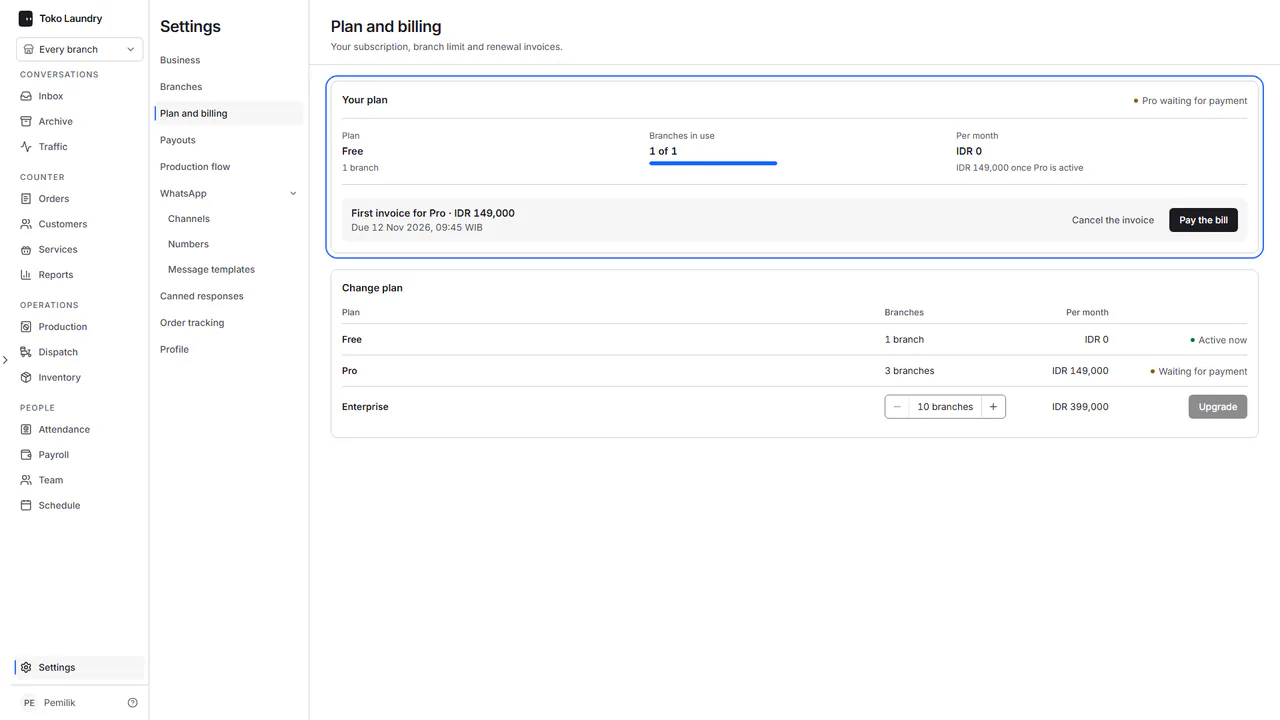
The dialog says what happens: the pay link stops working and no money has been taken. Press Cancel the invoice, or Back to keep it.
The page reads Cancelling the Pro bill… for a few seconds, then the plan stays Free and every plan can be chosen again.
Steps to stop the subscription
In the Stop the subscription section, press Stop the subscription. The dialog says what happens: the plan stays active until the end of its term, then the business returns to Free.
Under Why are you stopping?, pick one reason: Too expensive for my business, I have fewer branches or closed one, Moving to another app, A feature I need is missing, I was only trying it out or Something else, then write your own reason in its box. Press Stop the subscription.
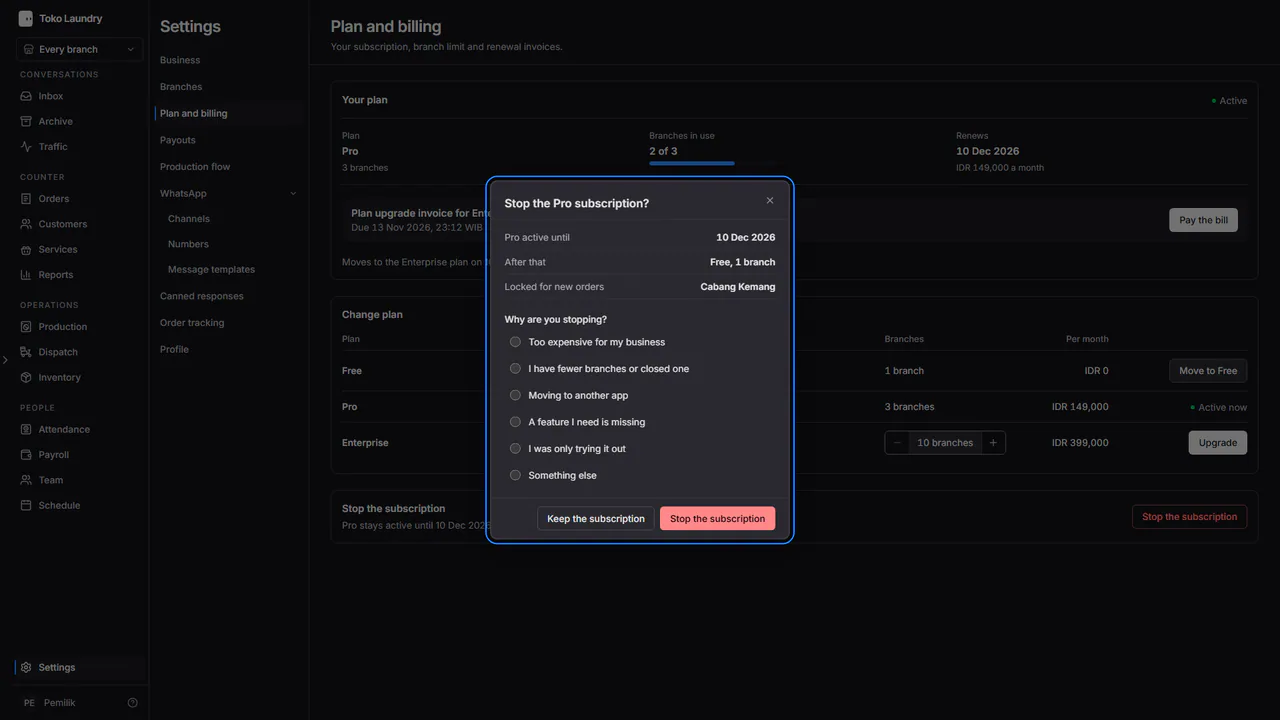
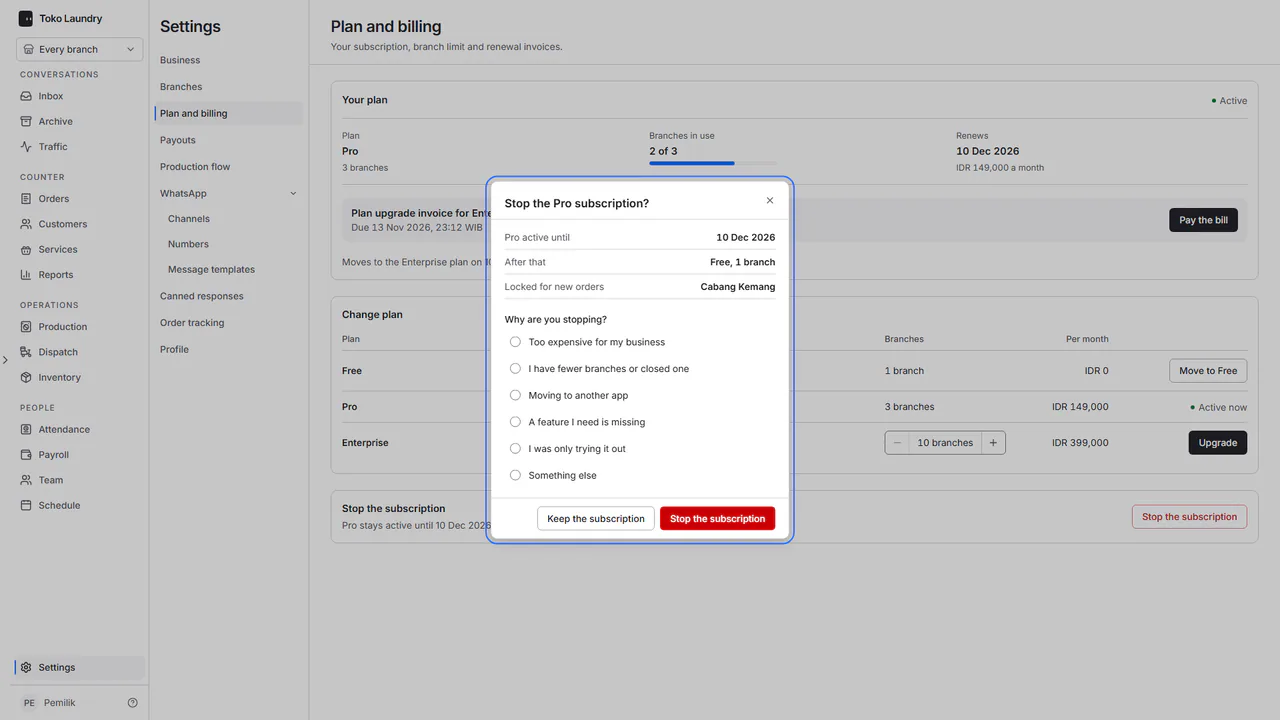
The page then reads Subscription stops with the date. Changed your mind before that date? Press Resume subscription in the same section: the plan no longer stops on that date and carries on as before. Once the date has passed, subscribe again by choosing a plan.
Branches over the plan limit
The renewal invoice arrives 3 days before the period ends, by email and at the top of the app with a Renew plan button.
When the plan is not renewed or is smaller than your branch count, the Free plan keeps the oldest branches across all your businesses open and the rest are Locked. Branches and businesses added on the paid plan lock completely, open orders included: the branch shows greyed with a Locked tag in the branch picker and cannot be chosen, and a business whose branches are all locked shows the same way in the business list. Opening a locked branch or business shows one page that names it. Its data stays saved, and renewing the plan opens it again. Choosing a smaller plan shows the branches that will lock before you agree.