Stock
For: Owner, Admin, Cashier, Production
Supplies per branch: add items, record use, restock and correct a count.
Inventory keeps each branch's supplies, such as detergent, softener and plastic bags, with the current stock and a record of every change. Stock purchases count as expenses in reports.
For owners, admins and production staff. Cashiers only record use.
Steps to add an item
Open Inventory and pick the branch in the sidebar's branch picker.
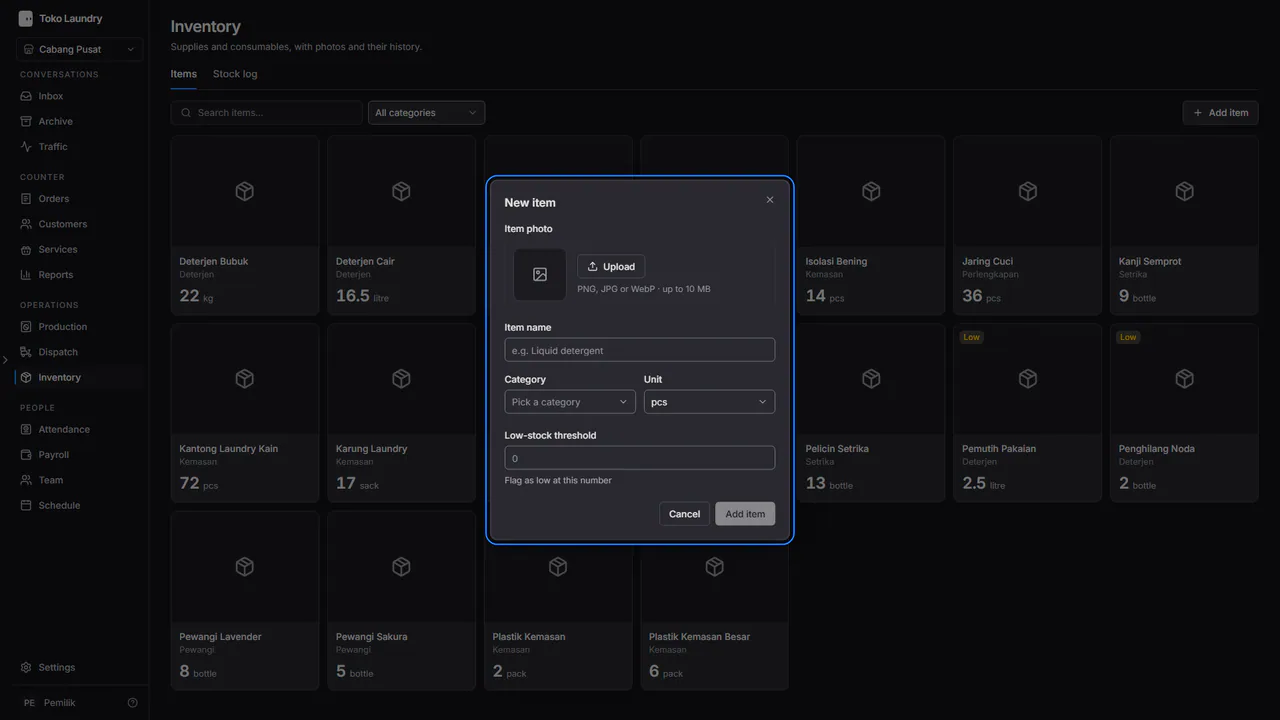
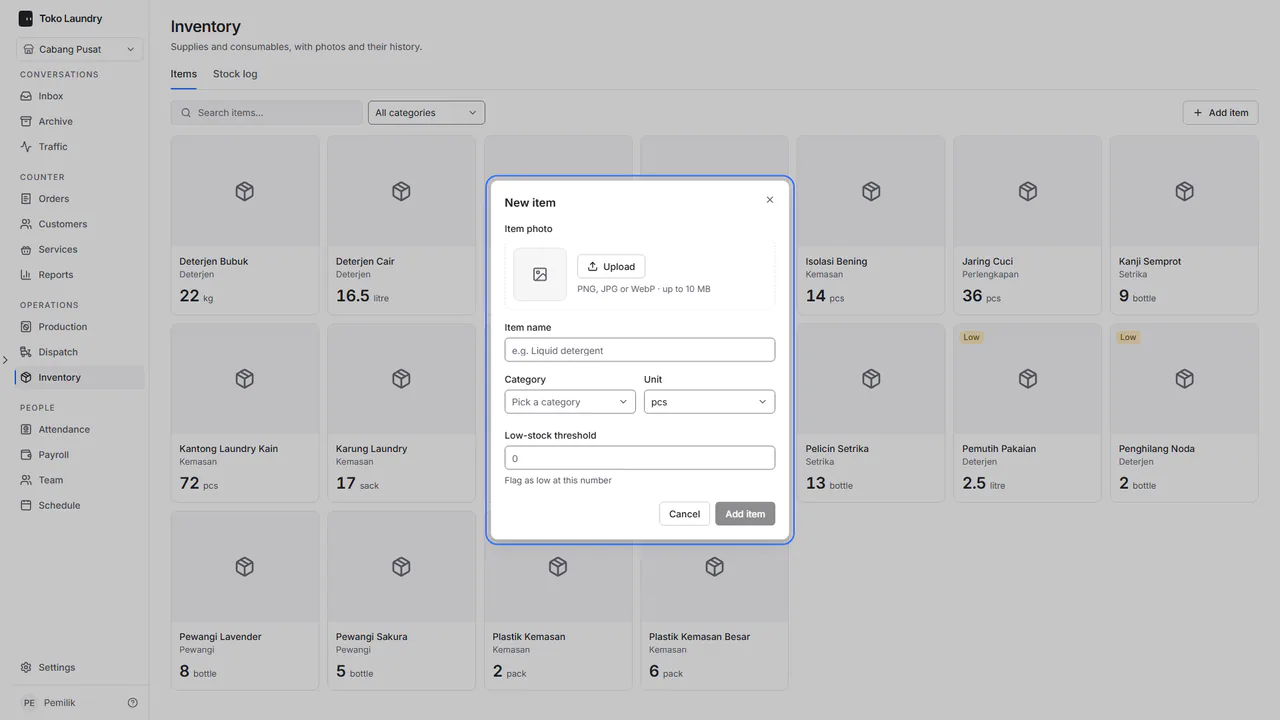
Press Add item. Fill in the name, category, unit and low-stock threshold, upload a photo if you have one, then press Add item in the dialog.
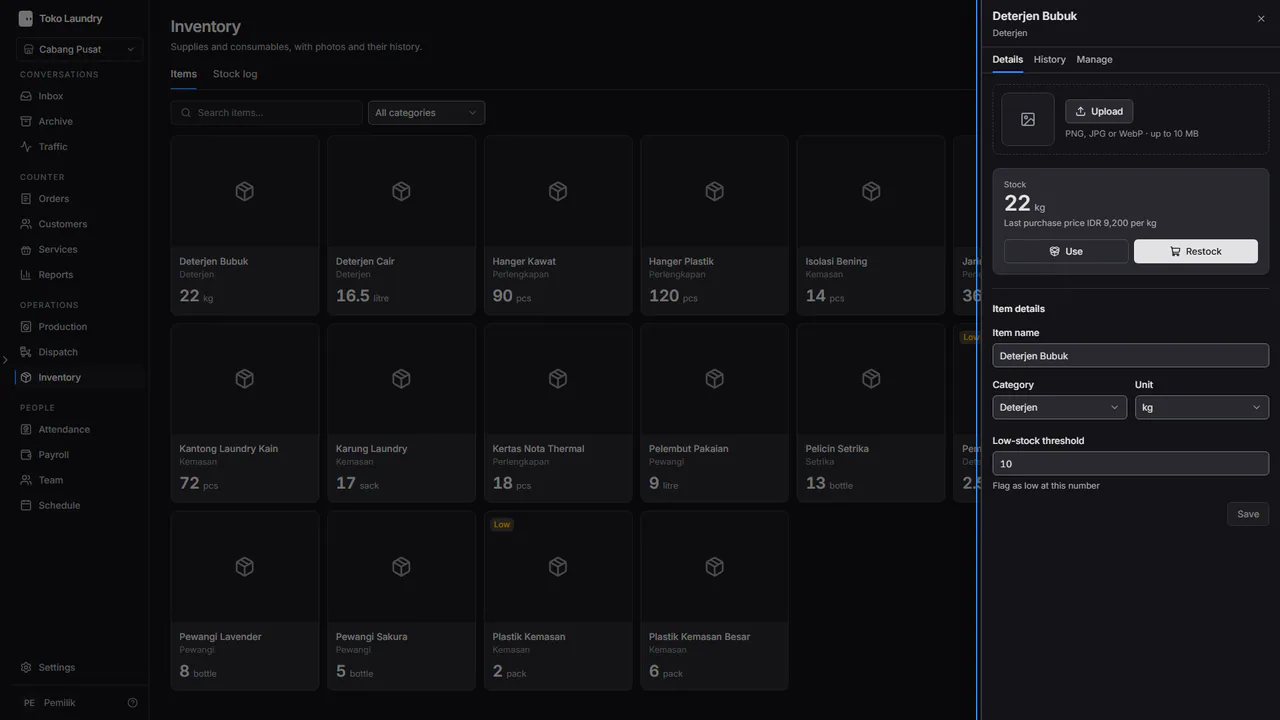
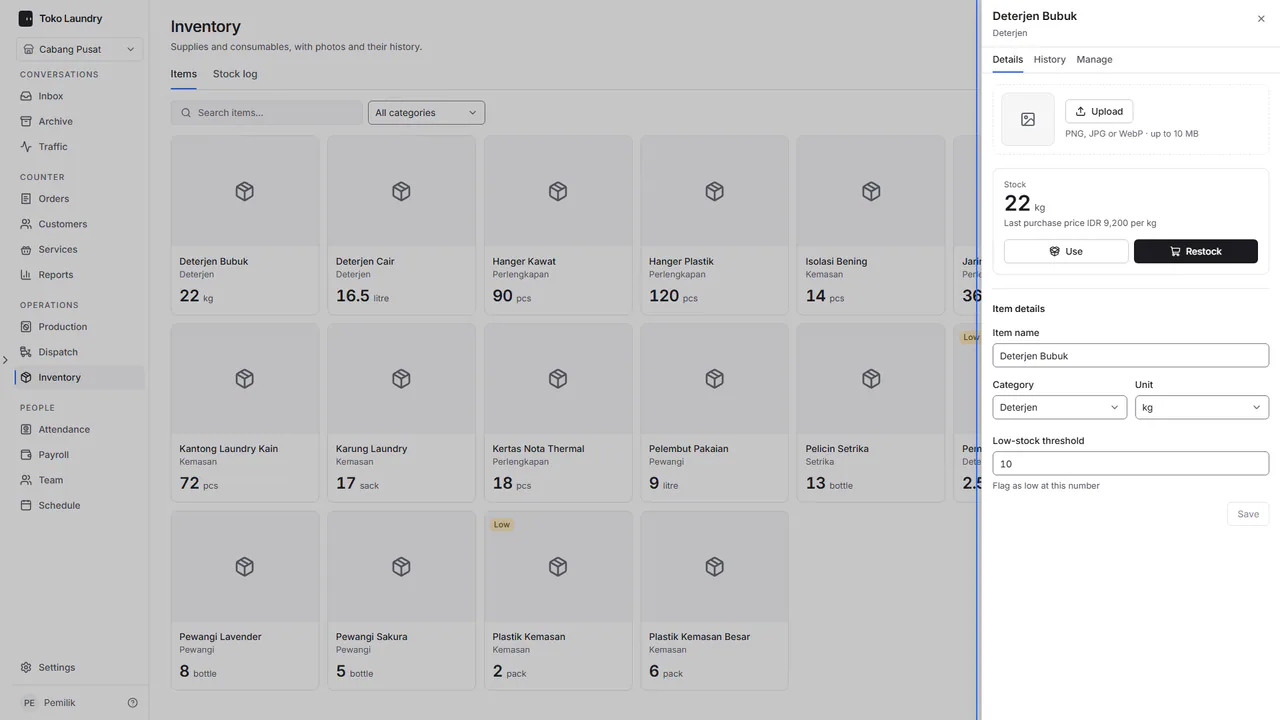
Press an item's card to open its sheet. An item at or under its low-stock threshold is marked Low, and Out at zero.
Steps to change the stock
Restock: fill in Quantity and Total purchase price, then press the save button at the bottom, such as Add 5 kg.
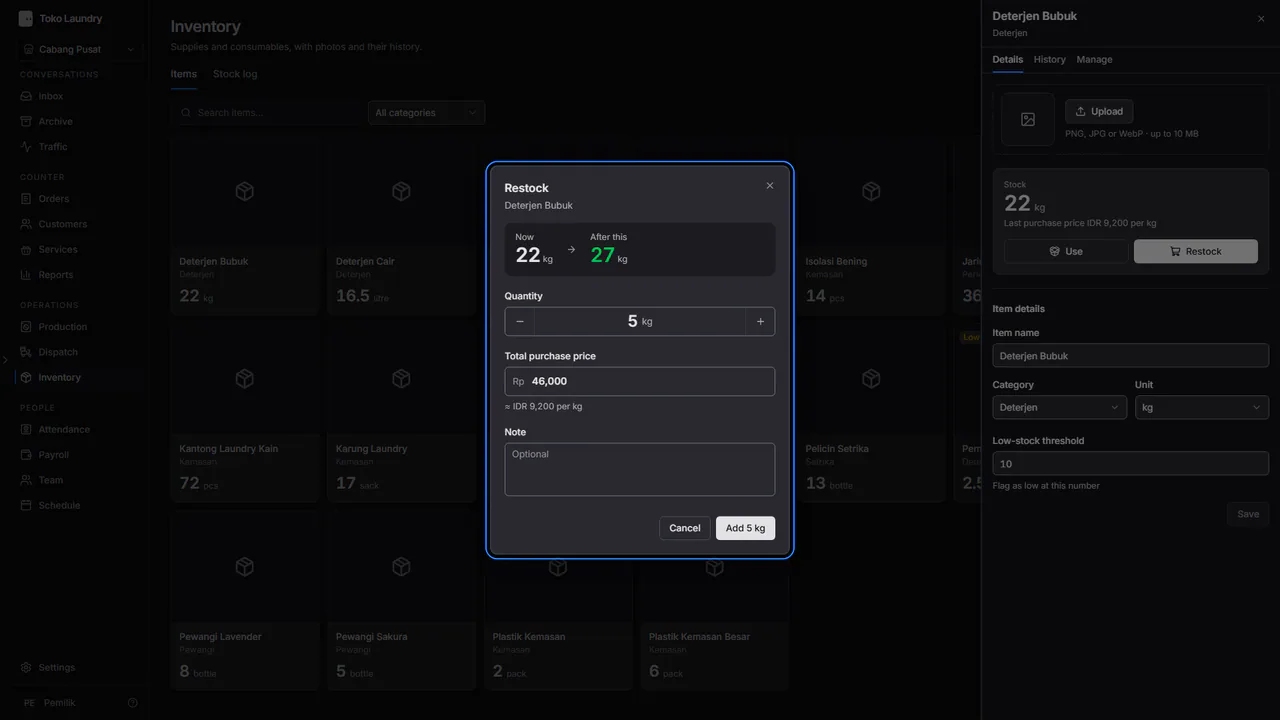
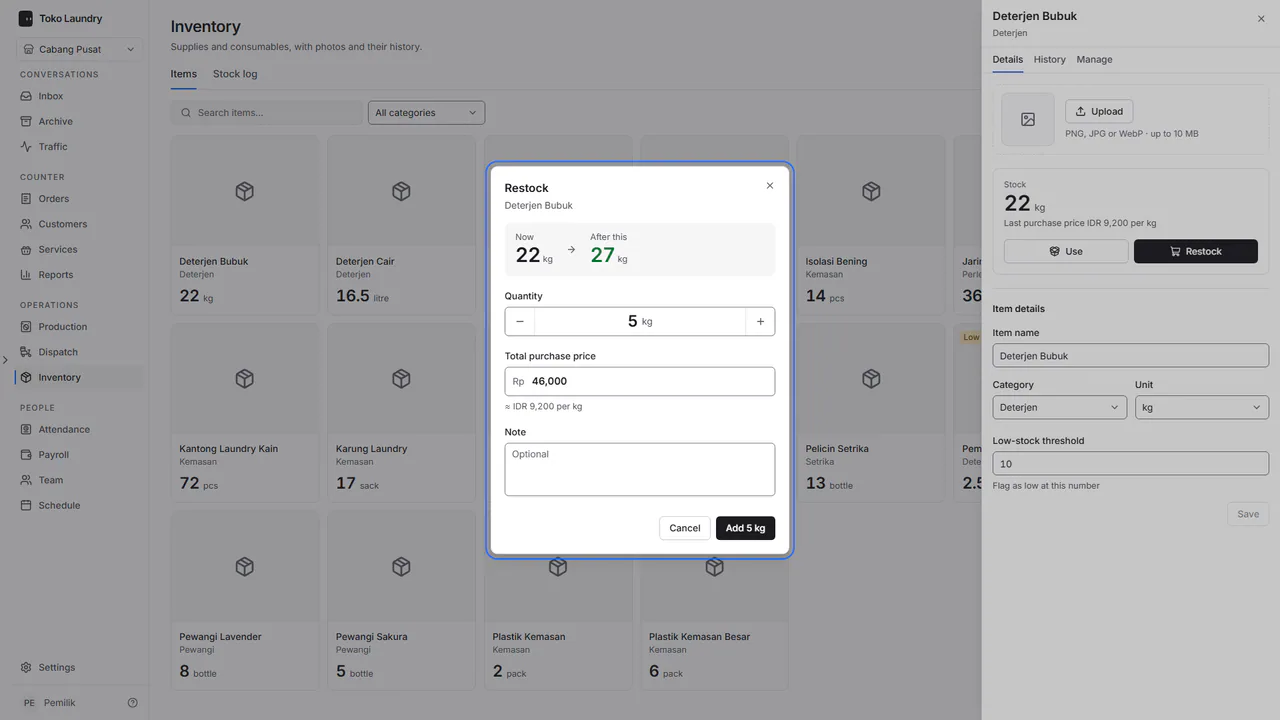
Use: fill in the amount used. An amount above the stock is refused with More than is on hand.
Correct stock: on the Manage tab, fill in Counted amount from the shelf, then press Save correction. The difference is recorded.
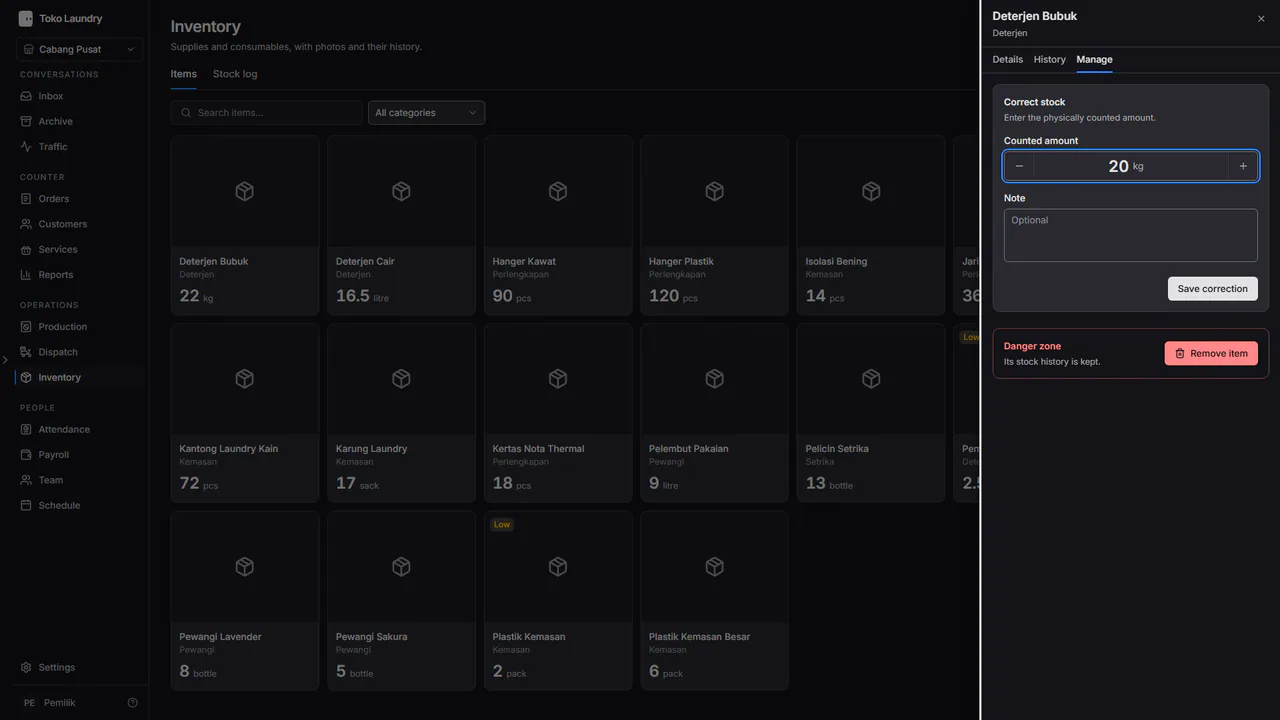
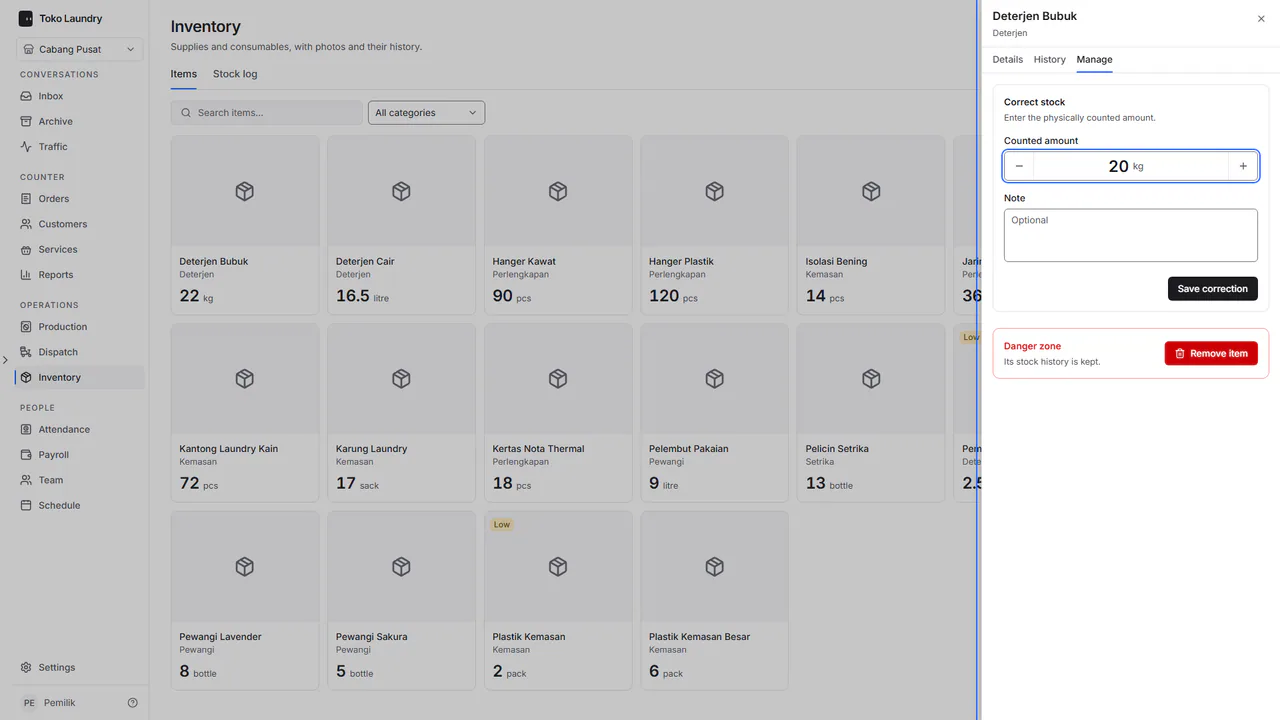
Remove item on the Manage tab hides the item, but its history stays.
Steps to read the stock log
Open Inventory, then the Stock log tab beside Items. Every change is recorded there with who made it and when, grouped by day.
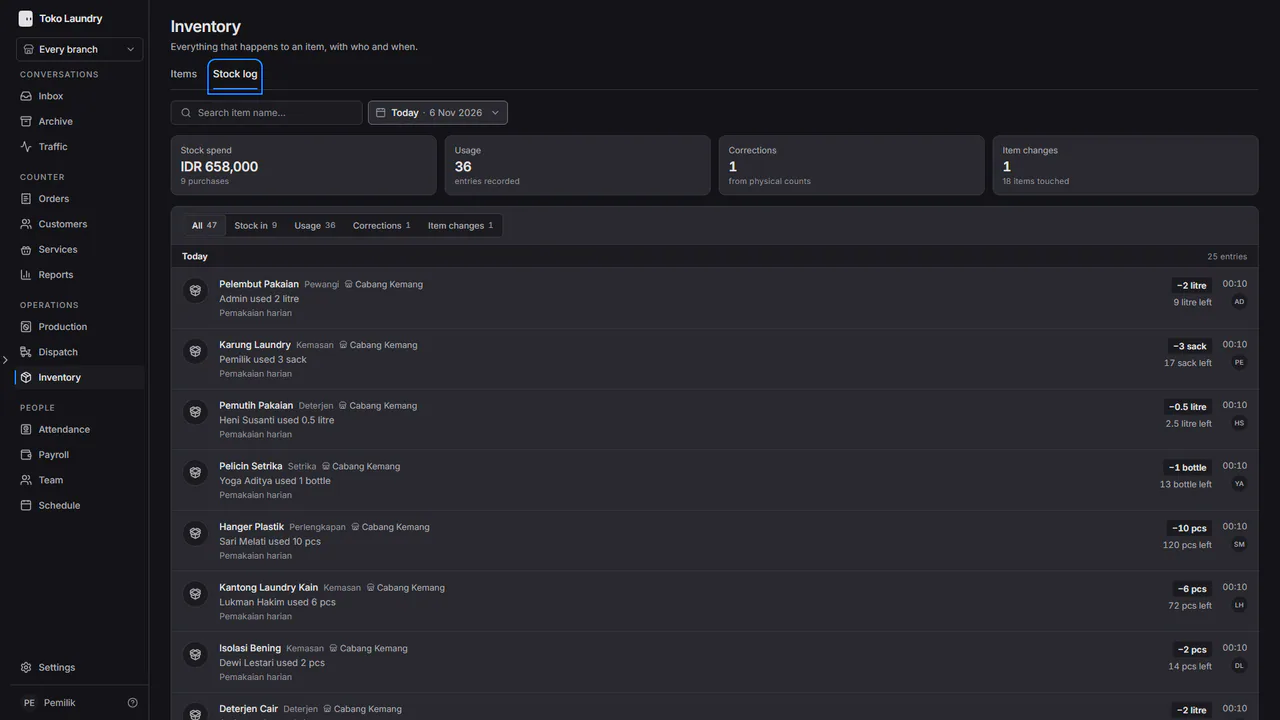
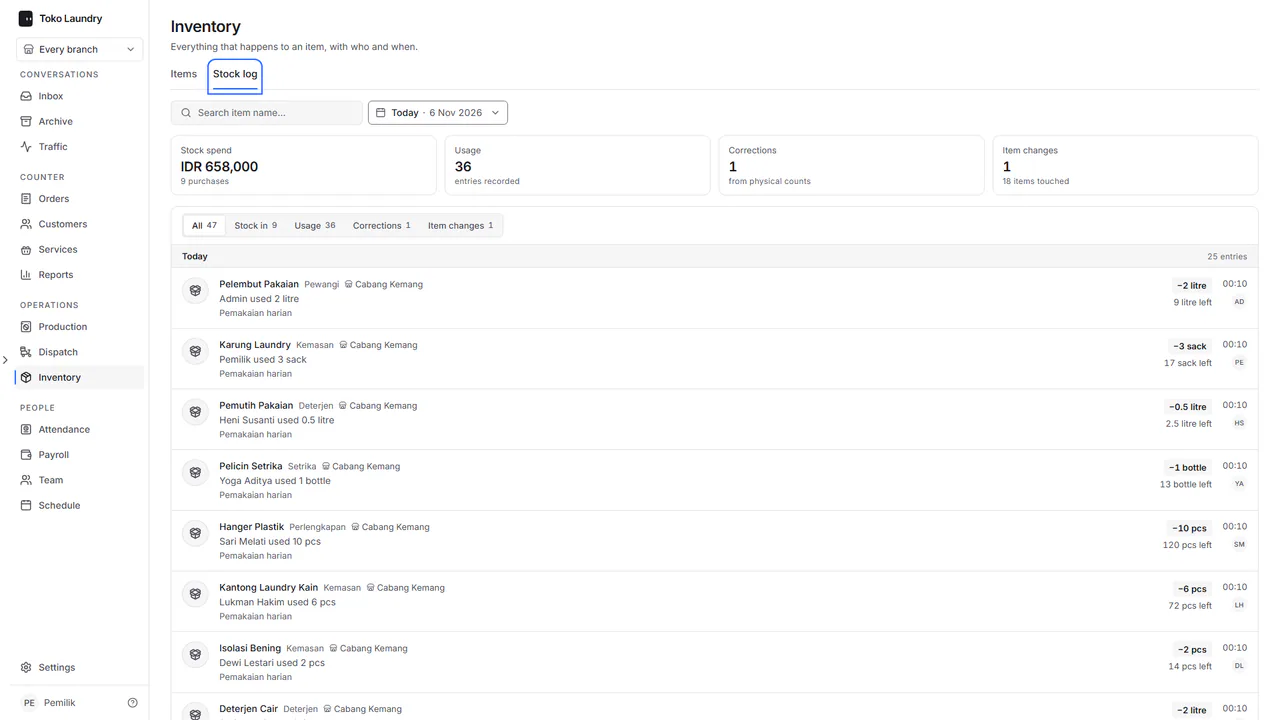
The summary at the top counts Stock spend, Usage, Corrections and Item changes over the chosen range. Search an item name, pick the Entry type, or change the date range.