Owner guide
For: Owner
What only the owner does: the plan, the balance, payroll, handing over ownership and deleting the business.
The owner holds everything an admin does, plus the plan, the balance, payroll, handing over ownership and deleting the business. Owners do not clock in.
For owners. After signing in, you land on the Inbox.
Steps to receive chats automatically
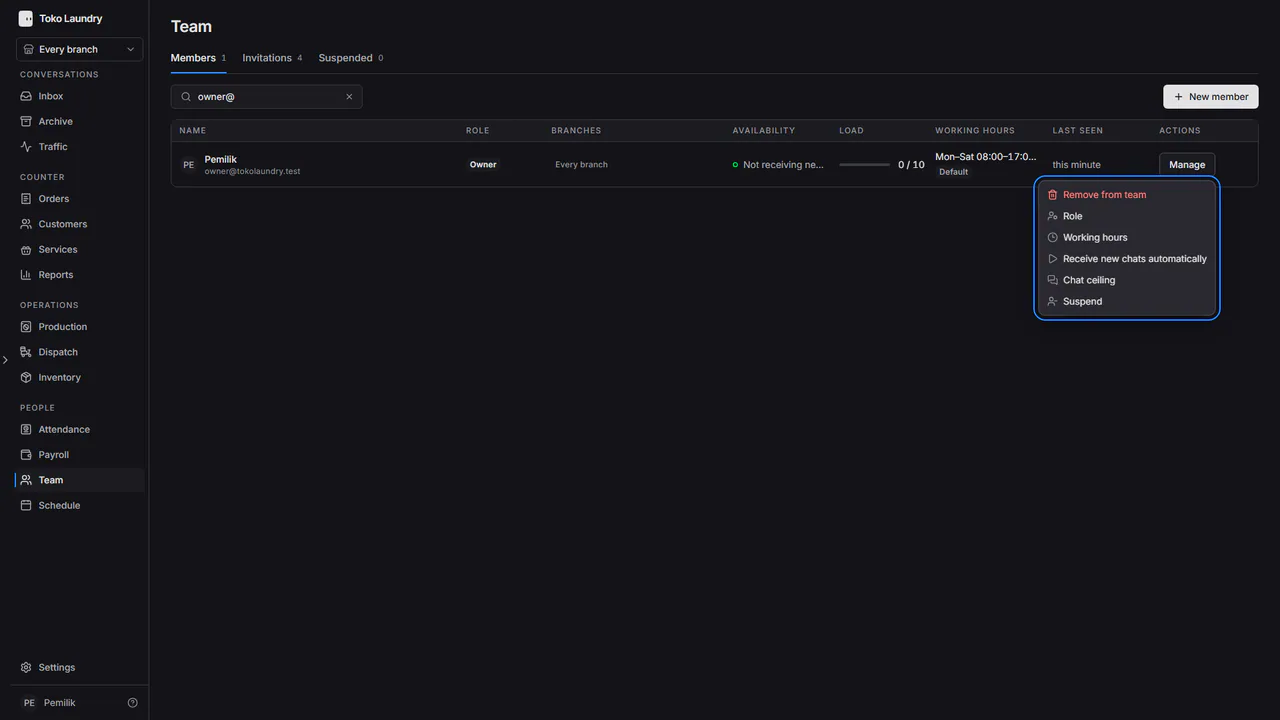
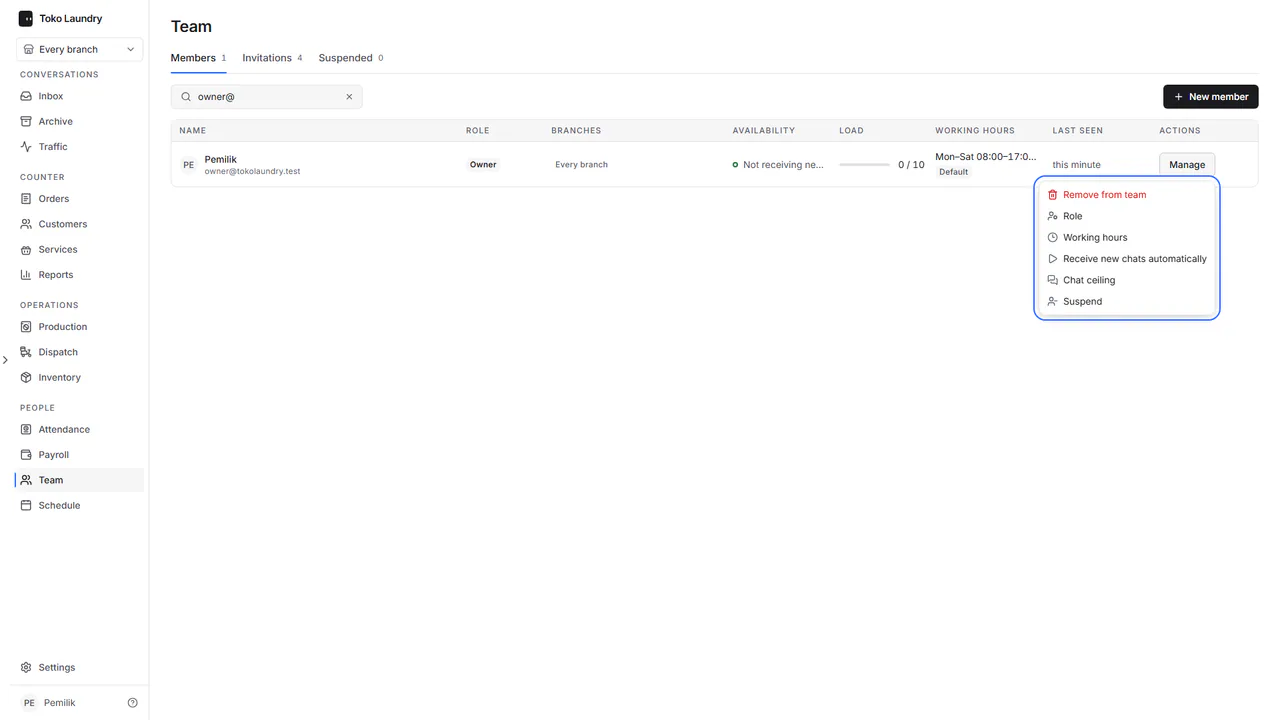
Open Team and press Manage on your own row.
Pick Receive new chats automatically. Chat ceiling in the same menu caps how many conversations you handle at once.
The owner's work
- Reports shows Net profit with payroll. See reports.
- Settings > Plan and billing chooses, changes and stops the plan. See plans and billing.
- Settings > Payouts registers the bank account and withdraws the online payment balance. See balance and withdrawals.
- Schedule plans tasks in My week, lays out every member's day in Team and finds a shared free time in Find a time. See schedule.
- Attendance > Team calendar shows the team's attendance and leave for a whole month, and Attendance > Settings sets each branch's working hours, work days and clock-in radius. See attendance and payroll.
Steps to set salaries
Open Payroll. It lists every member with their base salary. Admins see nobody's salary.
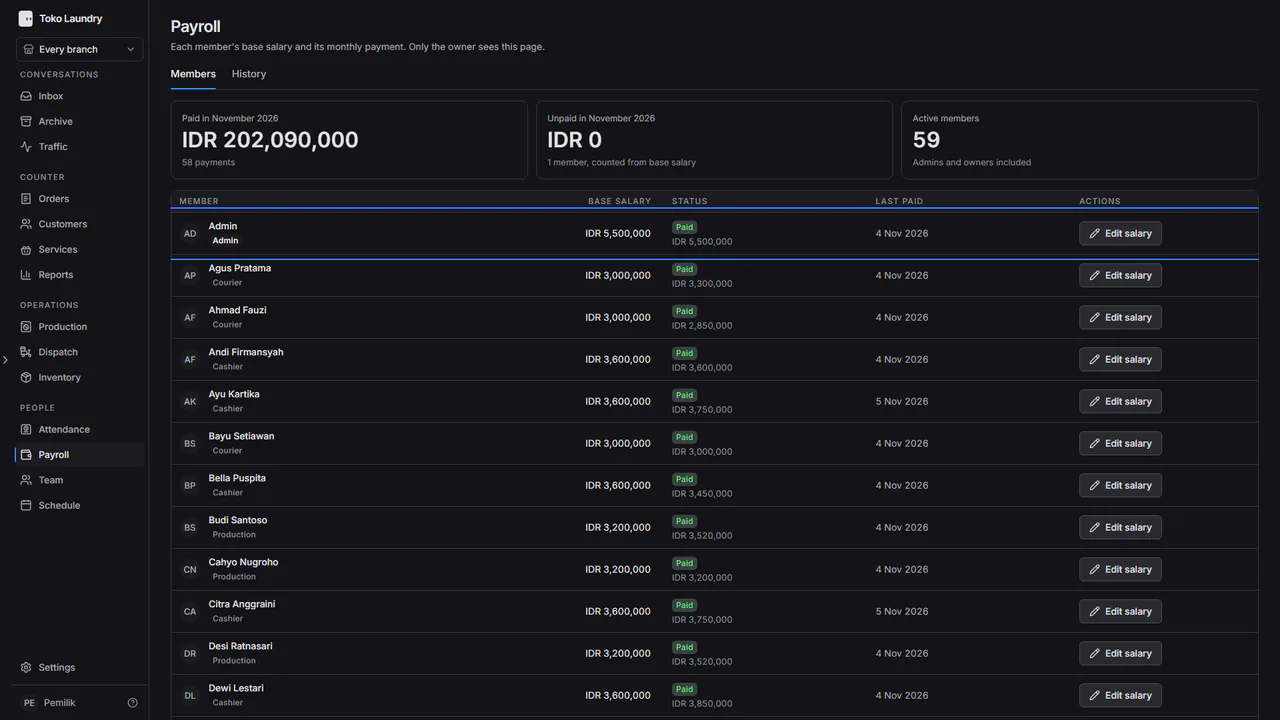
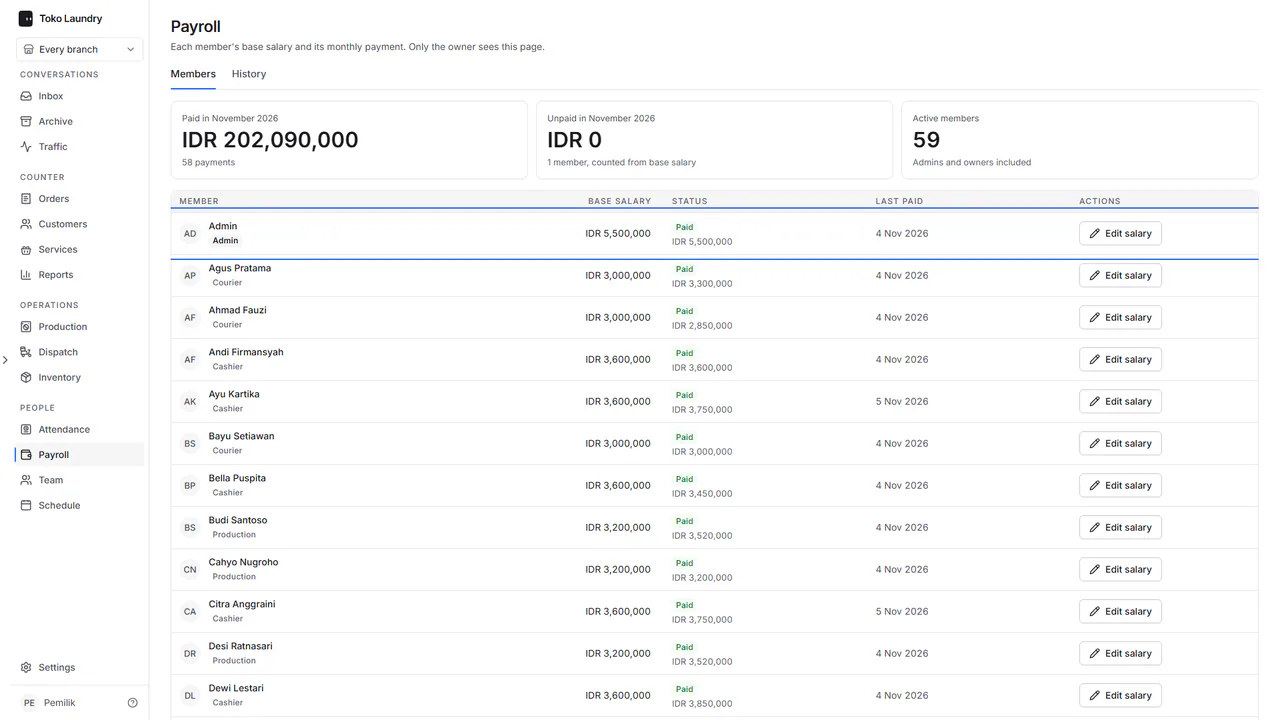
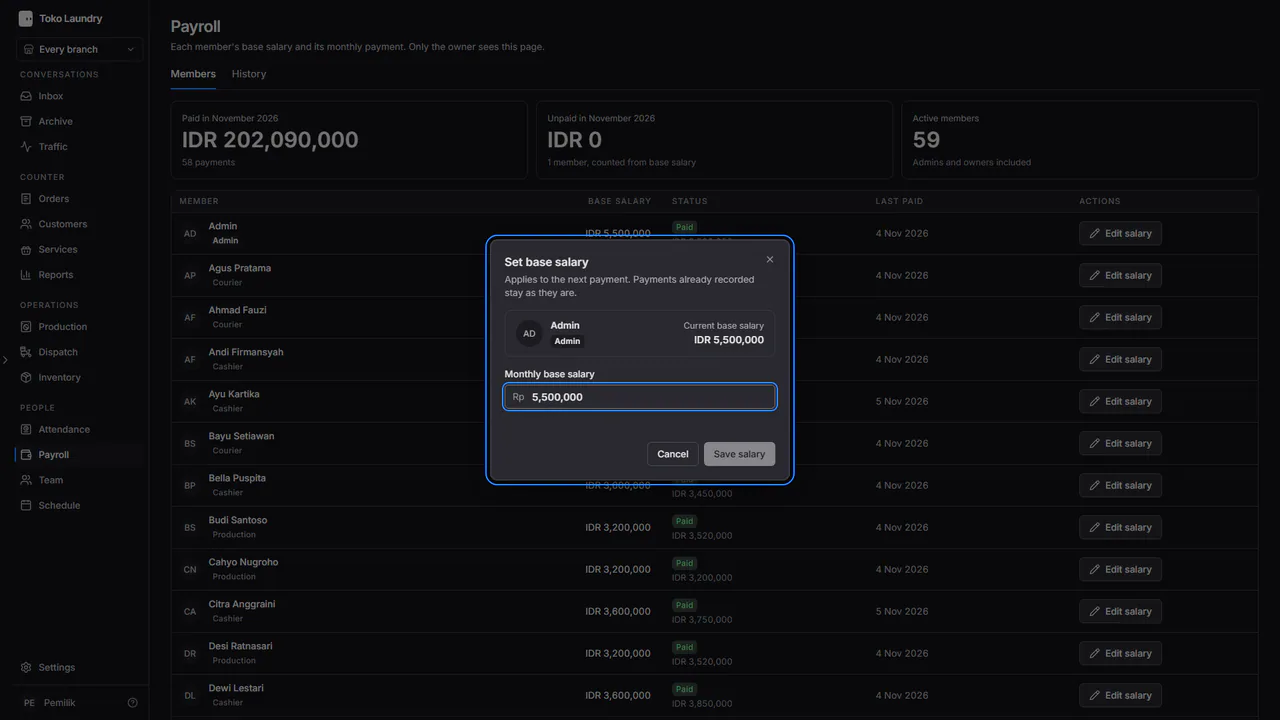
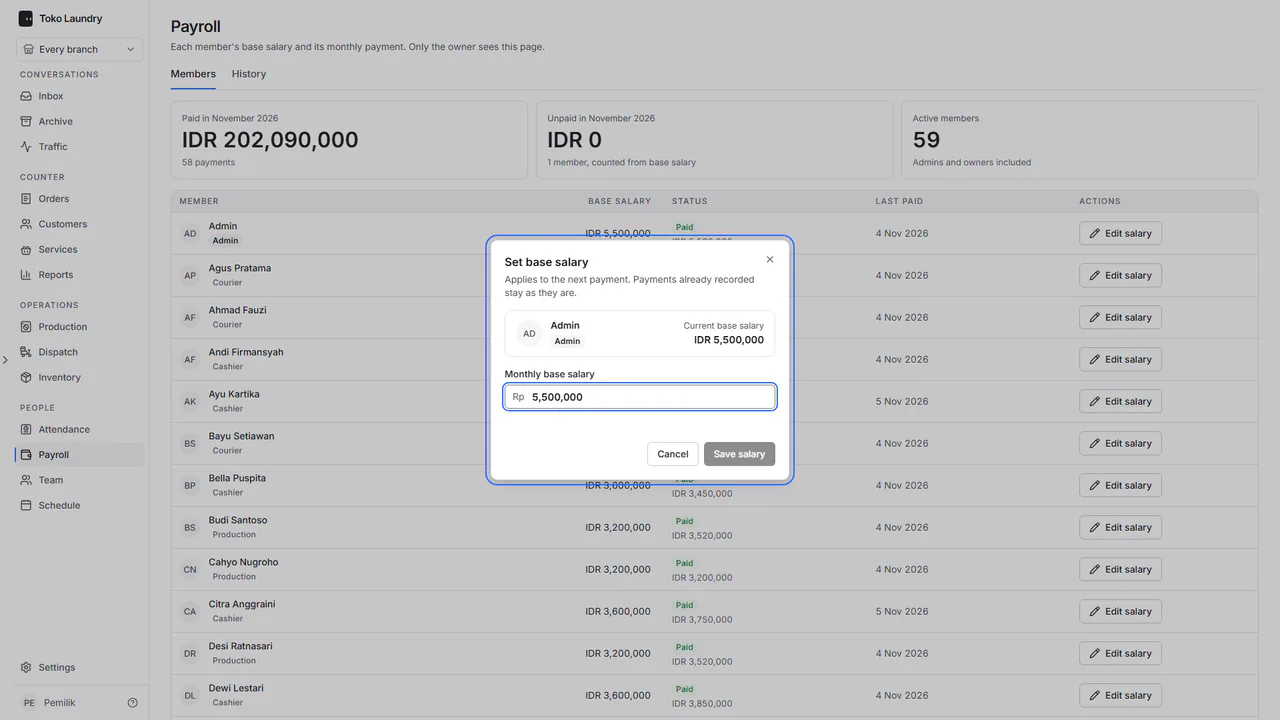
Press Edit salary on a member's row, fill in Monthly base salary, then press Save salary. The new salary applies from the next payment. Recording a payment is covered in attendance and payroll.
Steps to hand over ownership
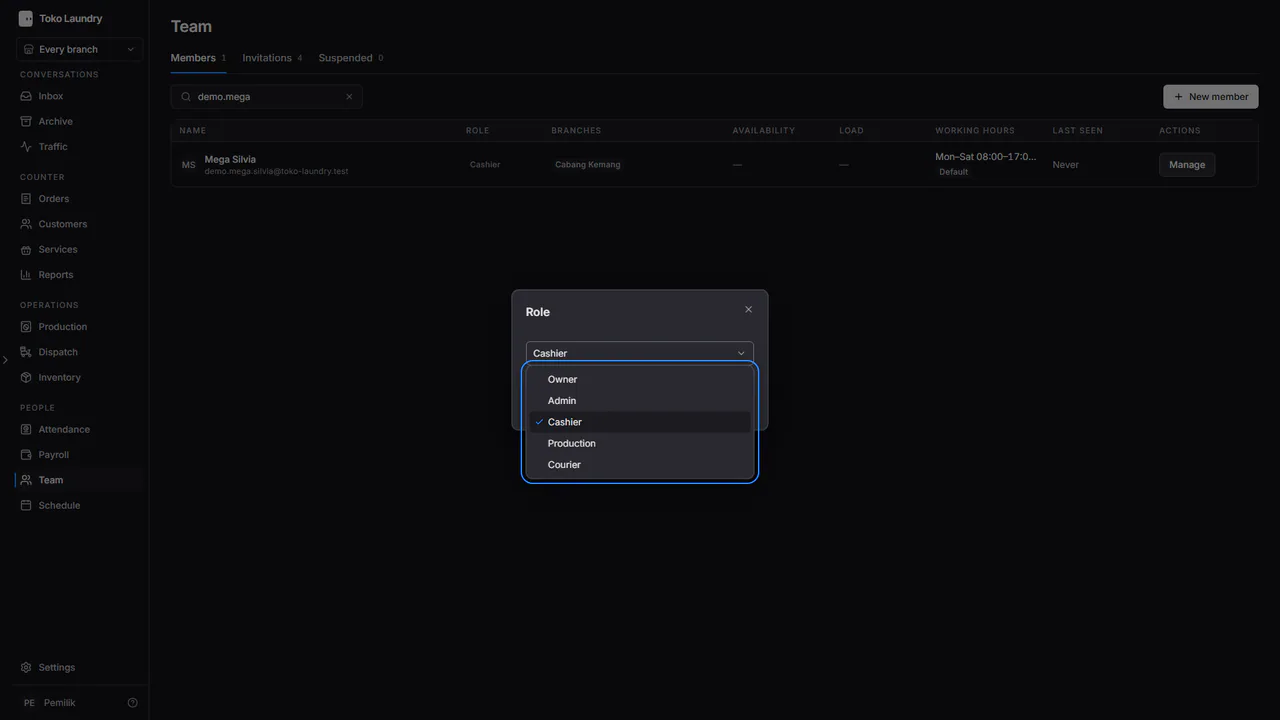
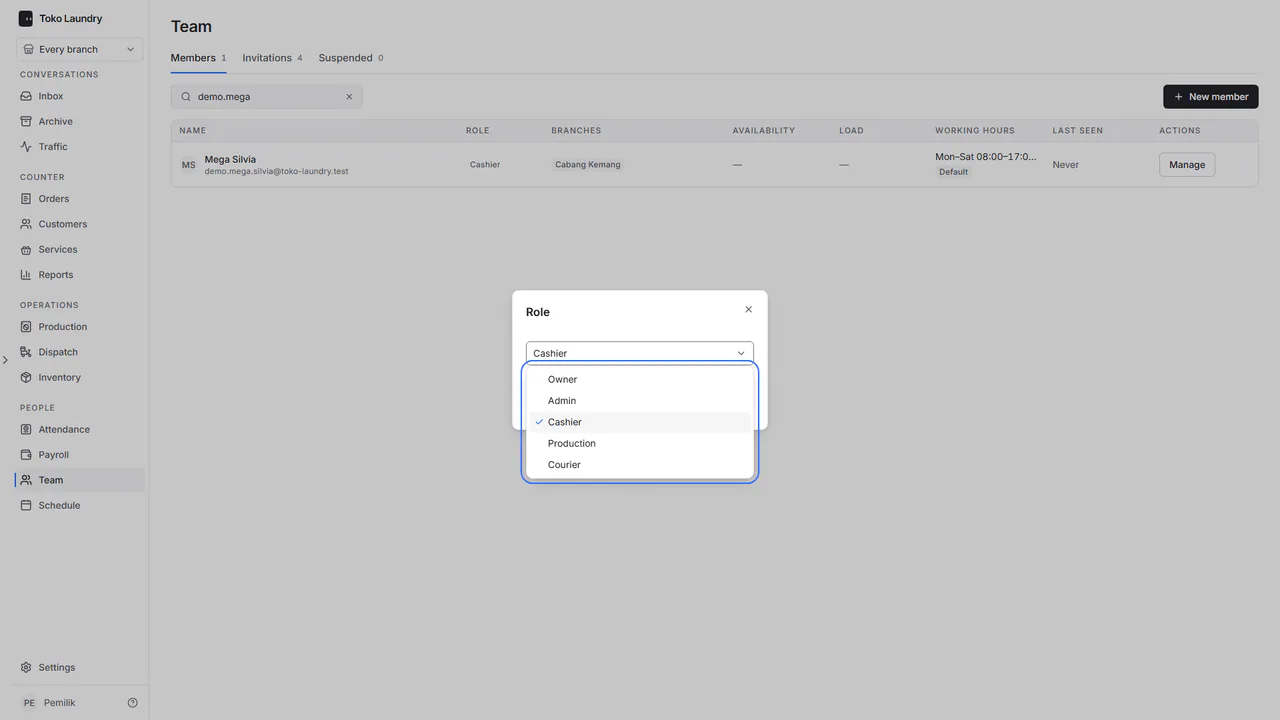
In Team, press Manage on the member's row, then pick Role.
Pick Owner and save. A business always keeps one active owner, so the last owner cannot be demoted.
Steps to delete the business
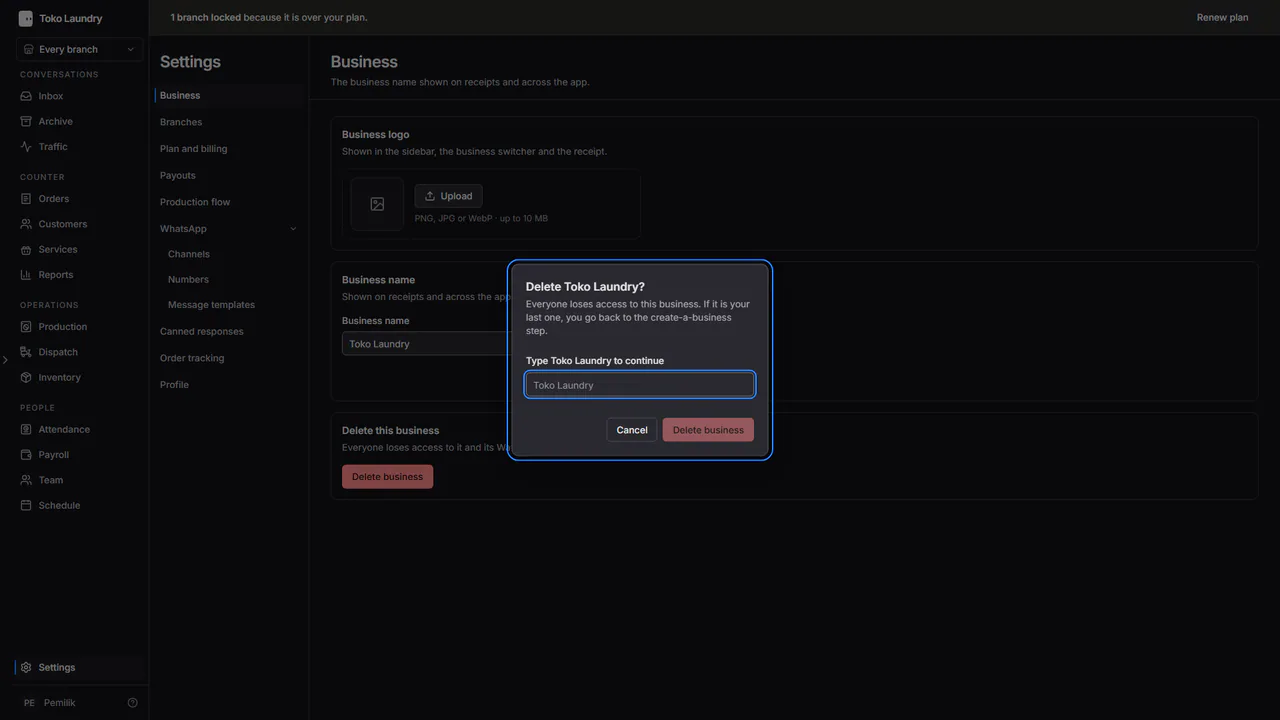
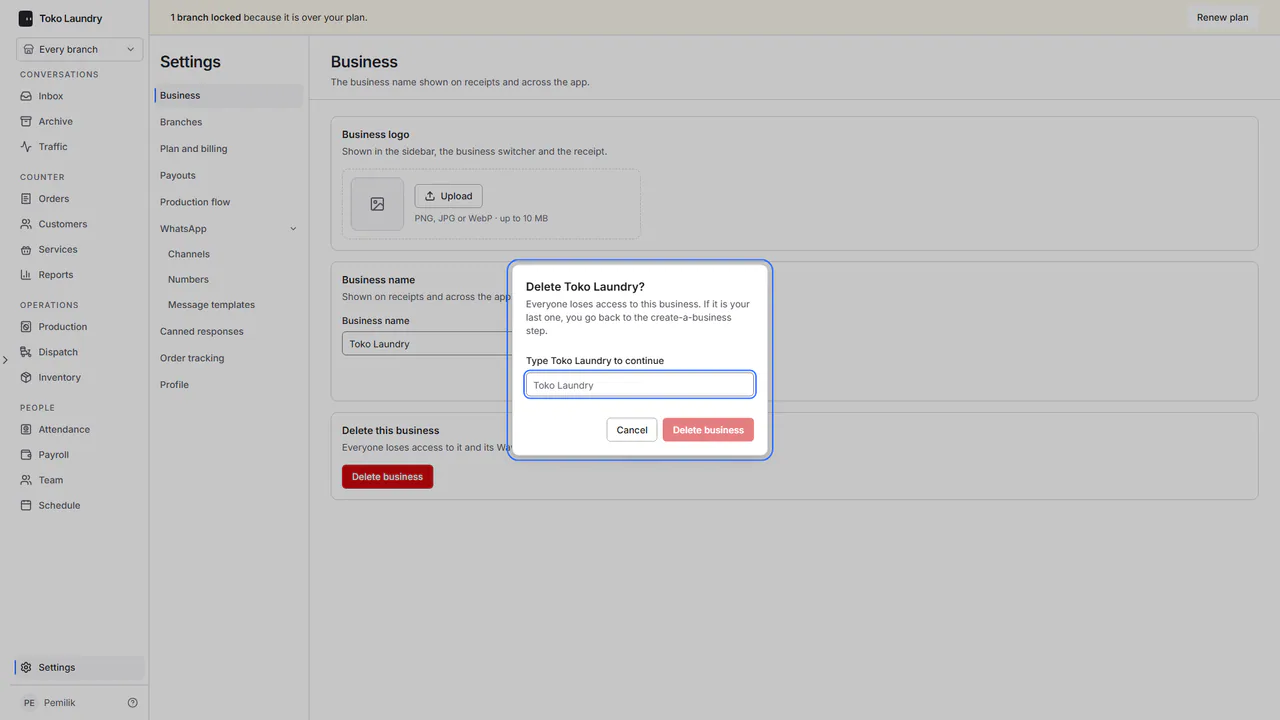
Open Settings > Business and press Delete business in the Delete this business section.
Type the business name, then press Delete business in the dialog. A business that still holds a balance cannot be deleted; withdraw it first. If it is your last business, you go back to the Create your laundry business step.