Orders
Find an order, read its work and payment status, then finish it from the order panel.
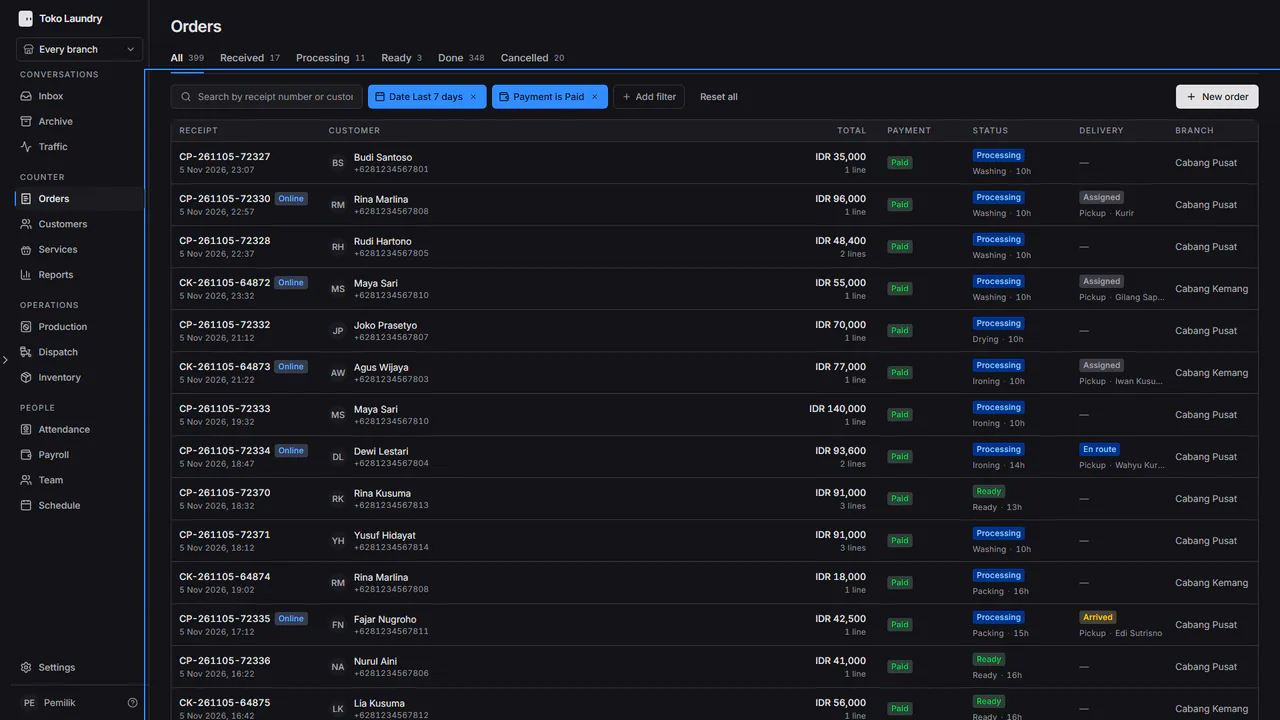
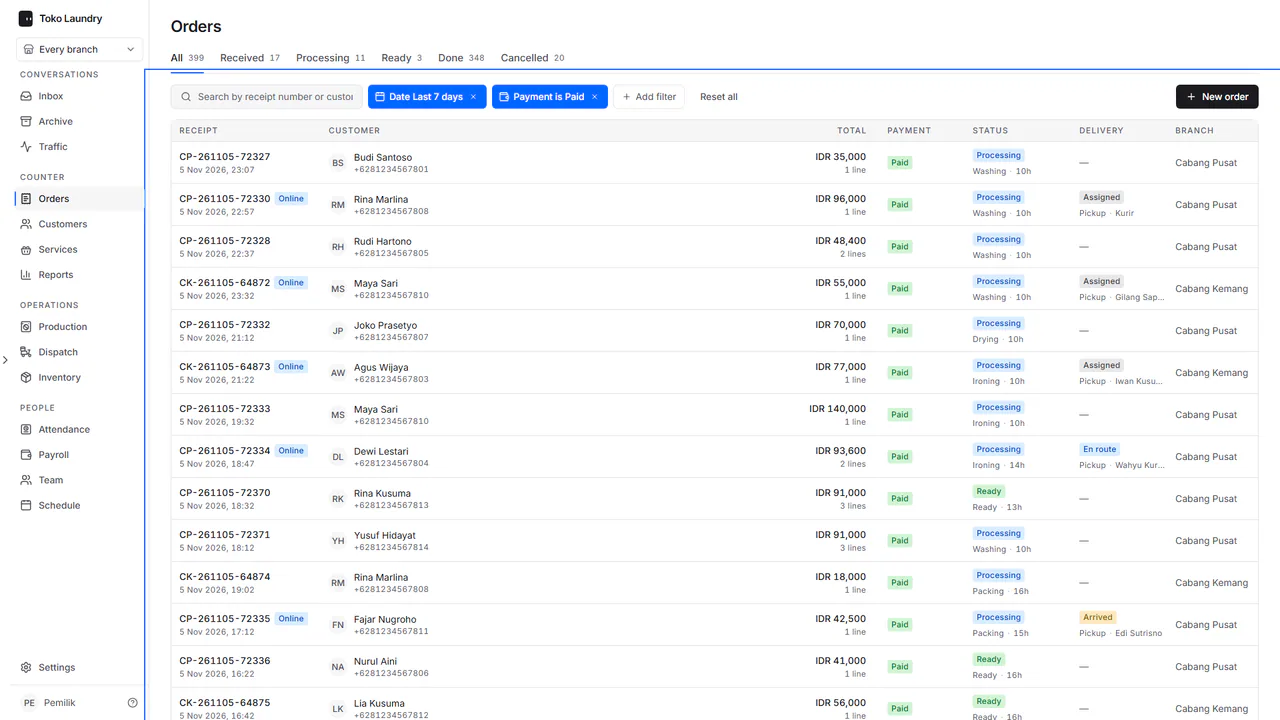
The Orders page lists every order with its work status and payment status. One order opens in the panel on the right, where you take payment, hand it over and send it out for delivery.
For owners, admins and cashiers. A cashier sees only their branch's orders.
Steps to find an order
Open Orders, then pick the All, Received, Processing, Ready, Completed or Cancelled tab. Each tab shows its count.
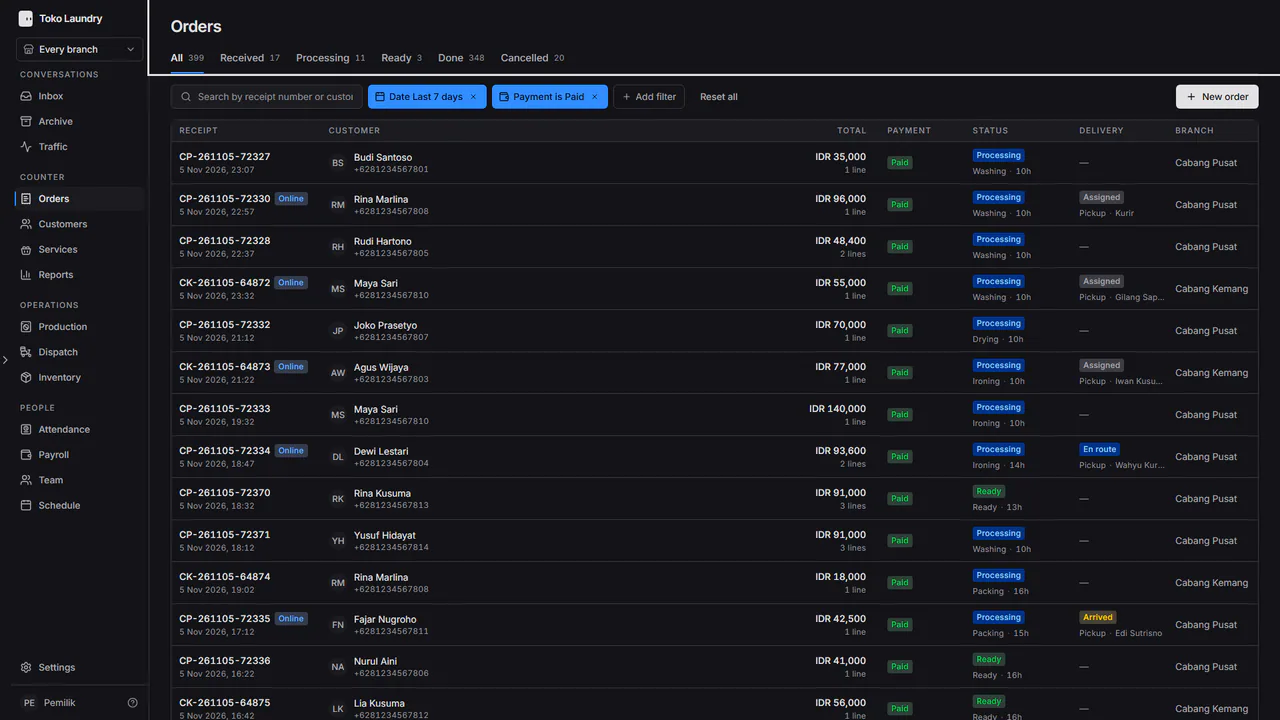
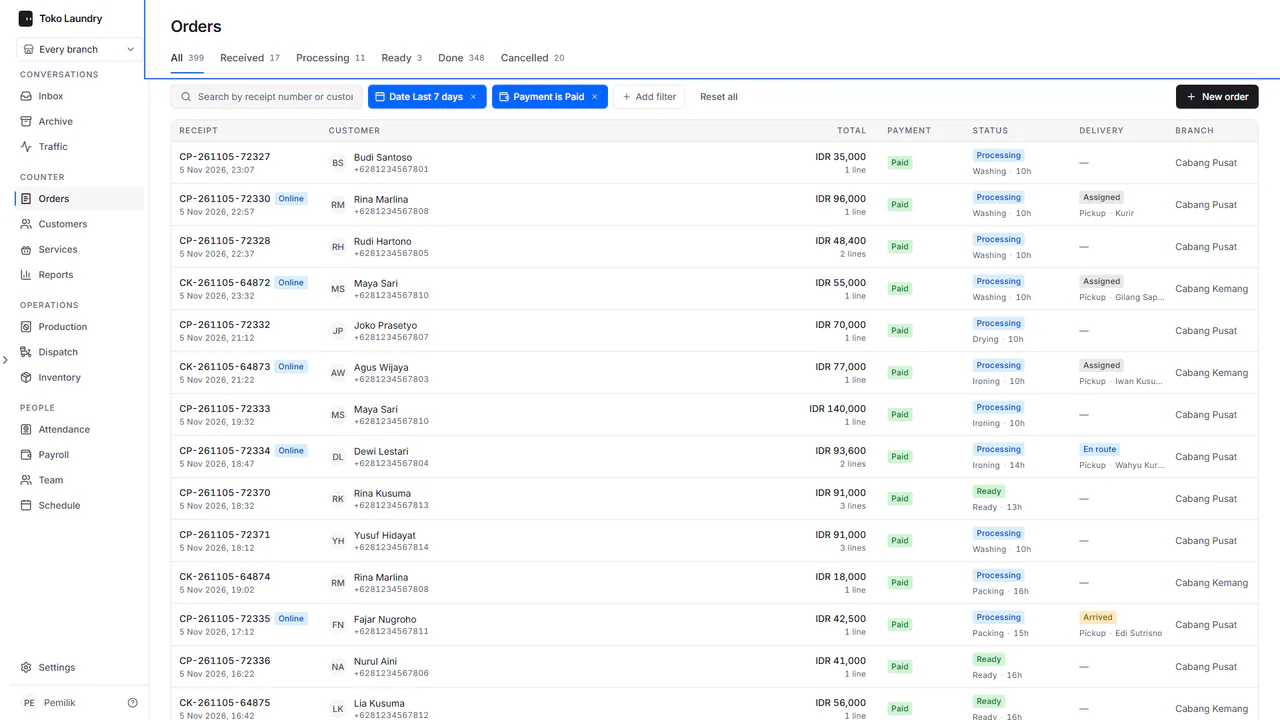
Type a receipt number or customer name in the search box. Press Add filter to filter by date, payment, order type or stage.
Steps to finish an order
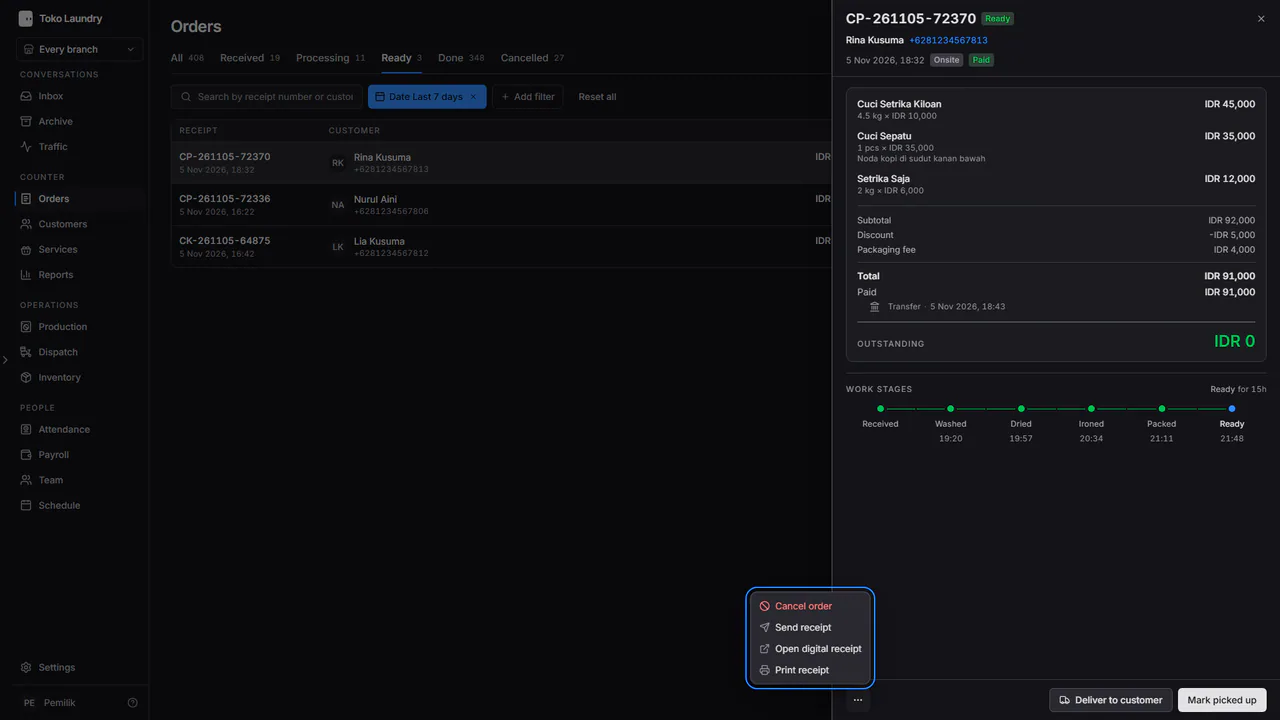
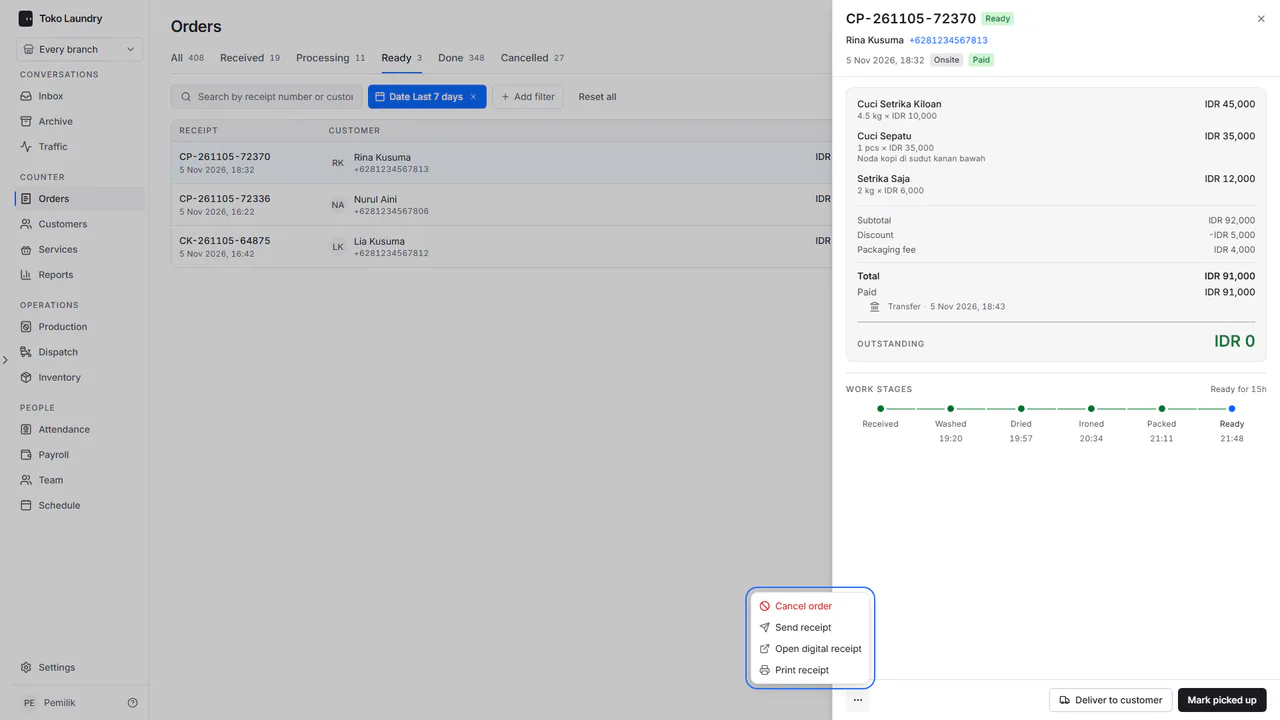
Pick the order's row. An order not yet paid is marked Awaiting payment, and the foot of the panel holds ⋯, Outstanding and Pay.
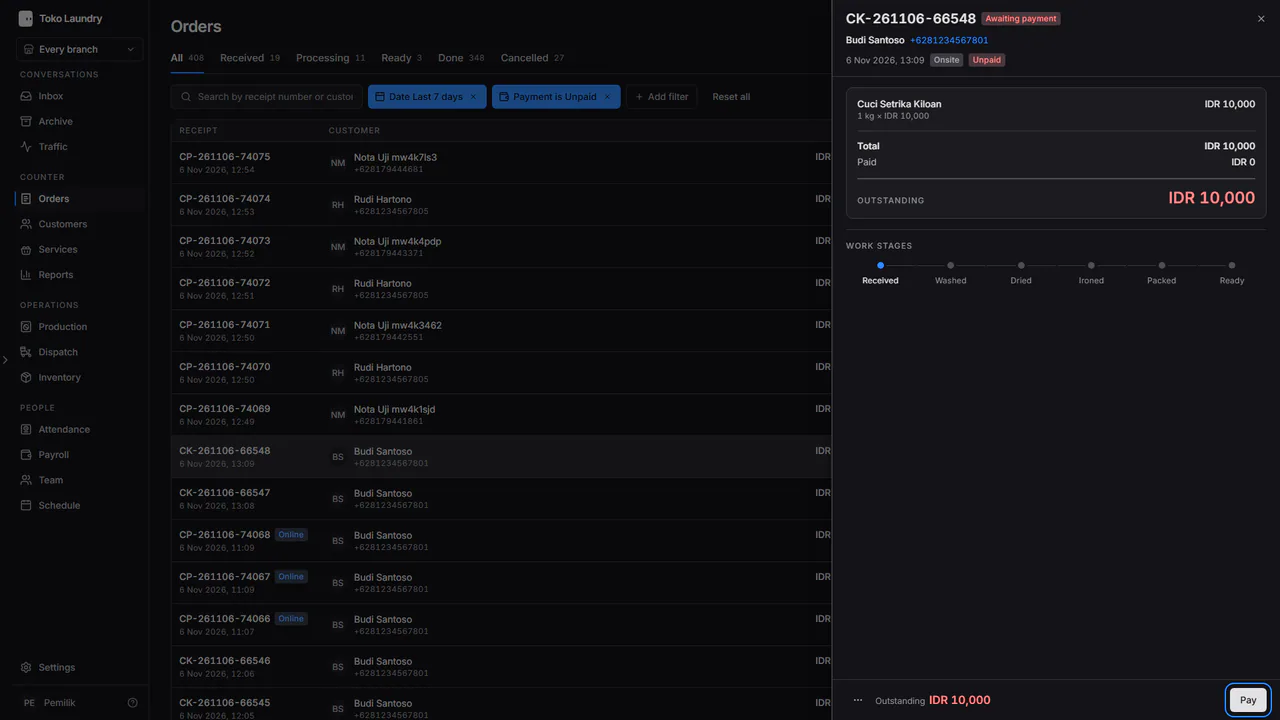
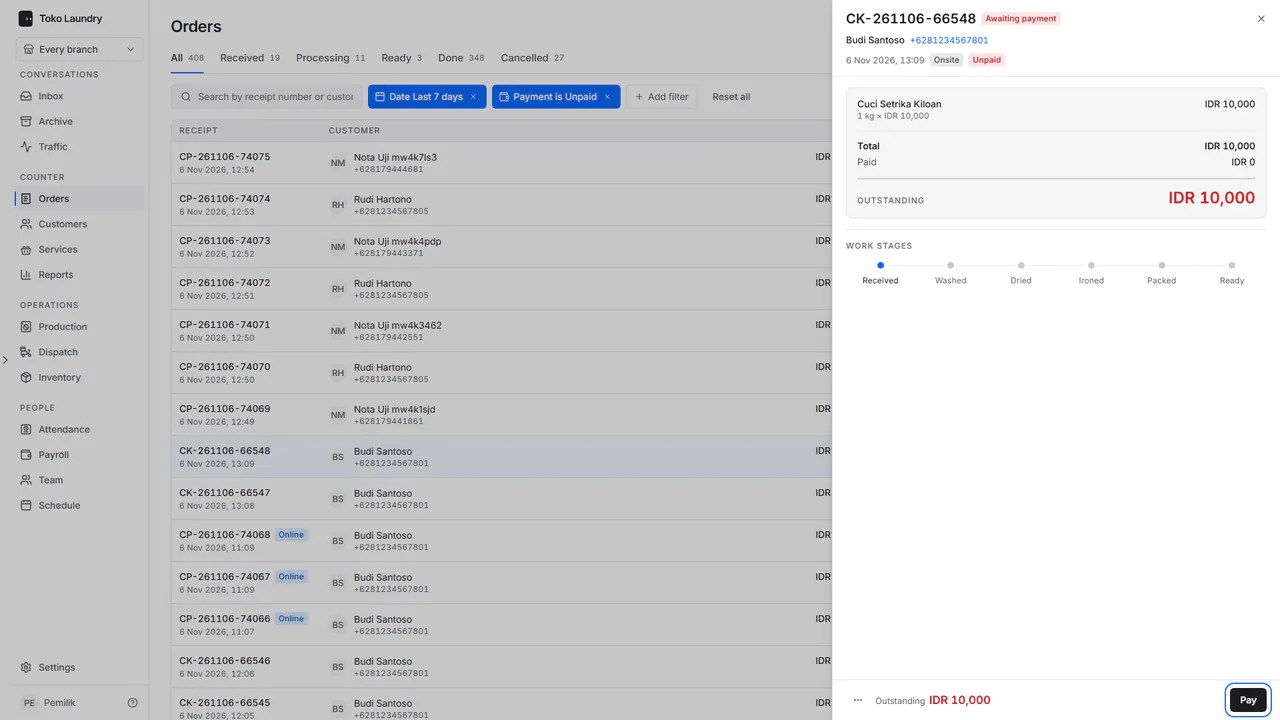
Press Pay to open the payment page. The laundry goes into production only once it is paid. See taking payment.
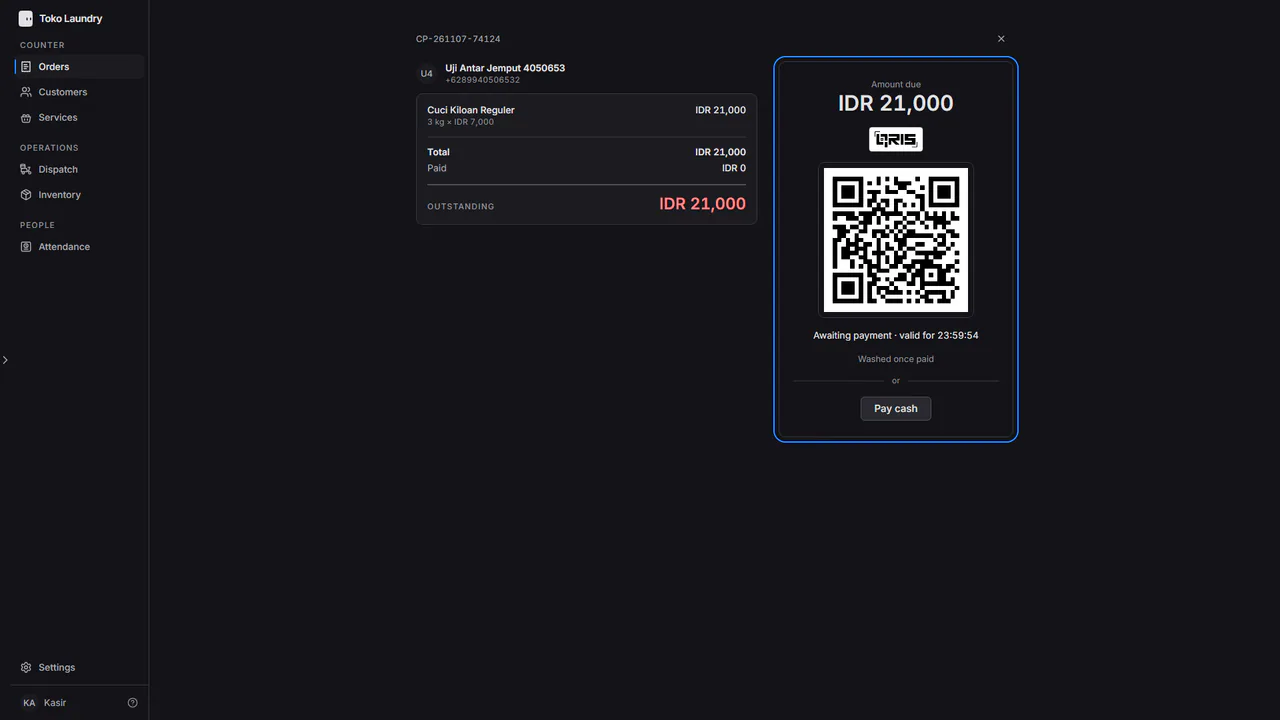
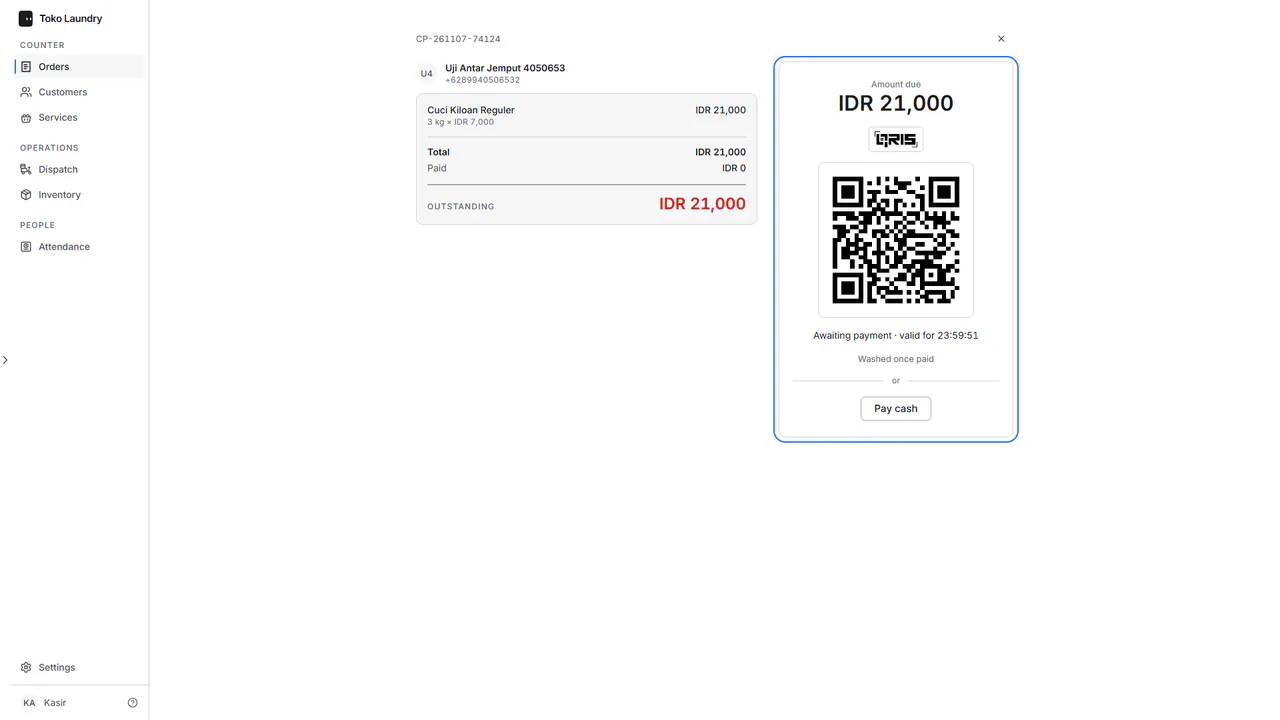
When the customer collects laundry that is ready, press Mark picked up.
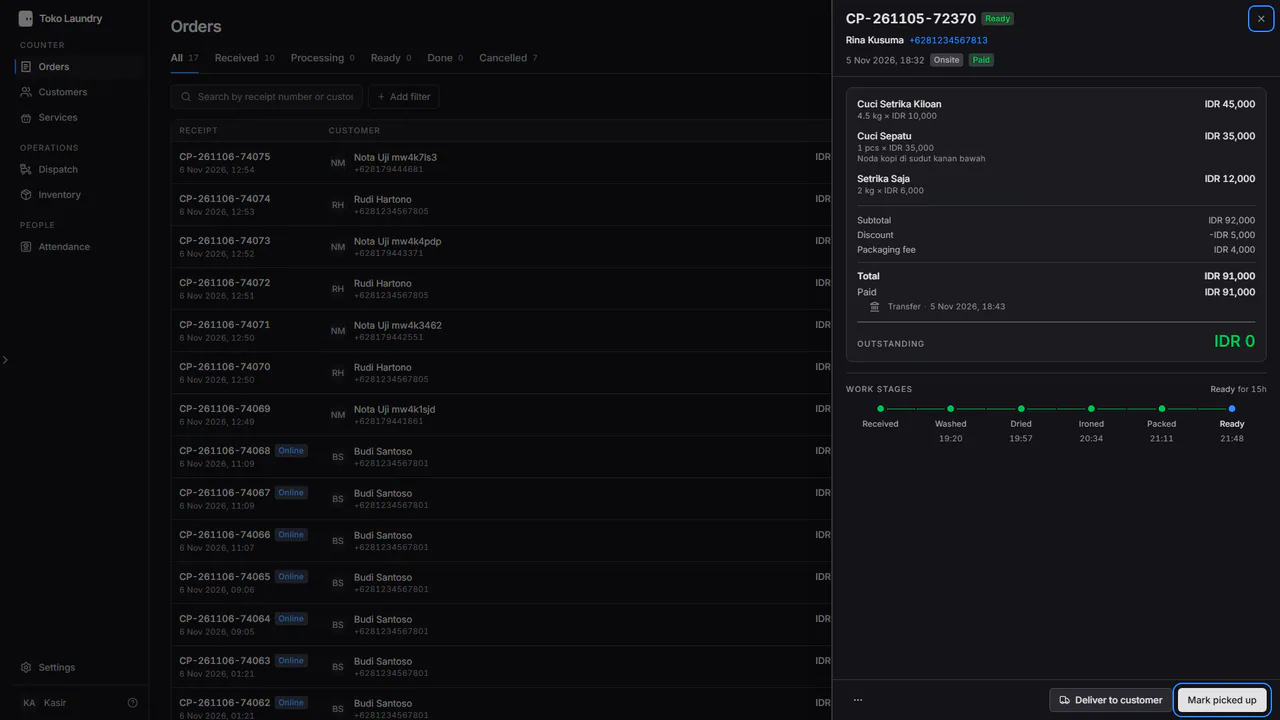
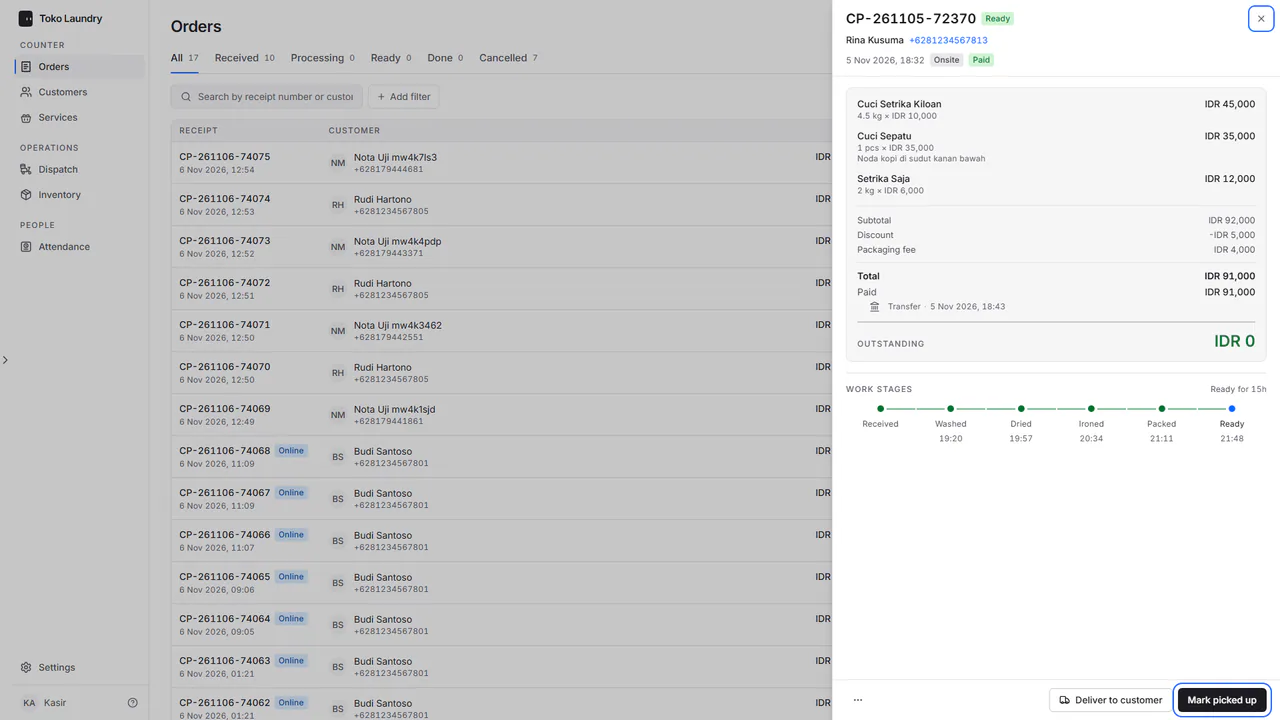
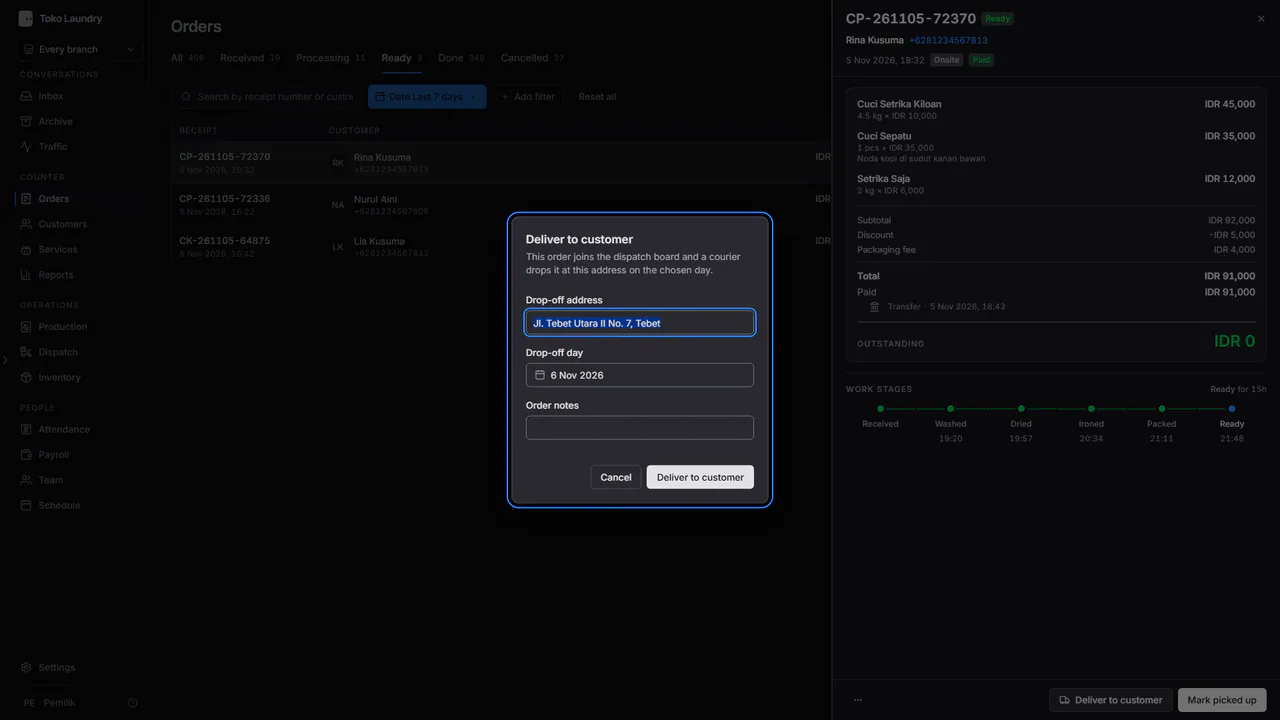
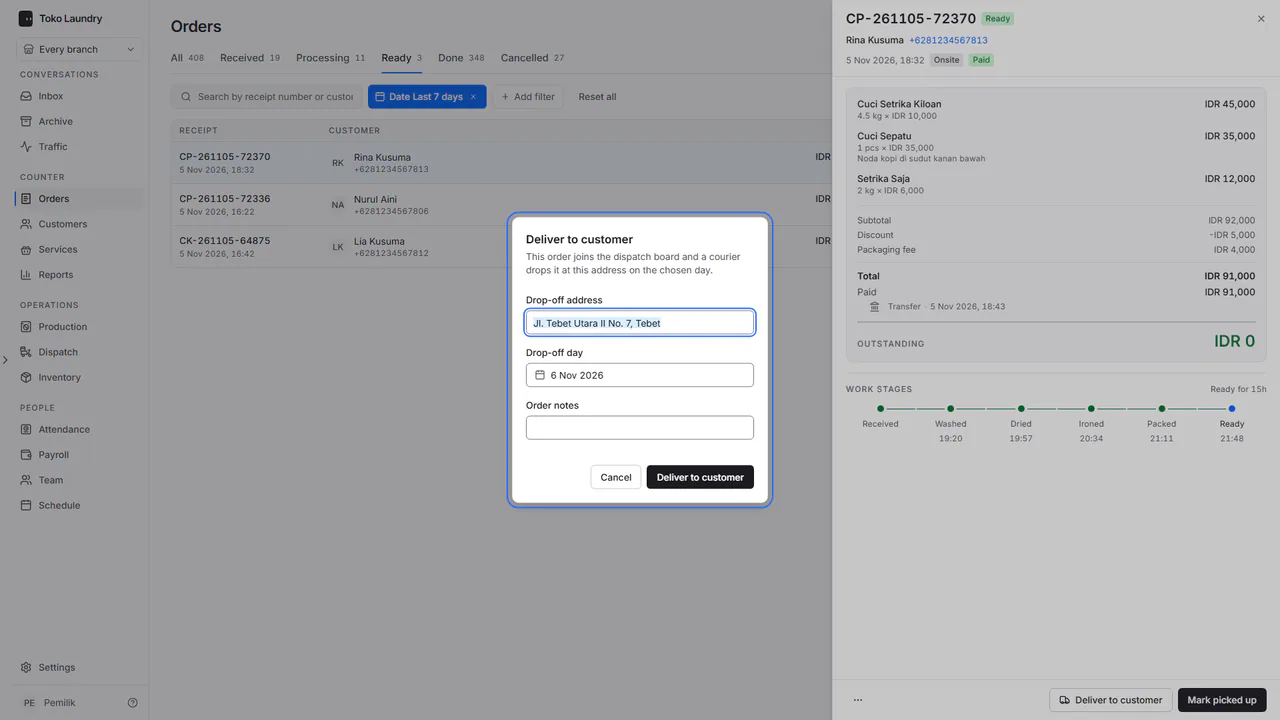
If the laundry is delivered, press Deliver to customer, fill in Drop-off address and Drop-off day, then save. See delivery.
The ⋯ button at the bottom left of the panel opens Send receipt, Open digital receipt and Print receipt. An order that can still be cancelled also has Cancel order in red at the very top. Receipts are covered in receipts.