Schedule
Your week, the whole team's day, and a shared free hour to book a meeting.
Schedule lays each member's activities, meetings, deliveries, leave and attendance marks over their working hours, so the free time shows. From there you also find a time when several people are free together and book a meeting.
For owners and admins. Other roles do not open Schedule, but they still have a calendar that can be read and booked.
Steps to read your week
Open Schedule. The My week tab shows this week from Monday to Sunday. The blue line marks the time now, and hatching marks the hours outside working hours. The Colour key above the calendar explains each colour.
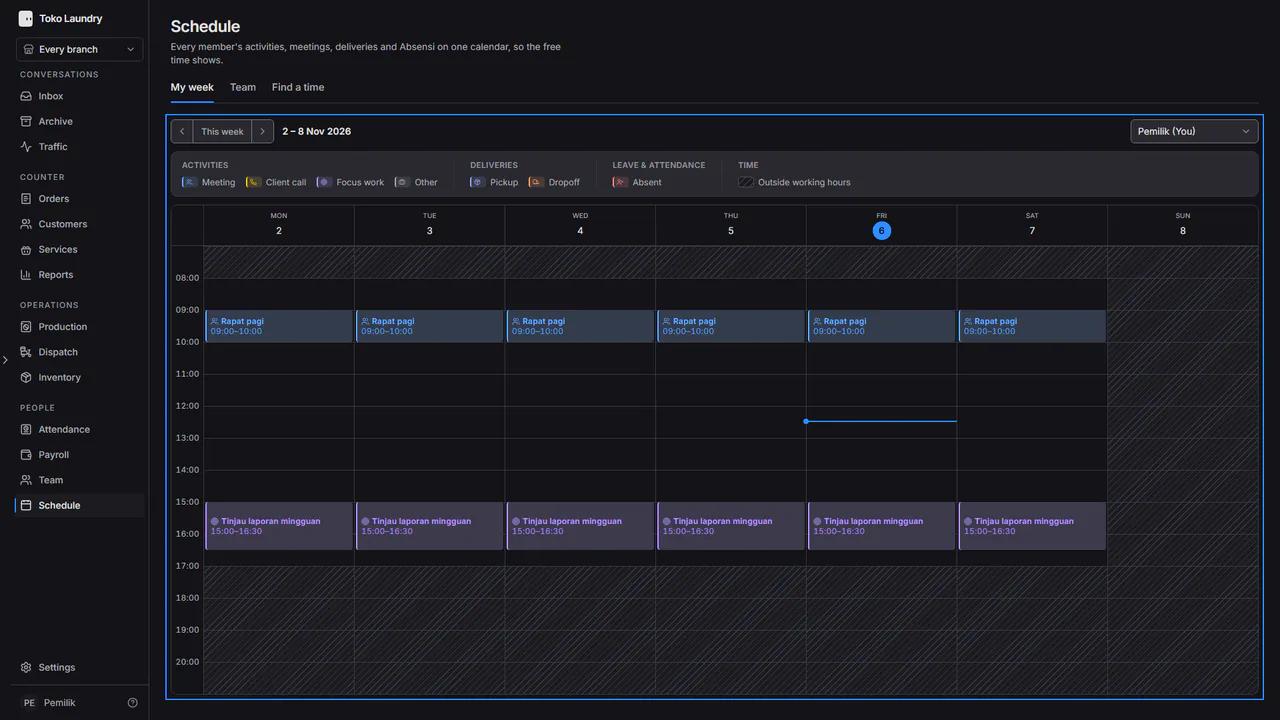
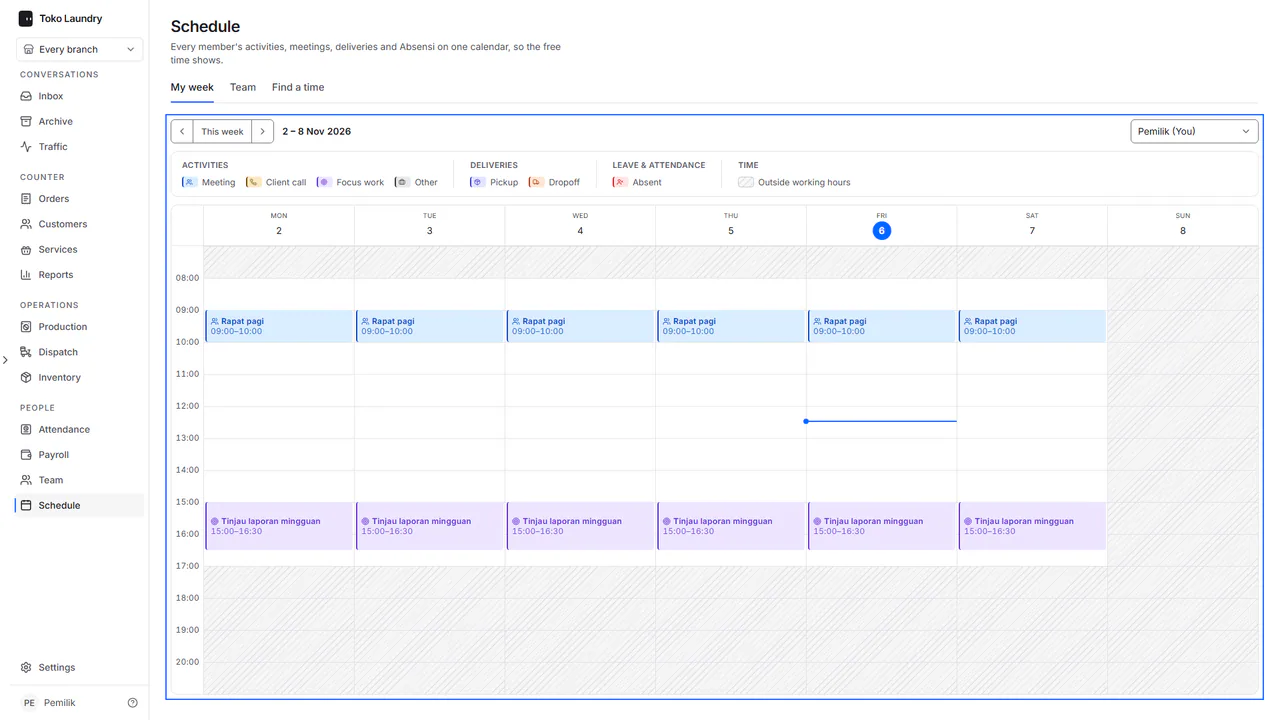
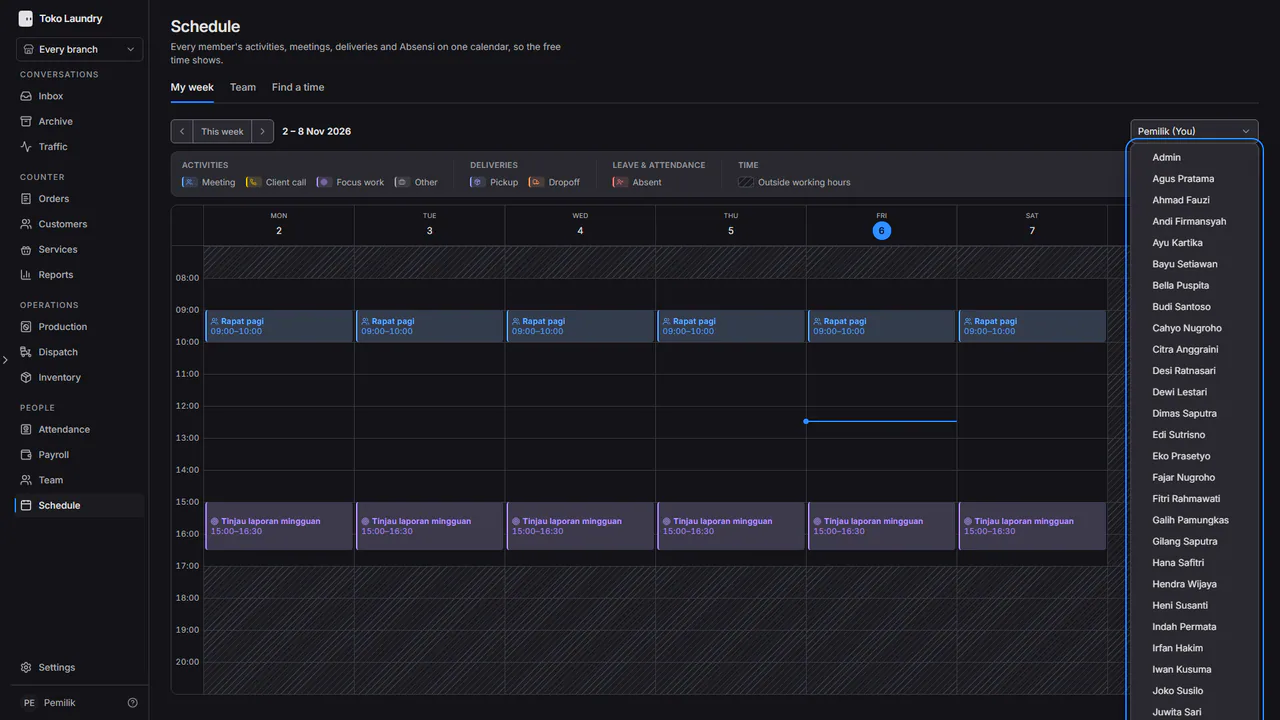
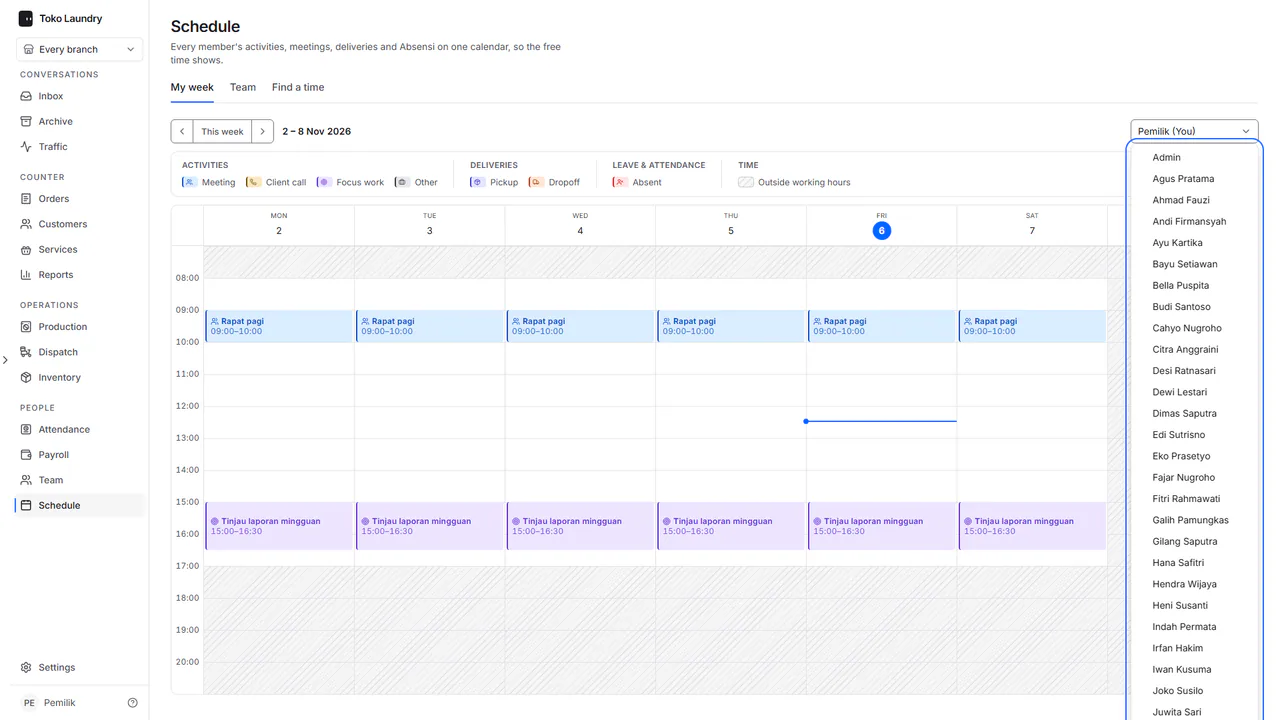
Press the left or right arrow to change week, and This week to come back. To see someone else's week, pick their name in Person at the top right. Another person's calendar is read only.
To add an activity to your own calendar, press a free hour or drag from the start time to the end time. In New activity, pick the Activity (Meeting, Client call, Focus work or Other), fill in a Note if needed, check the Date, Start and End, then press Save.
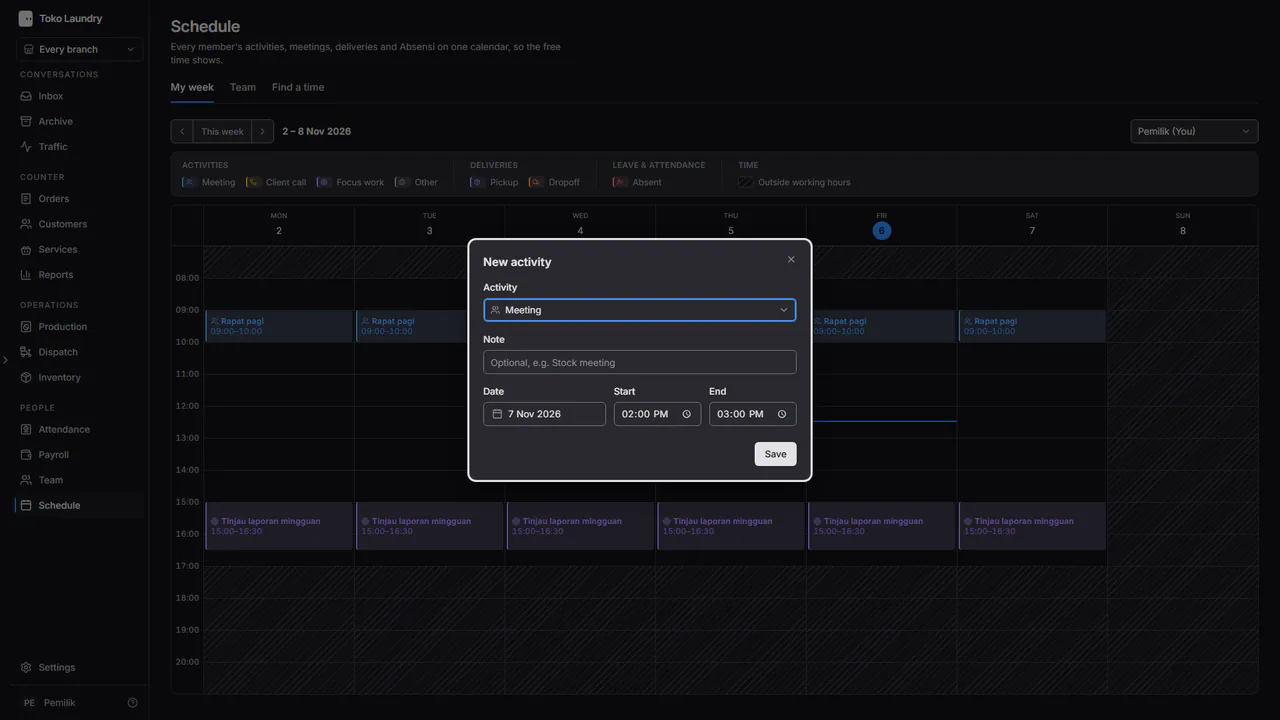
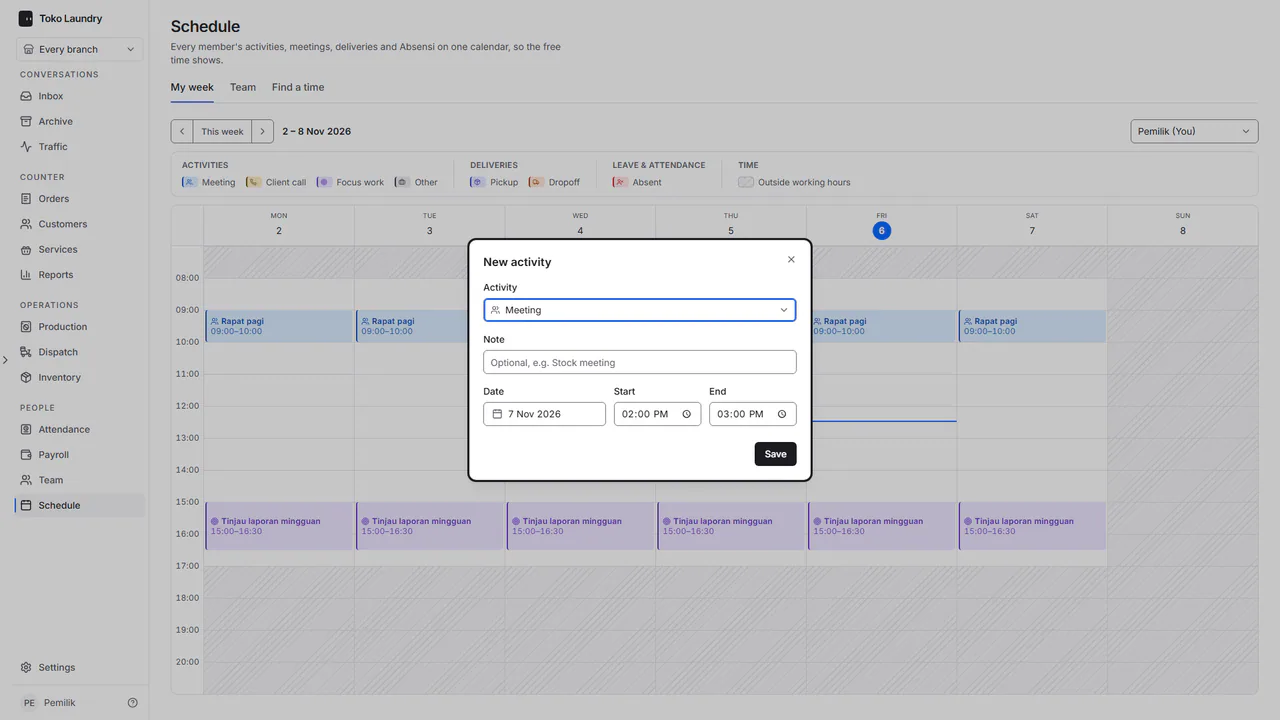
Times use 15-minute steps. Press one of your activities to change or delete it. Deliveries come from Deliveries, leave and attendance from Attendance, and can only be changed there.
Steps to see the team
Open the Team tab. Today shows as one time axis, one row per member. The green gaps are free time, and a WIB, WITA or WIT label marks a member in another time zone.
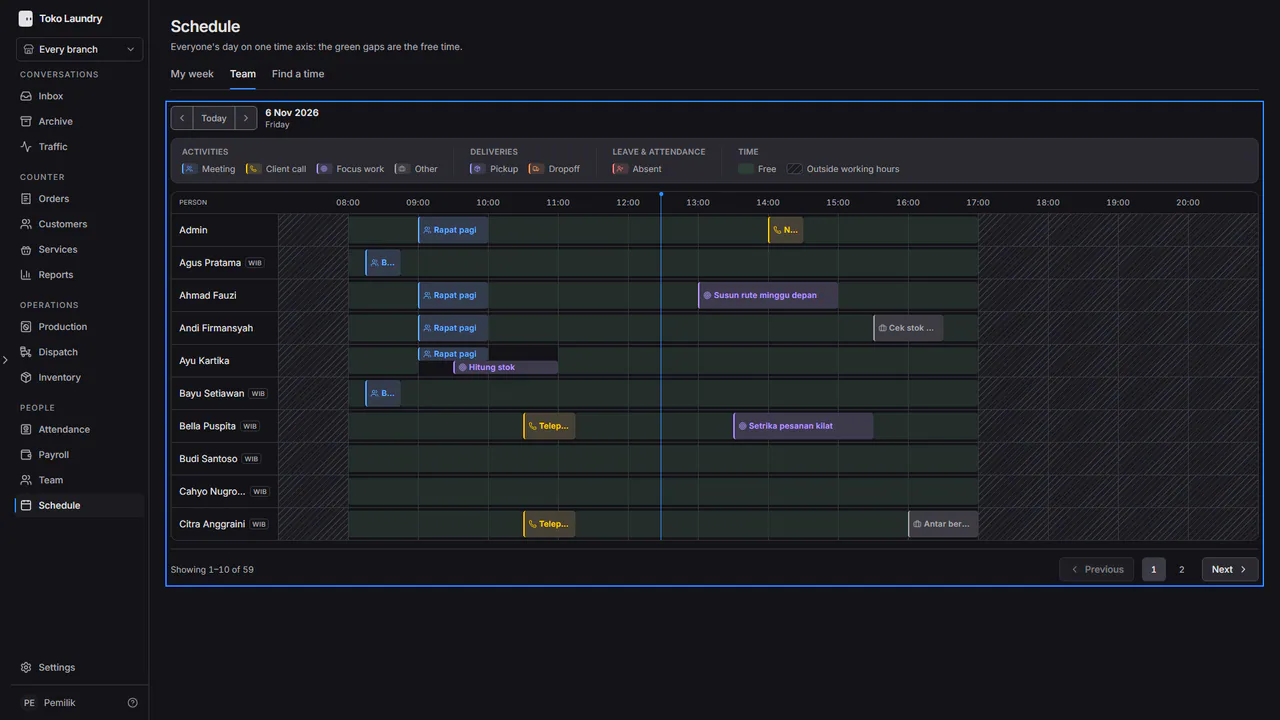
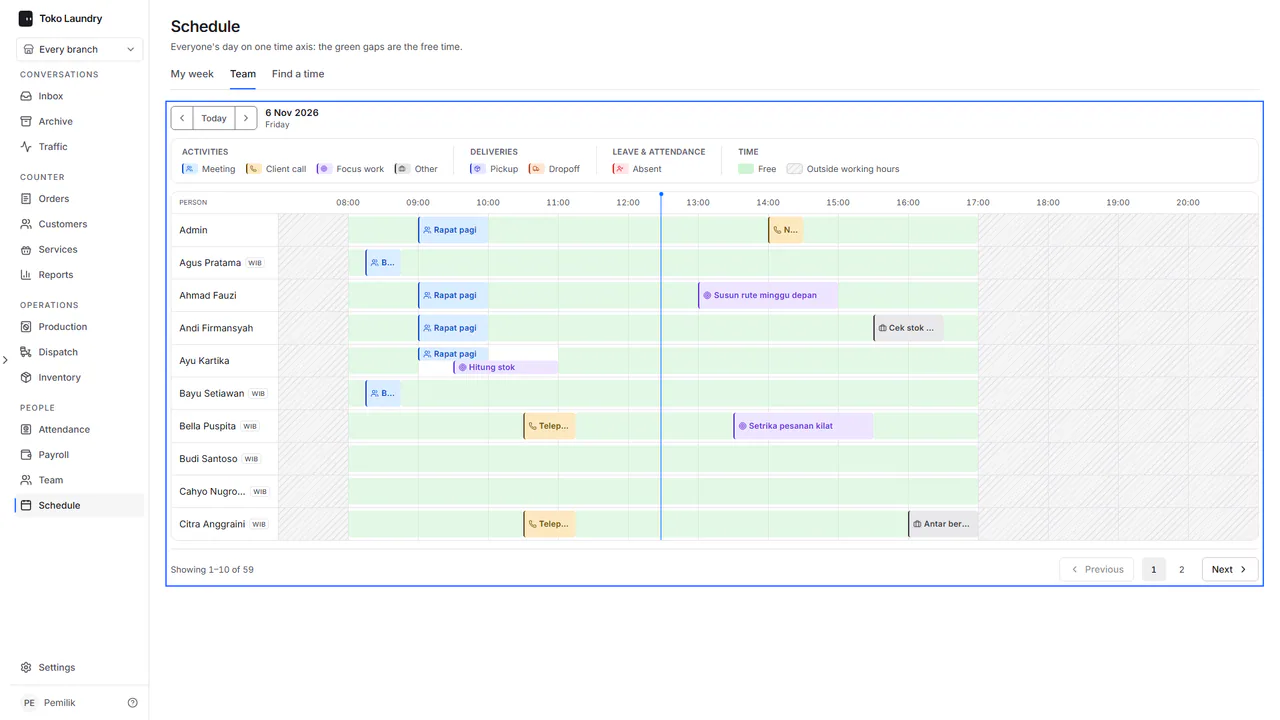
Press the arrows to change day, or Today to come back. A large team is split into pages; move with Next at the bottom.
Steps to find a meeting time
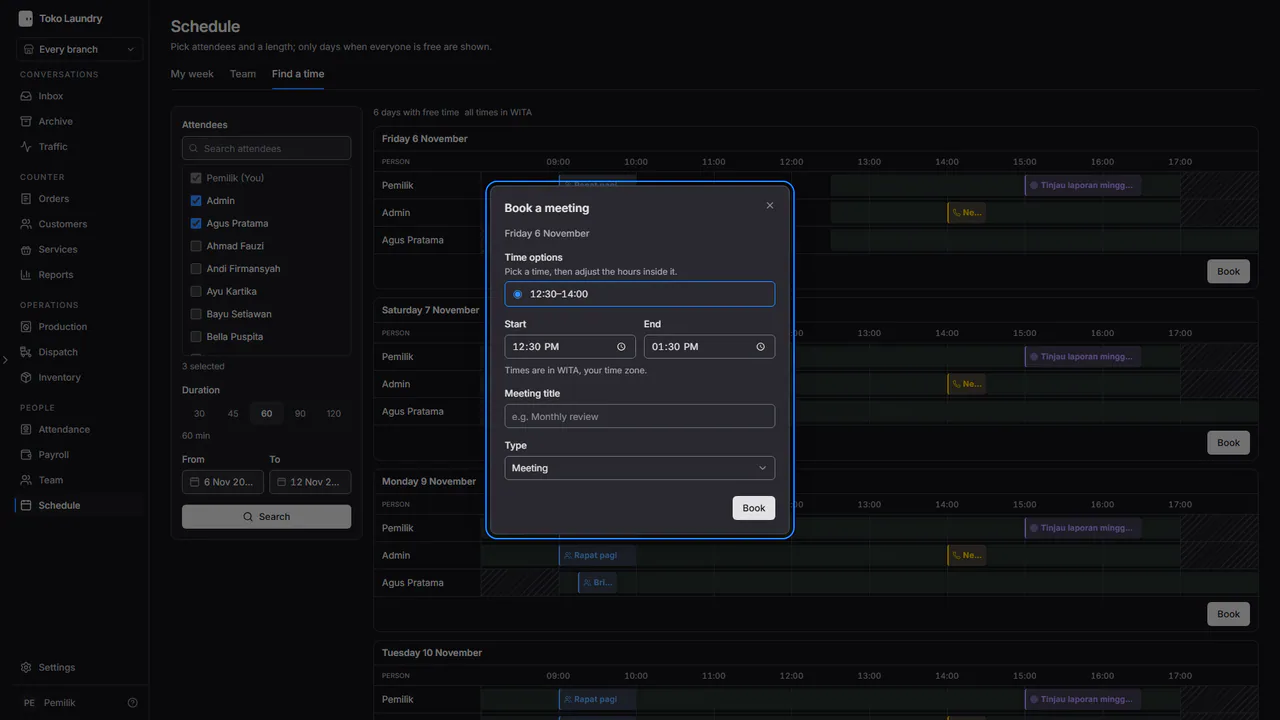
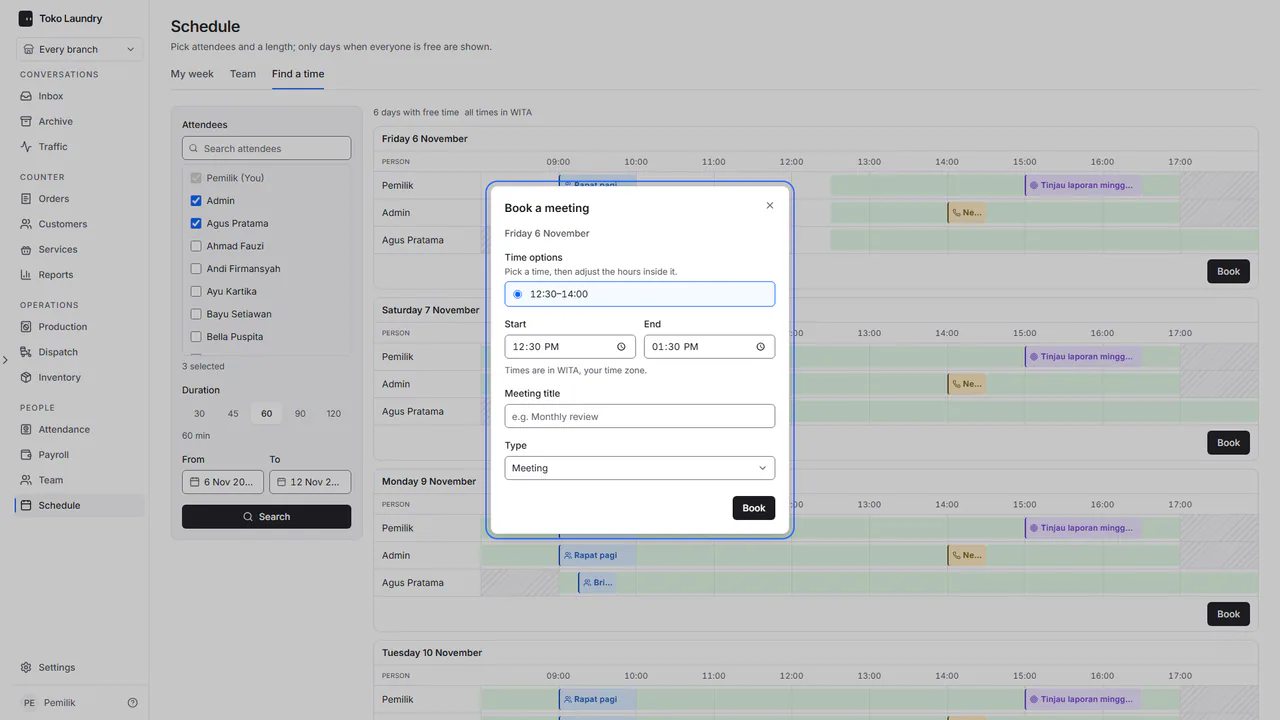
Open the Find a time tab. Tick the Attendees; you are always included. Pick the Duration, set From and To, then press Search.
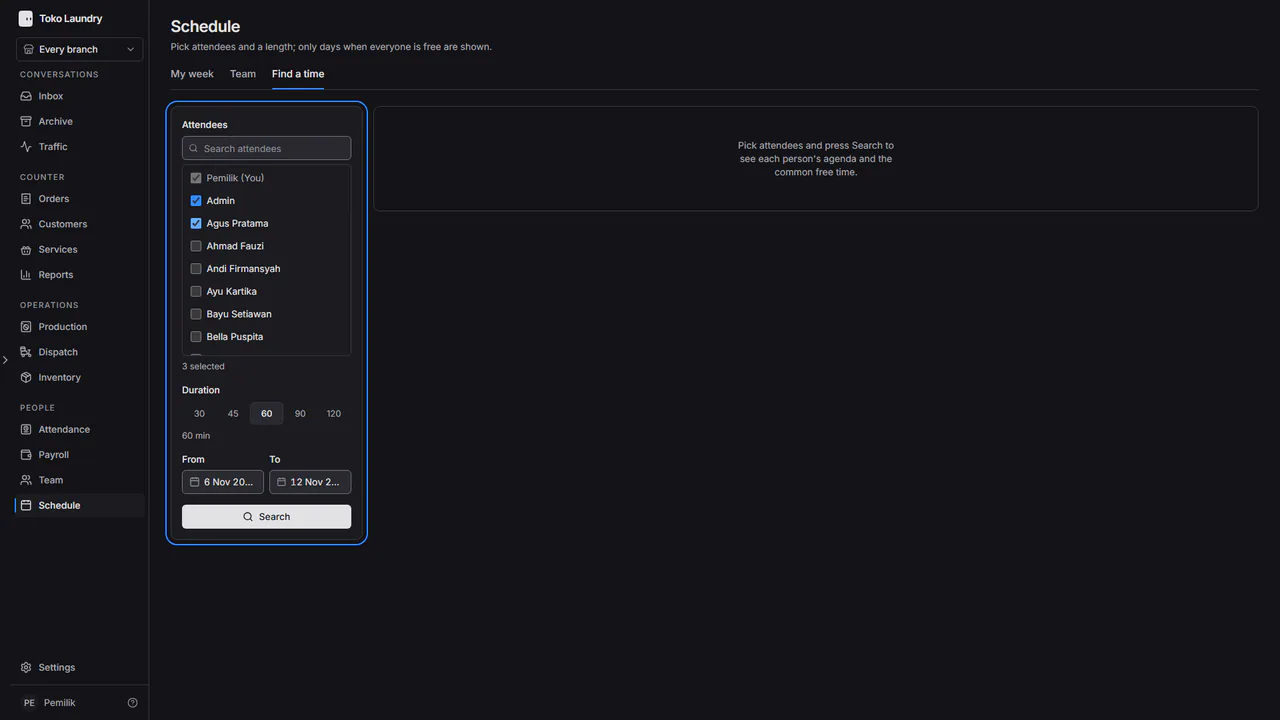
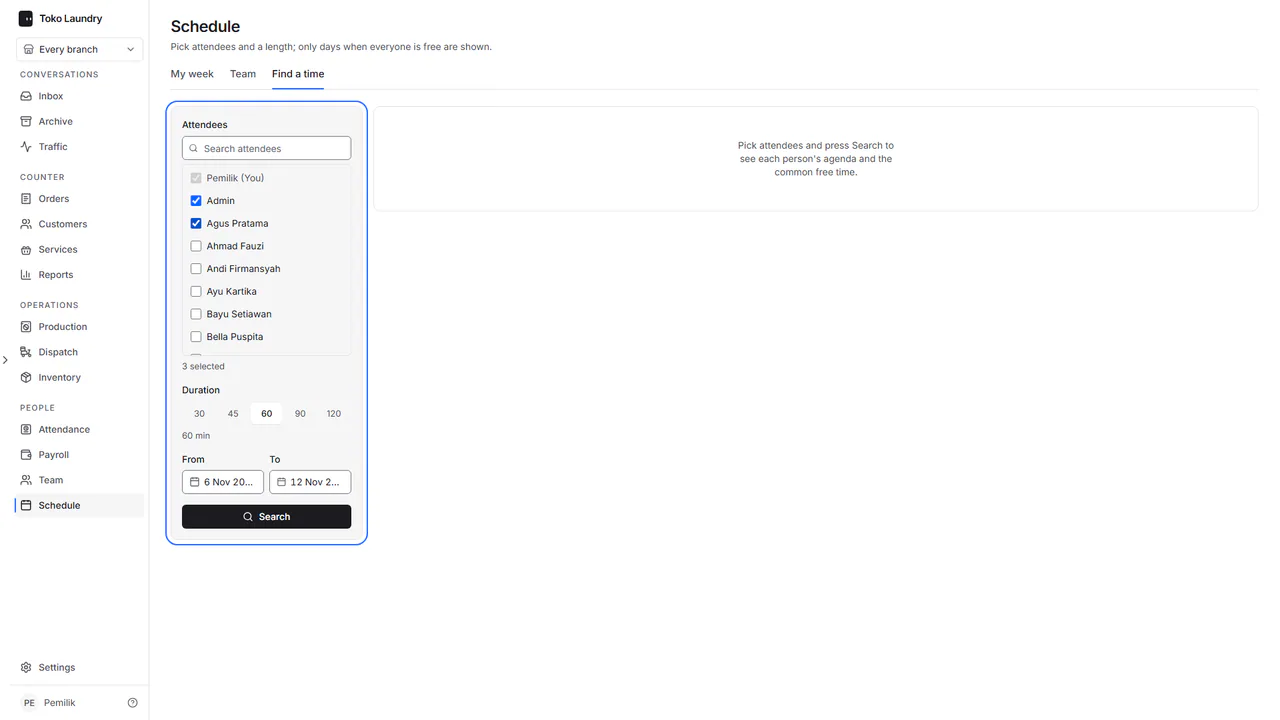
Only days when every attendee is free are shown. Each day holds every person's agenda with the shared free time in green. Press Book on a day that suits.
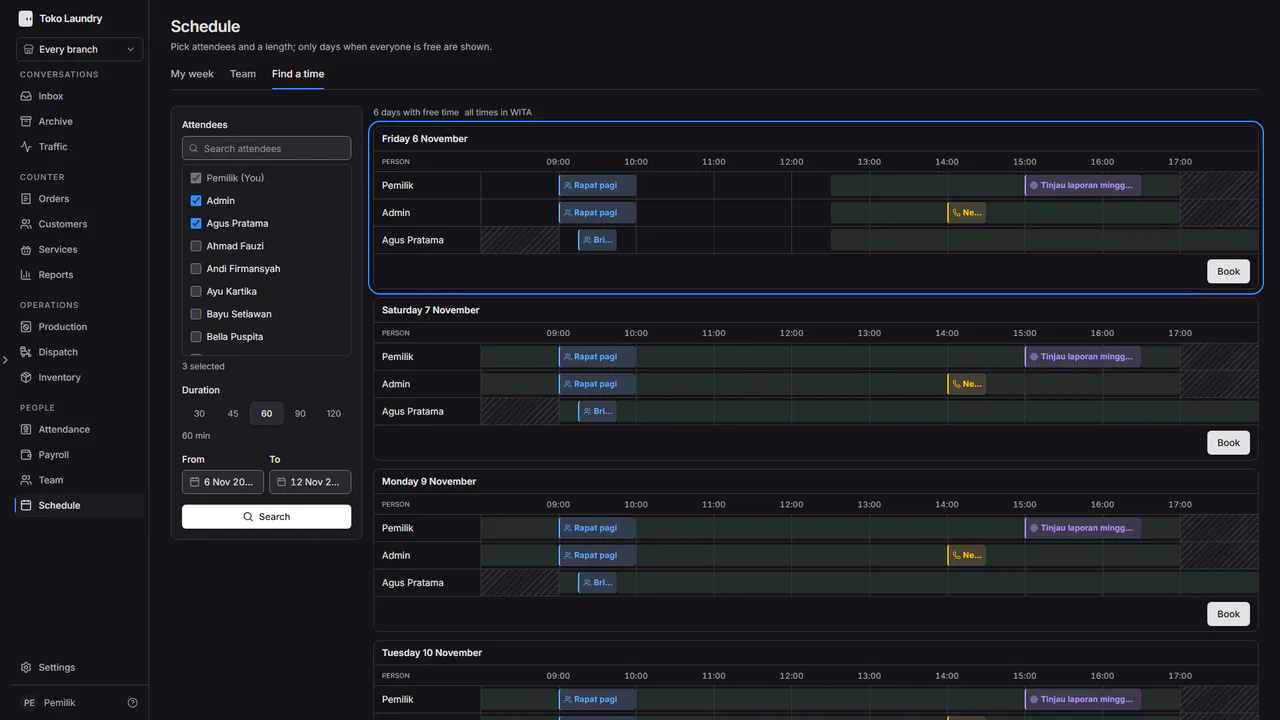
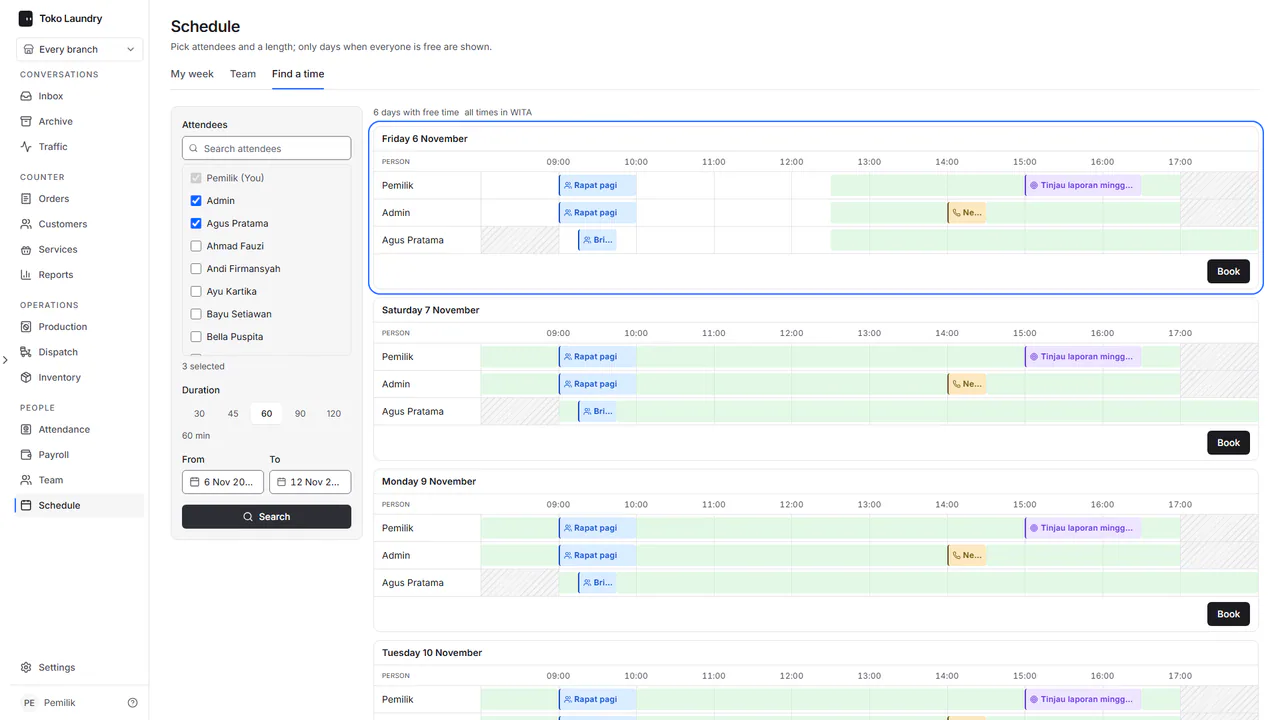
In Book a meeting, pick one of the Time options, adjust Start and End inside it, fill in the Meeting title, pick the Type, then press Book.
If an attendee is already busy at that time, the dialog names them and offers Book anyway. The meeting appears on every attendee's calendar, with no email or notification. Only the organiser can move or cancel the meeting for everyone.