Cashier guide
For: Cashier
Create an order at the counter, take the full payment and hand over laundry that is ready.
The cashier works the counter: creating orders, taking the full payment, sending receipts and handing over laundry that is ready. Laundry is washed only once it is paid.
For cashiers. A cashier sees only the branches linked to them.
Steps to create an order
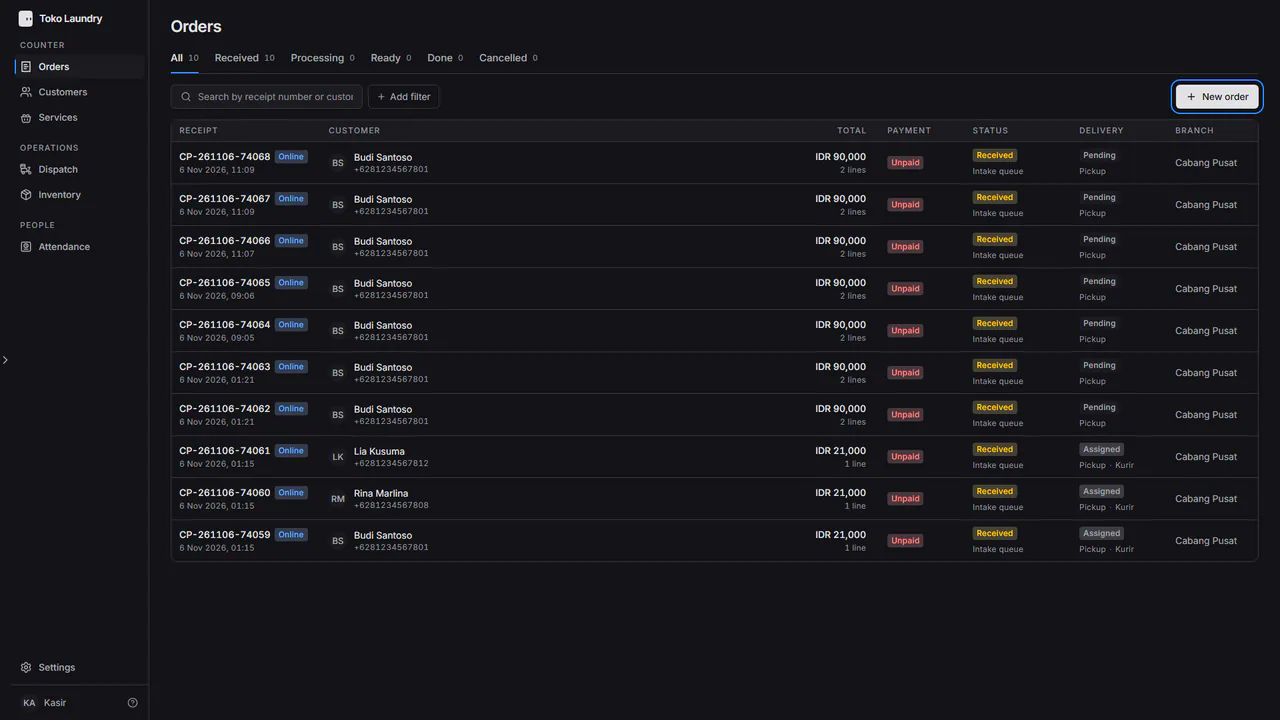
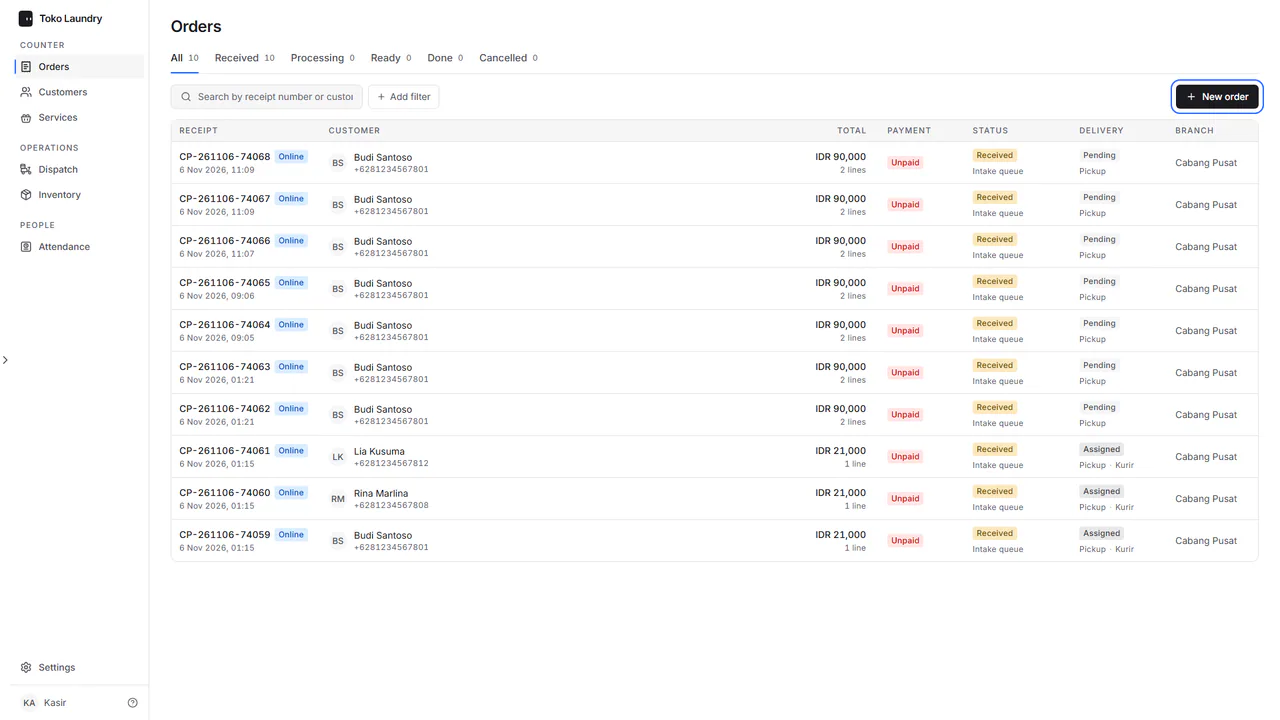
Open Orders, then press New order.
In Order type, pick Onsite for a customer at the counter, or Online for an order that is picked up. An online order asks for Pickup details: address, date and notes.
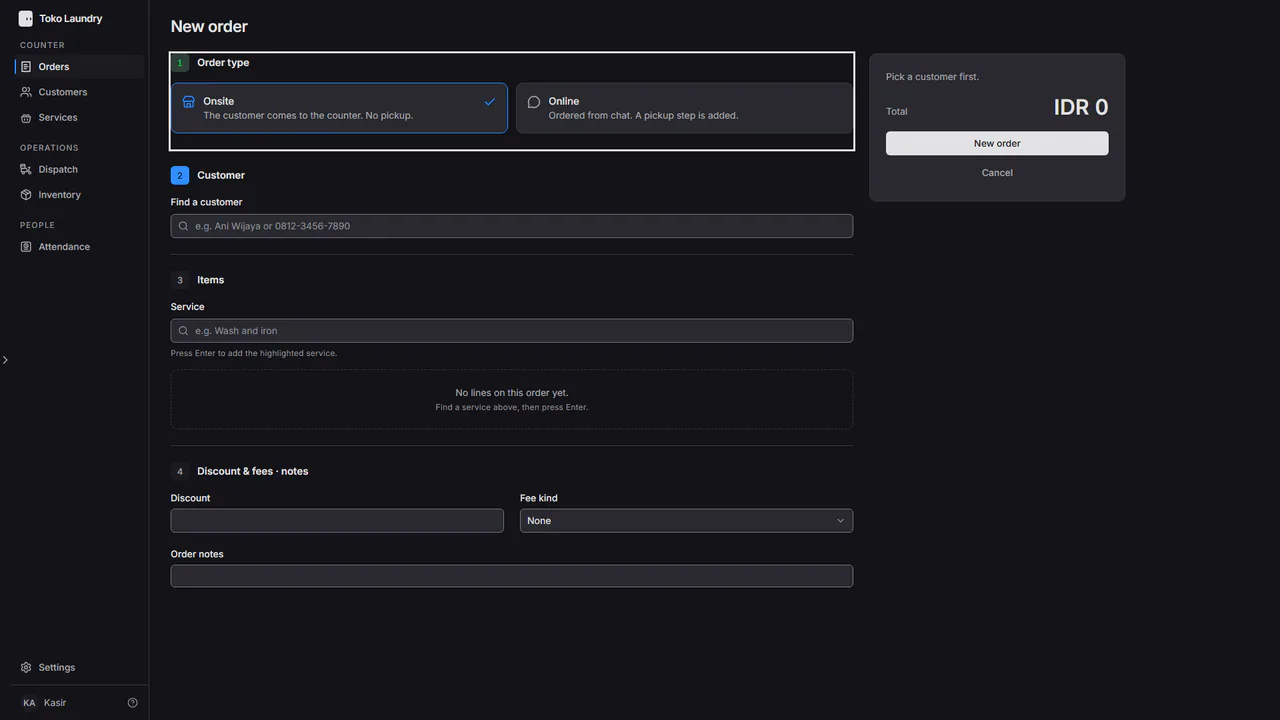
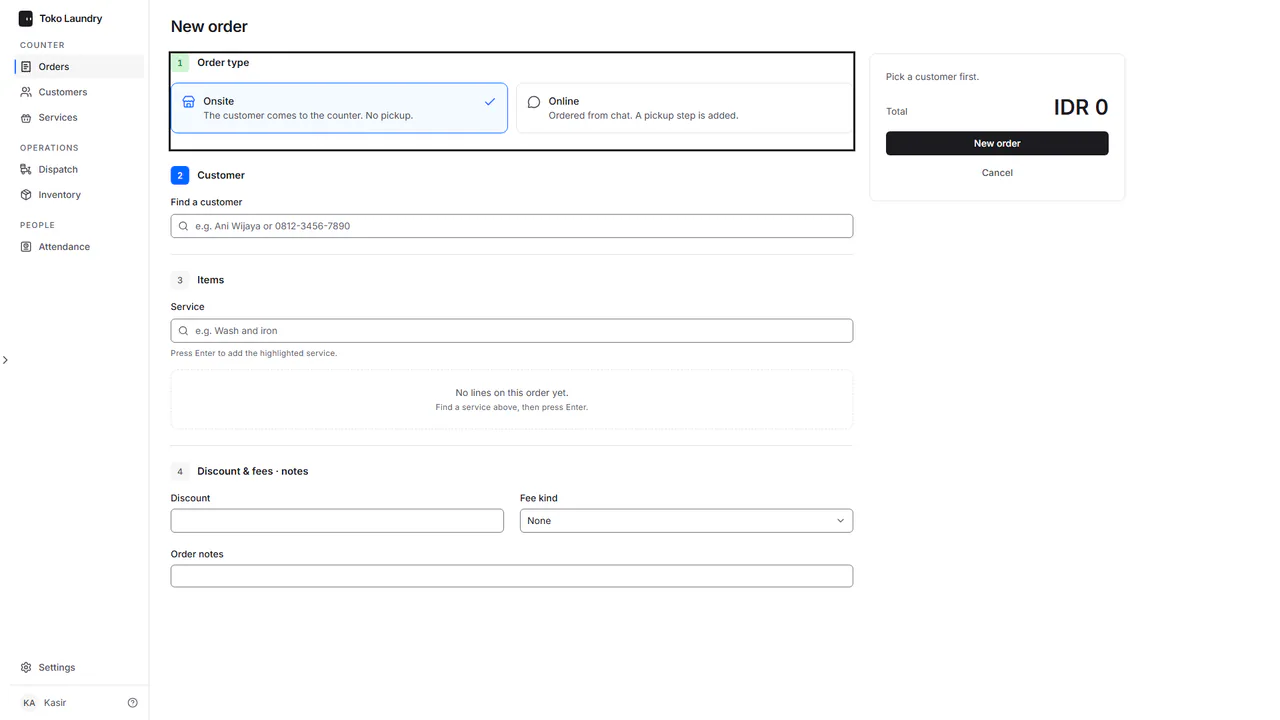
In Customer, type a name or number in Find a customer and pick the person, or Create a new customer.
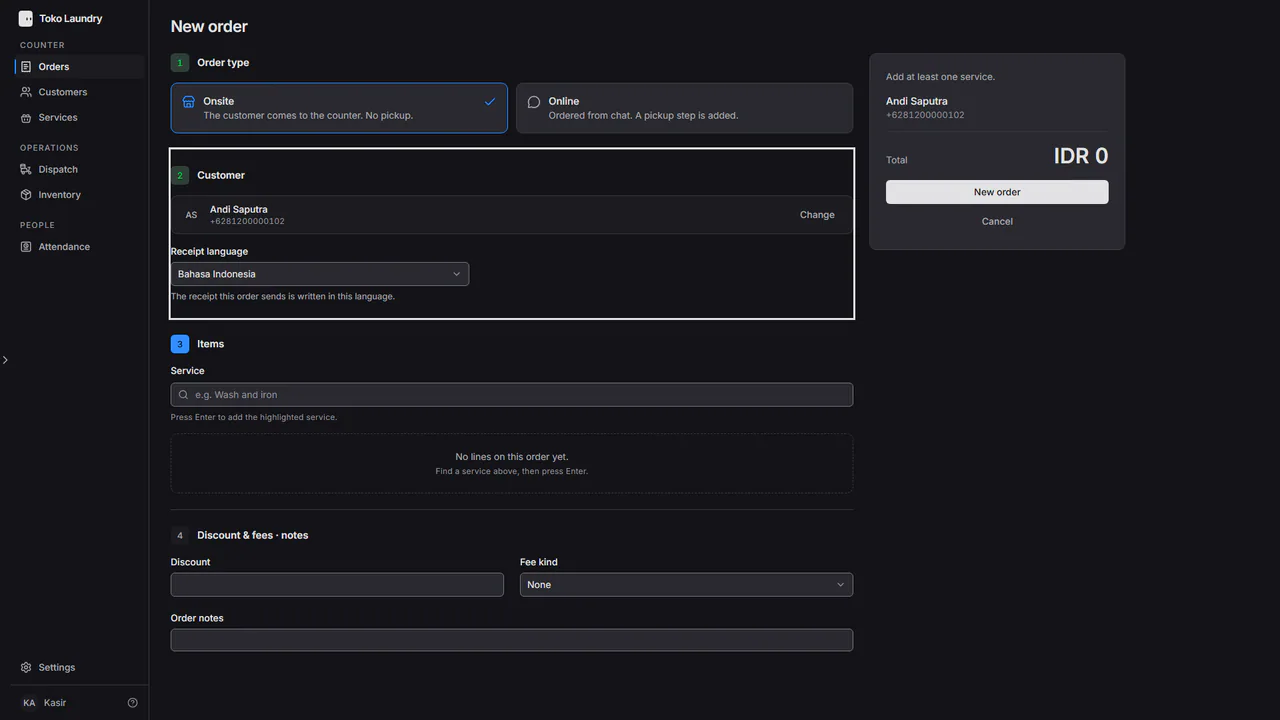
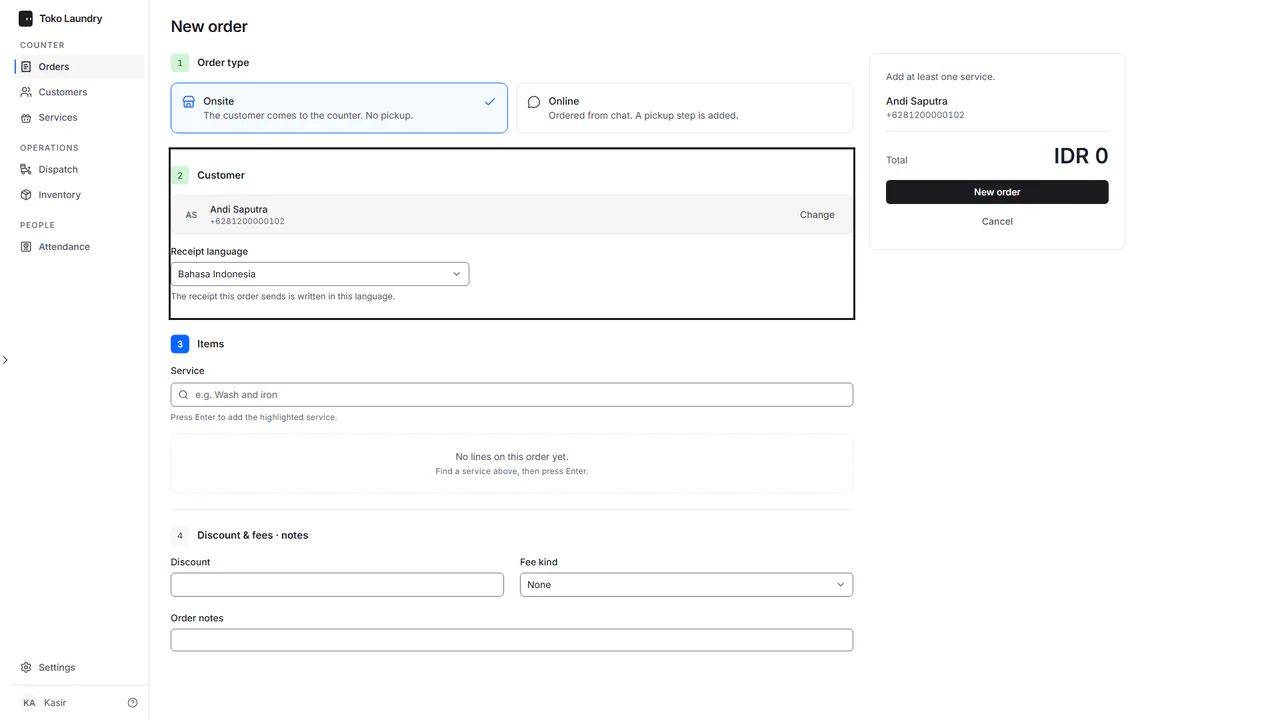
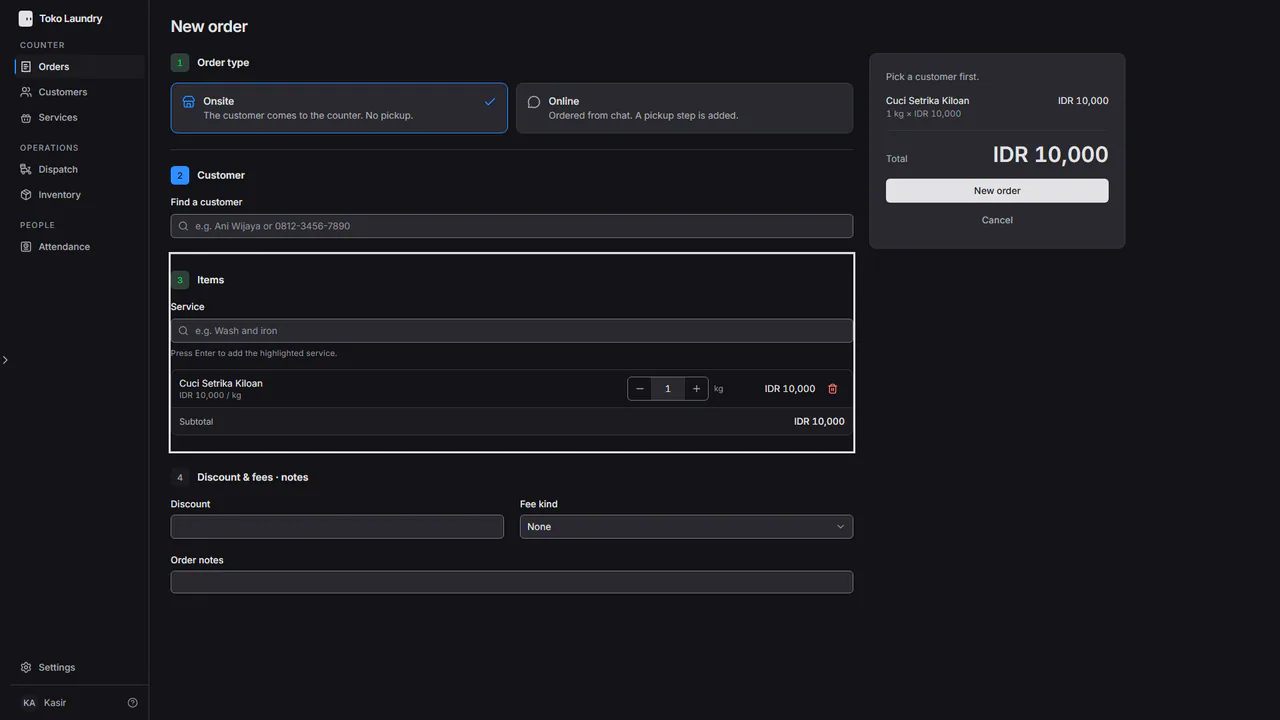
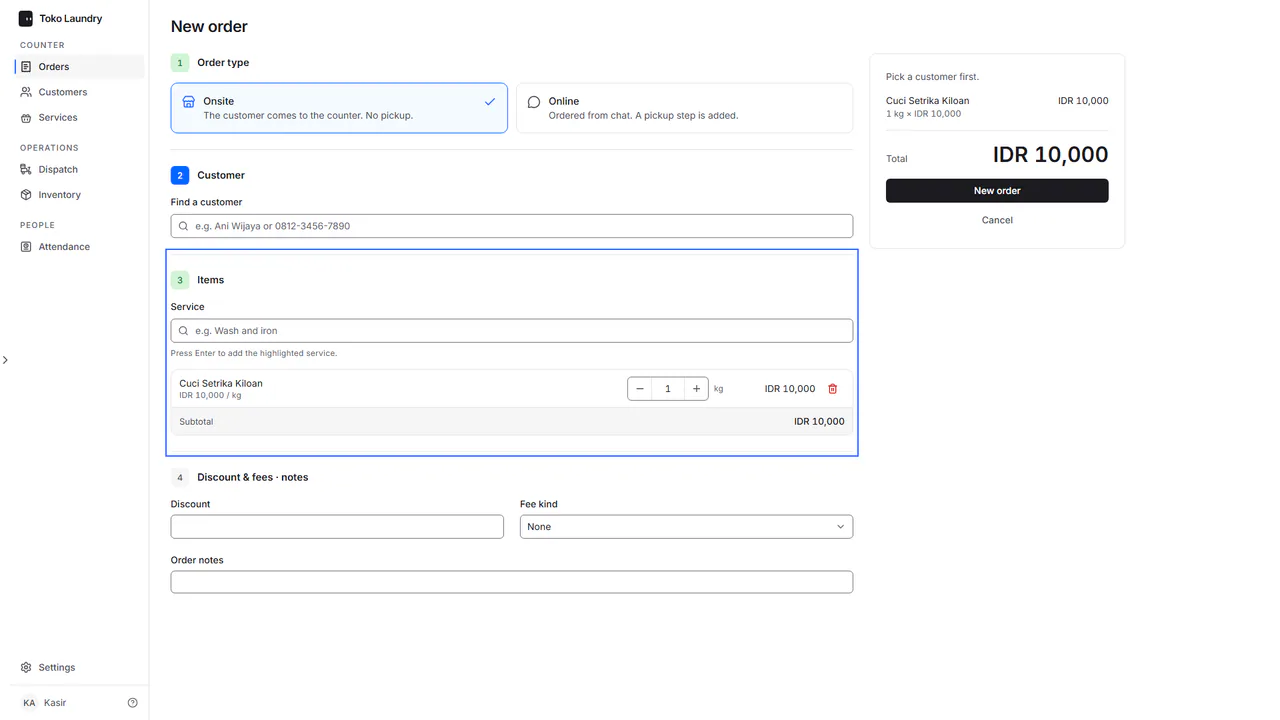
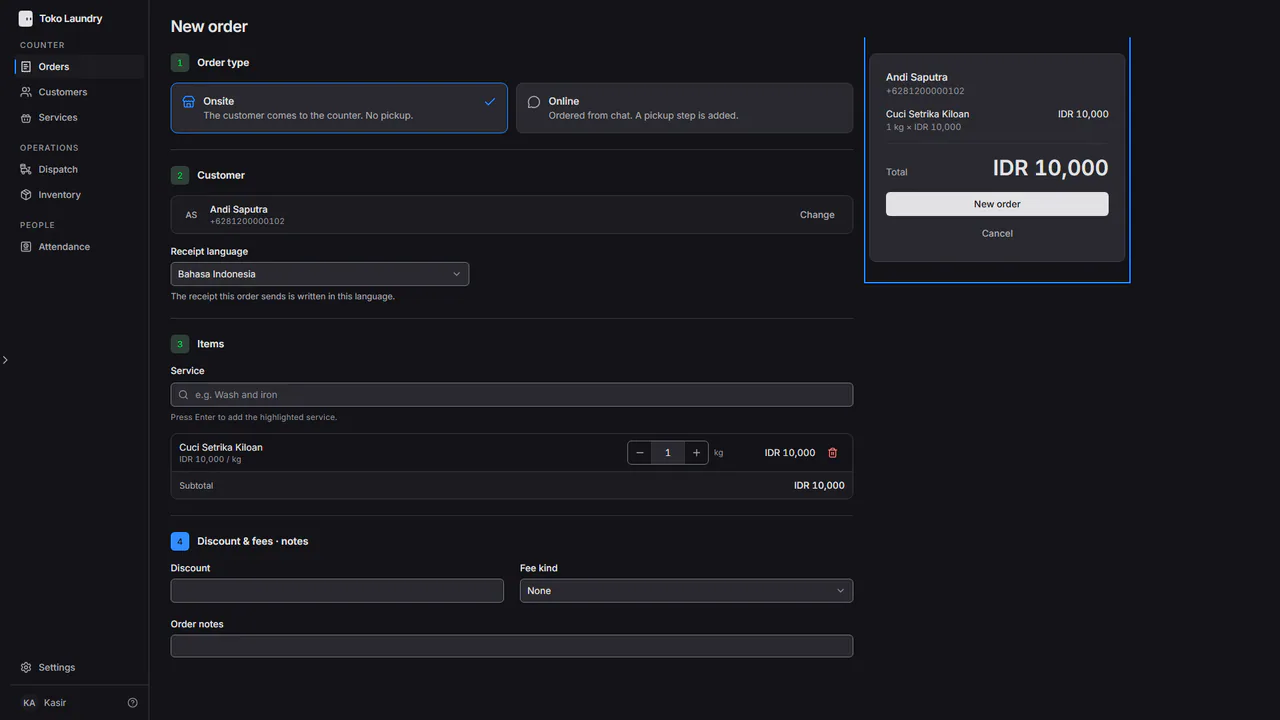
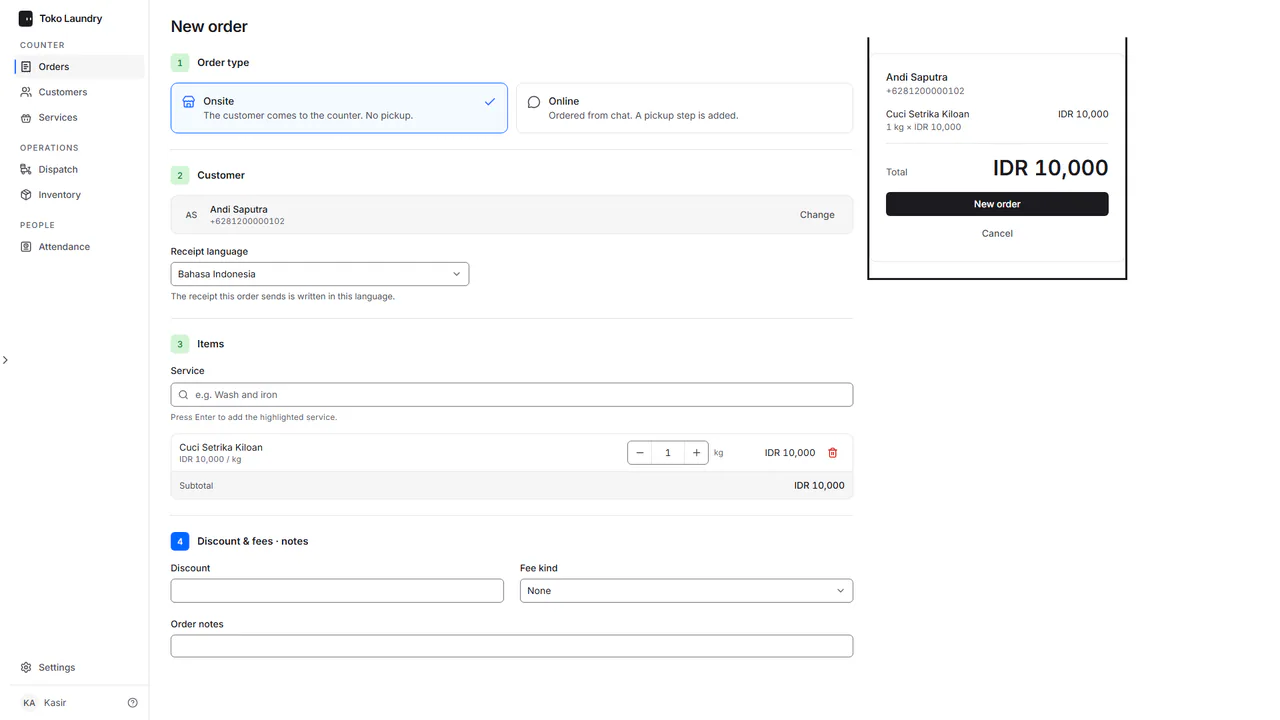
In Items, type the service name, press Enter, then set the quantity.
In Discount & fees · notes, fill in a discount, a packaging or delivery fee, and Order notes if any.
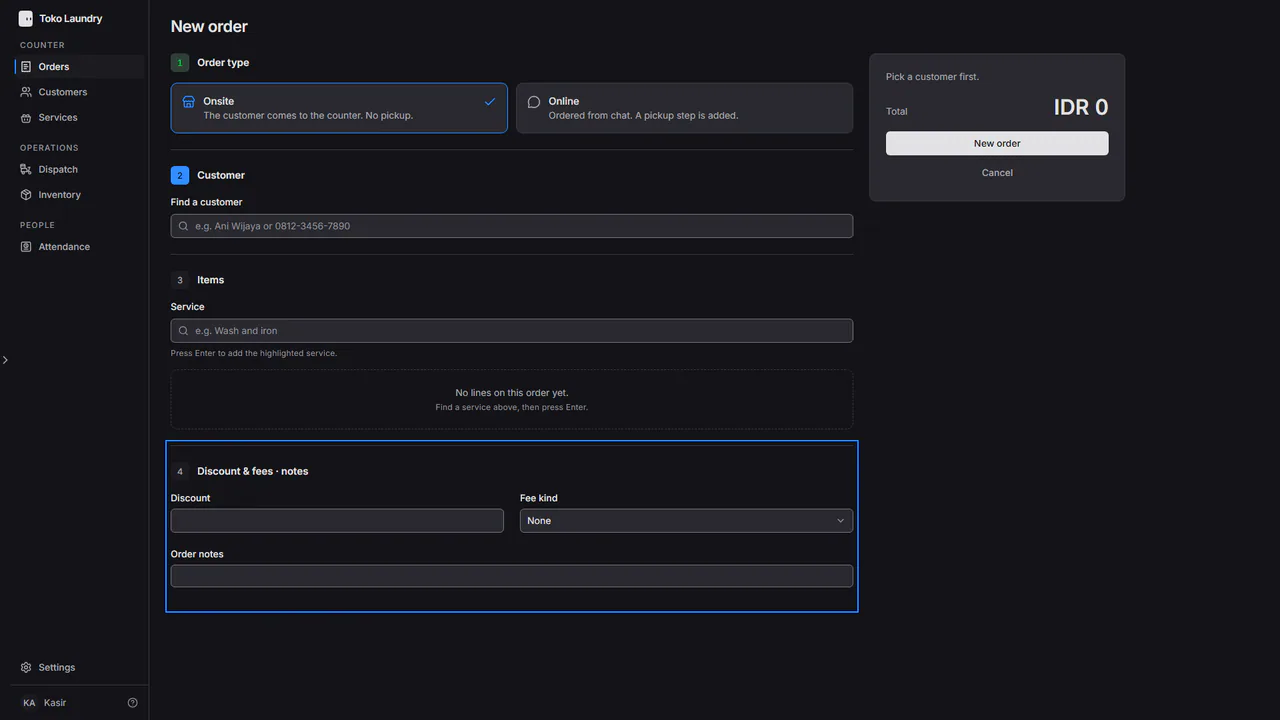
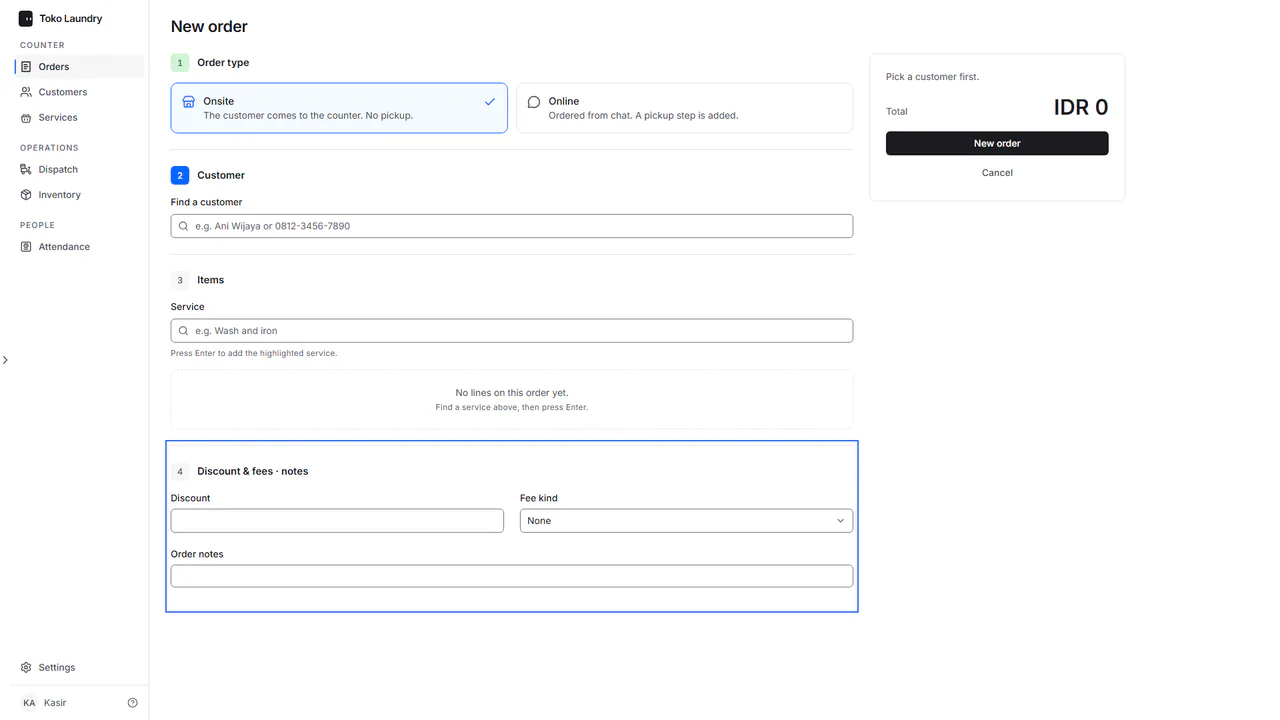
Check the summary on the right, then press New order. The receipt goes to the customer's WhatsApp. An onsite order opens the payment page; an online order is weighed in production first.
Steps to take payment
The payment page shows the customer and the receipt on the left, and the Amount due with the QRIS on the right. The customer scans the QRIS, and the page turns to Paid. See taking payment.
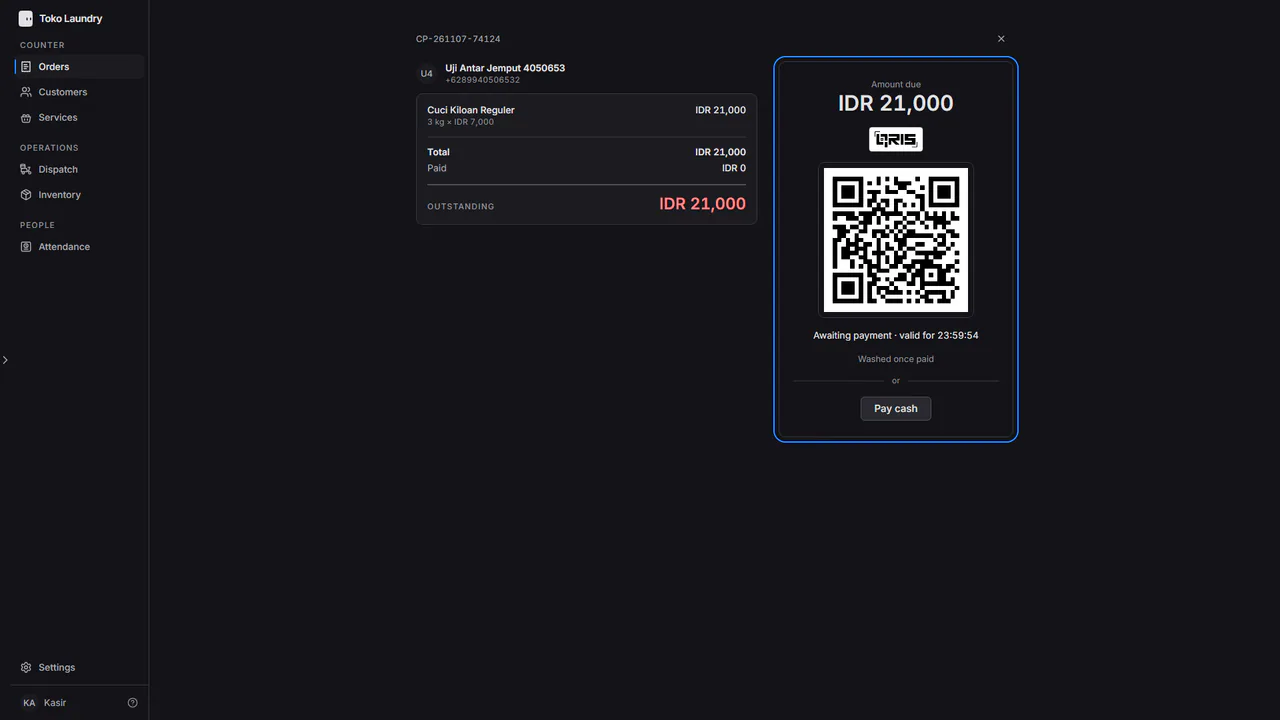
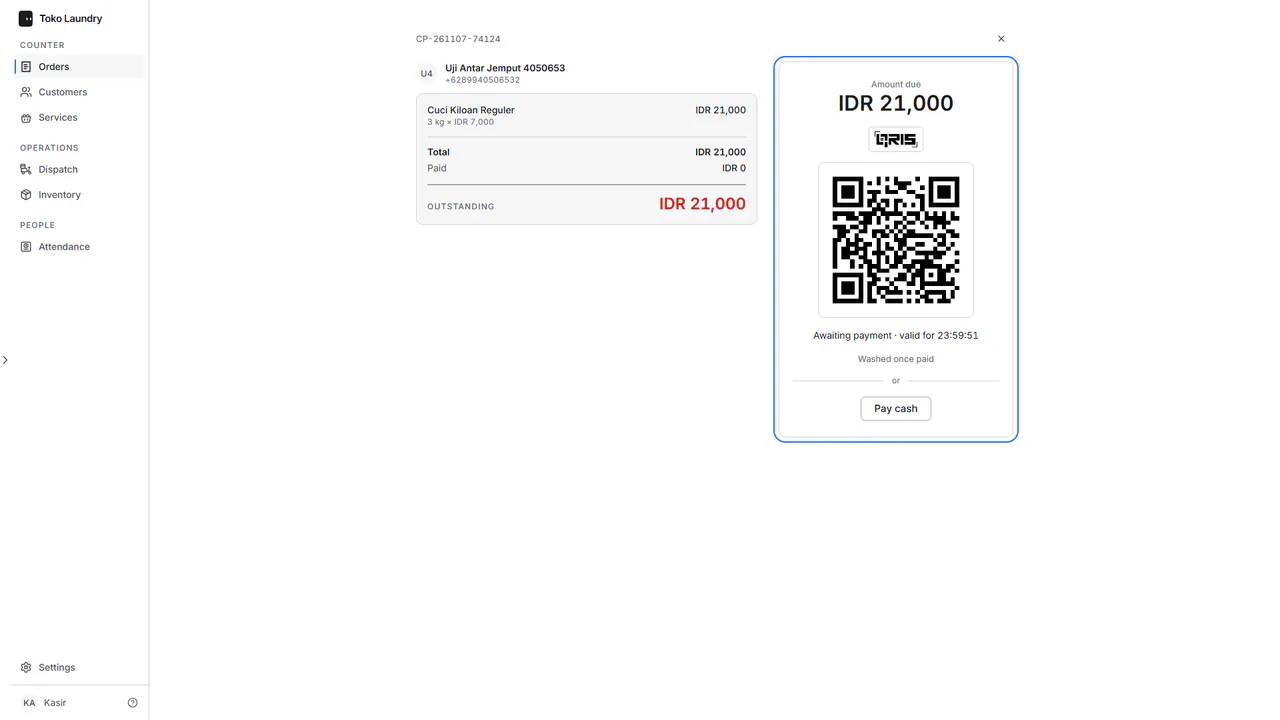
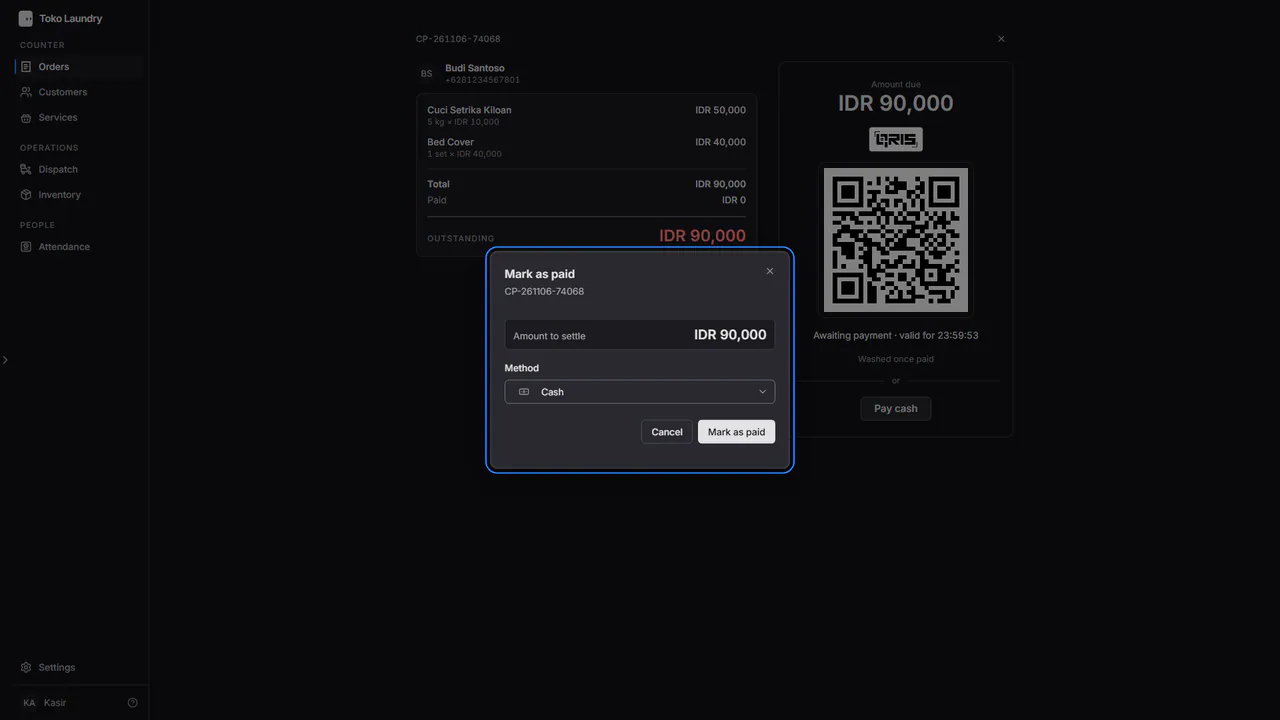
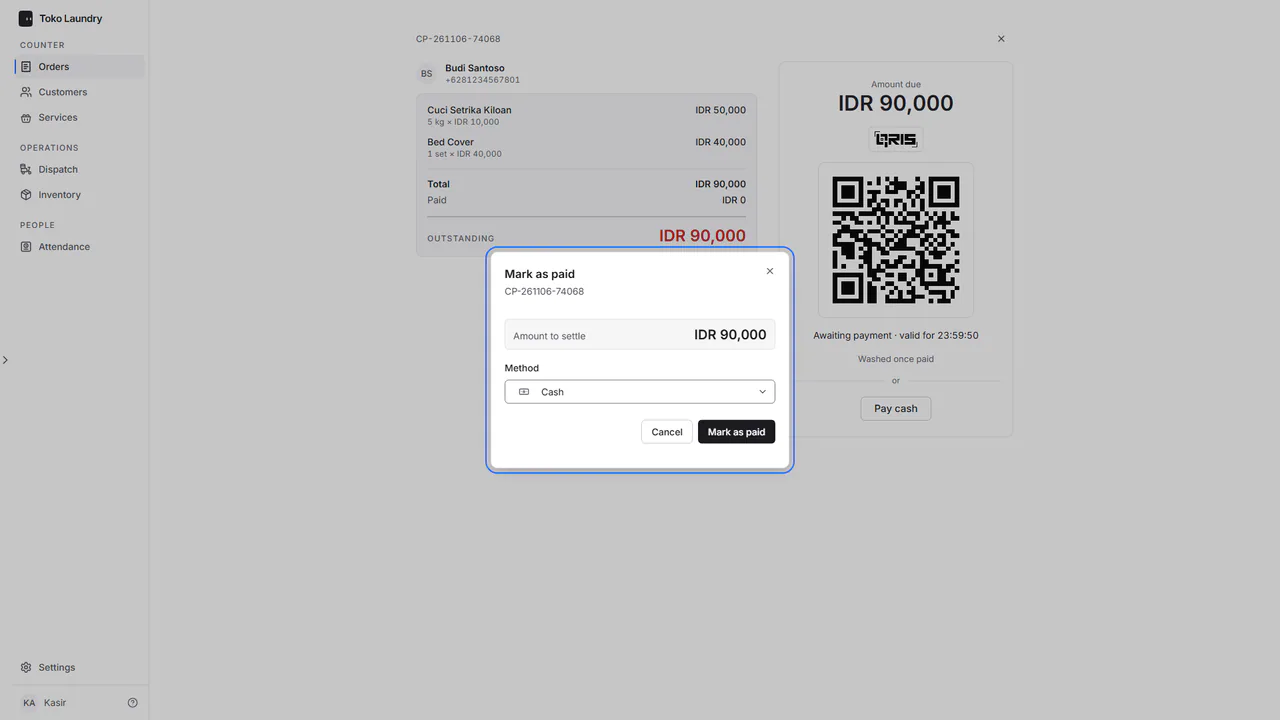
For cash, transfer or EDC, press Pay cash. Pick the Method (Cash is already chosen), then press Mark as paid. The amount is the whole outstanding bill.
The customer has not paid yet? Close the page with the X. The order waits, and Pay in the order panel opens its page again.
Steps to hand over laundry
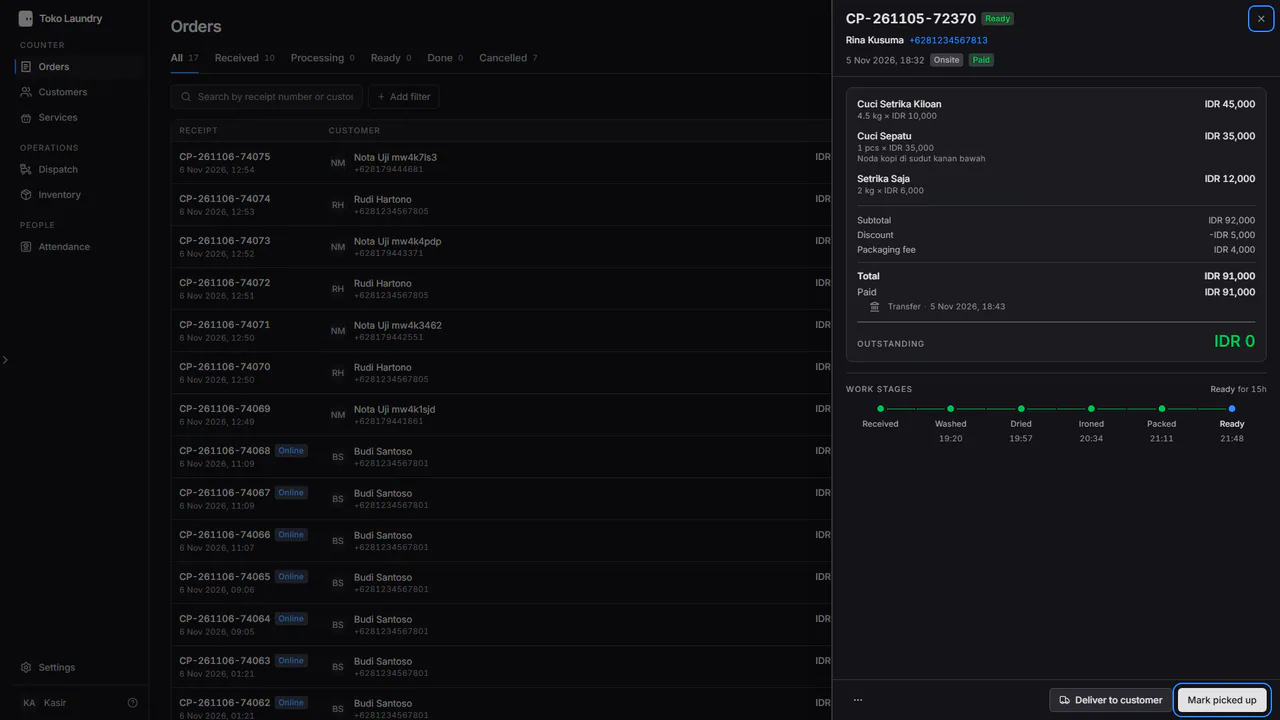
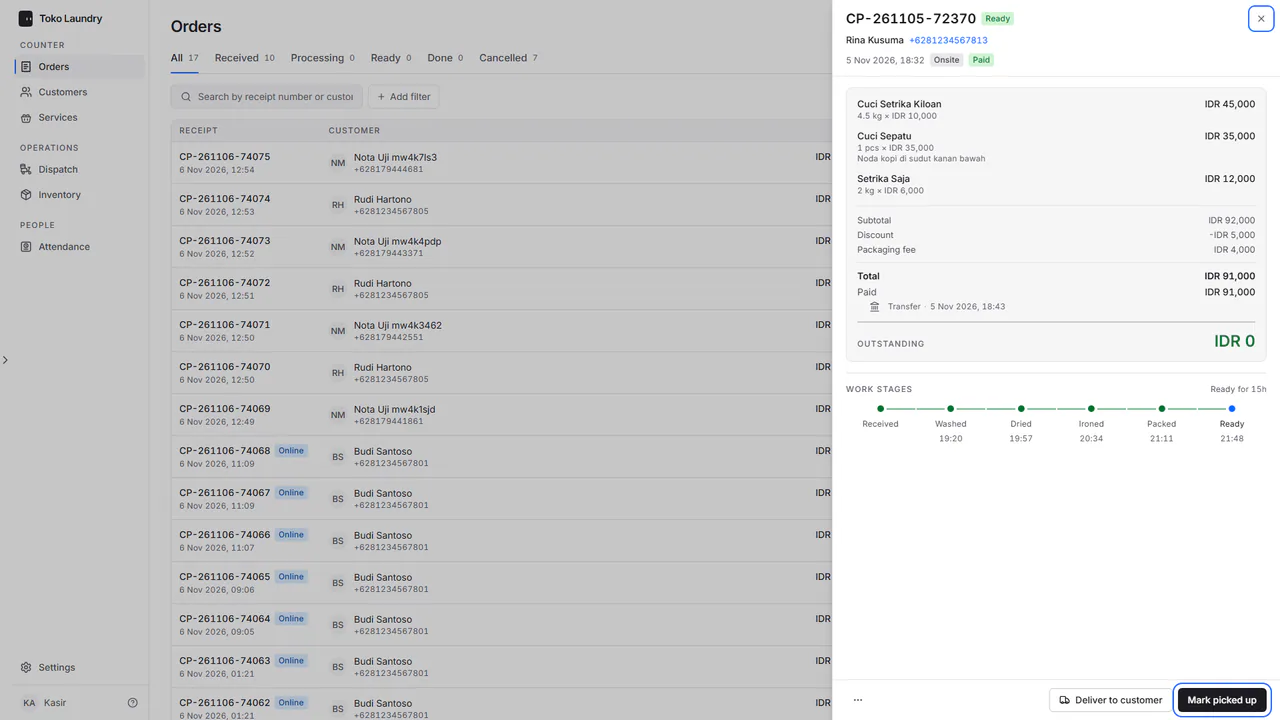
Open the Ready tab and pick the order.
Press Mark picked up when the customer collects it, or Deliver to customer if it is delivered.
Steps to resend a receipt
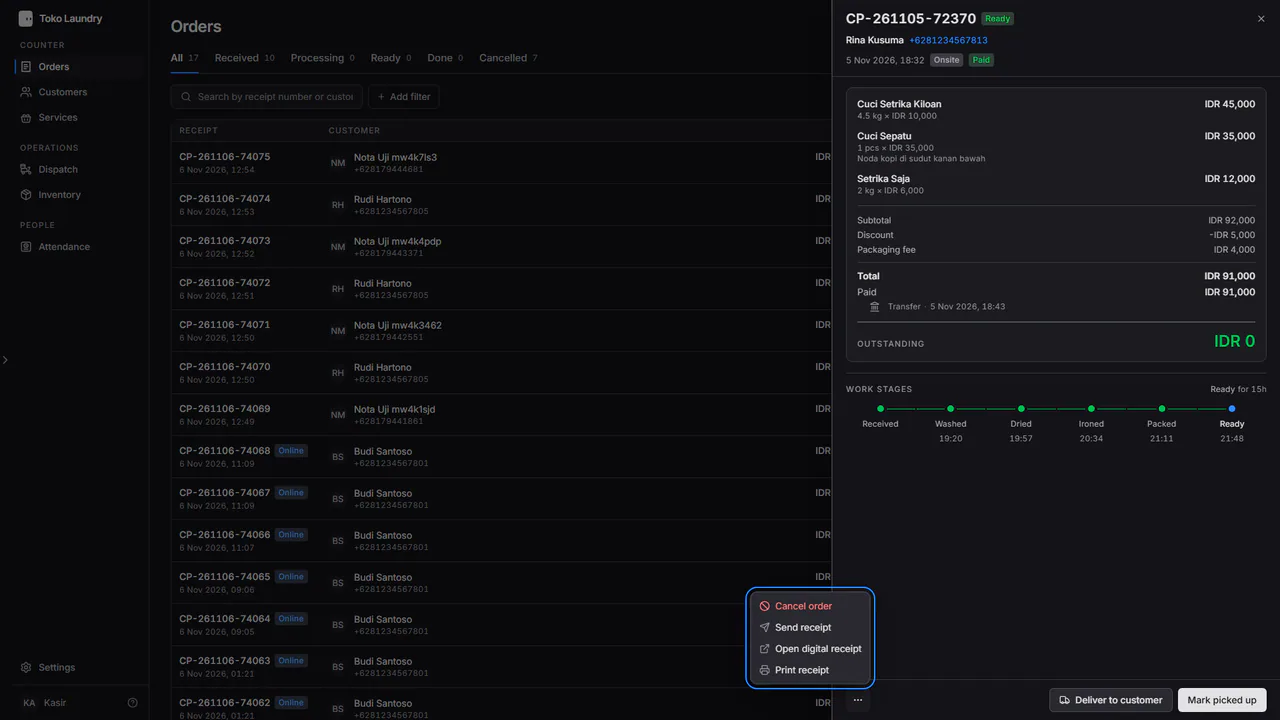
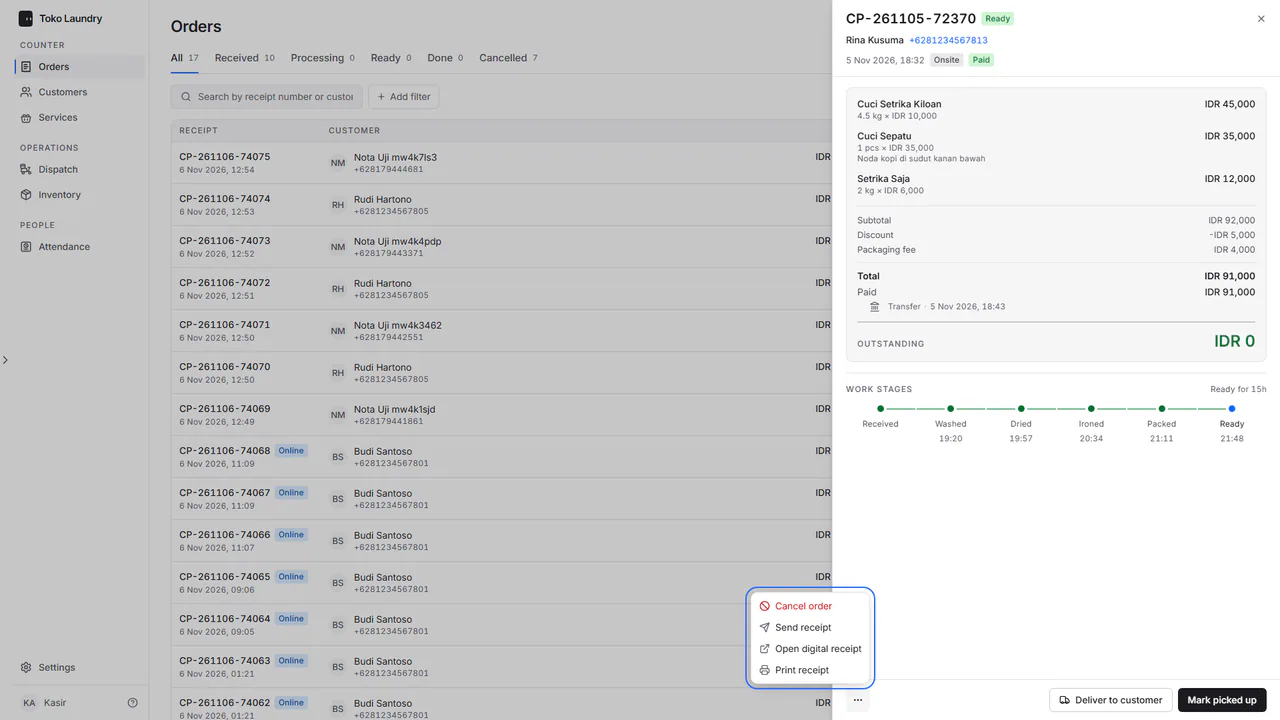
In the order panel, press ⋯ at the bottom left.
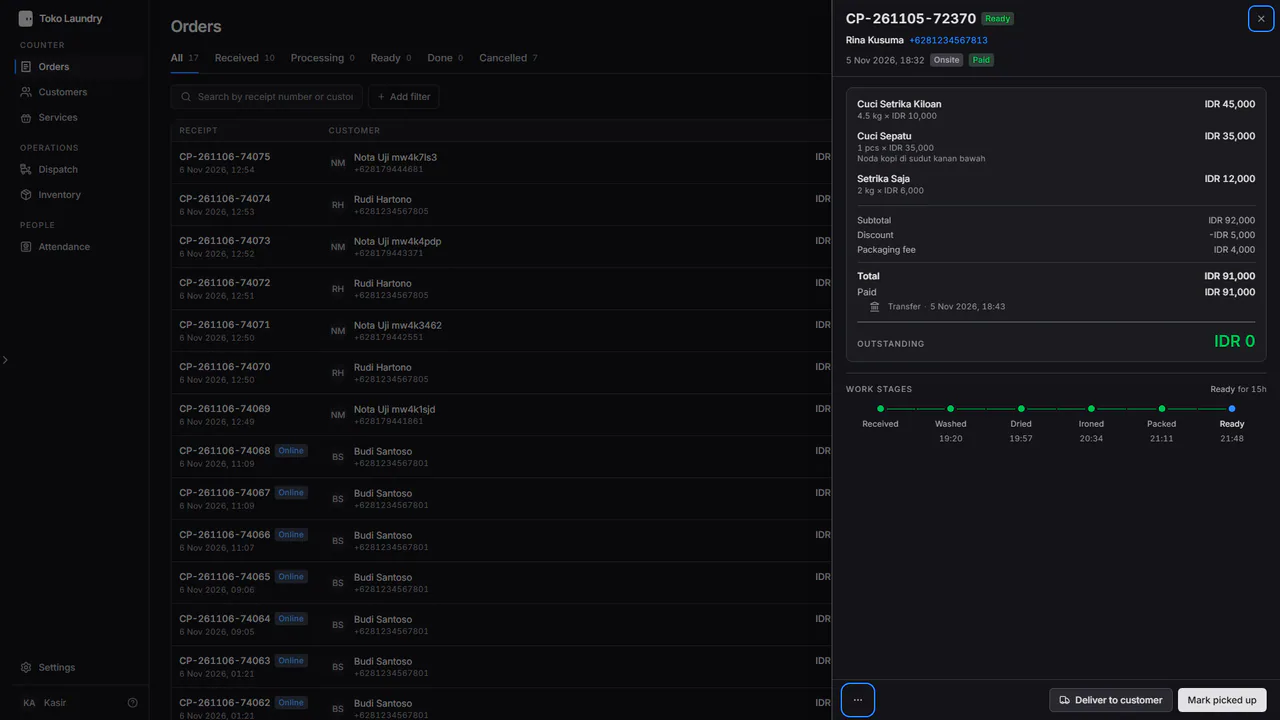
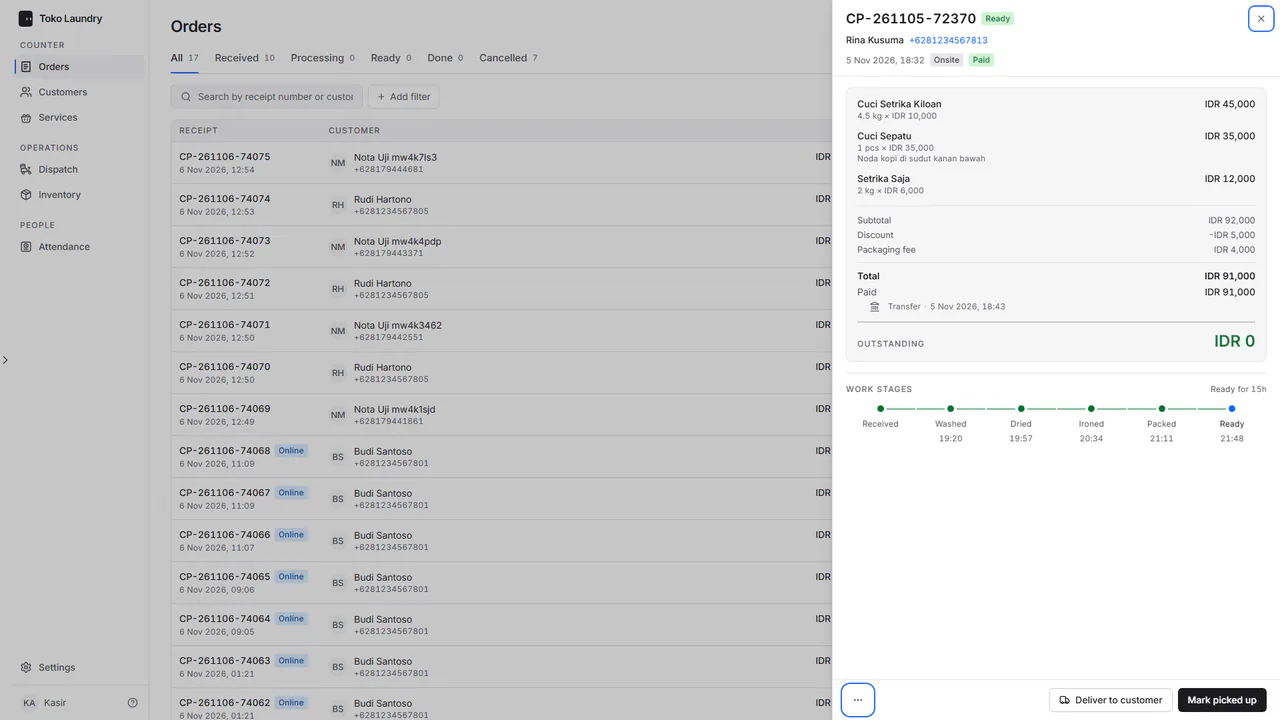
The menu holds Send receipt, Open digital receipt and Print receipt, with Cancel order in red at the very top when the order can still be cancelled. Pick Send receipt.
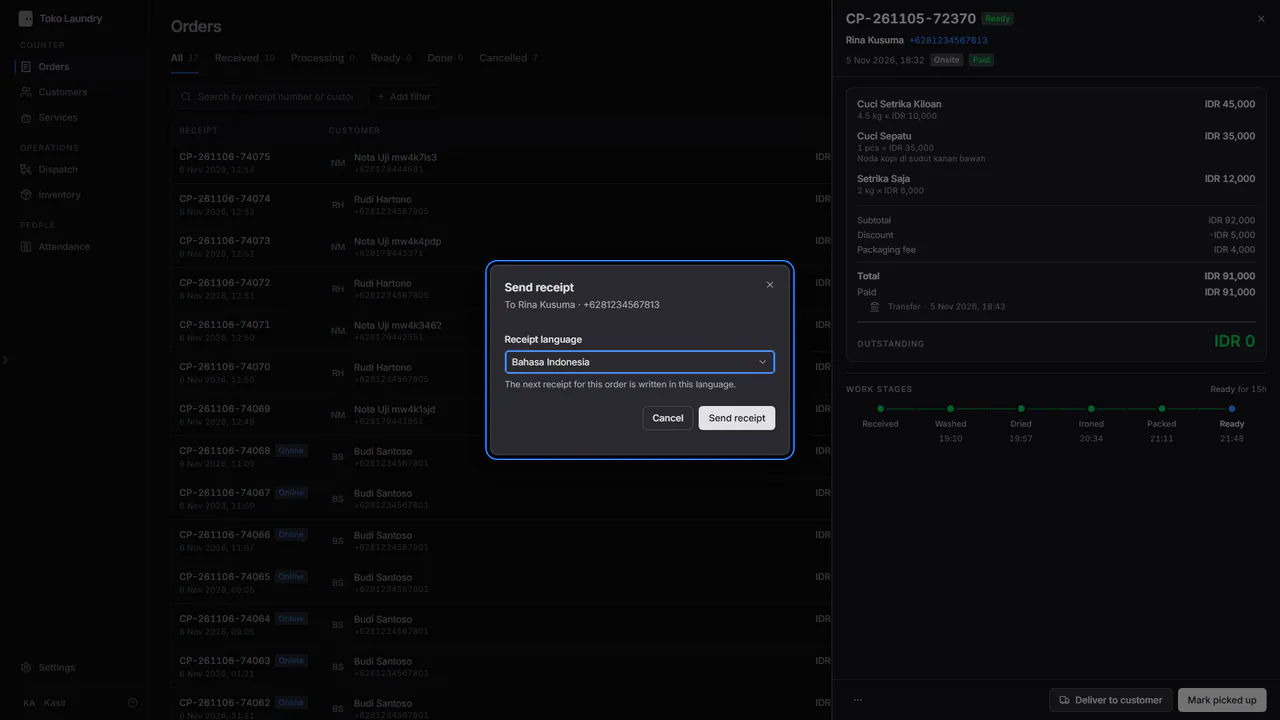
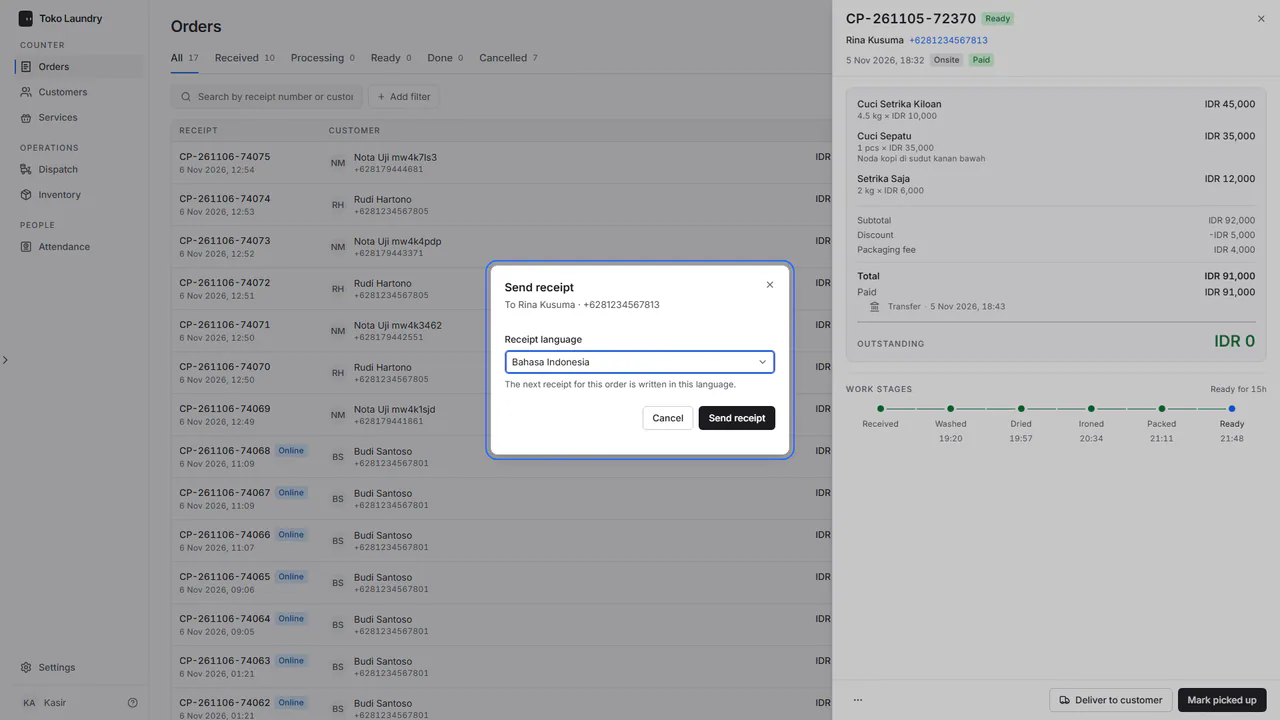
Pick the Receipt language if needed, then press Send receipt. The receipt is queued for WhatsApp.
Steps to manage customers
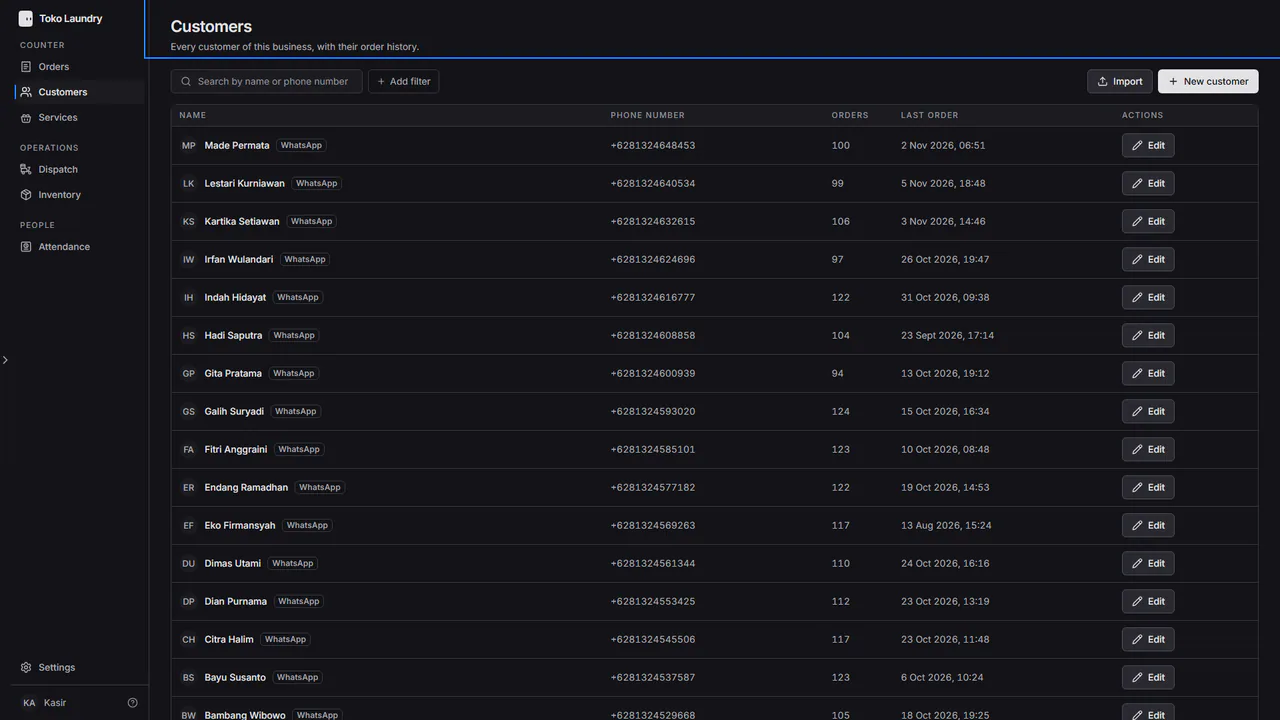
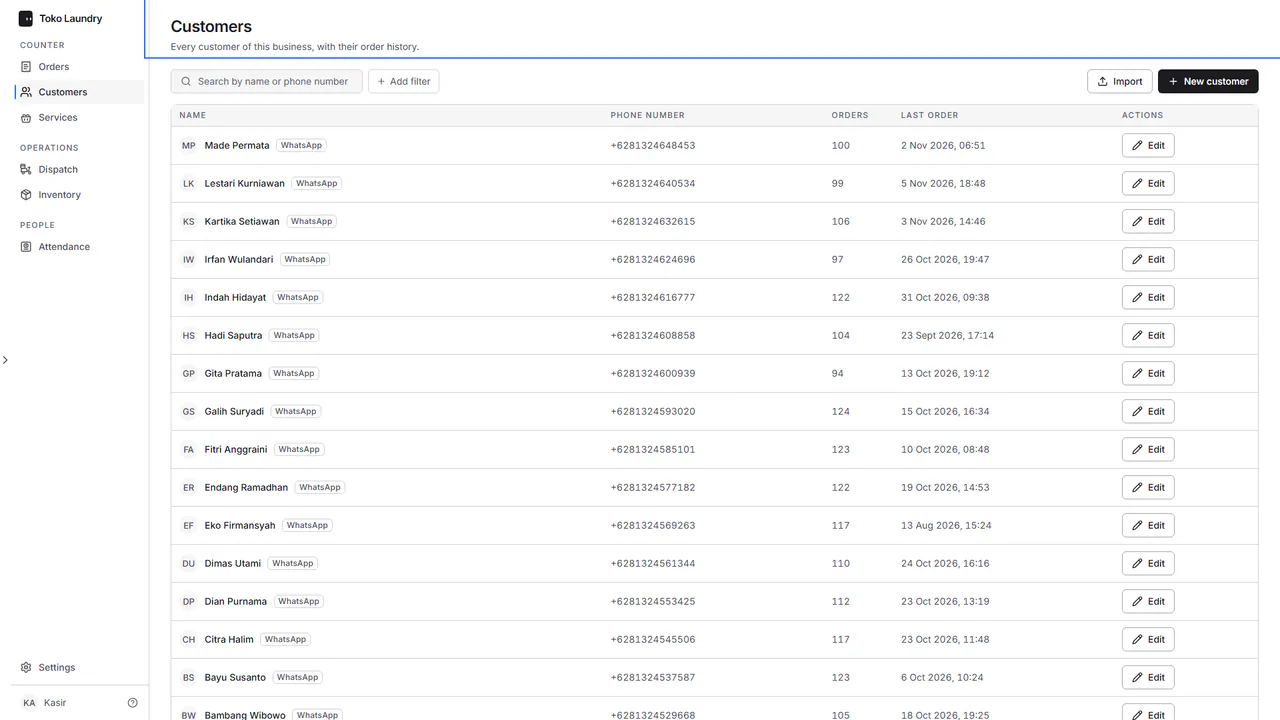
Open Customers. Press New customer, Edit on a customer's row, or Import to bring in an .xlsx or .csv file.
Cashiers also record supply use in stock. Cashiers do not open chats, reports, Team, Settings, payroll, the plan or the production board. See who can do what.