Taking payment
Every order is paid in full before it is washed: QRIS on the payment page, or cash at the counter.
Every order is paid in full before it is washed. A new order opens the payment page at once, with a QRIS for the full amount, and the laundry goes into production once it is paid.
For owners, admins and cashiers.
Steps to take payment
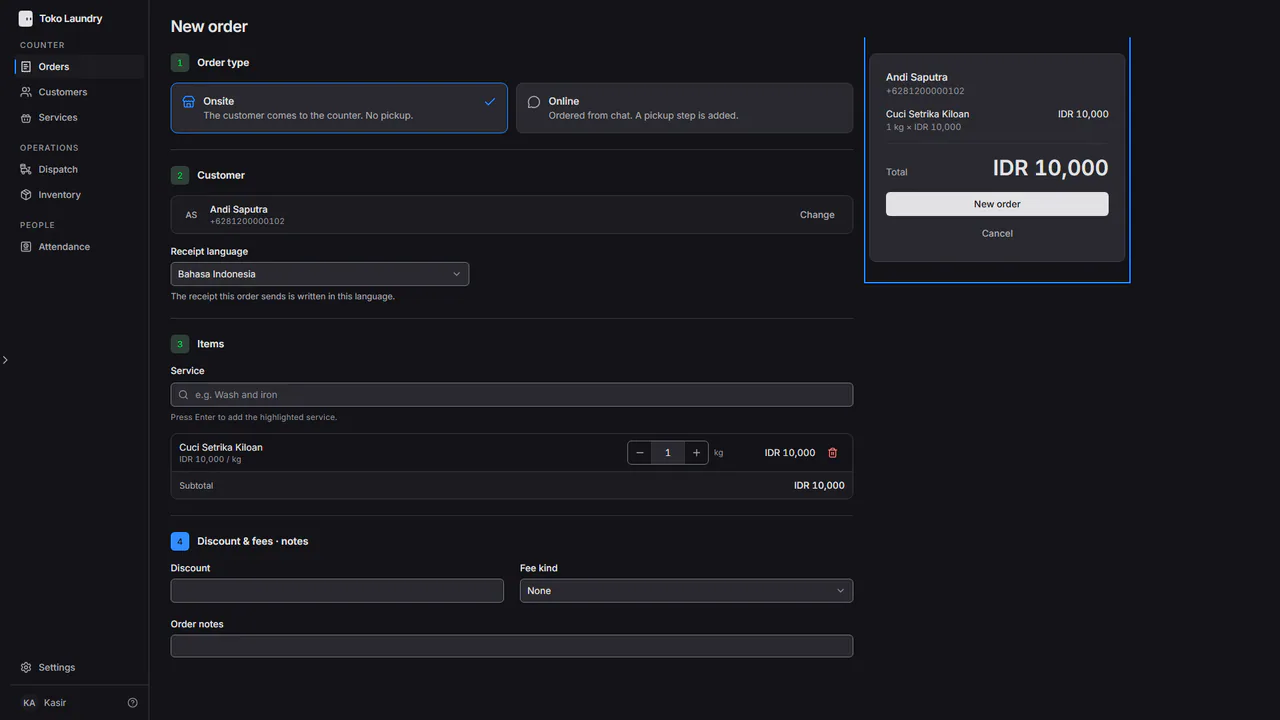
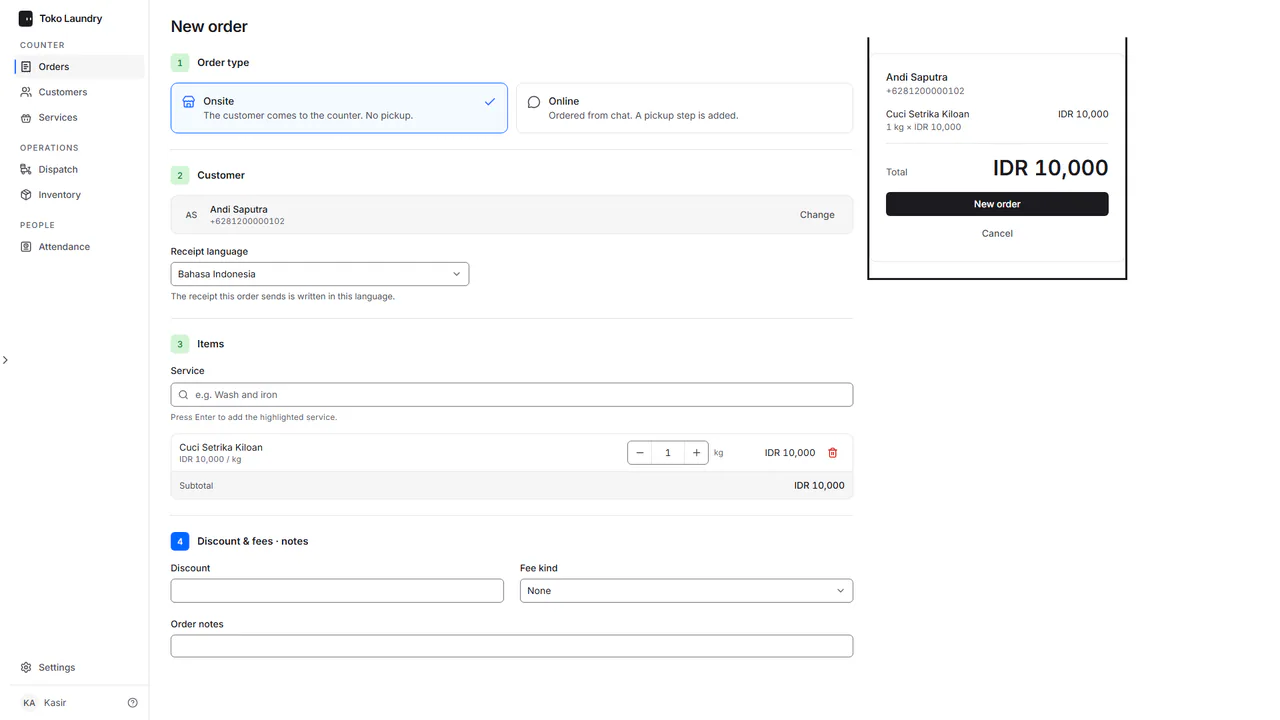
Create the order in New order, then press New order in the summary.
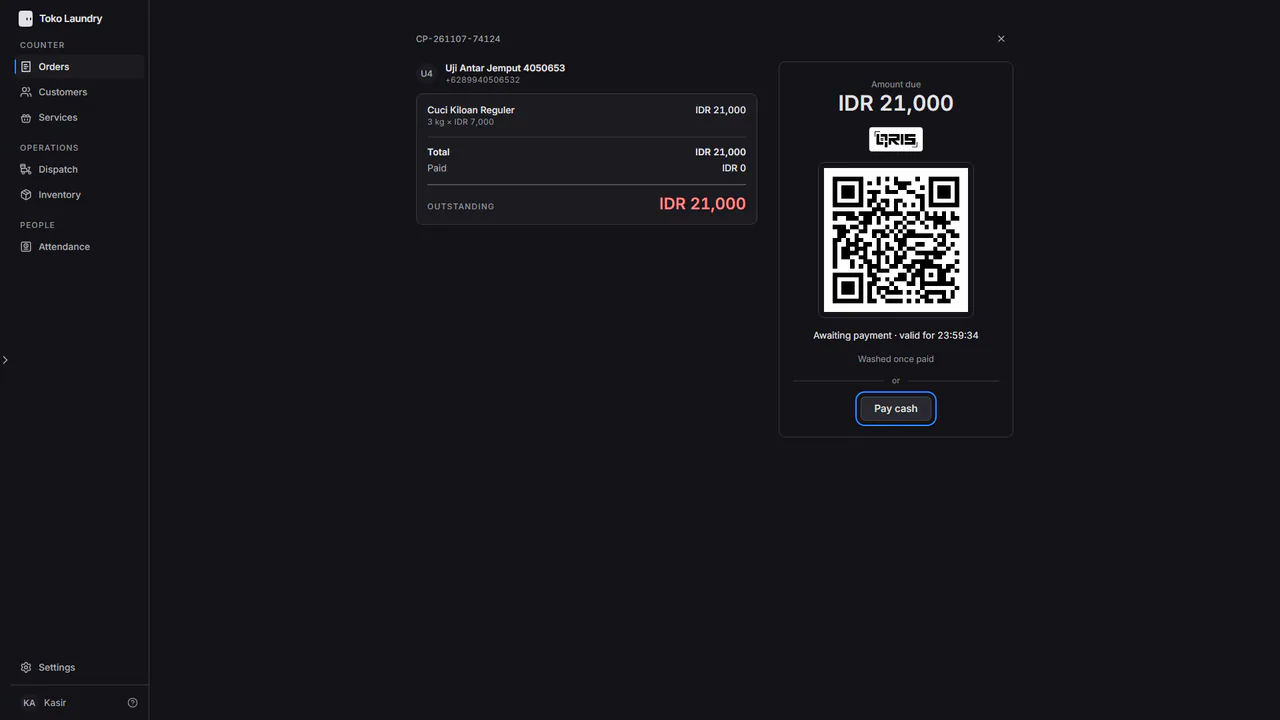
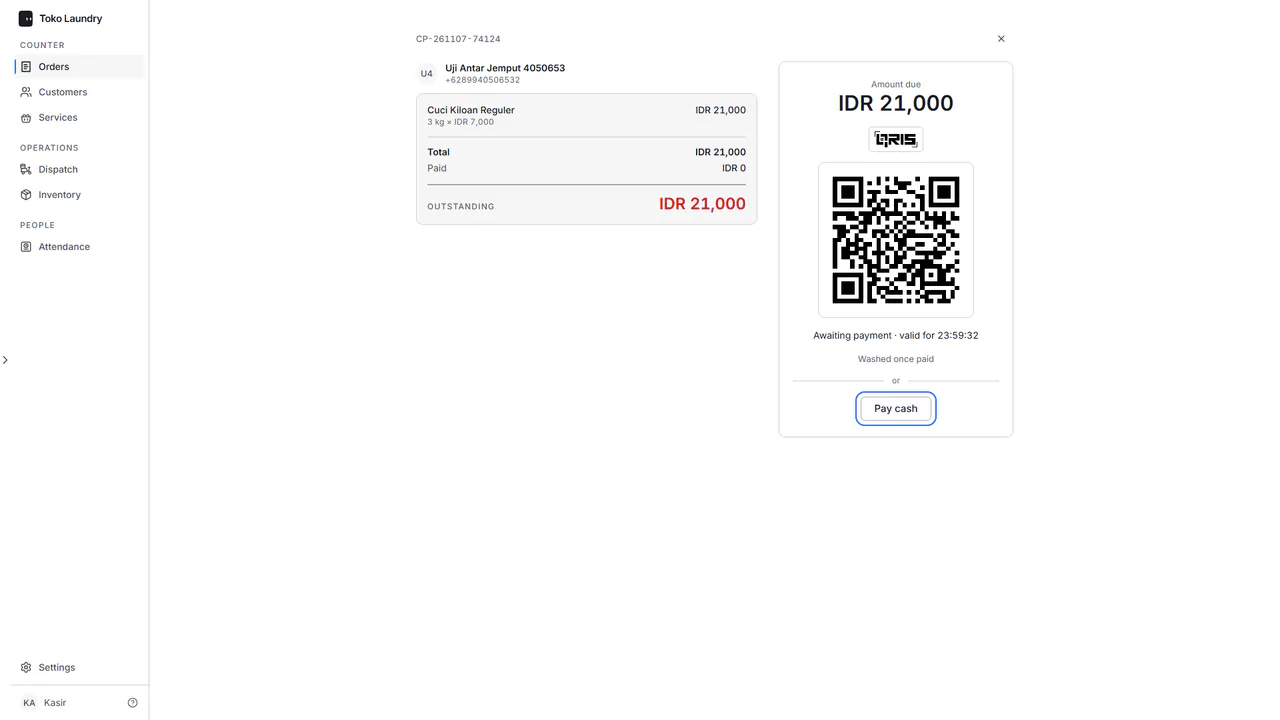
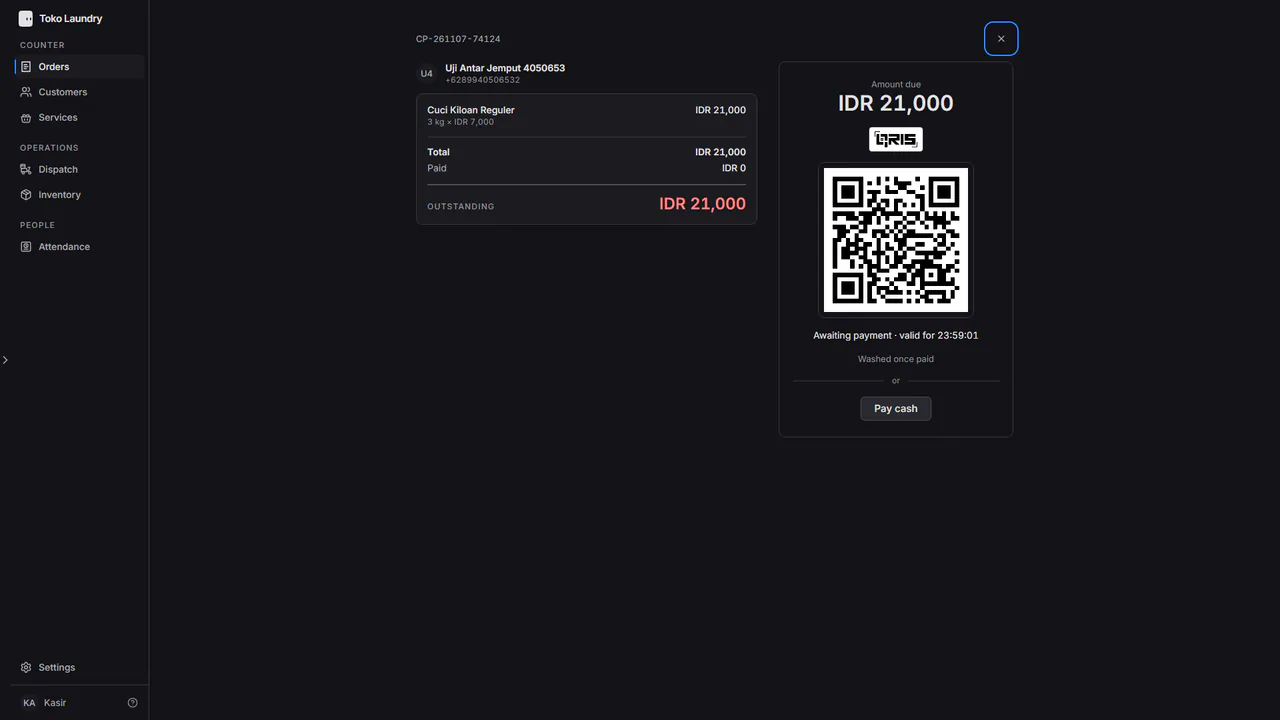
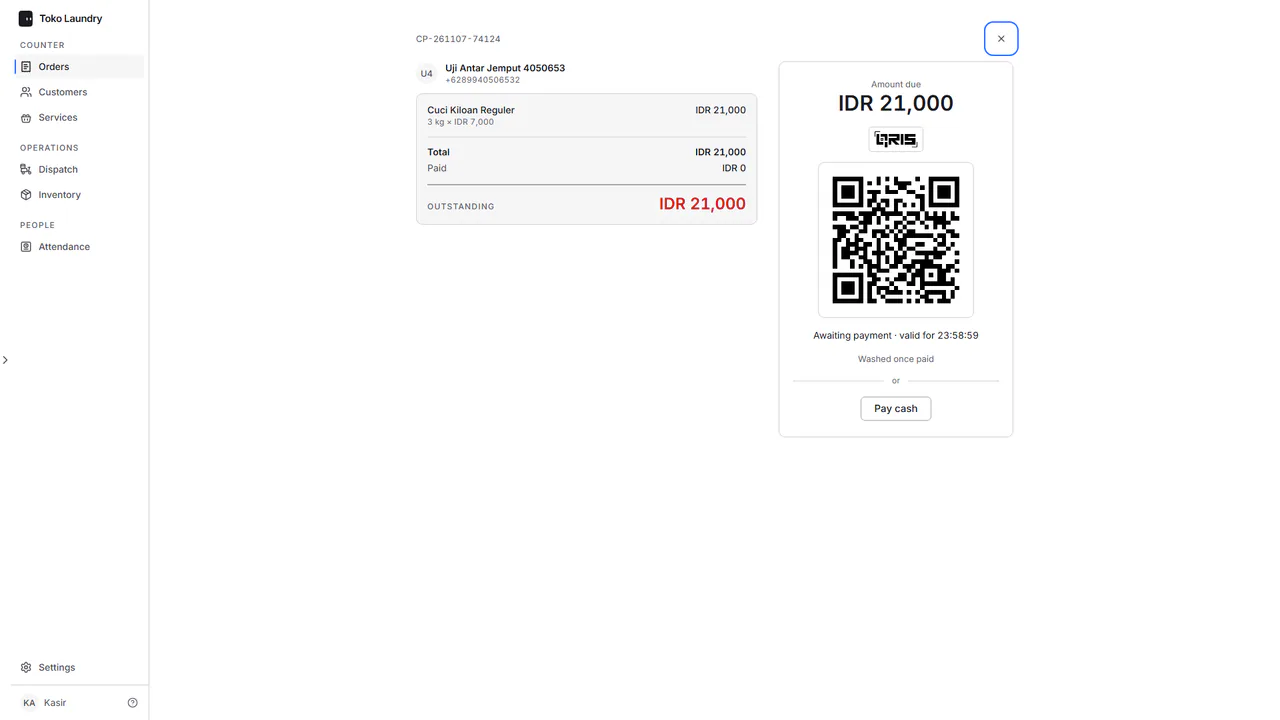
The payment page opens with the receipt number at the top. The card on the right holds the Amount due, a QRIS for the full amount, an Awaiting payment · valid for line with the time left, and Washed once paid.
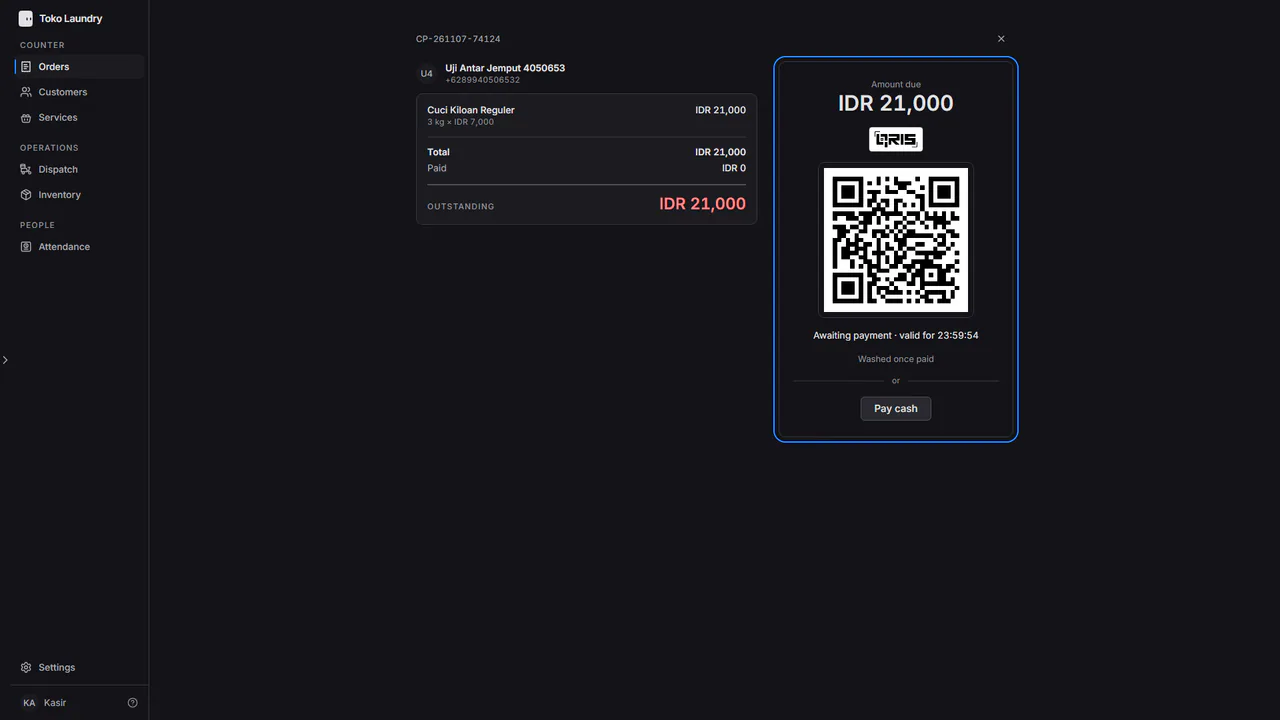
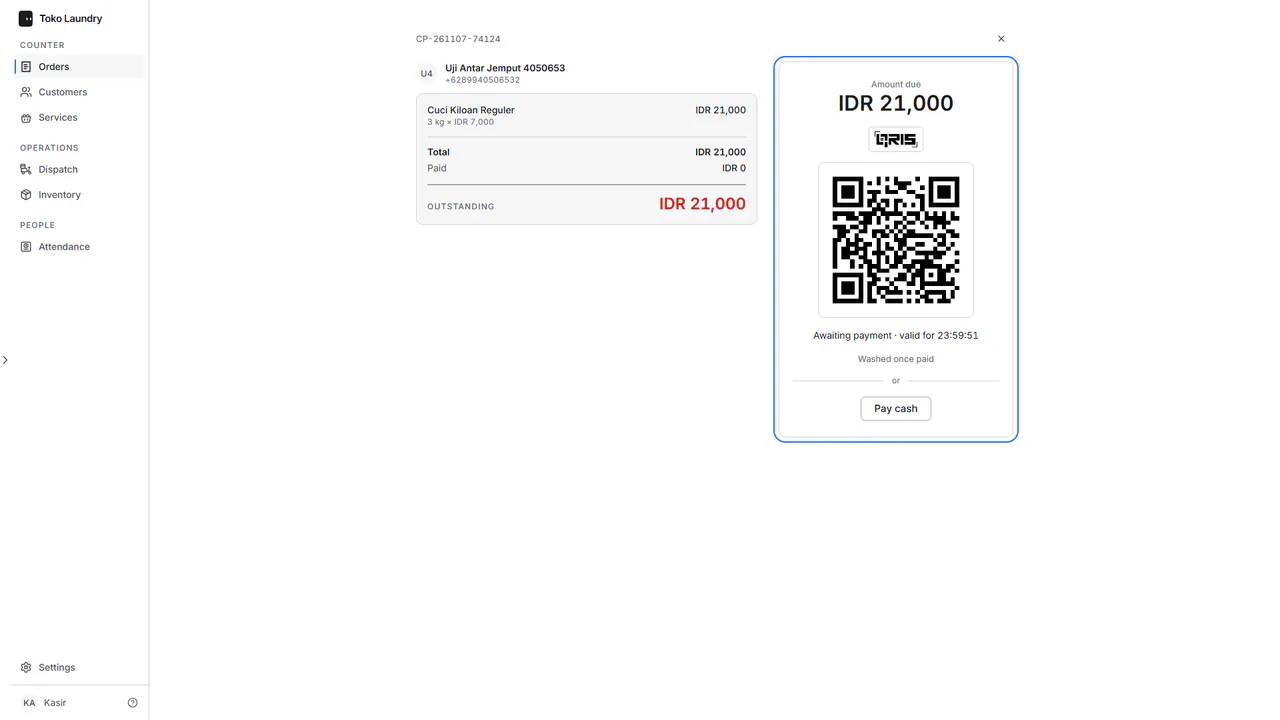
The left column holds the customer (initials, name and number) and the order's receipt: each service, the subtotal, any discount and fees, the total, Paid and Outstanding. Check it with the customer before they pay.
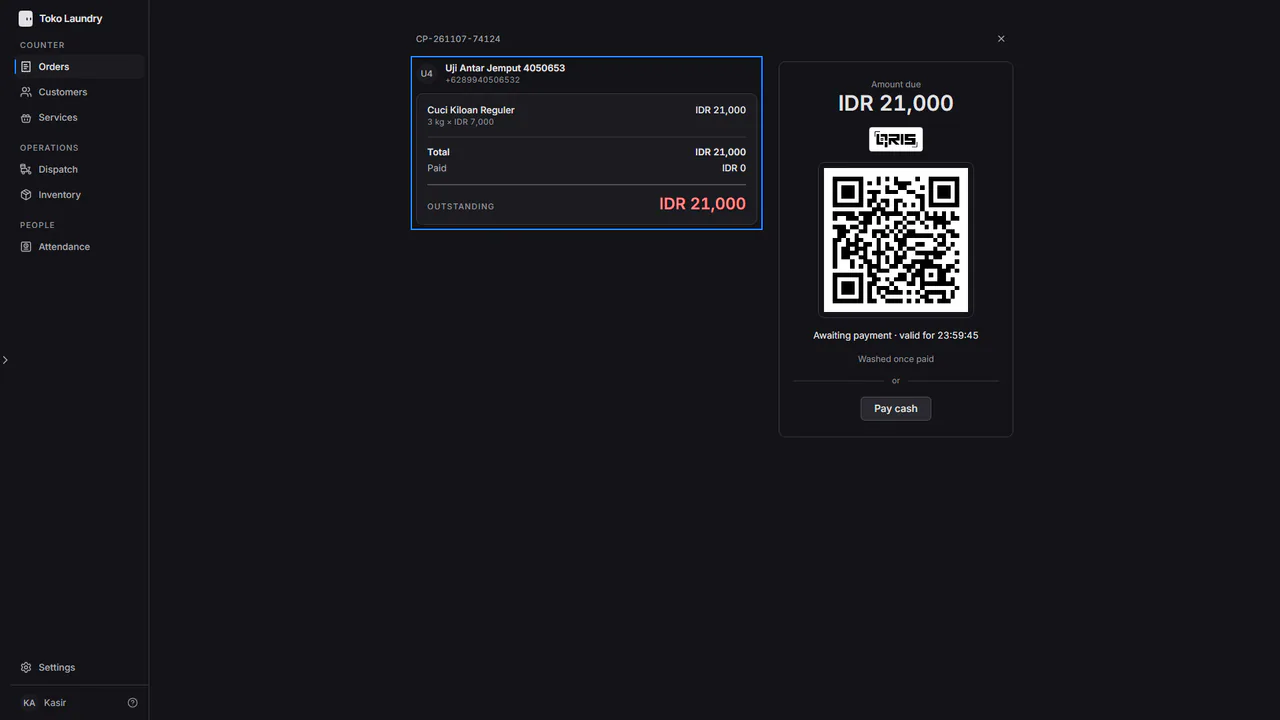
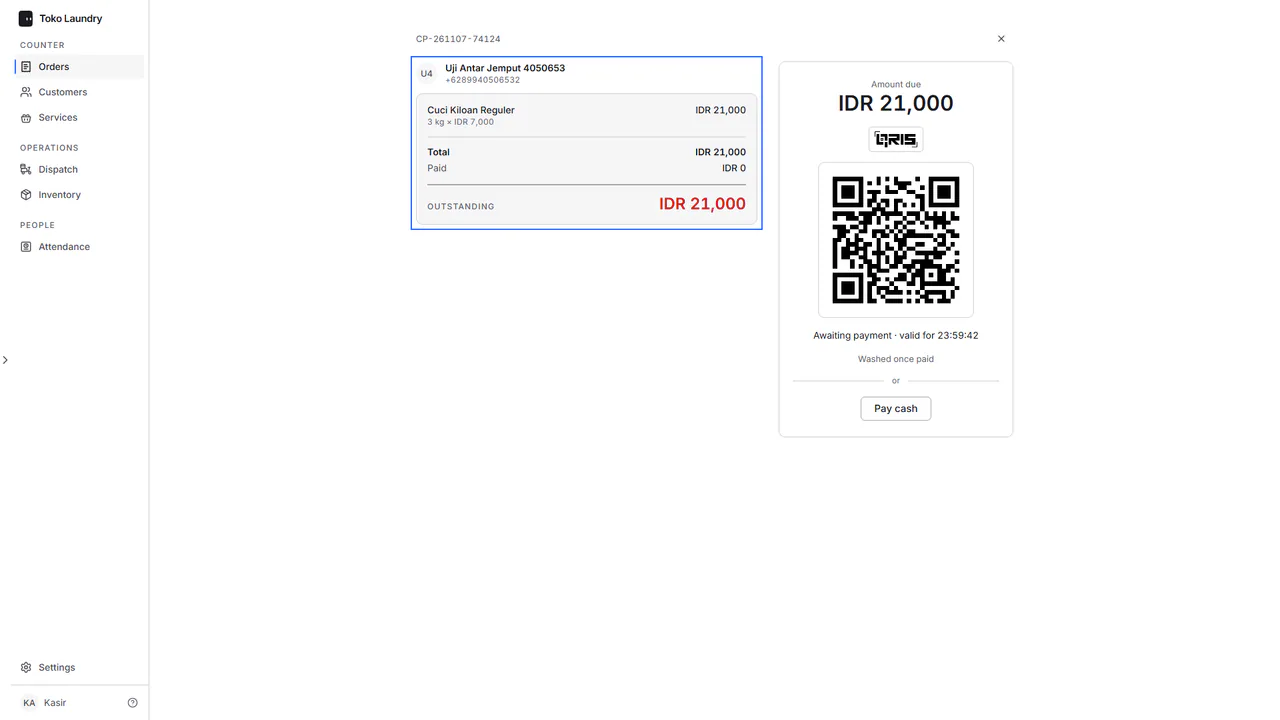
The customer scans the QR with a bank or e-wallet app. The page turns to Paid. Press New order for the next customer, or View order.
Paying another way? Press Pay cash under the or line.
The Mark as paid dialog shows the Amount to settle, which is always the whole outstanding bill.
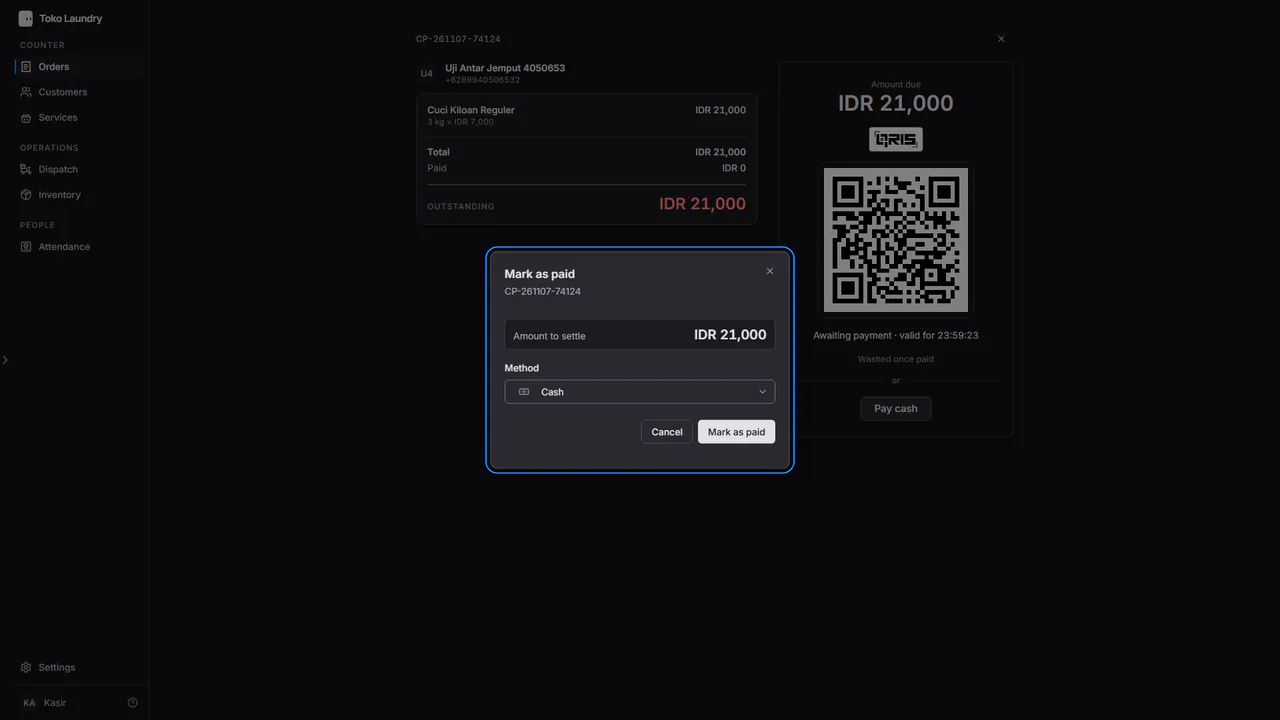
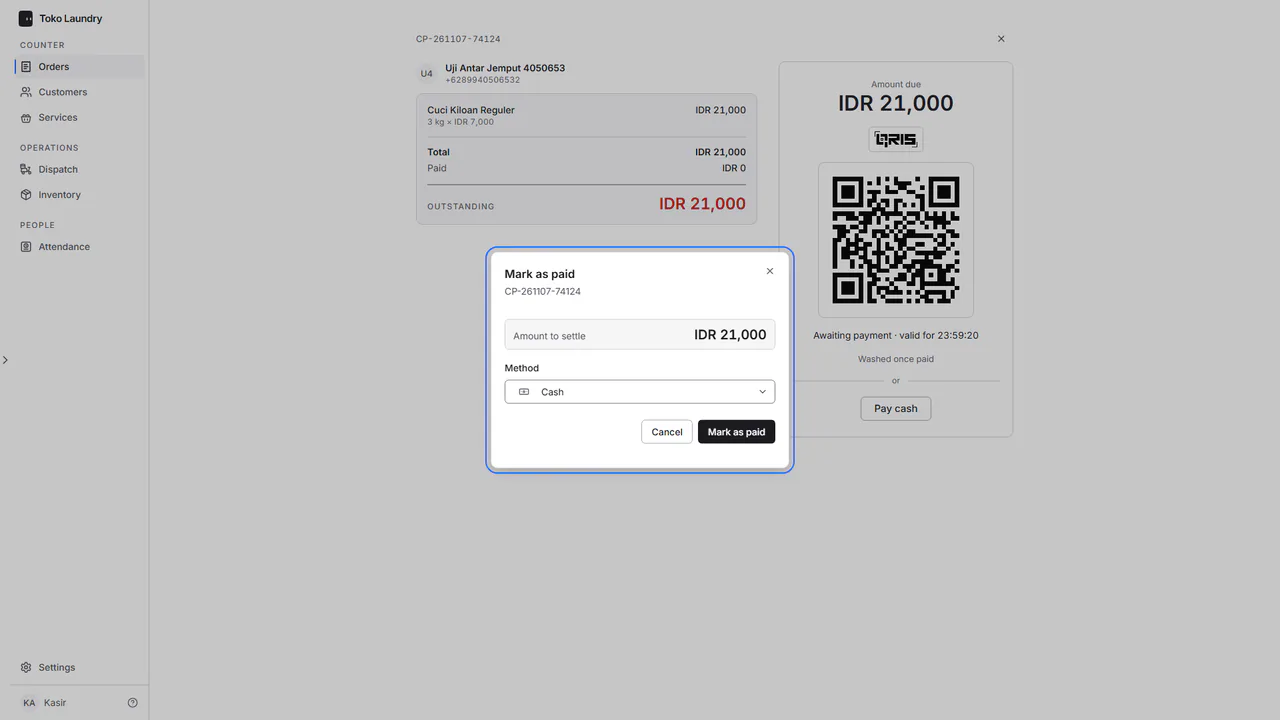
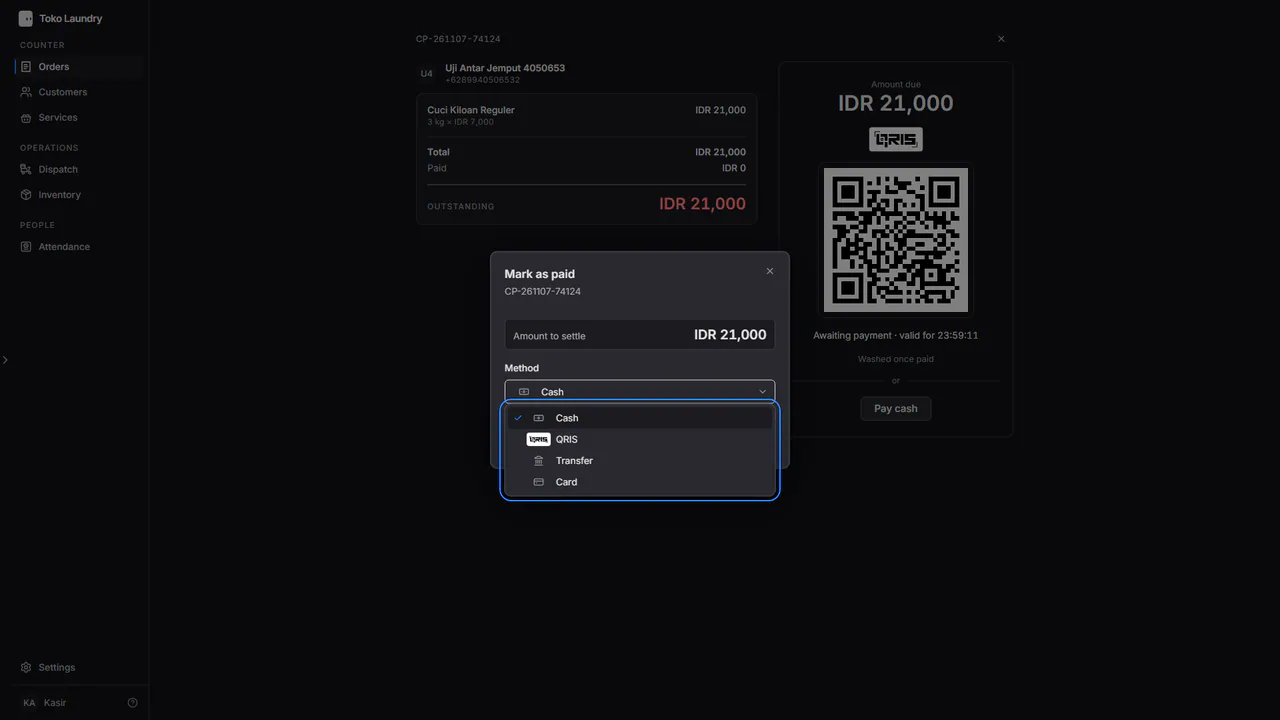
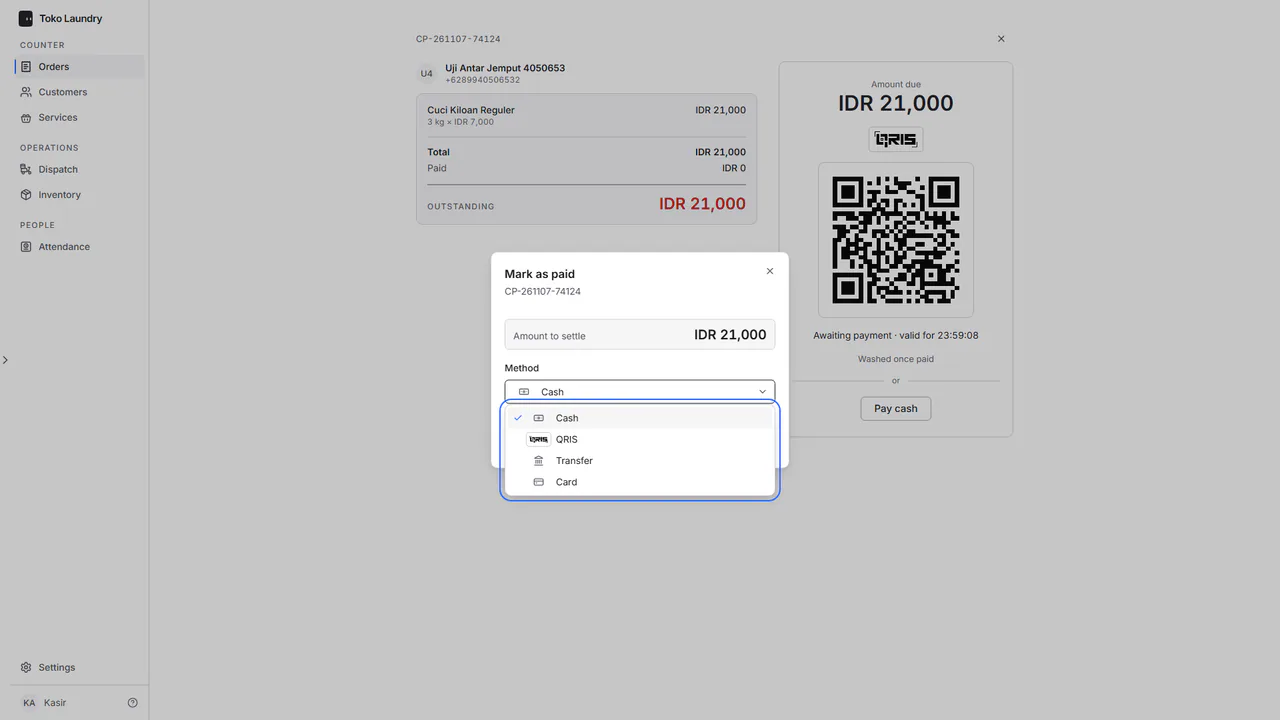
Pick the Method: Cash is already chosen, or QRIS, Transfer or EDC. This dialog is the only place to record a transfer or EDC payment. Then press Mark as paid.
Steps to collect an order that is waiting
The X at the top right closes the payment page. The order stays saved and waits for payment.
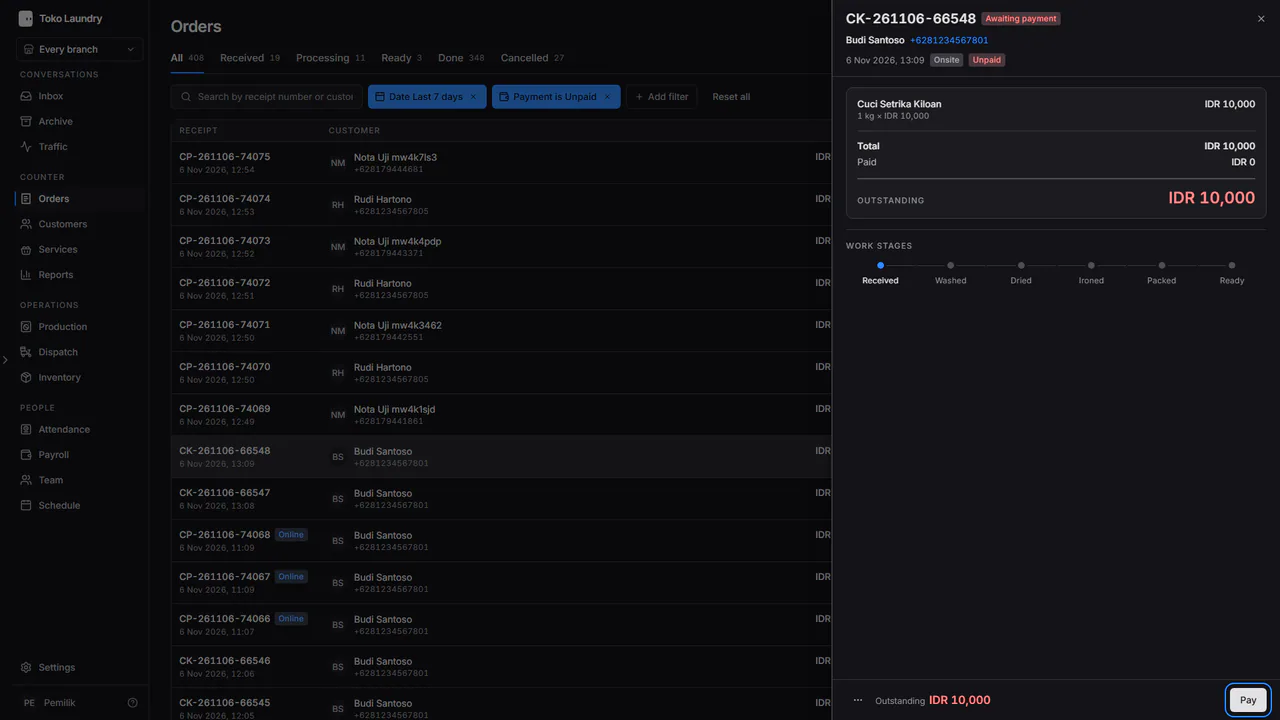
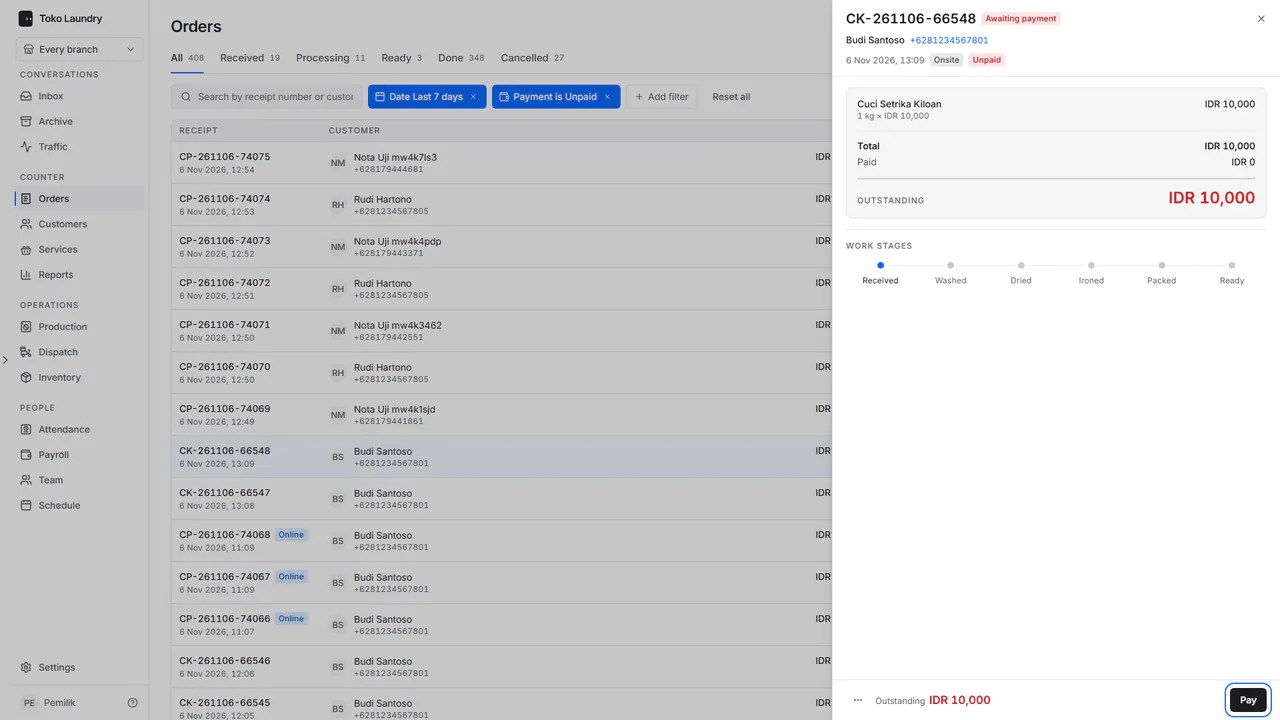
To collect it later, open the order in Orders and press Pay at the foot of the panel. The payment page opens again.
If the QR has expired, the page says QR expired and offers New QR, Pay cash and Cancel order.
The pay-in-full rules
- There is no deposit and no part payment. The amount recorded must equal the outstanding bill.
- Until it is paid, the order sits in the Awaiting payment column of the production board and cannot move to a work stage.
- If the business does not take online payments yet, the payment page shows no QR and says QRIS is not active for this business. Take cash, transfer or EDC at the counter. Record the payment through Pay cash with the matching method.
- If the customer pays by QRIS after the cashier recorded cash, the order is not paid twice. The money is recorded in balance as money not yet matched to an order.