Order draft from chat
Fill an order from a WhatsApp conversation, then check it before it is saved.
The order draft reads a customer's chat and fills in the order form, so you check it instead of typing it again. Nothing is saved until you press Create order.
For owners and admins, who read customer chats in the Inbox.
Steps to draft an order
Open the conversation in the Inbox. If the chat is still Queued, press Assign to me first. Press Draft an order from this chat in the reply box, or press o.
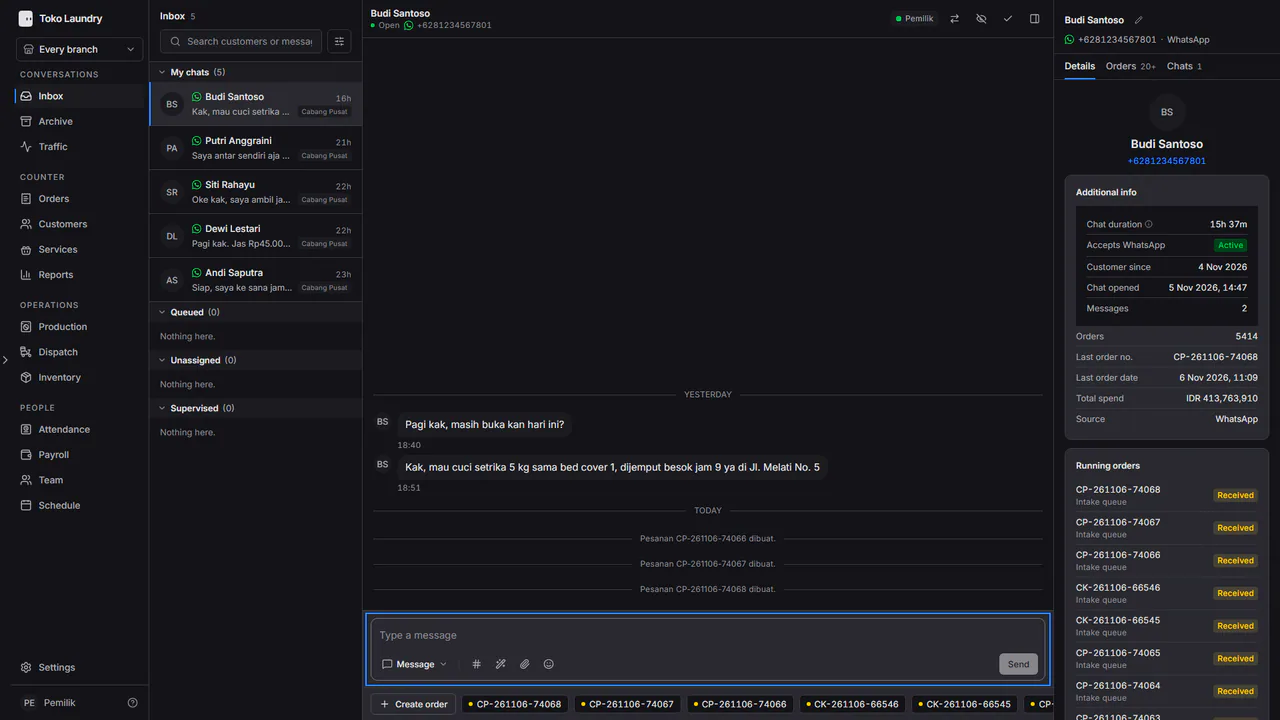
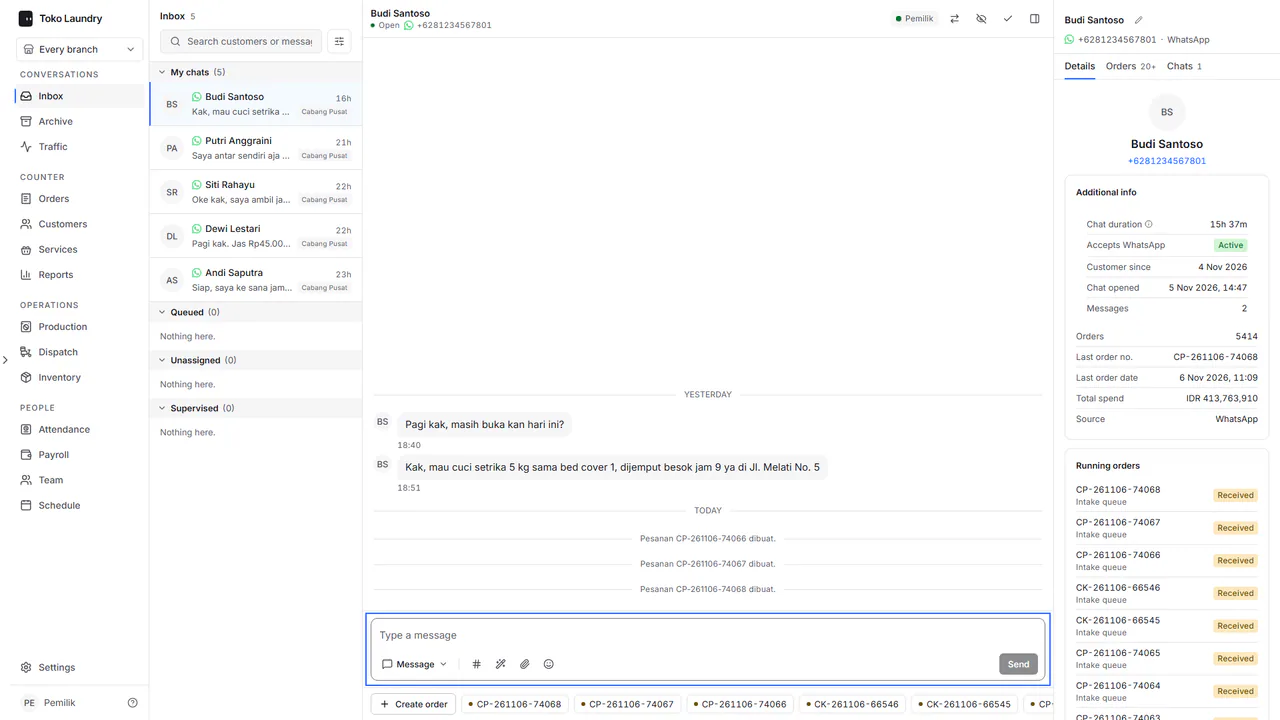
The Order from this chat dialog opens. When the draft is ready, the Toko Laundry mark writes in each field: the customer, the services, the quantities and the pickup address.
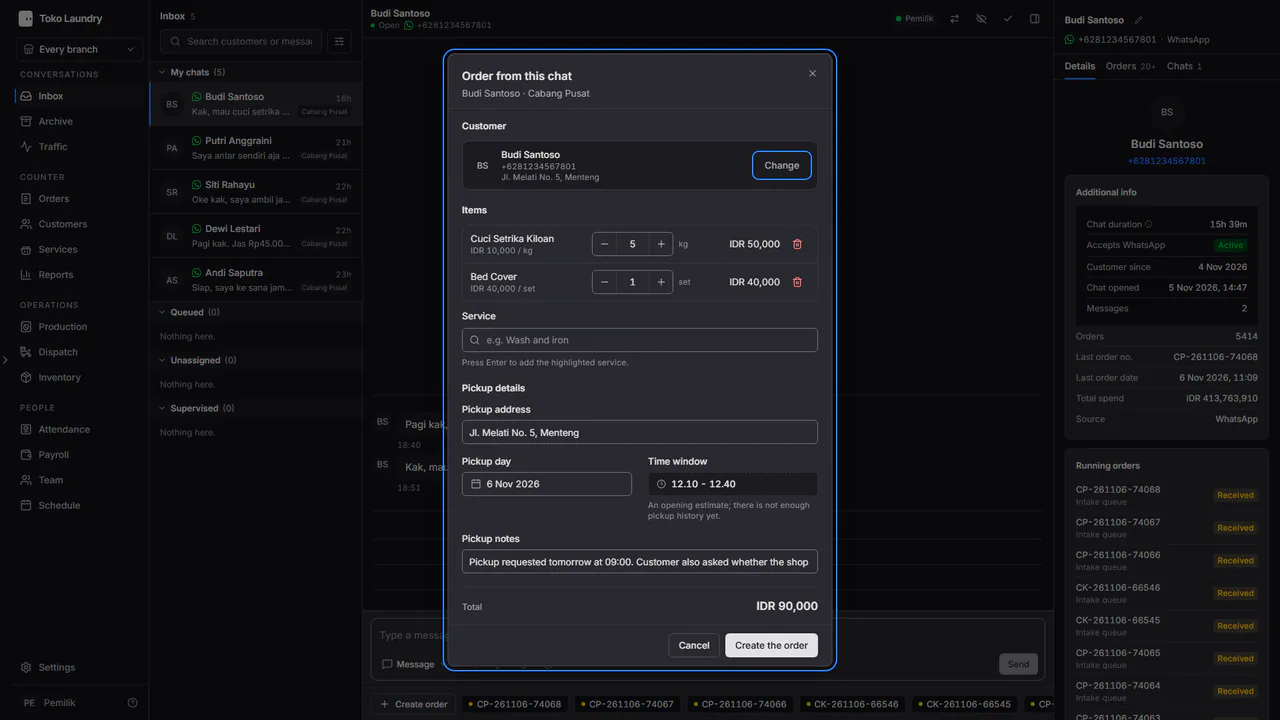
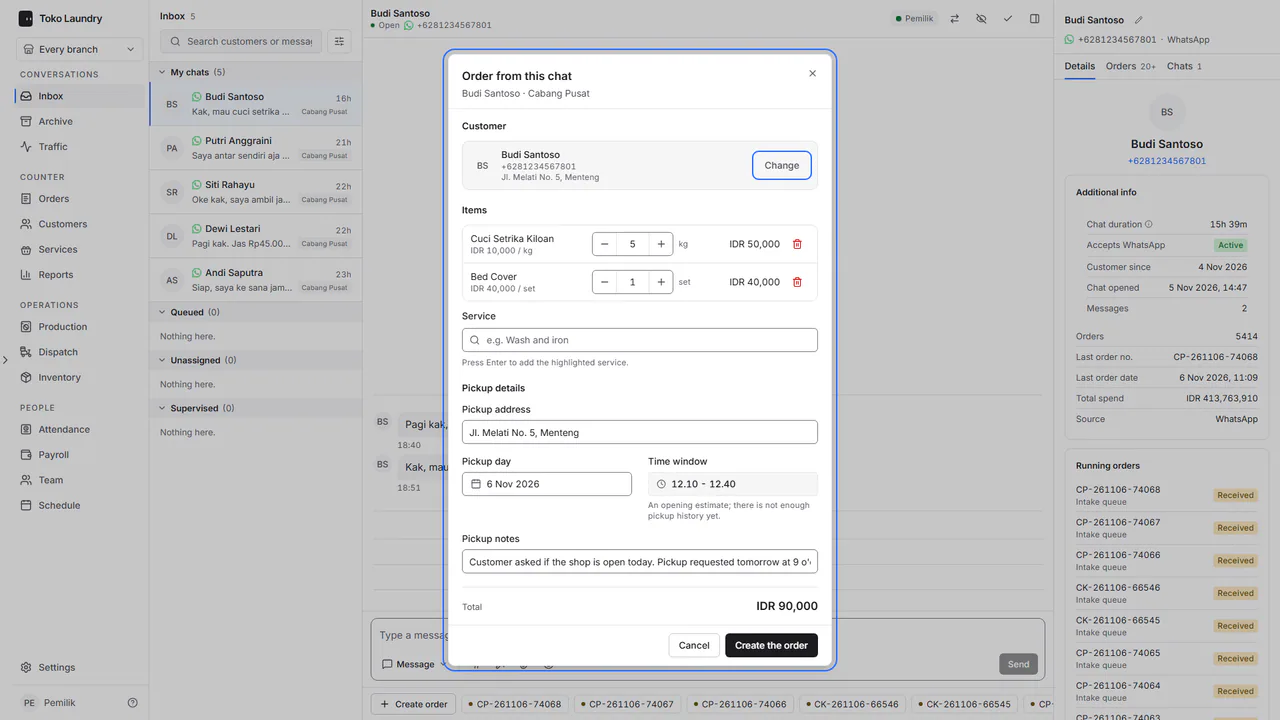
Check the draft. A service that matches nothing on the branch's list appears under Not recognised yet: pick the right service, or press Discard. The draft does not fill in the pickup date, so change the date if the customer asked for another day.
Press Create order. An order from chat is an online order: it is saved at the estimated price, then weighed in production before the bill goes out. See customers paying online.
Limits and data
- The button appears only once the platform operator has set up an AI model.
- Each business has a daily draft limit. Past it, fill in the order as usual.
- Only the customer's incoming messages (the last 40 at most) and the branch's service names and units go to the AI model provider. A sentence in the chat telling the system to do something is ignored.