Delivery
For: Owner, Admin, Cashier, Courier
Pickup and drop-off, package photos, the dispatch board and automatic courier assignment.
An online order is picked up from the customer and delivered back. A counter order can also be delivered once it is ready. The system shares trips among the branch's active couriers and orders each courier's stops by distance and deadline.
For owners, admins, cashiers and couriers.
Steps to deliver a counter order
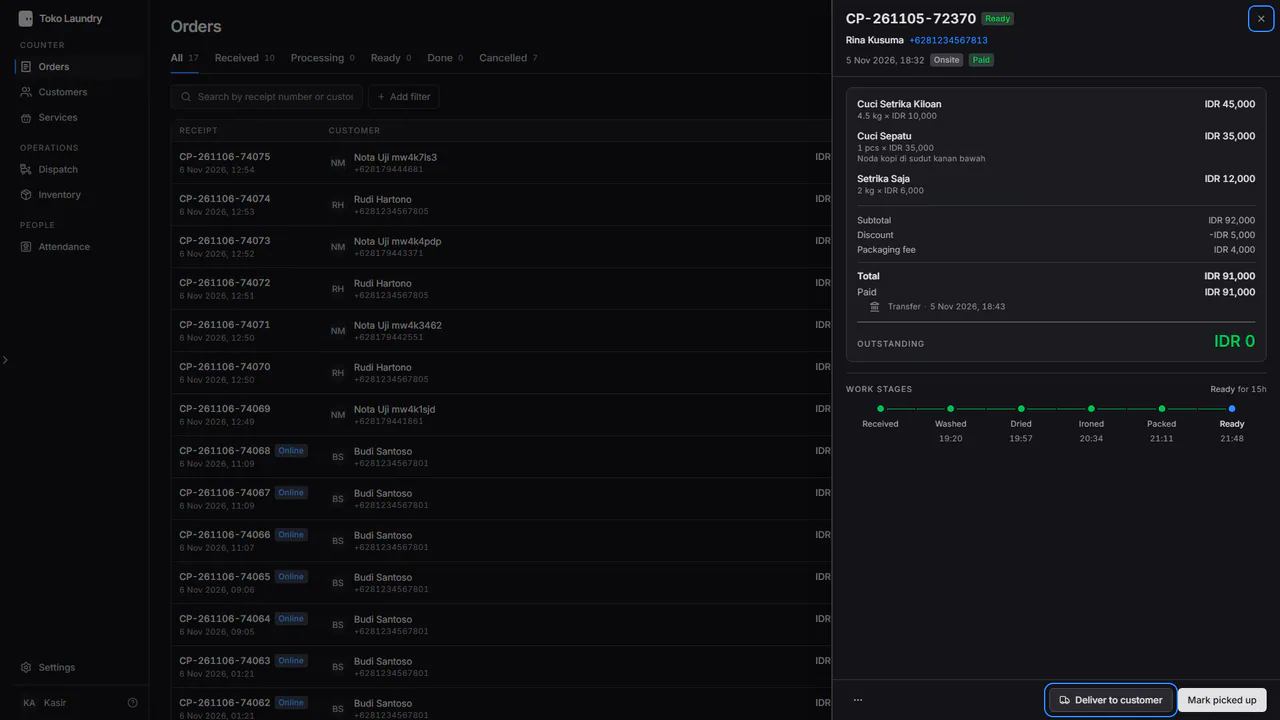
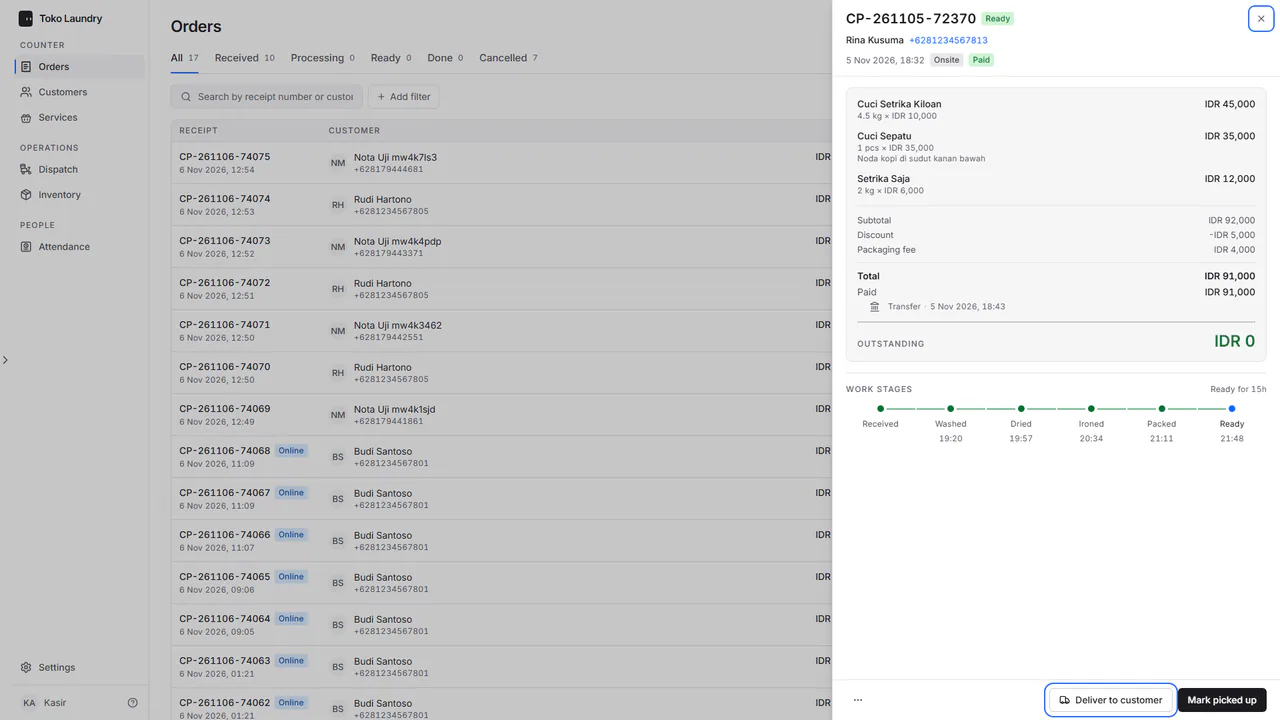
Open an order that is Ready and press Deliver to customer at the foot of its panel.
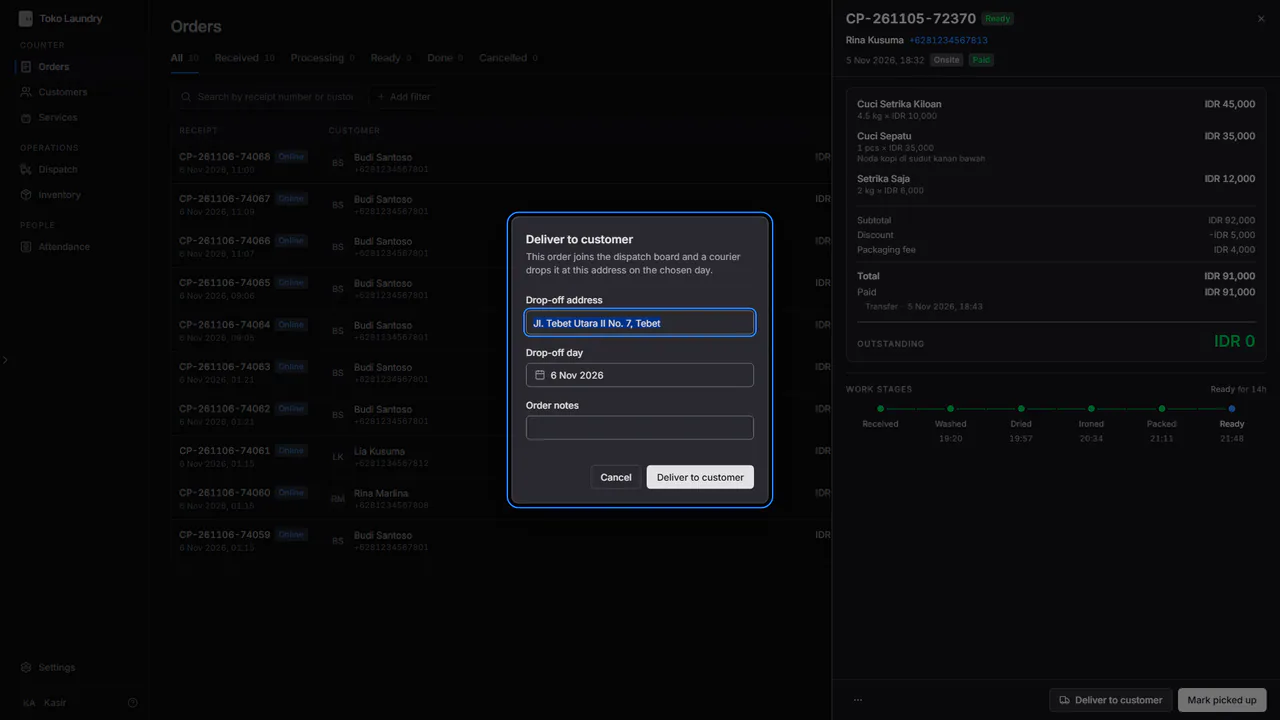
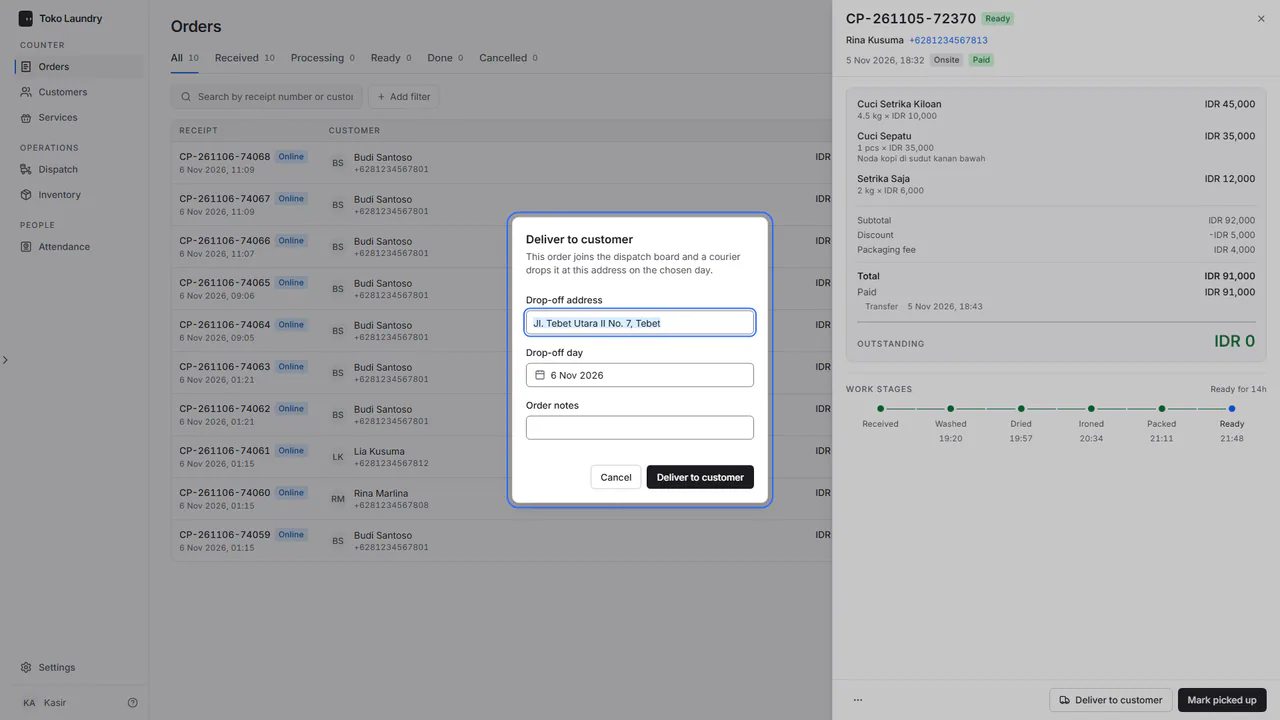
Check the Drop-off address, pick the Drop-off day, then press Deliver to customer in the dialog. The order joins the dispatch board.
Steps for the courier
Open Dispatch. The list on the left holds today's stops in route order. Pick one to see its address, time and order contents.
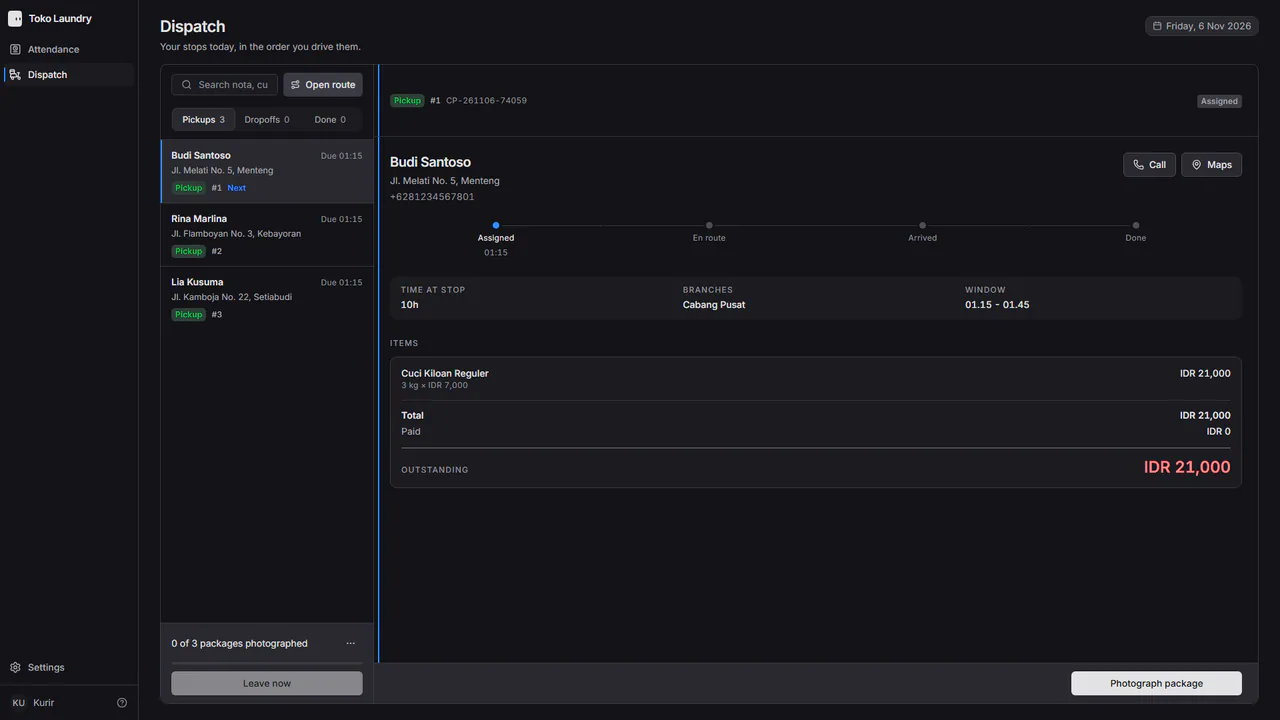
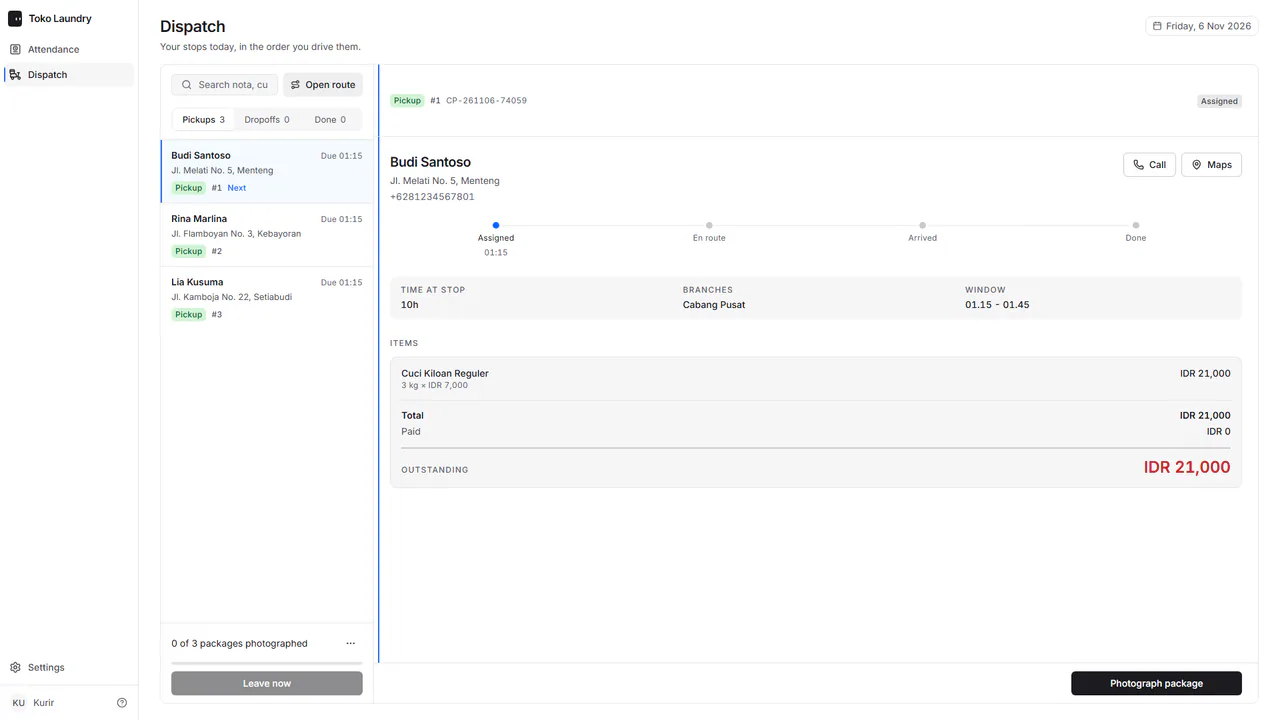
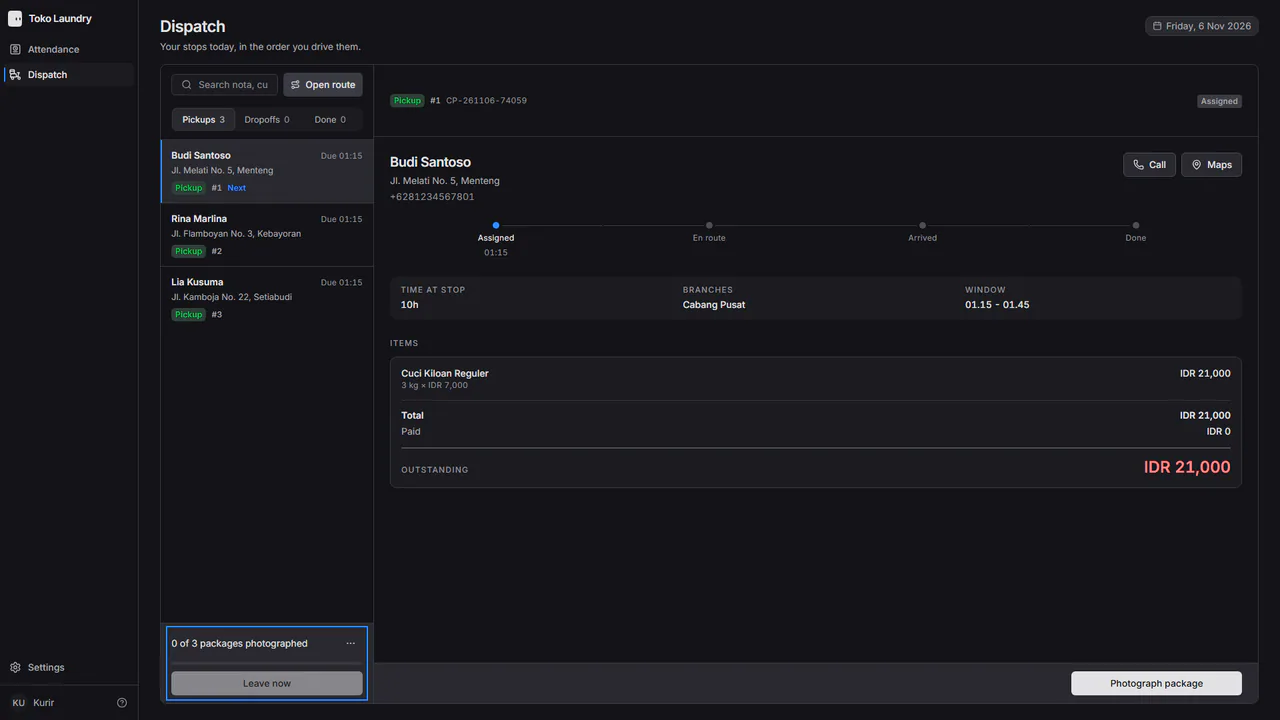
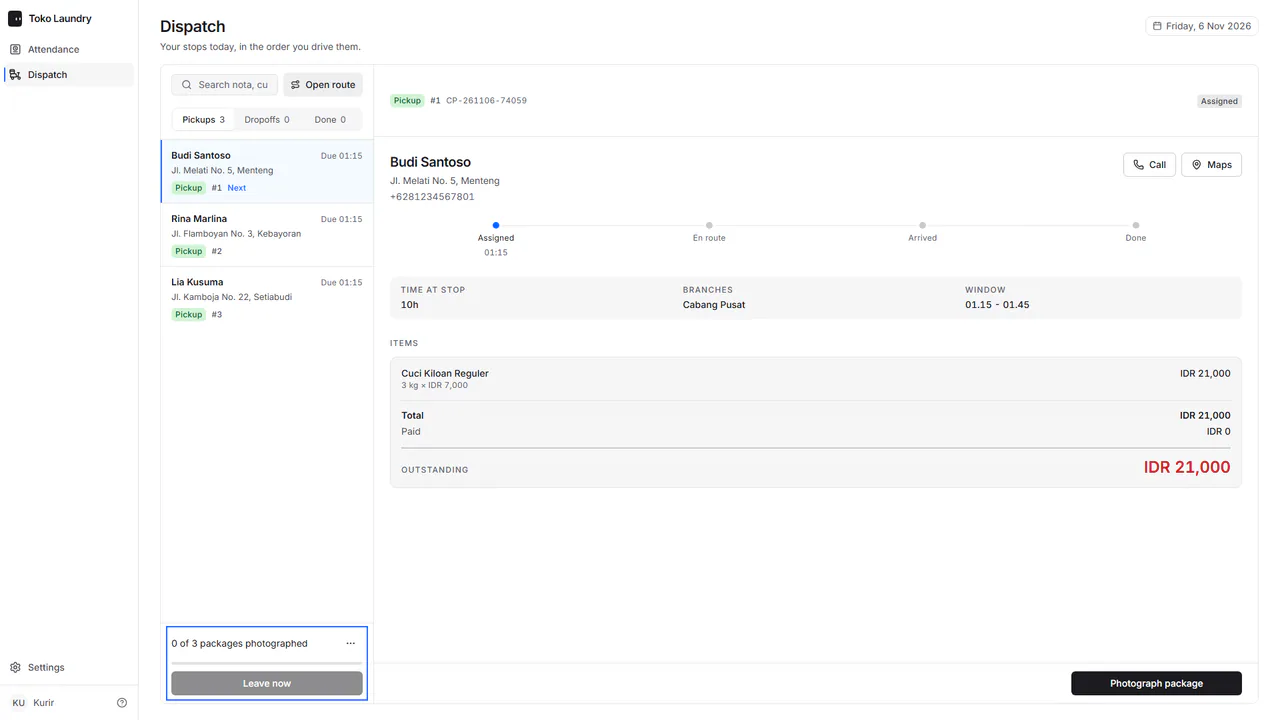
Press Start. With one stop, the trip starts at once. With two stops or more, they all join one round, and a bar under the list counts the packages photographed, for example 0 of 3 packages photographed, above a Leave now button that cannot be pressed yet.
At each stop, press Photograph package. On that sheet, press Take a photo to open the phone camera, photograph the package, check the preview, then press Complete. The location is stored with the photo.
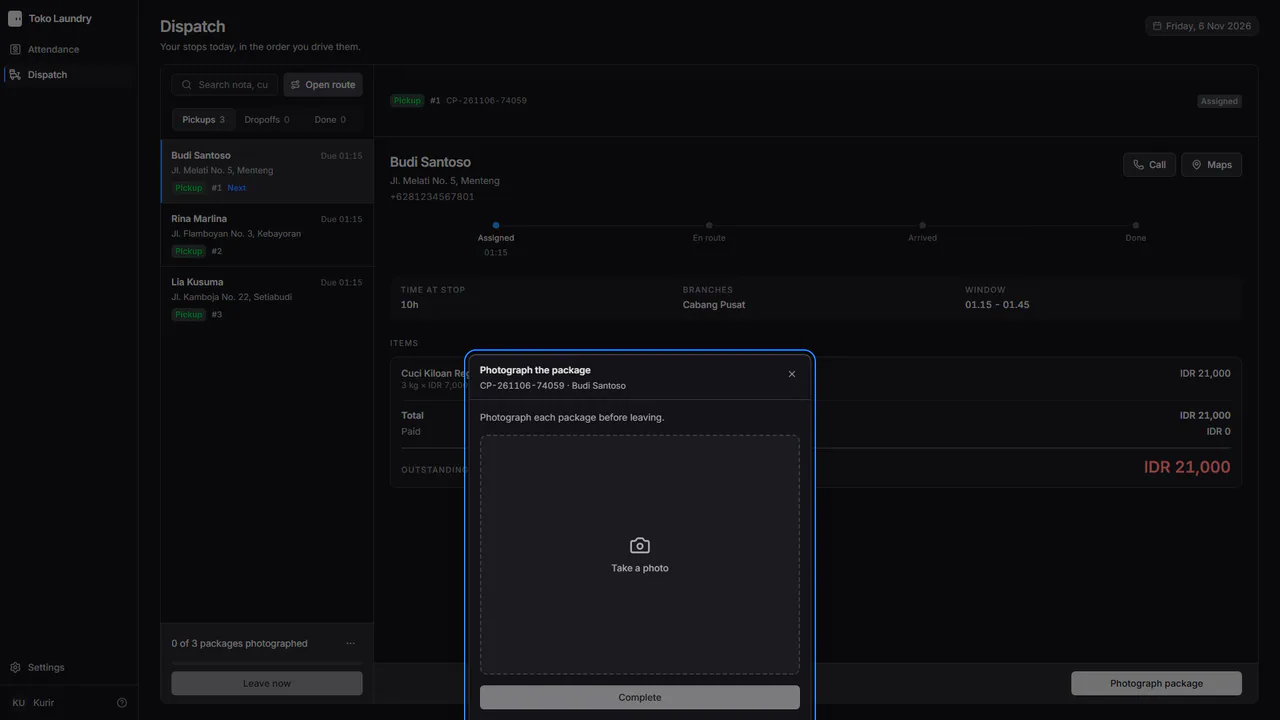
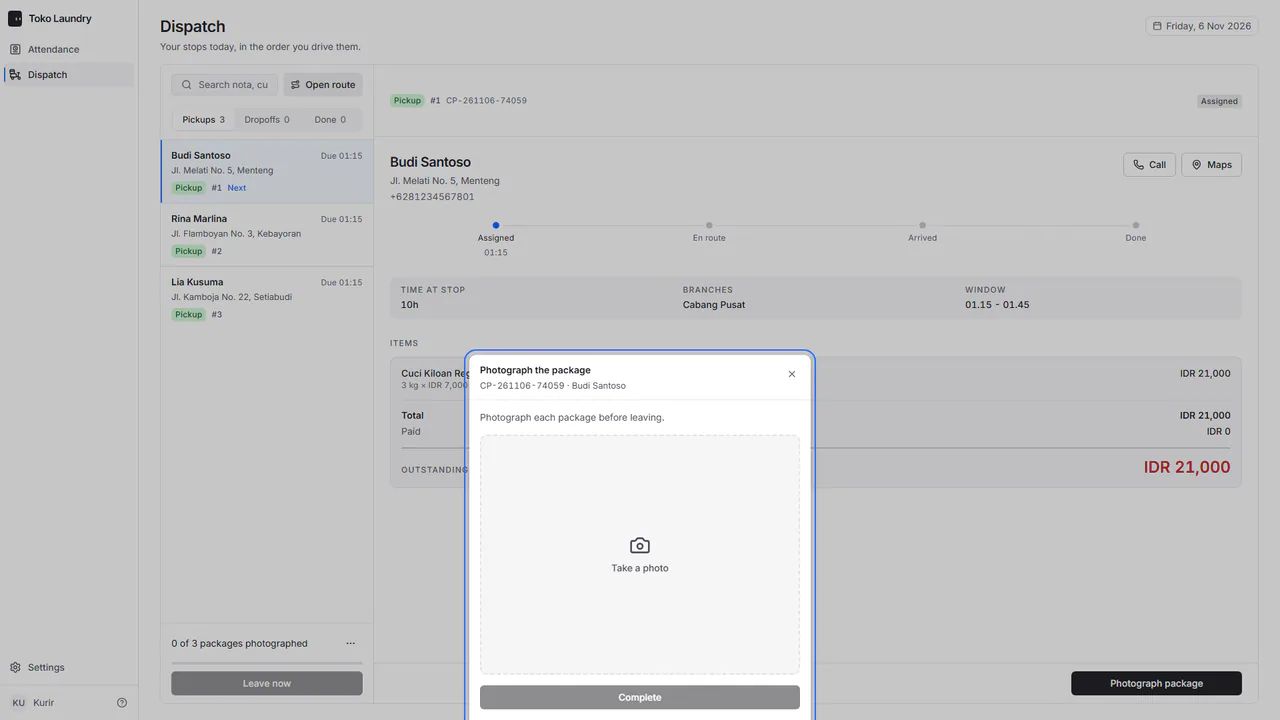
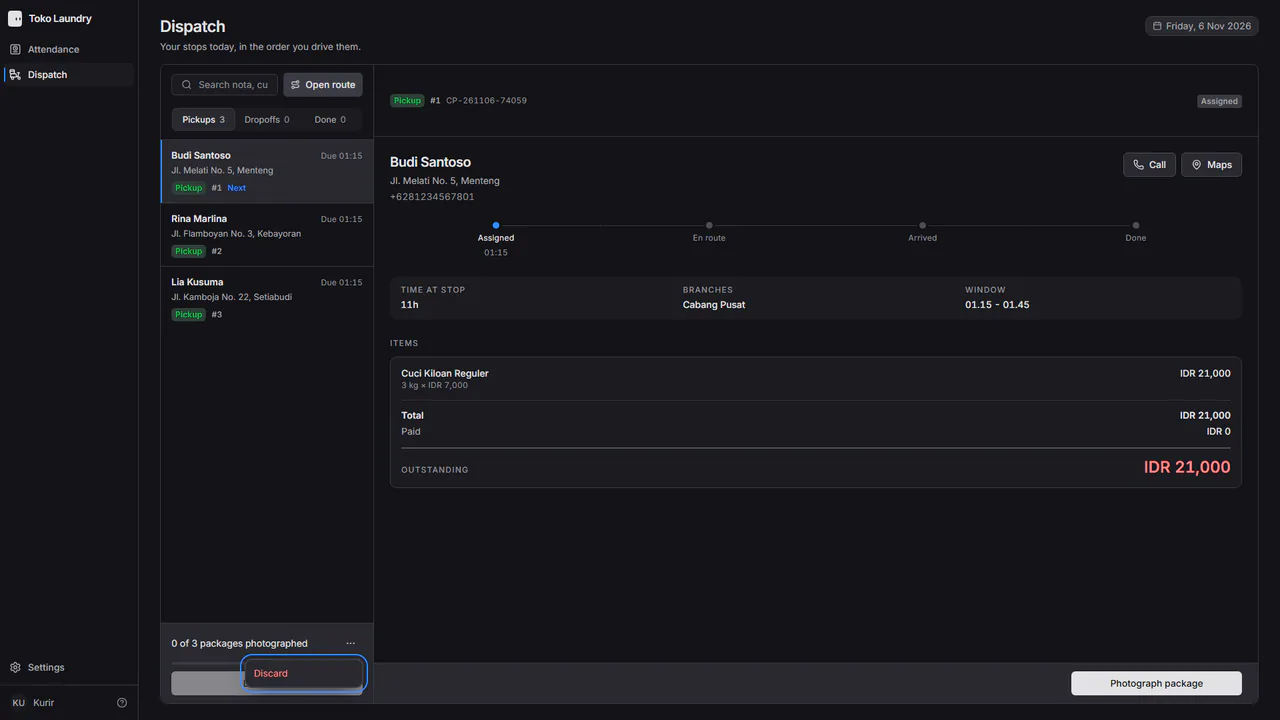
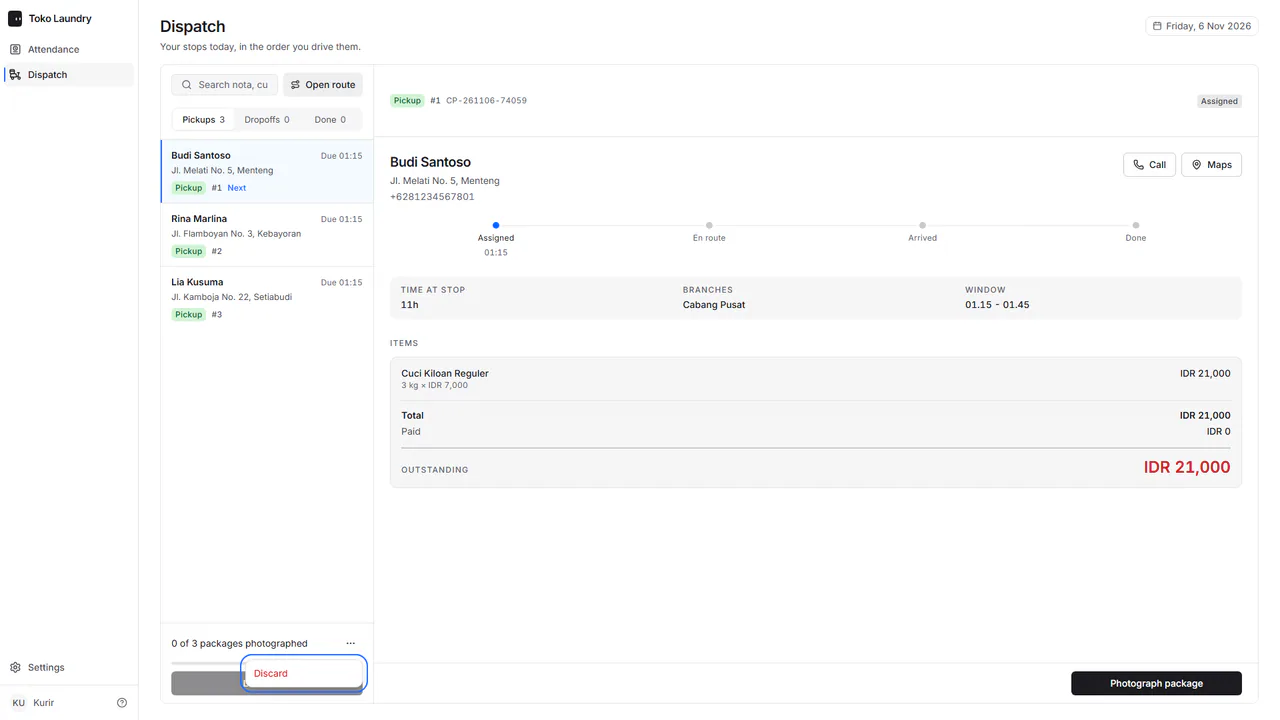
Once every package is photographed, the bar says Every package is photographed. and Leave now can be pressed. Opened by mistake? Press ⋯ on that bar and choose Discard.
At each stop, press Arrived when you get there, then Complete with a photo taken there.
If it does not work out, press Failed, write the reason and take a photo. The address comes back as a new trip.
Steps to move a trip
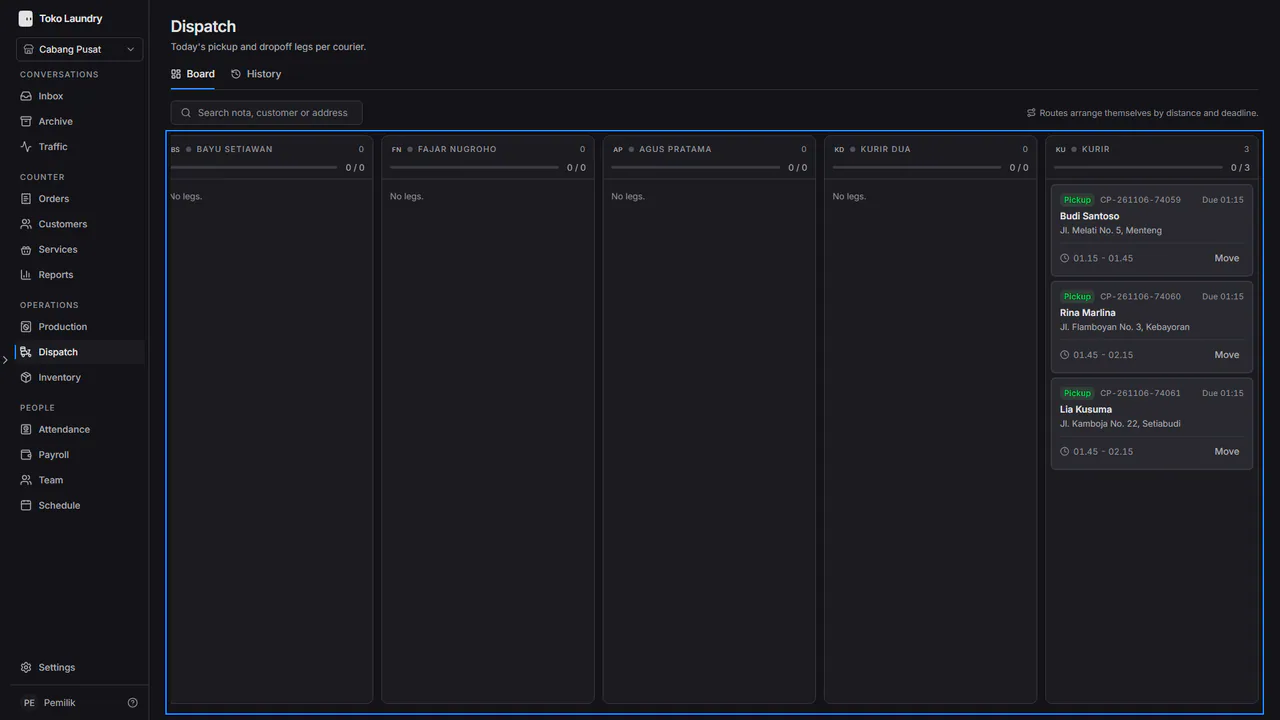
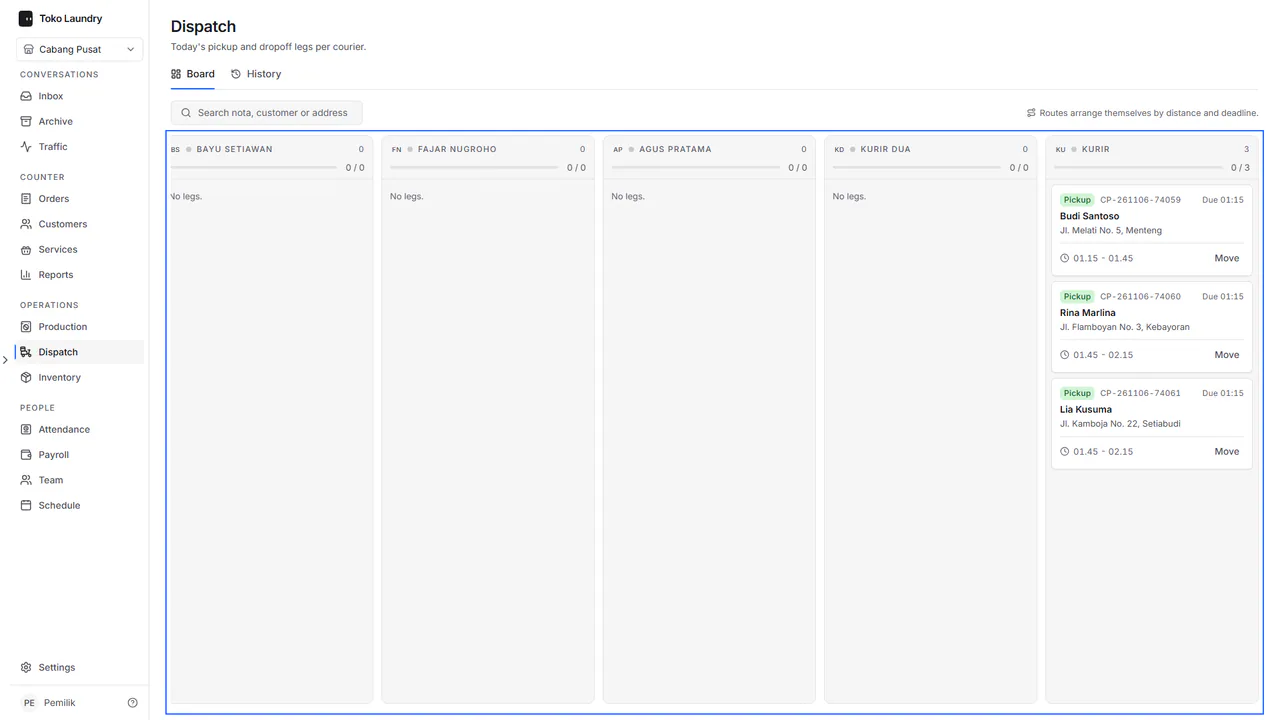
Open Dispatch > Board and pick the branch in the sidebar. Each column is one courier, plus Unassigned.
Press Move on a card and pick another courier, or Assign in the Unassigned column. Only owners and admins can do this.
Steps to see the history
Open Dispatch > History. The list holds today's trips with the time, order, customer, kind of trip, courier and branch.
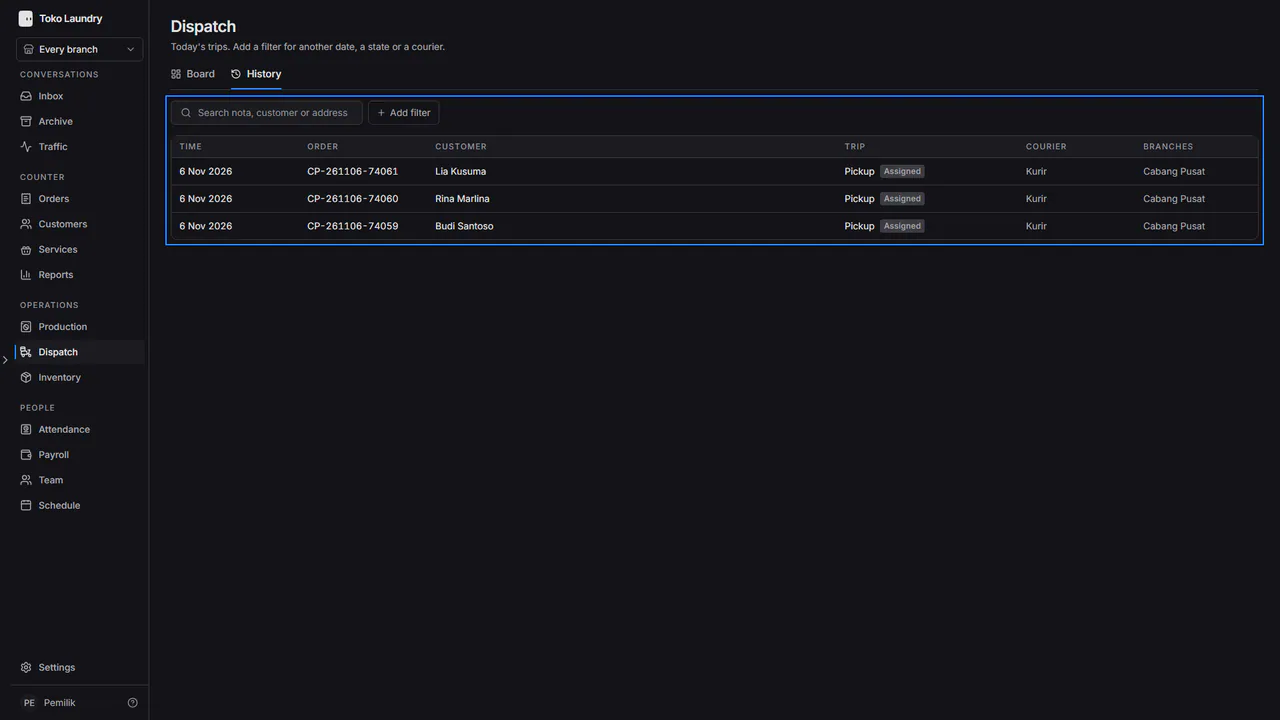
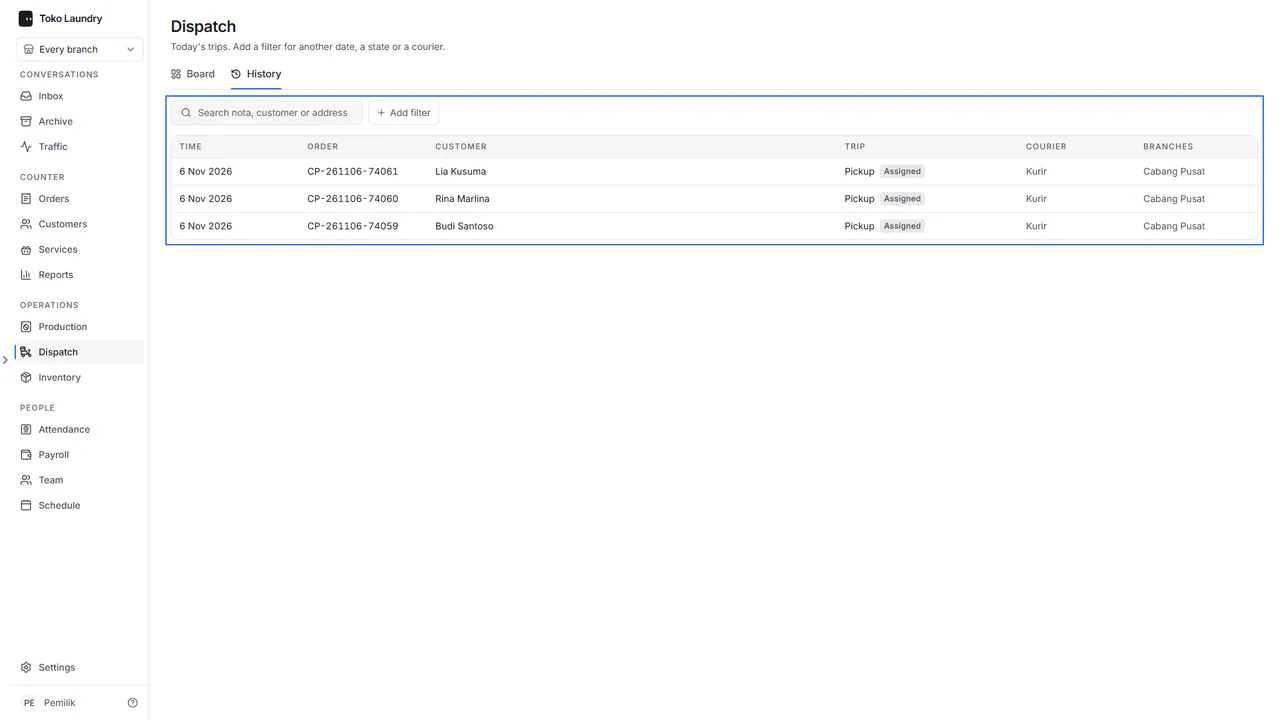
Search by order, customer or address, or press Add filter for another date, State or Courier.
History opens for owners, admins and cashiers; a courier sees their own trips under Dispatch. When a drop-off starts, the customer gets a WhatsApp message that the order is on its way. When the courier completes it, the order becomes Delivered.