Channels and canned responses
Turn WhatsApp chats on, set the away reply, and keep canned responses you call up with #.
Channels decides whether WhatsApp chats come in and what goes out while nobody has answered yet. Canned responses are saved texts you call up with a # while answering a chat. Both run in Wavely and show inside Toko Laundry.
For owners and admins.
Steps to set up the channel
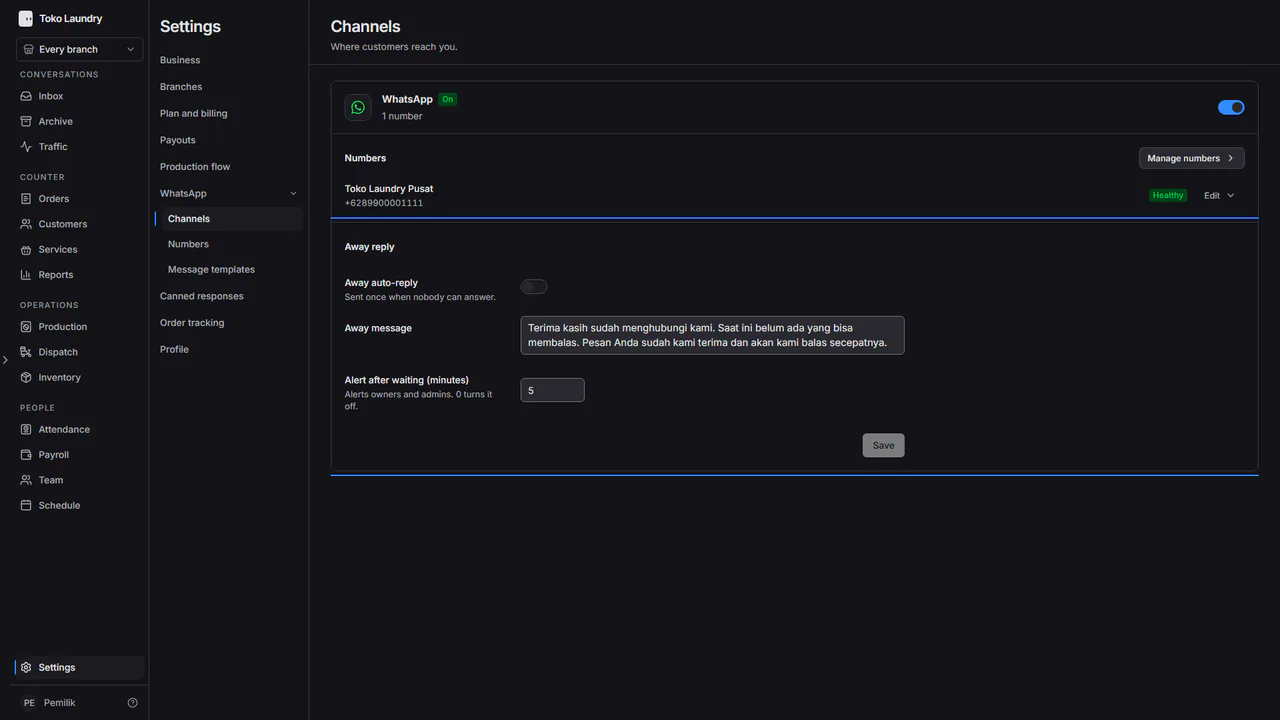
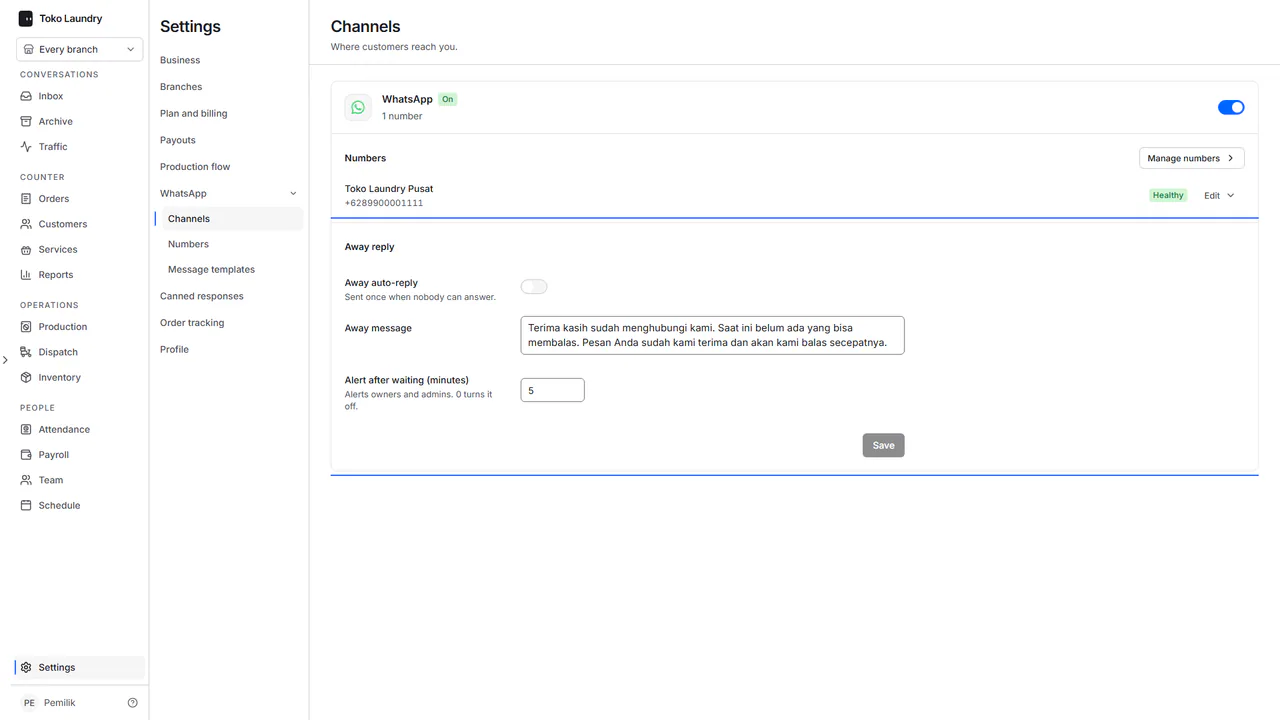
Open Settings > WhatsApp > Channels. The switch on the WhatsApp card is Receive WhatsApp chats. While the card is marked On, chats to the business WhatsApp numbers land in the Inbox. With the switch off, the Numbers page only shows a Go to Channels button.
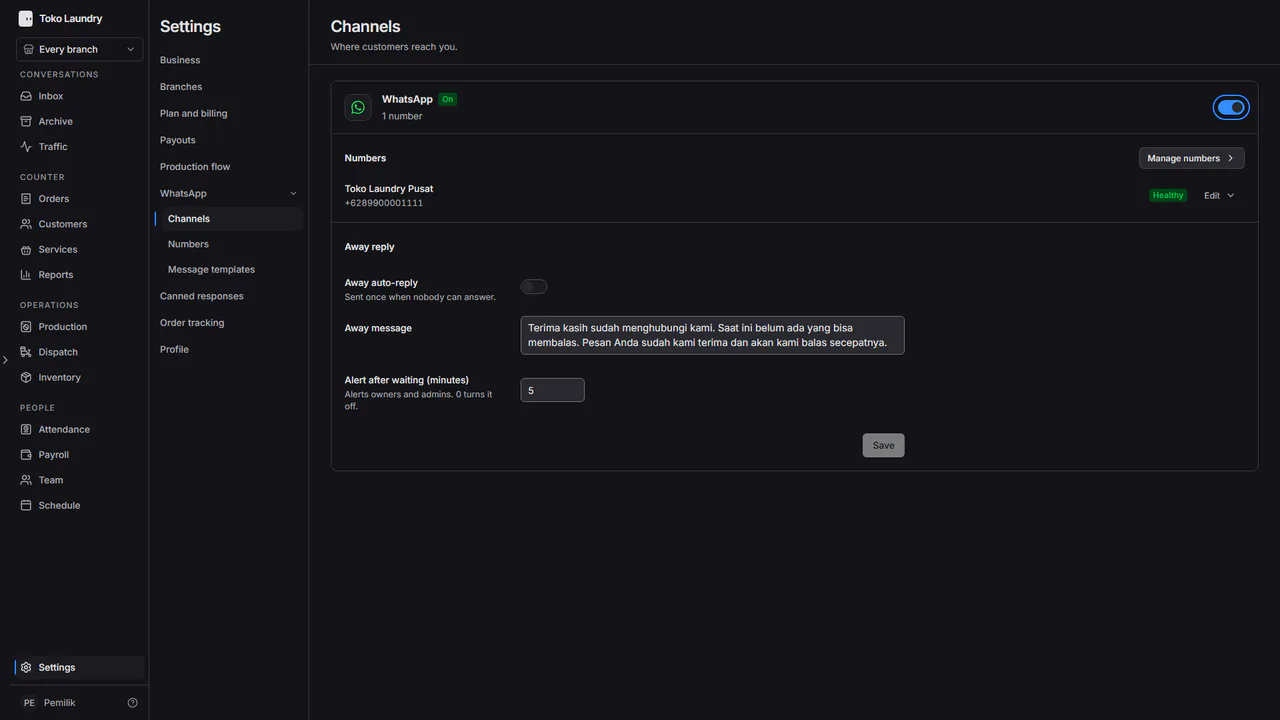
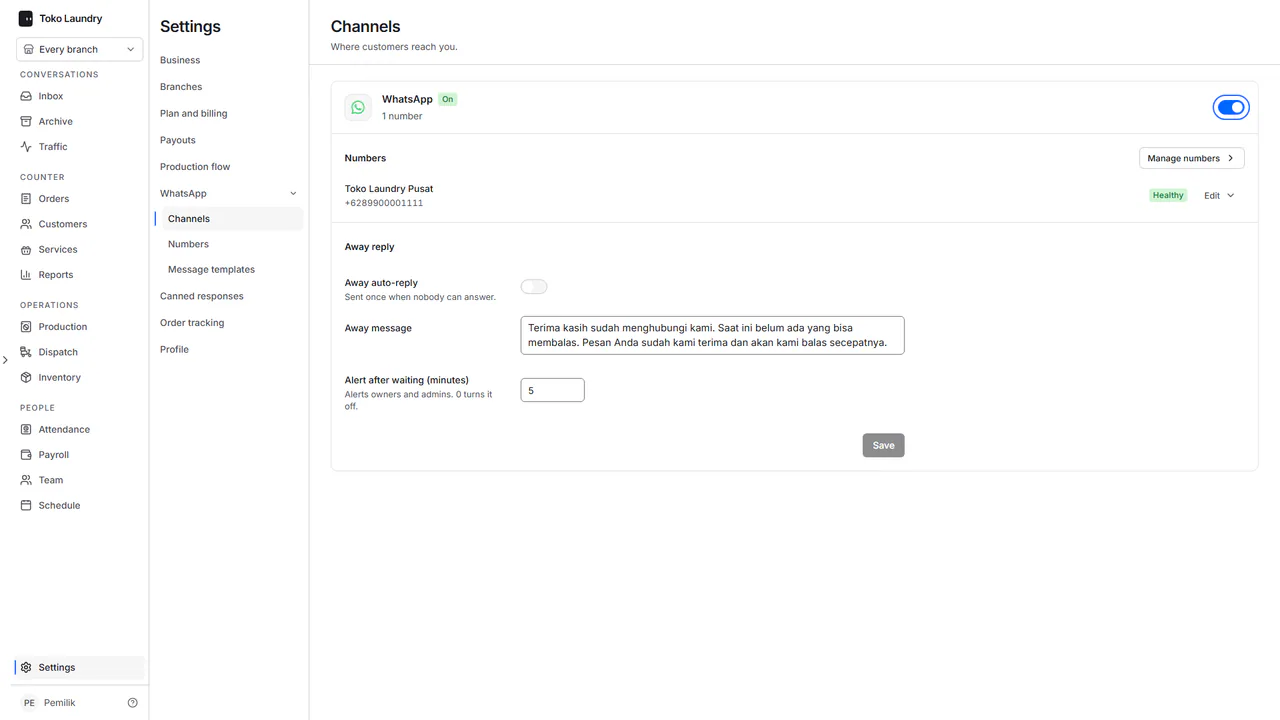
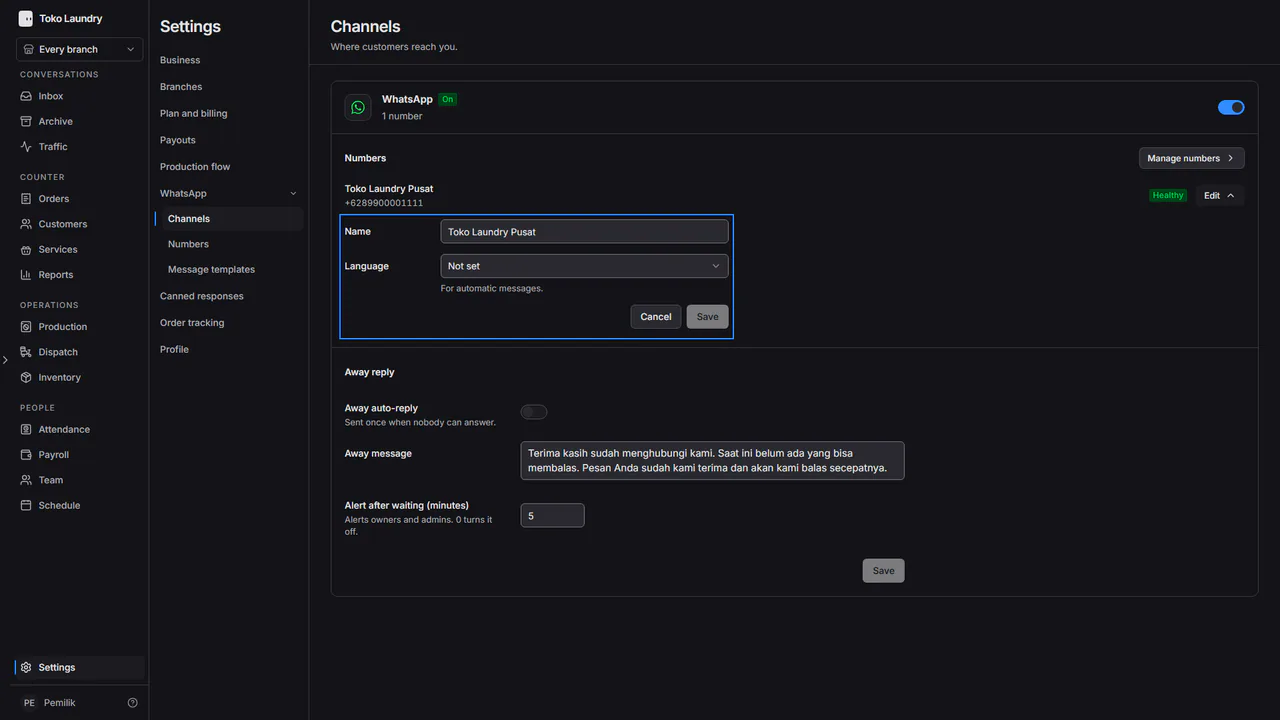
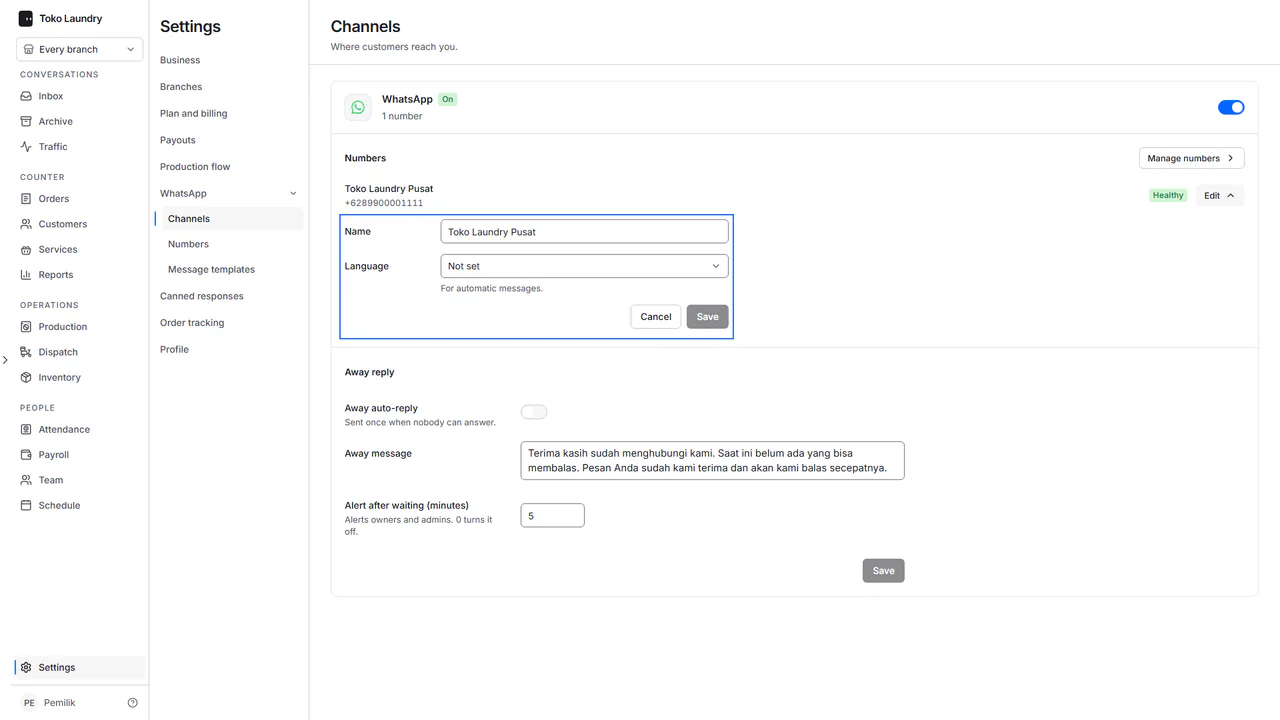
Under Numbers, press Edit on a number's row to change its Name and the Language of its automatic messages, then press Save. Manage numbers opens the Numbers page.
In Away reply, turn on Away auto-reply. The customer then gets one reply when nobody can answer. Write it in Away message.
Fill in Alert after waiting (minutes). Owners and admins are alerted when a chat has waited in Queued that long. 0 turns the alert off. Press Save.
Steps to create a canned response
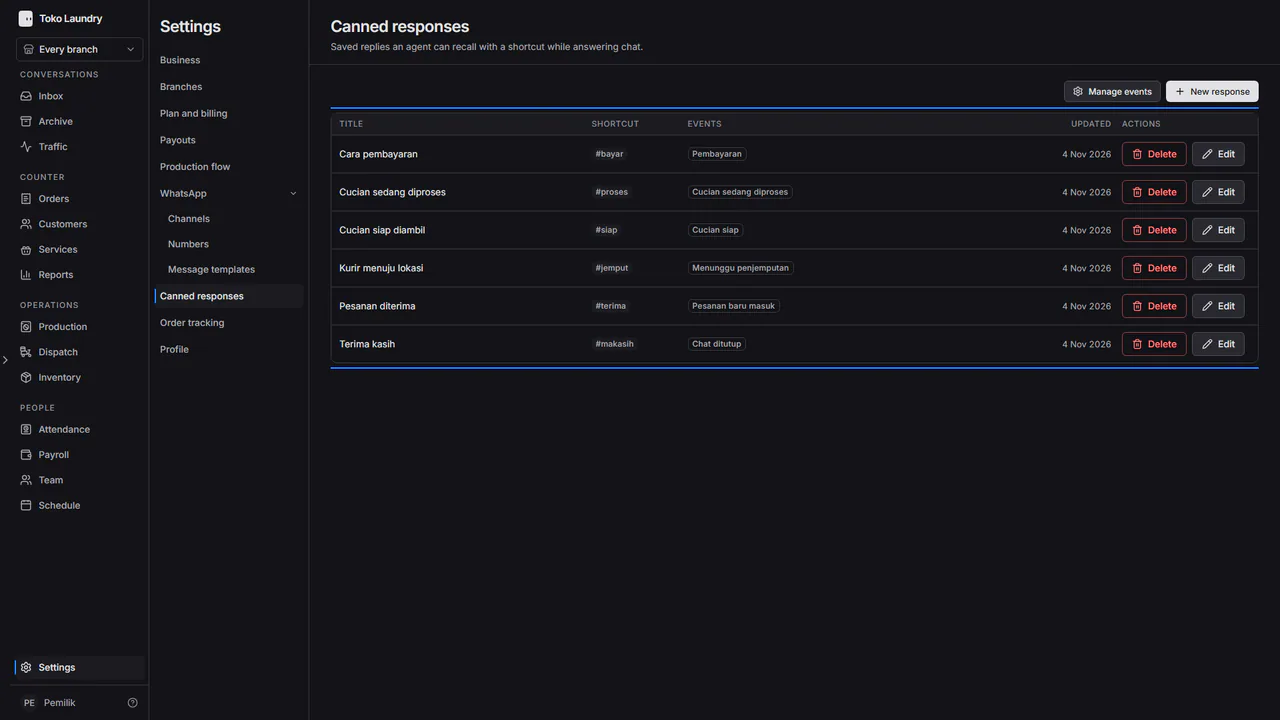
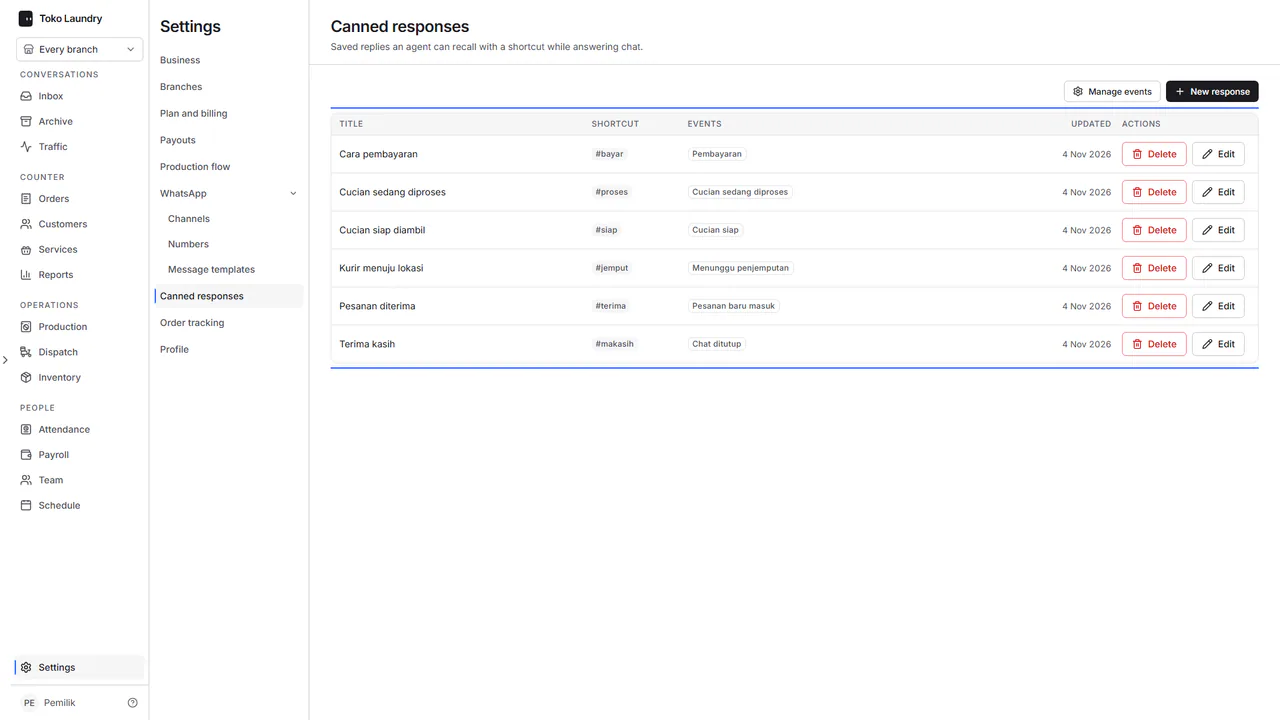
Open Settings > Canned responses. The table lists Title, Shortcut, Events and Updated, with Edit and Delete on each row.
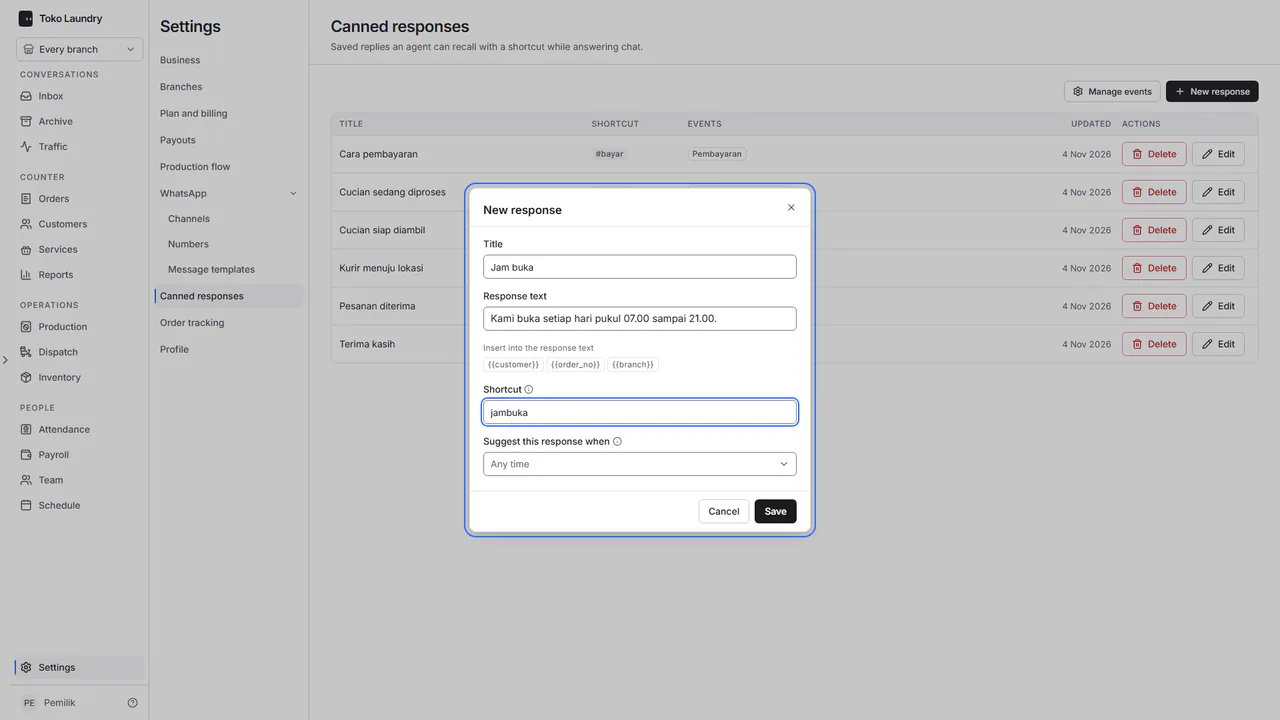
Press New response. Fill in Title and Response text. Press a code under Insert into the response text, such as
{{customer}}, to put it in the text.Fill in Shortcut: the word typed after the #, such as
jambuka. In Suggest this response when, pick events so the response is offered when that situation comes up in a chat, or leave it on Any time. Press Save.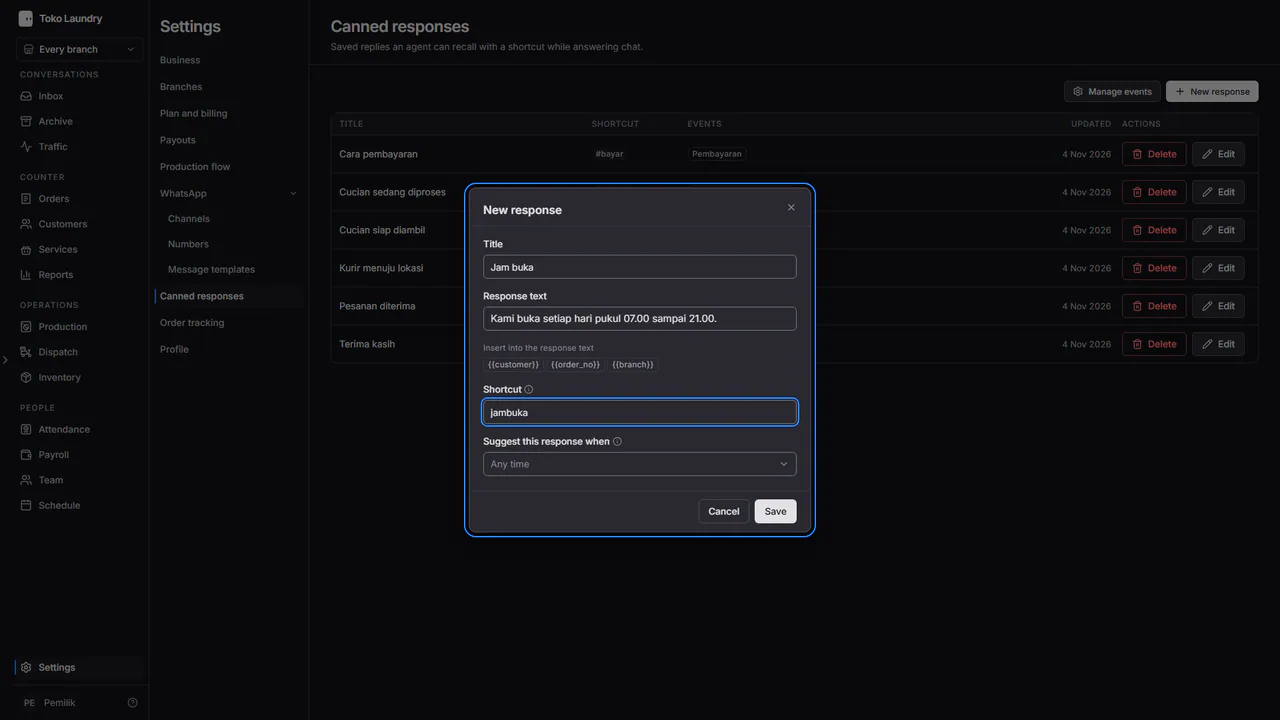
To change the list of events, press Manage events above the table.
Steps to use a canned response
Open a chat in the Inbox, then type # in the reply box. The list of canned responses opens, grouped by event. Type the shortcut to narrow it, then pick the response.
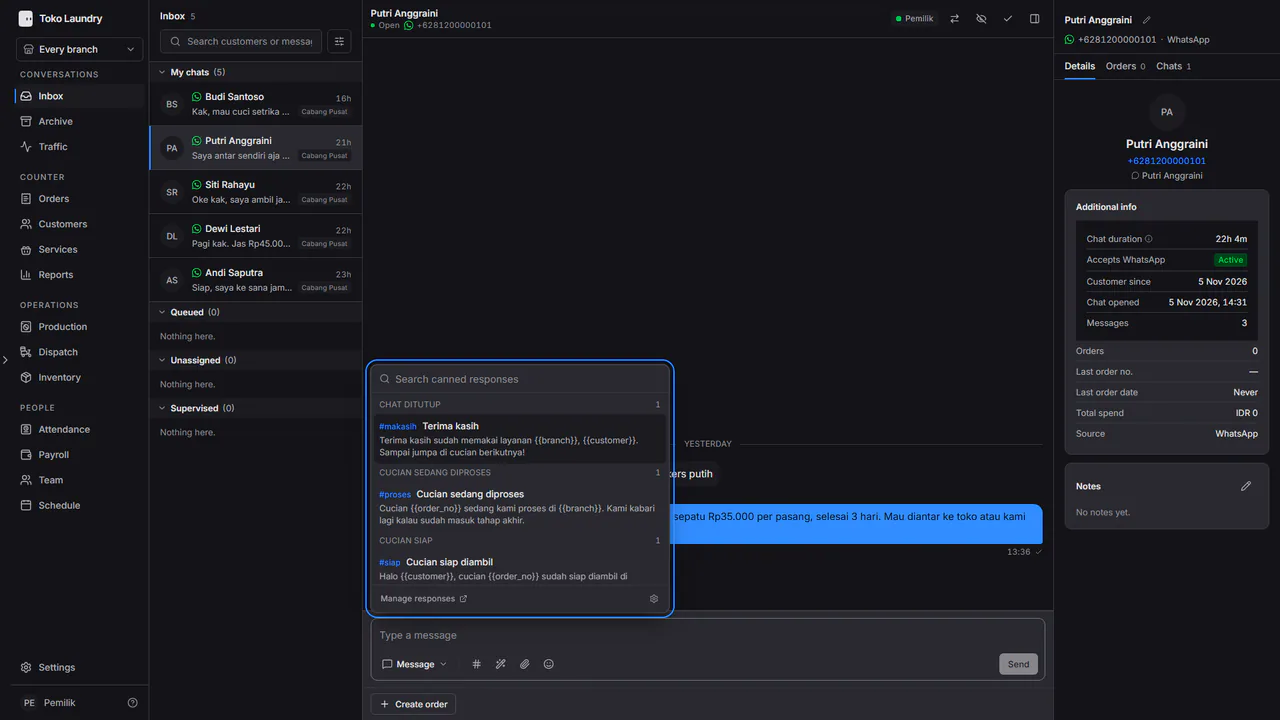
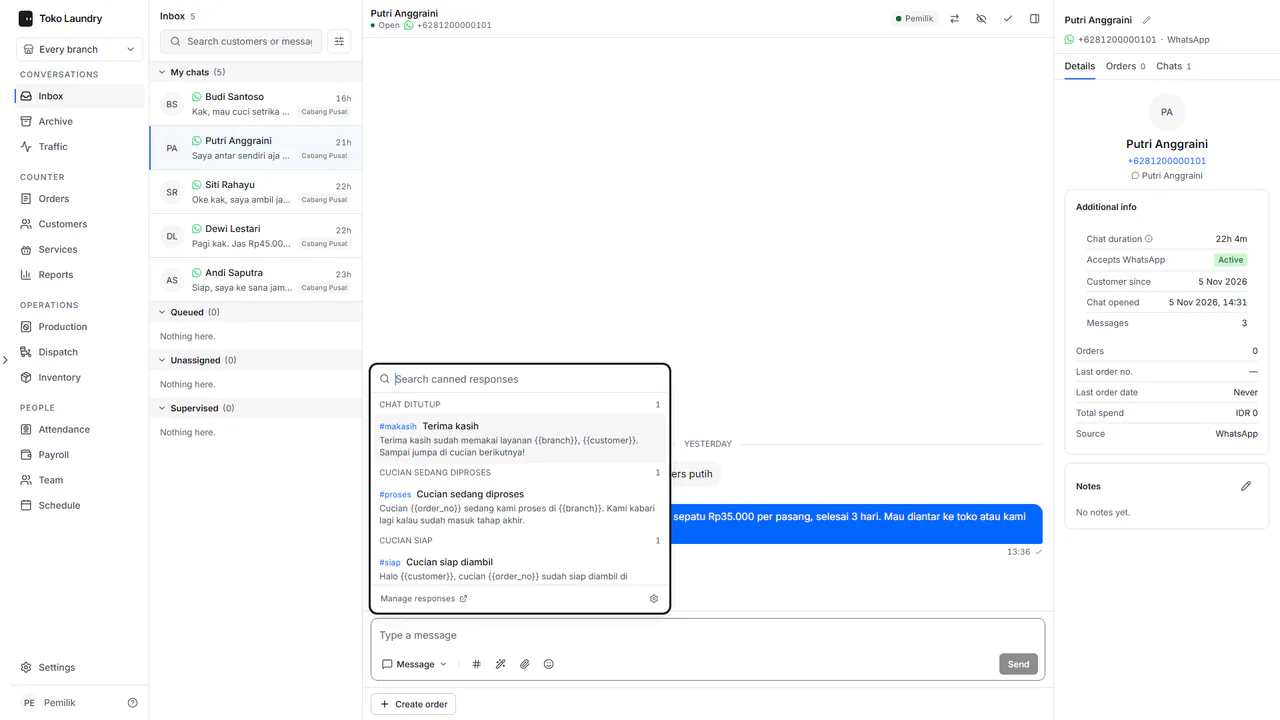
The response text lands in the reply box. Change it if needed, then press Enter to send.
Answering customer chats is covered in WhatsApp chat. Numbers and message templates are in WhatsApp for customers.