WhatsApp for customers
Adding and linking a number, each branch sender number, the messages that go out by themselves, their wording and customers who opt out.
Messages to customers go out on WhatsApp, which runs in Wavely. Toko Laundry hands each message to Wavely, so the app says a receipt is "queued", not "sent".
For owners and admins, who set up the numbers and the wording. Cashiers send receipts.
Steps to add a number
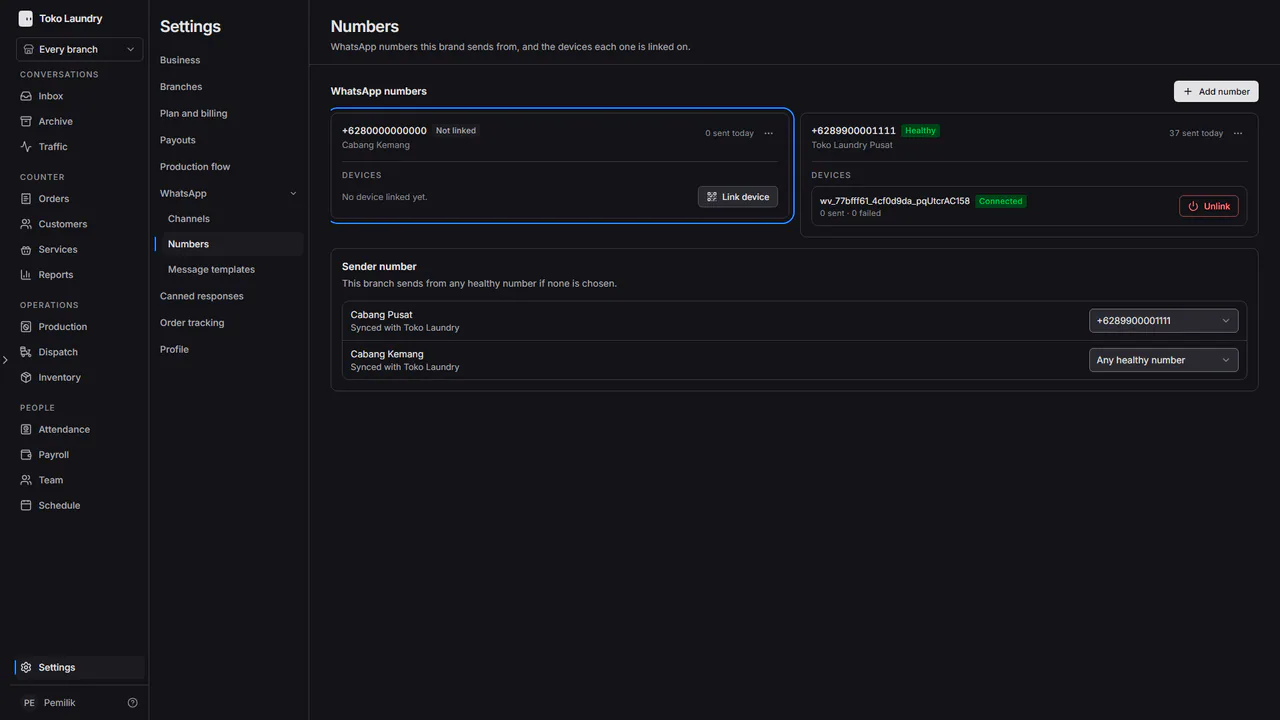
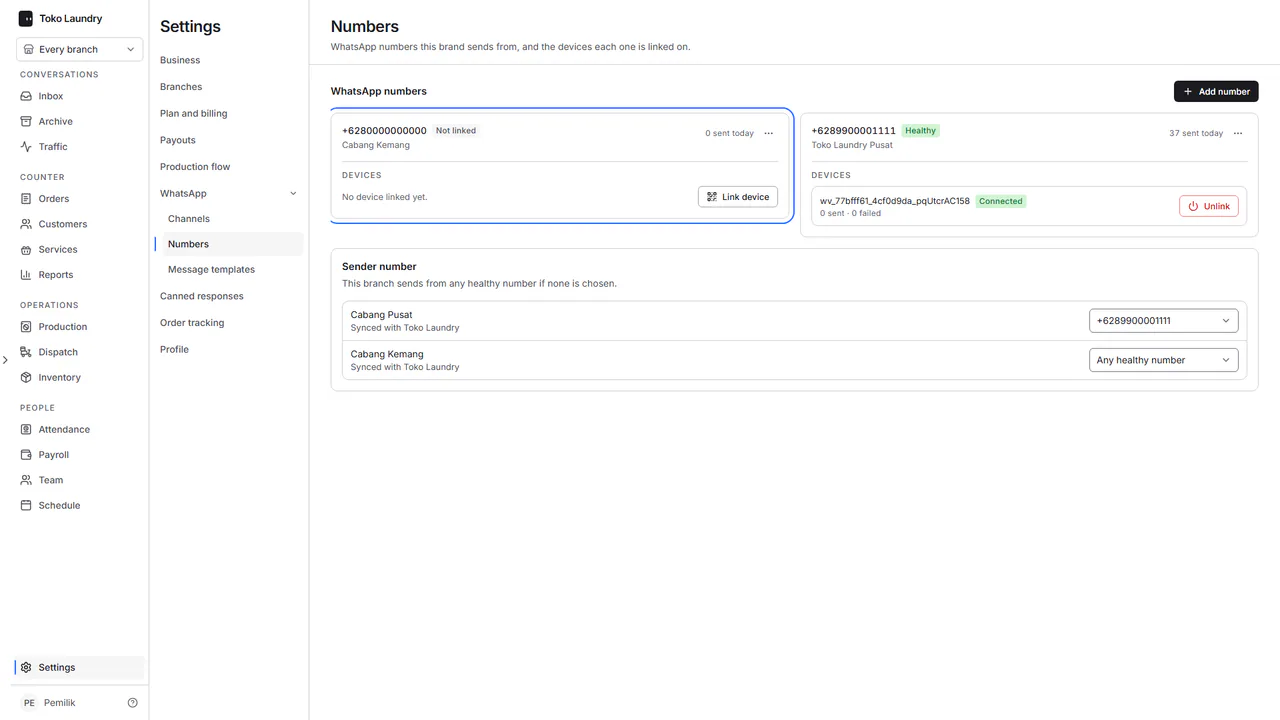
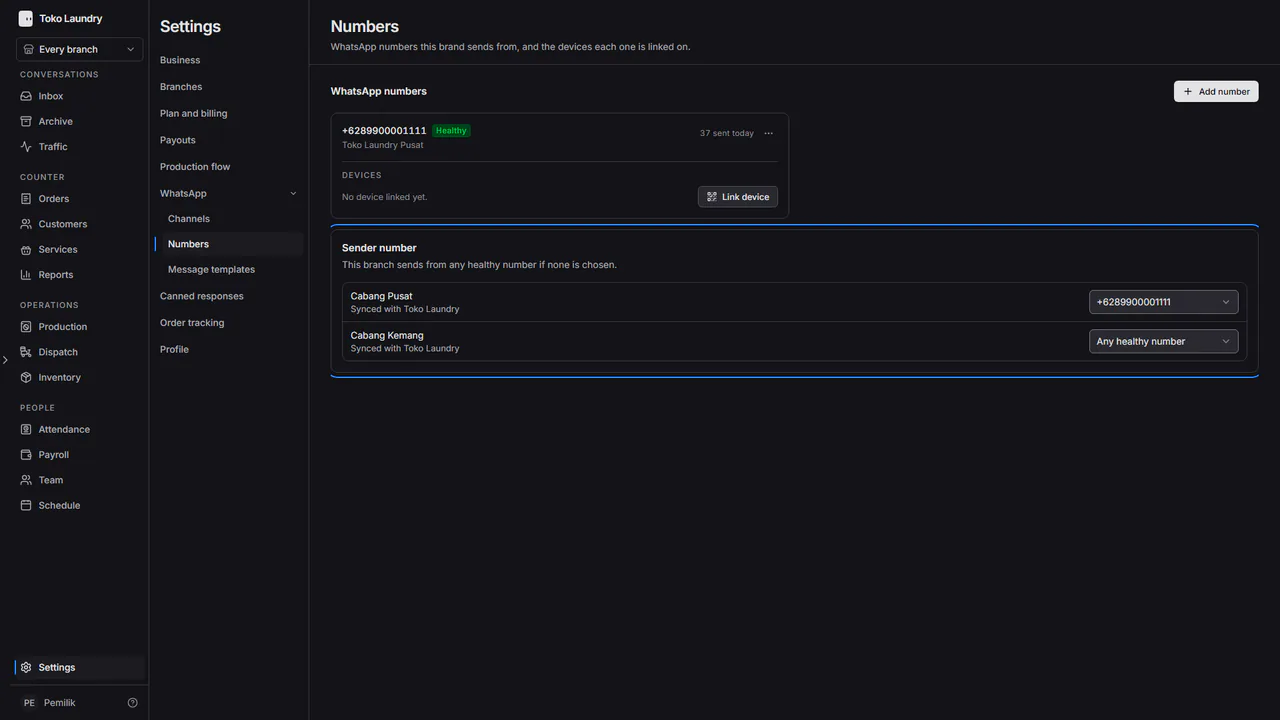
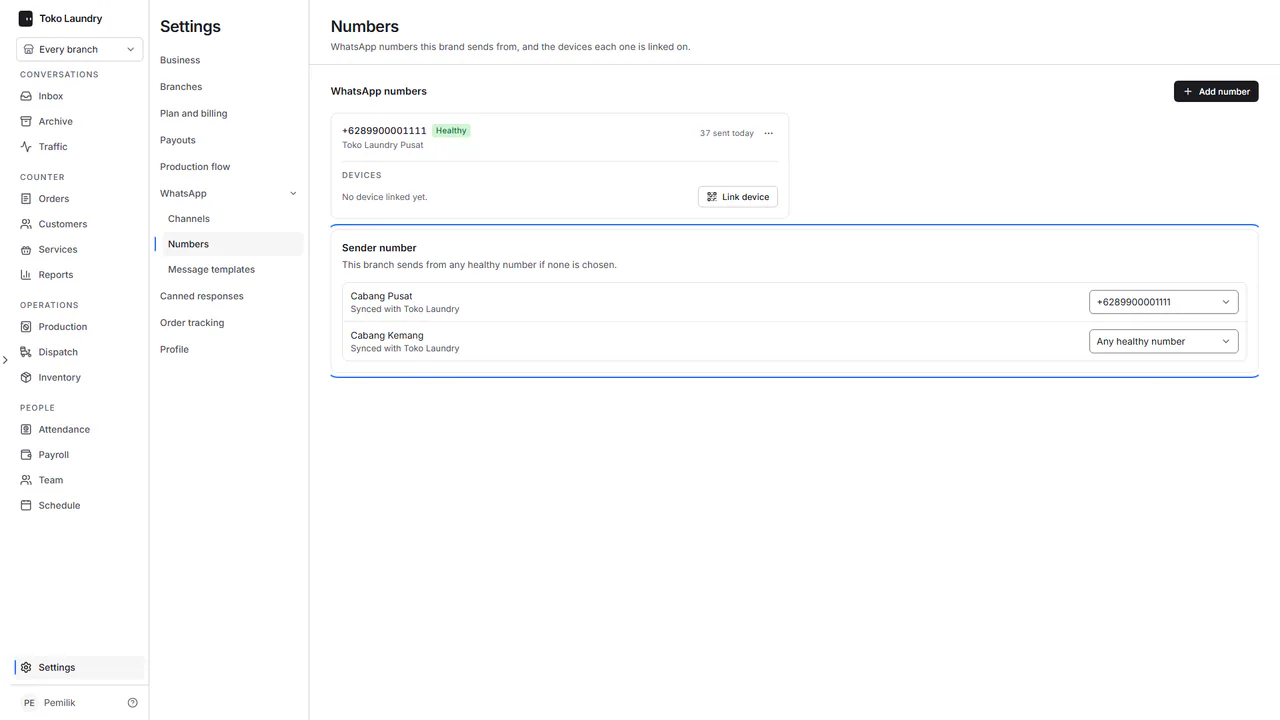
Open Settings, then Numbers in the WhatsApp group. This page holds the business WhatsApp numbers and the devices linked to each one.
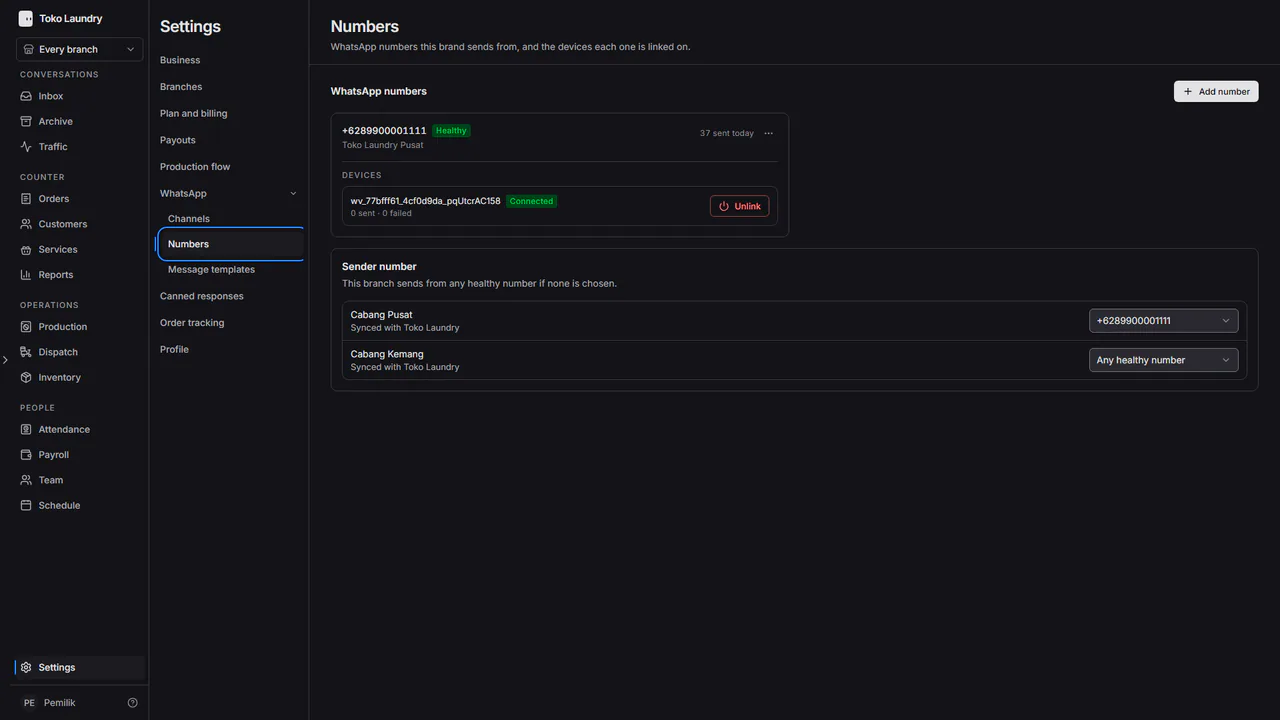
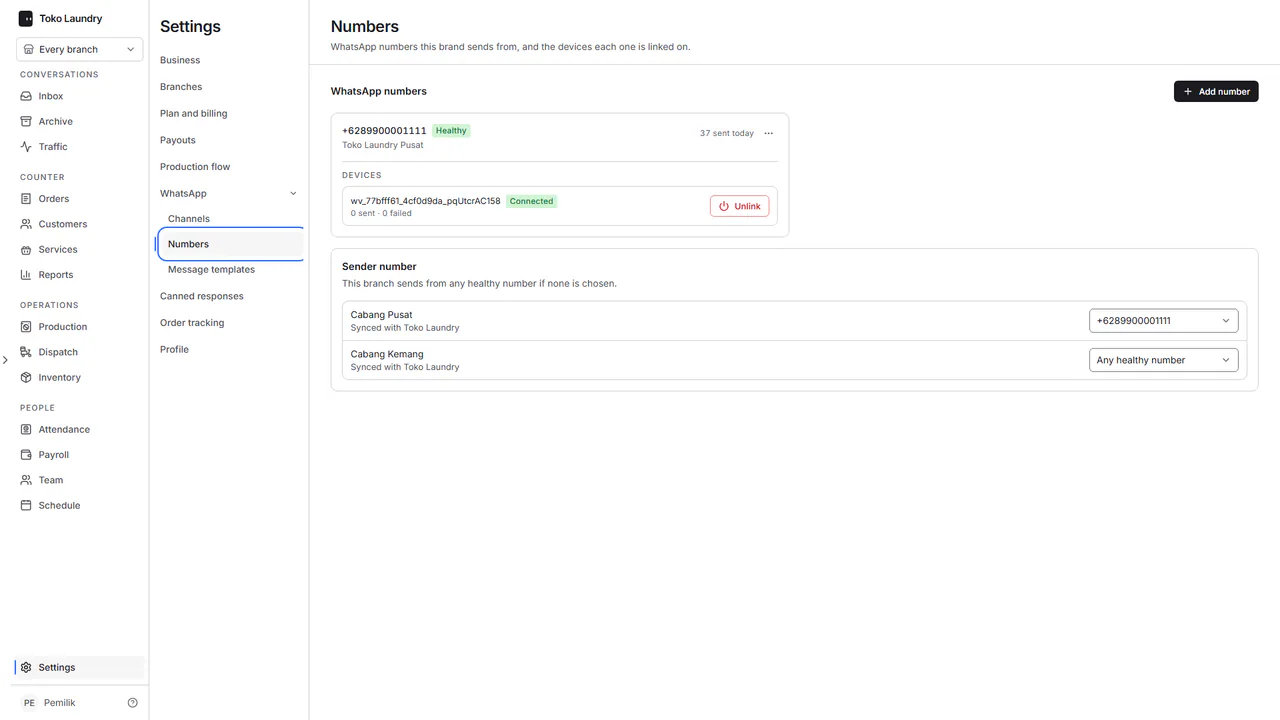
When WhatsApp is switched off for your business, the page only says so, with a Go to Channels button. Turn it on first in Channels.
Press Add number. Fill in Phone number: a number starting with 0 is saved with the +62 prefix. Fill in Label, such as the name of the branch that uses it, then press Save. The daily sending limit is set per branch, not per number.
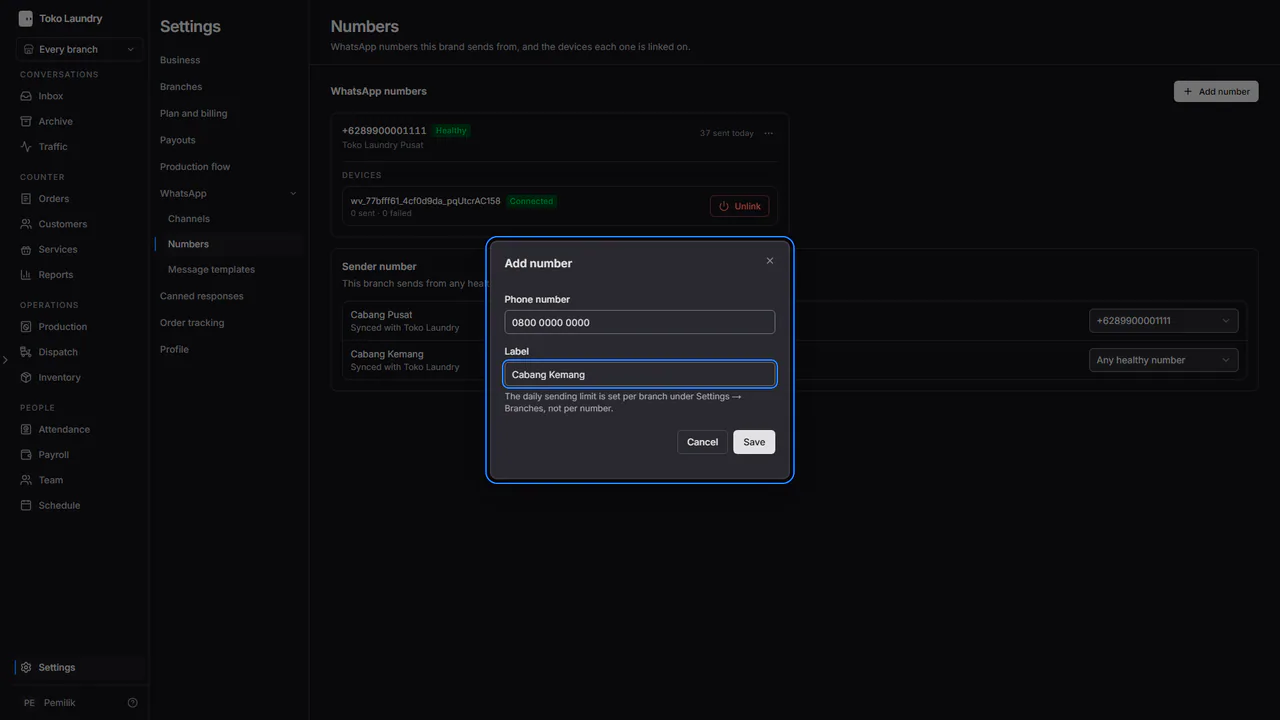
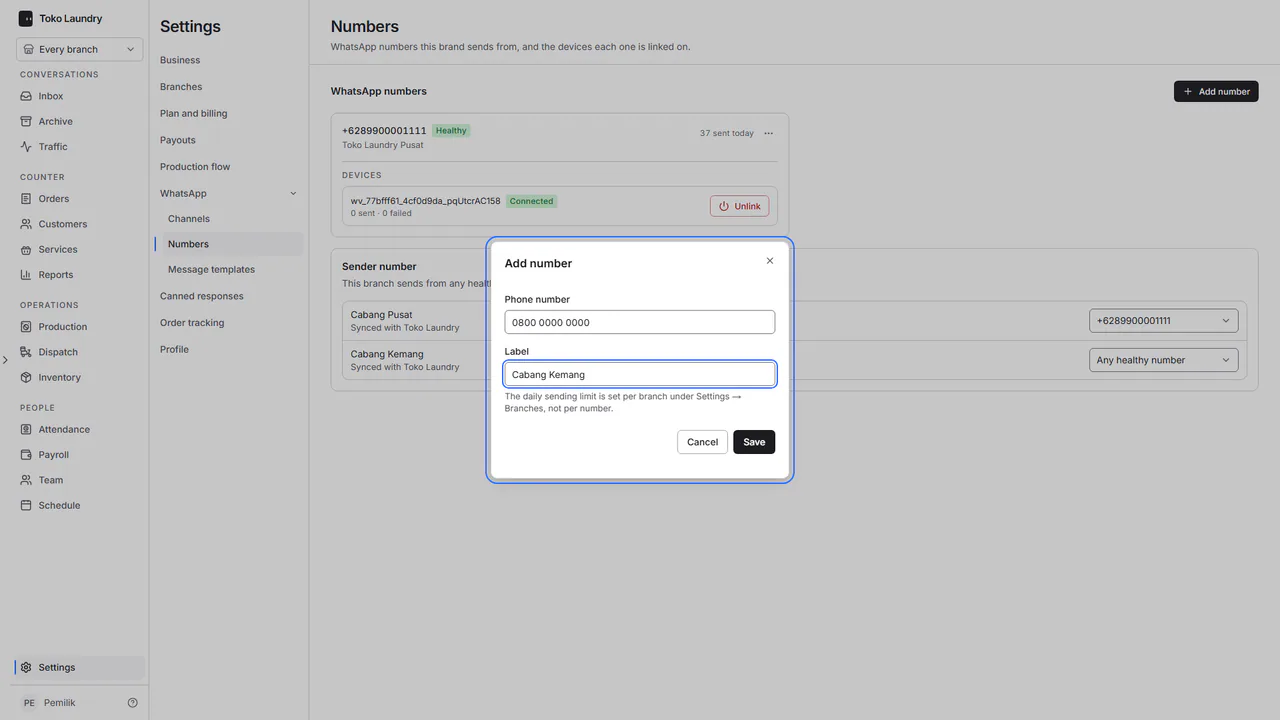
The new number's card appears marked Not linked, with "No device linked yet." The number sends nothing until its phone is linked.
Steps to link the phone
Have the phone that uses this number on WhatsApp at hand.
Press Link device on the number's card. The Scan this code dialog opens with a QR code. The code refreshes itself every 20 seconds while the dialog is open.
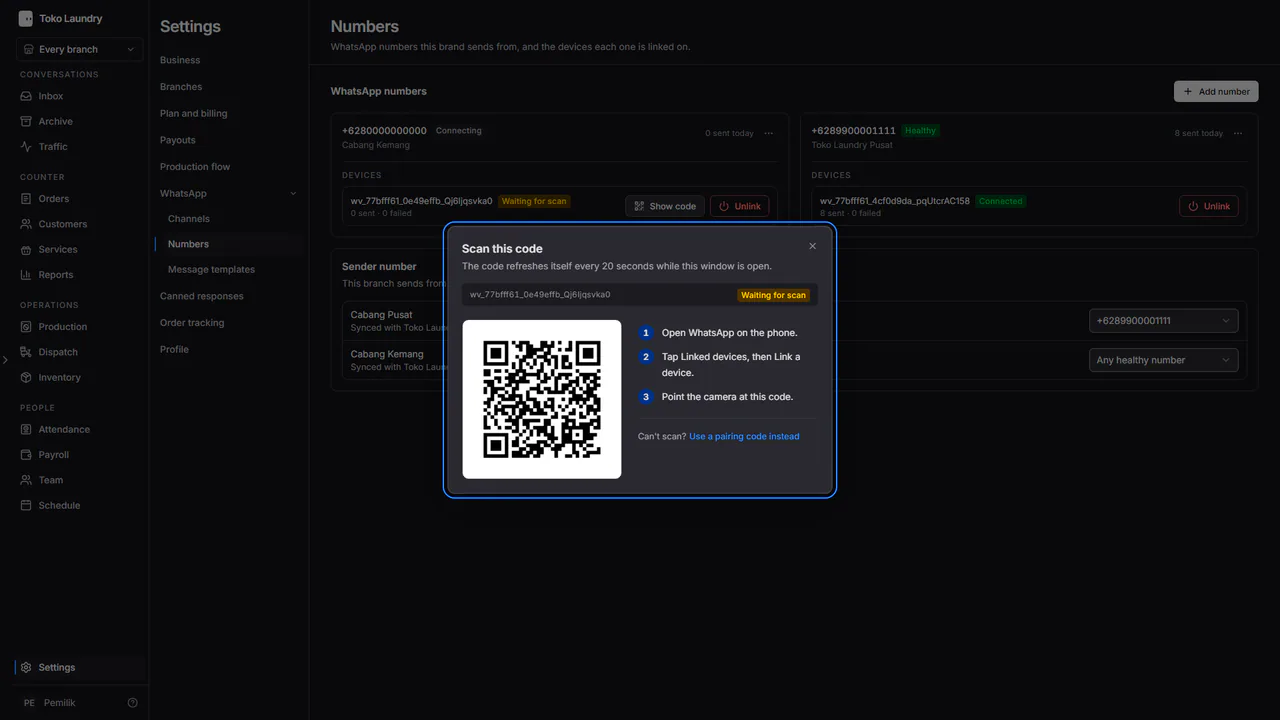
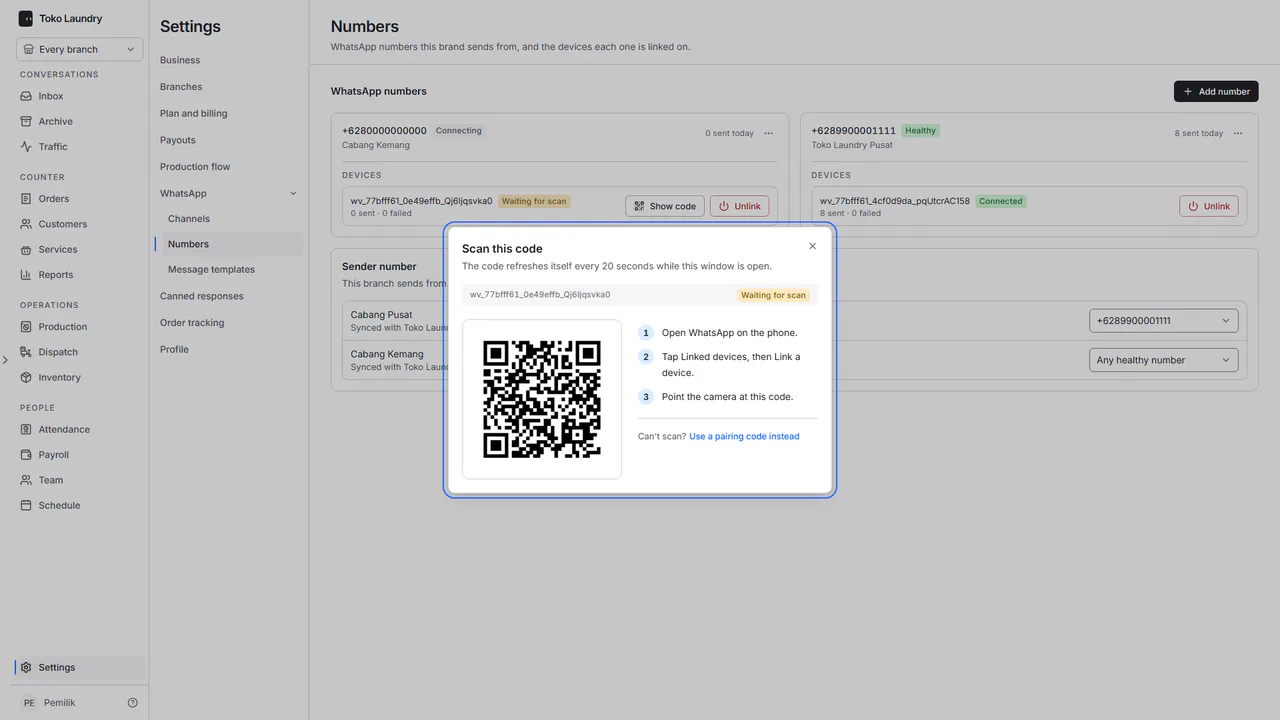
On the phone, open WhatsApp, tap Linked devices, then Link a device, and point the camera at the code on screen.
Can't scan? Press Use a pairing code instead. The dialog turns into Enter this code and shows the code. On the phone, open Linked devices, Link a device, choose Link with phone number, then type the code. Back to the QR code takes you back to the QR code.
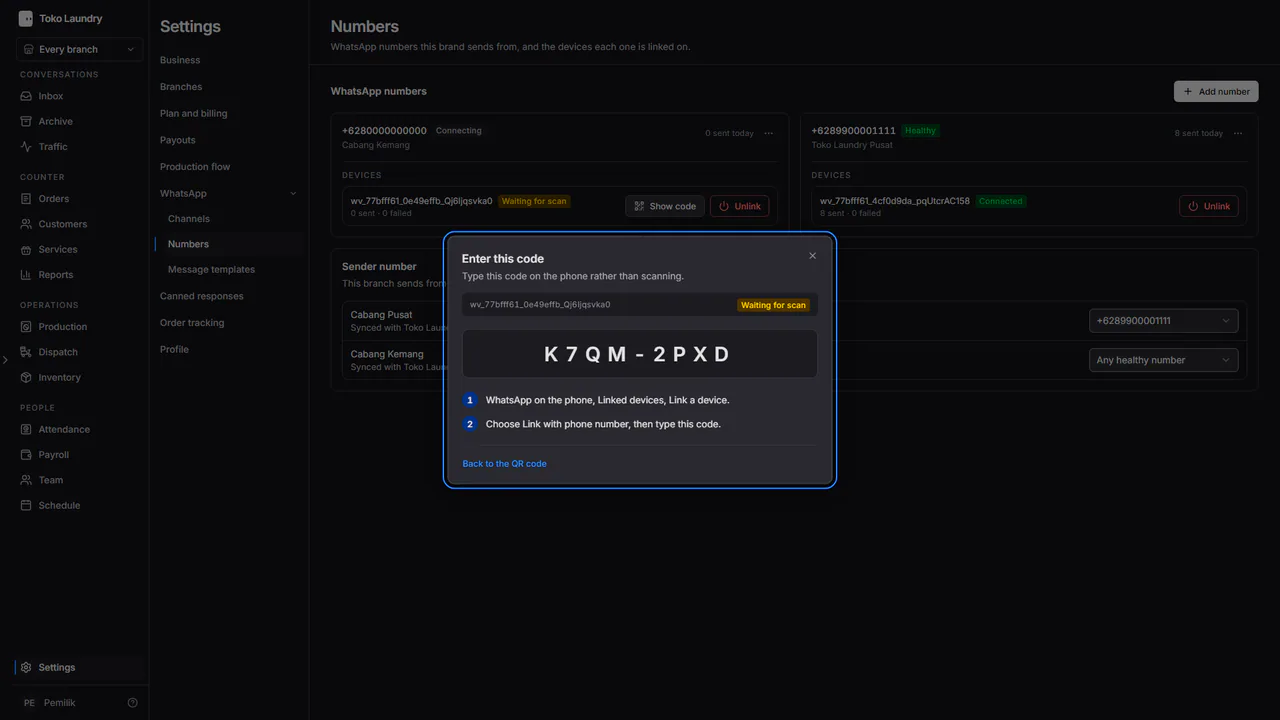
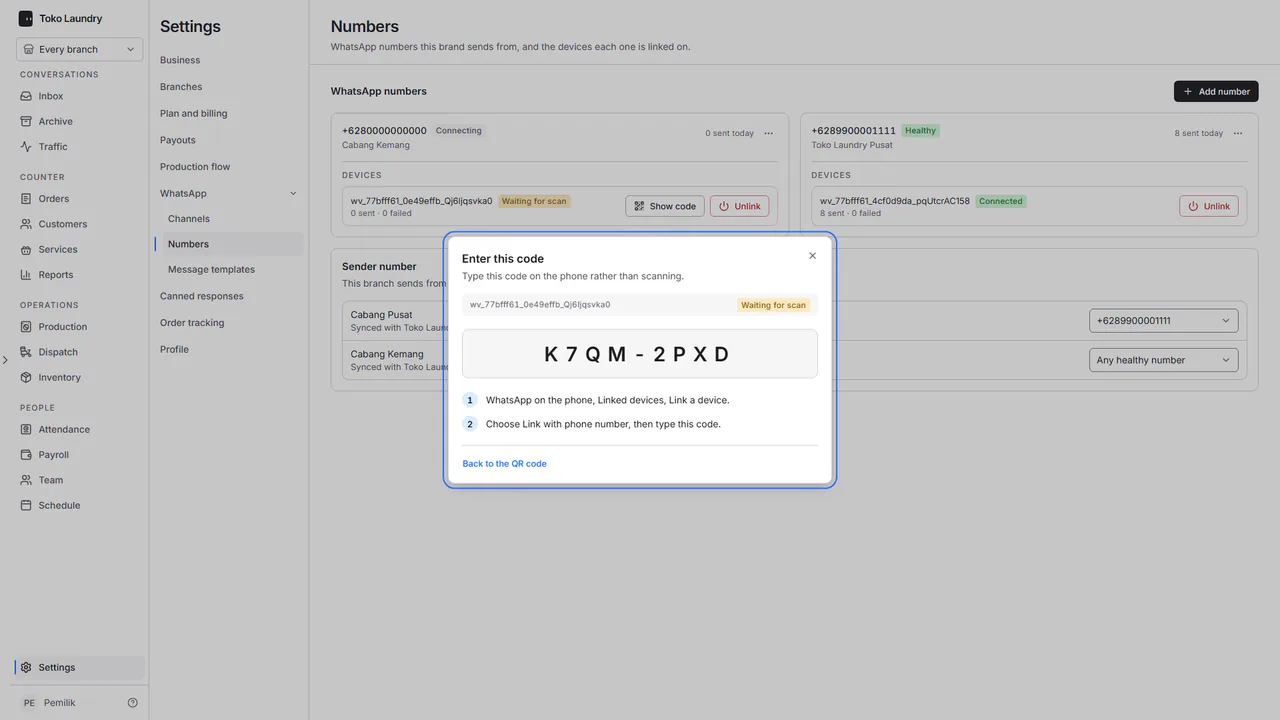
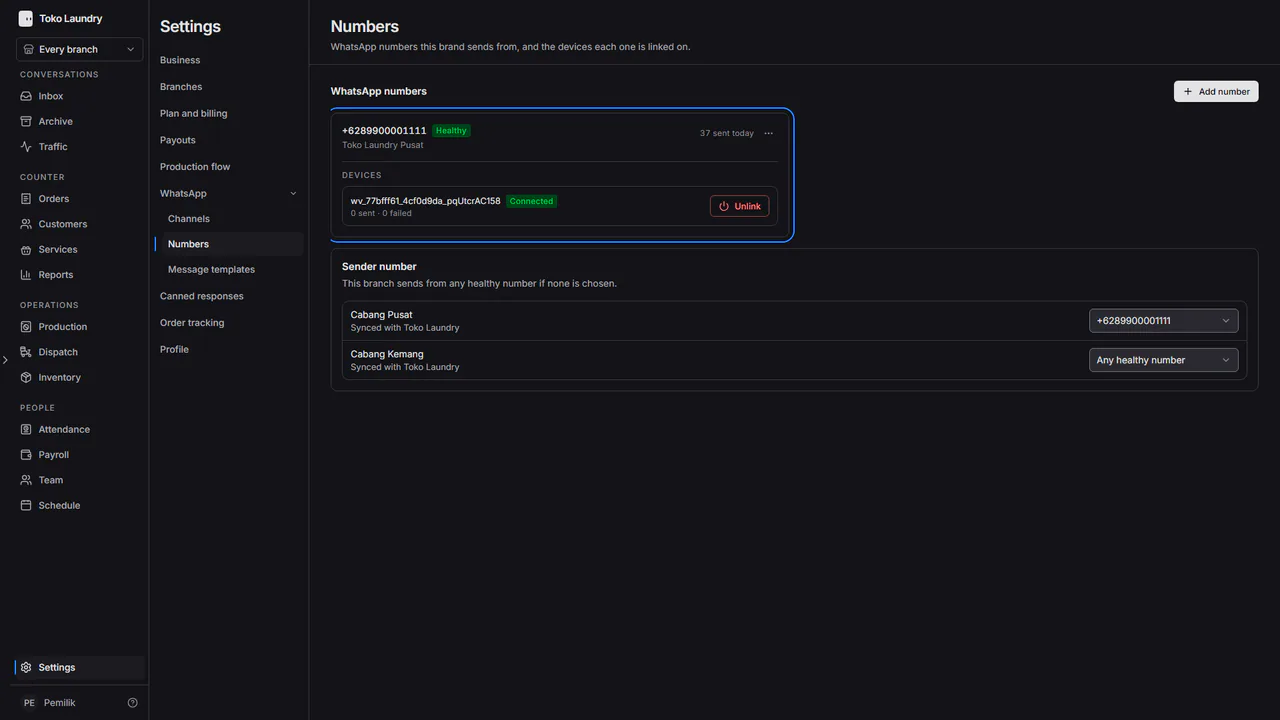
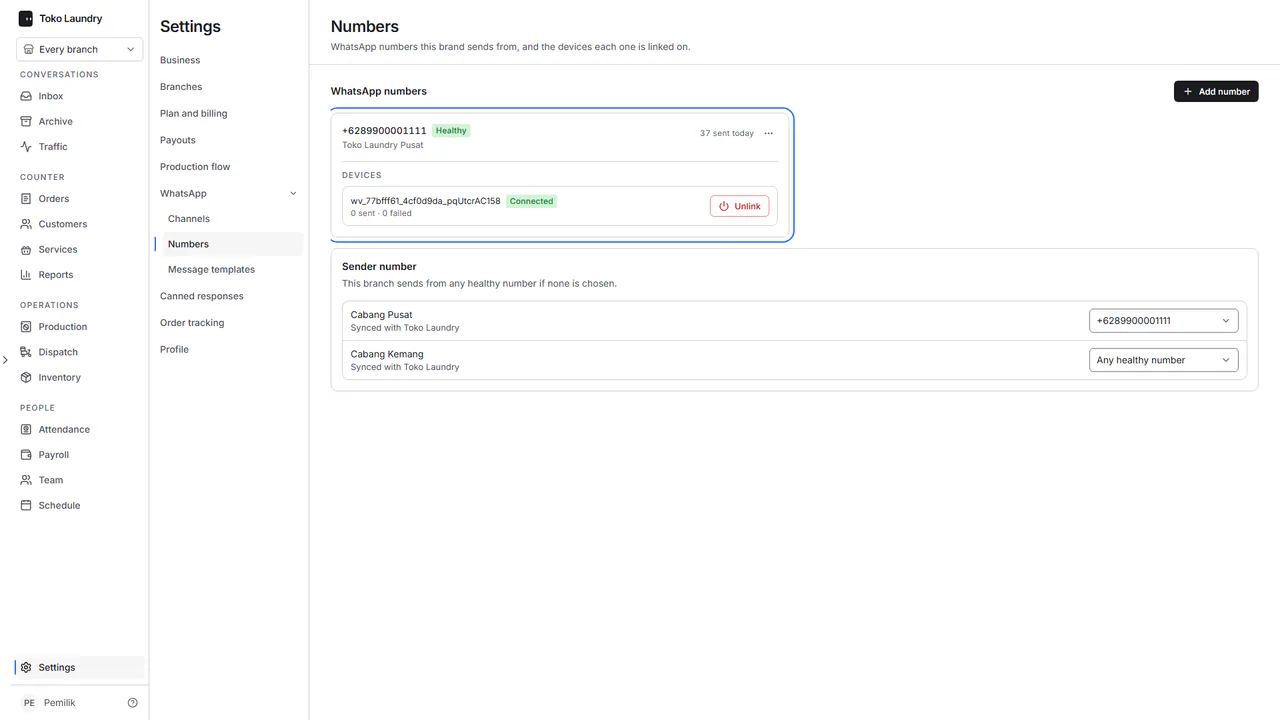
Once the phone is linked, the message "This device is connected." appears and the dialog closes by itself. The device is marked Connected and the number Healthy: it is ready to send.
Steps to manage numbers and devices
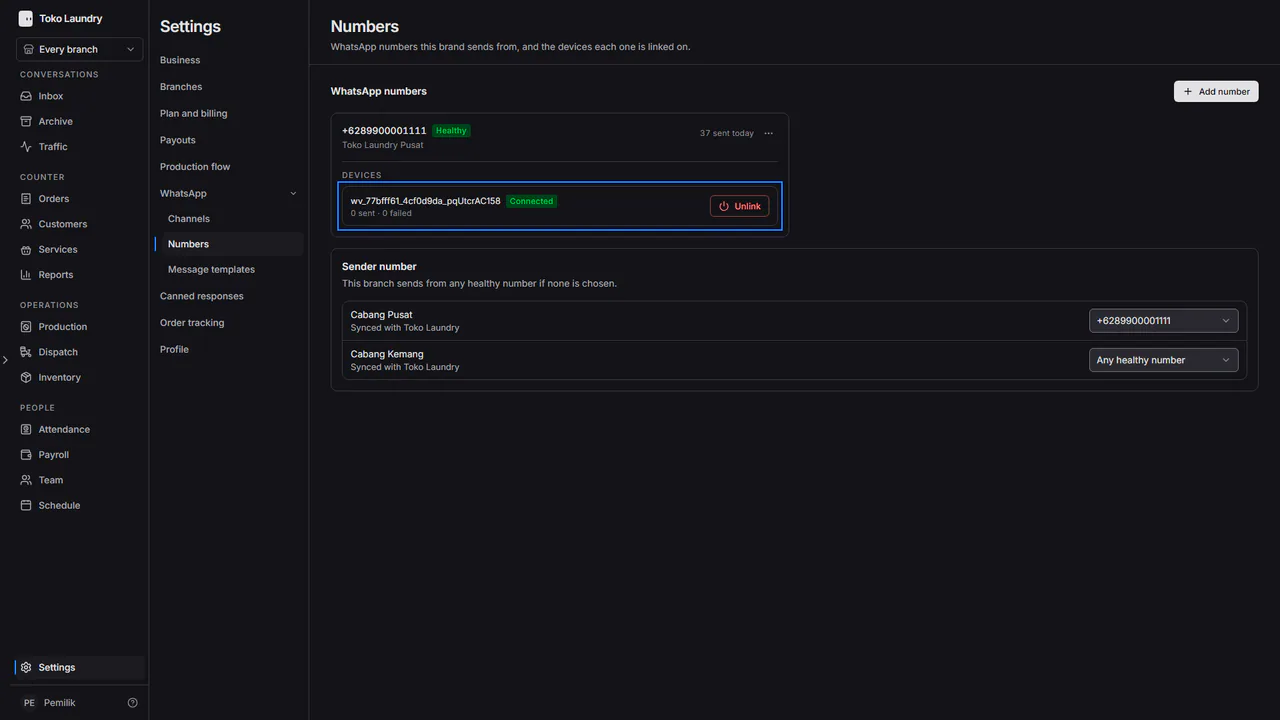
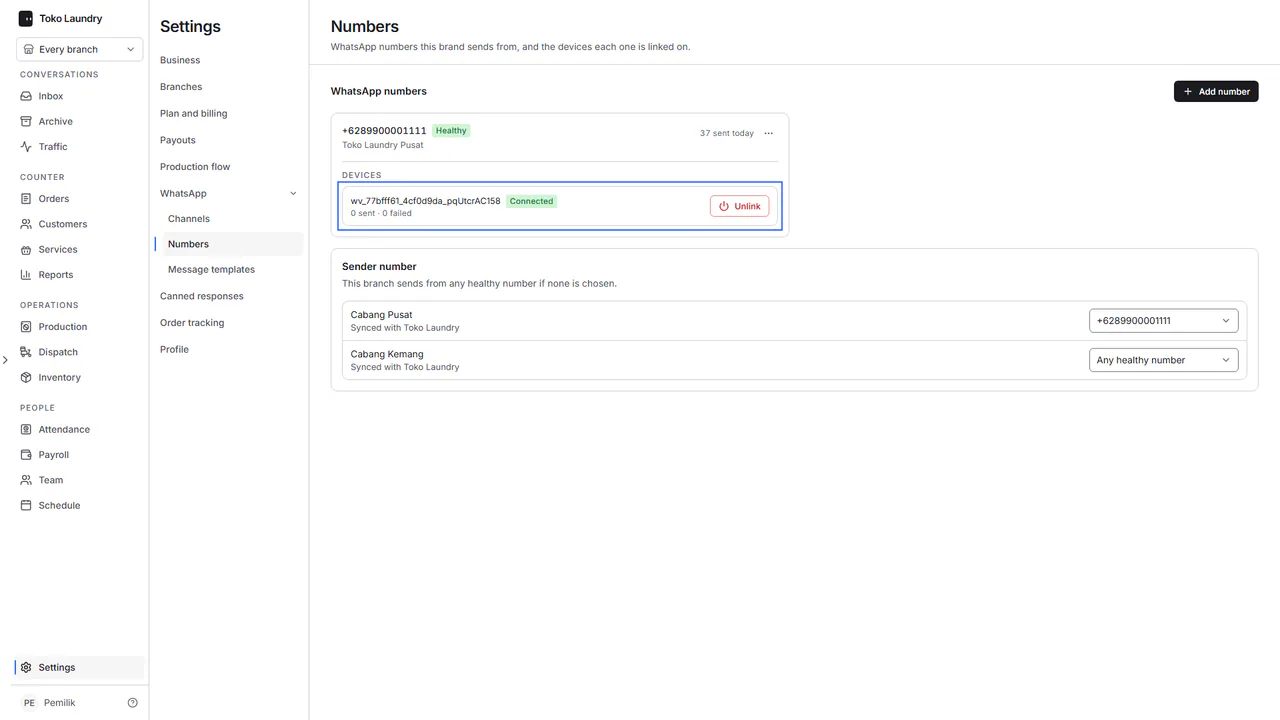
On a device row, Unlink logs the phone out of its linked devices, and the number stops sending until a device is linked again. While a device is still waiting to be scanned, Show code on the same row opens its QR code again.
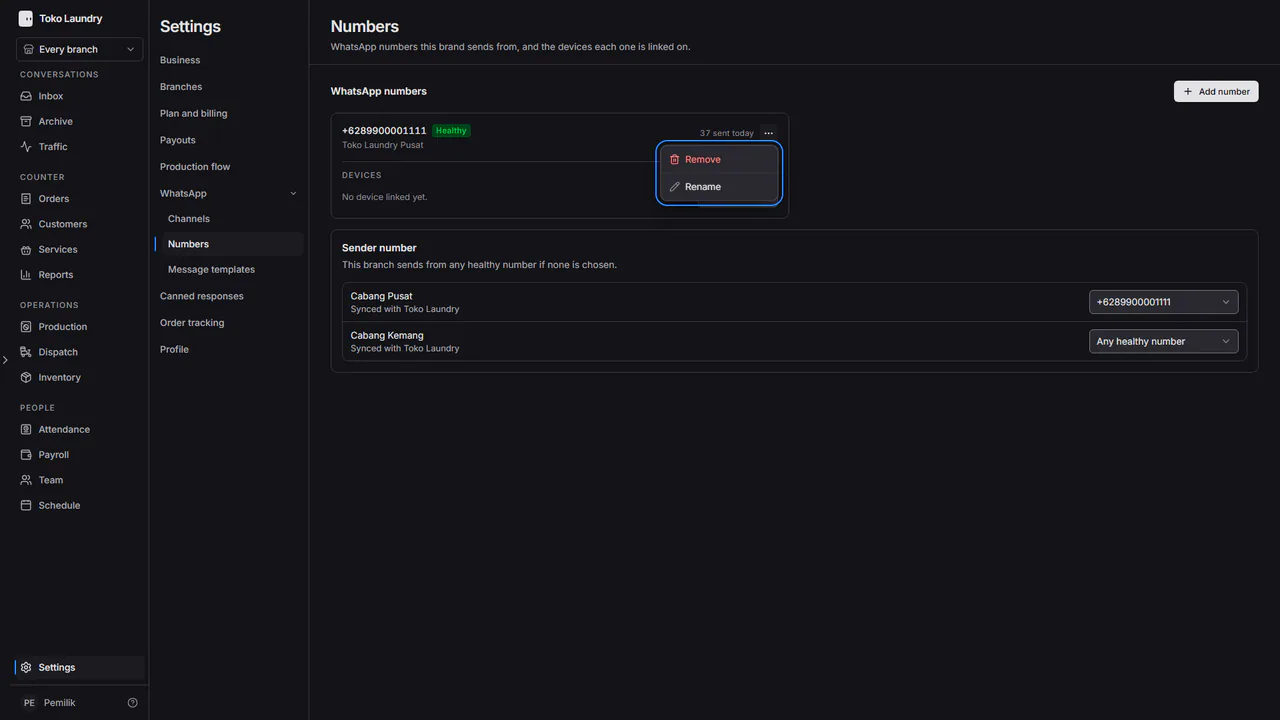
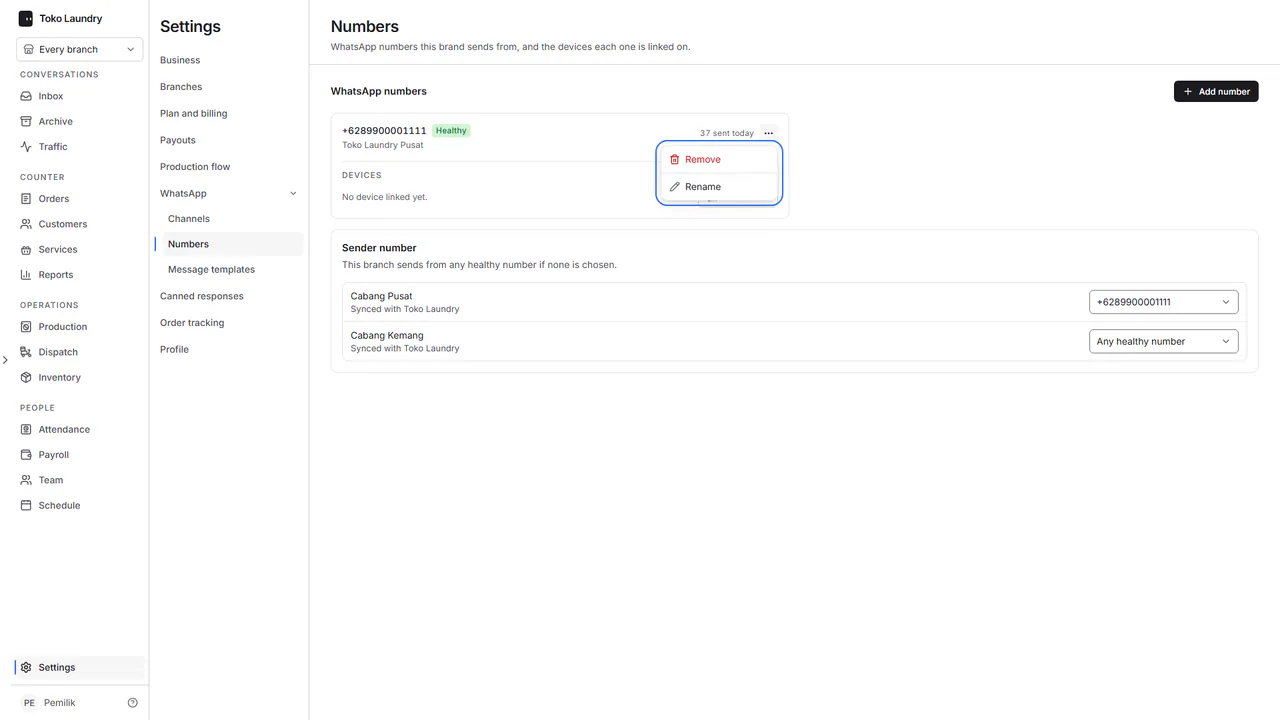
Press the three-dot button on the number's card. Rename changes its label. Remove deletes the number: every device is logged out and its queued messages are cancelled. While the number is not linked yet but already has a device, the menu also holds Link another device.
Steps to pick the sender number
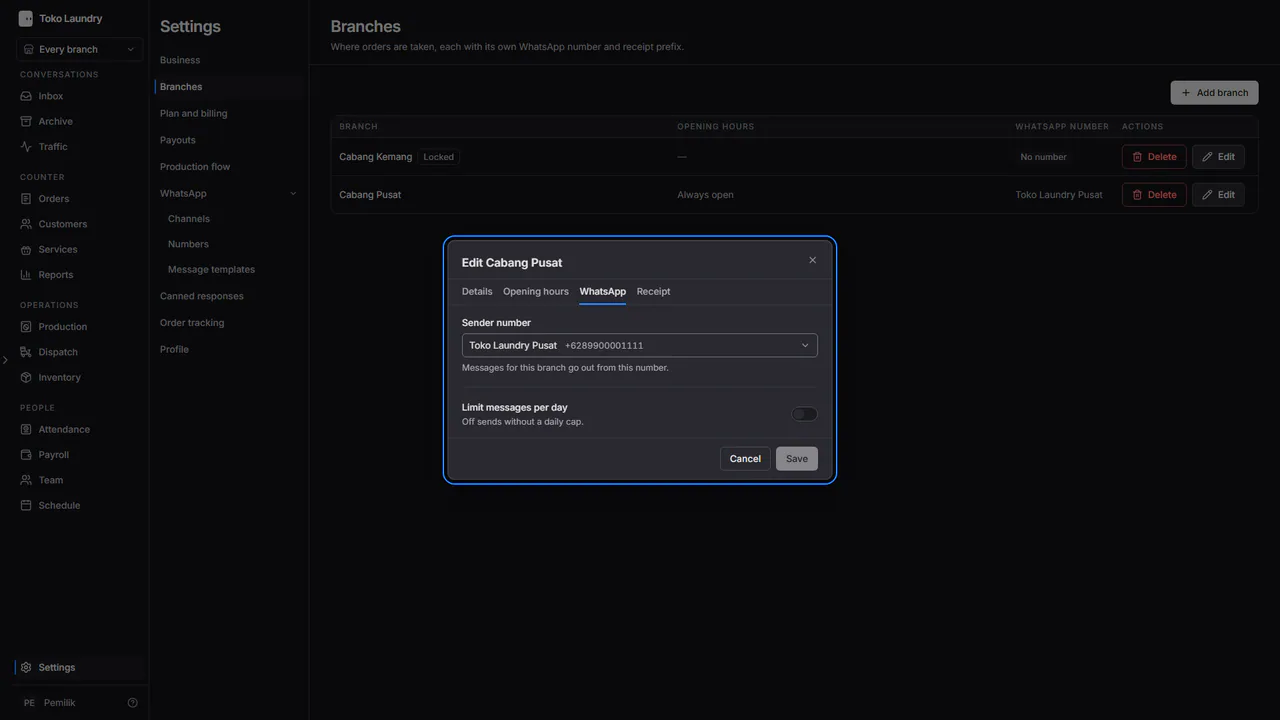
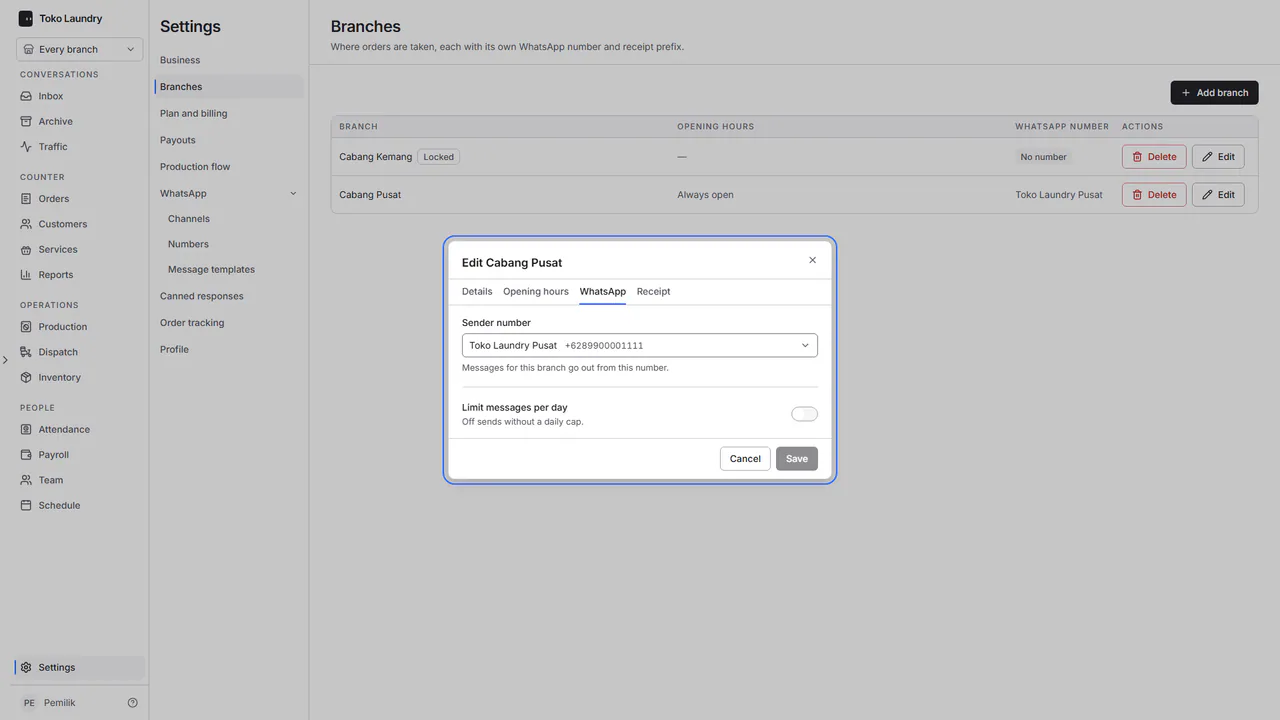
In Sender number on the same page, pick the number for each branch. A branch on Any healthy number sends from whichever healthy number is available. The same choice sits in the WhatsApp tab of the branch dialog.
To cap a branch's daily messages, open Settings > Branches, press Edit, open the WhatsApp tab, then turn on Limit messages per day. That branch's New order page then shows Today's WhatsApp allowance.
Messages that go out by themselves
| Message | When it goes out |
|---|---|
| Order receipt | When the order is created |
| QRIS bill | When a QRIS is made: a counter order is saved, or an online order is weighed |
| Ready for pickup | When the order reaches the ready stage |
| Late pickup reminder | Days 1, 3 and 7 after it is ready, if not collected |
| Out for delivery | When the courier sets off with the order |
Steps to change a message
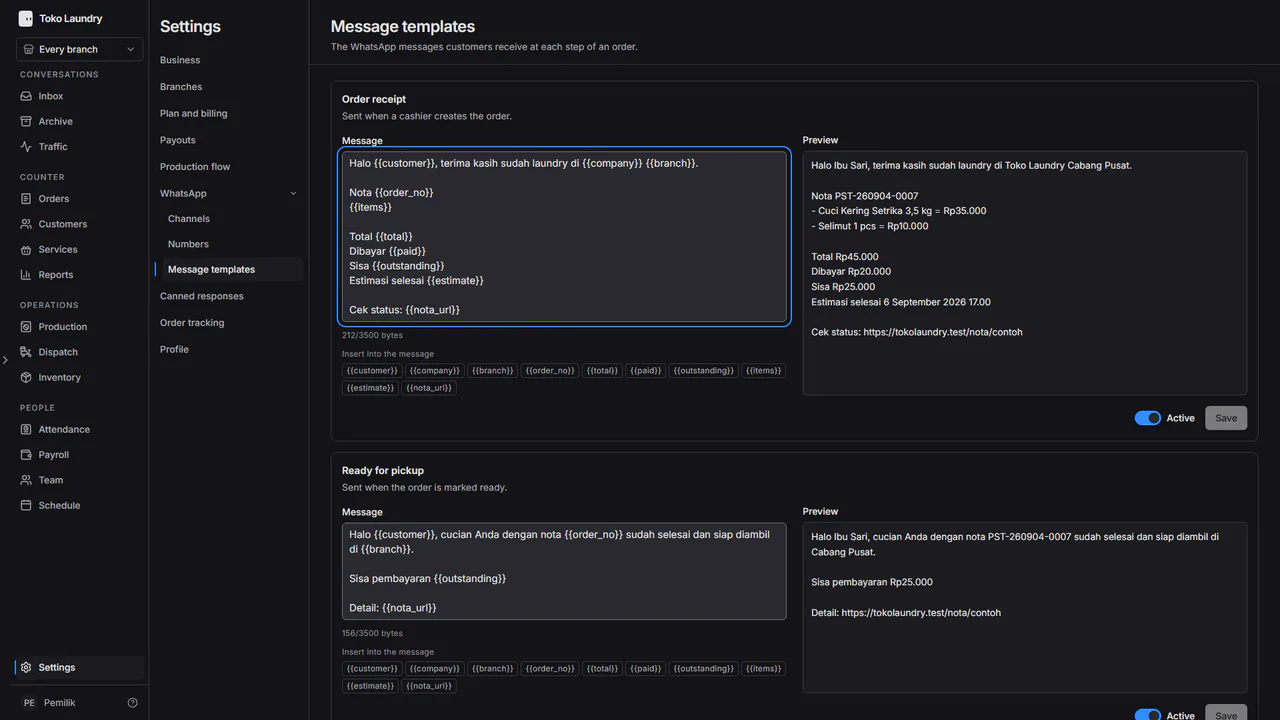
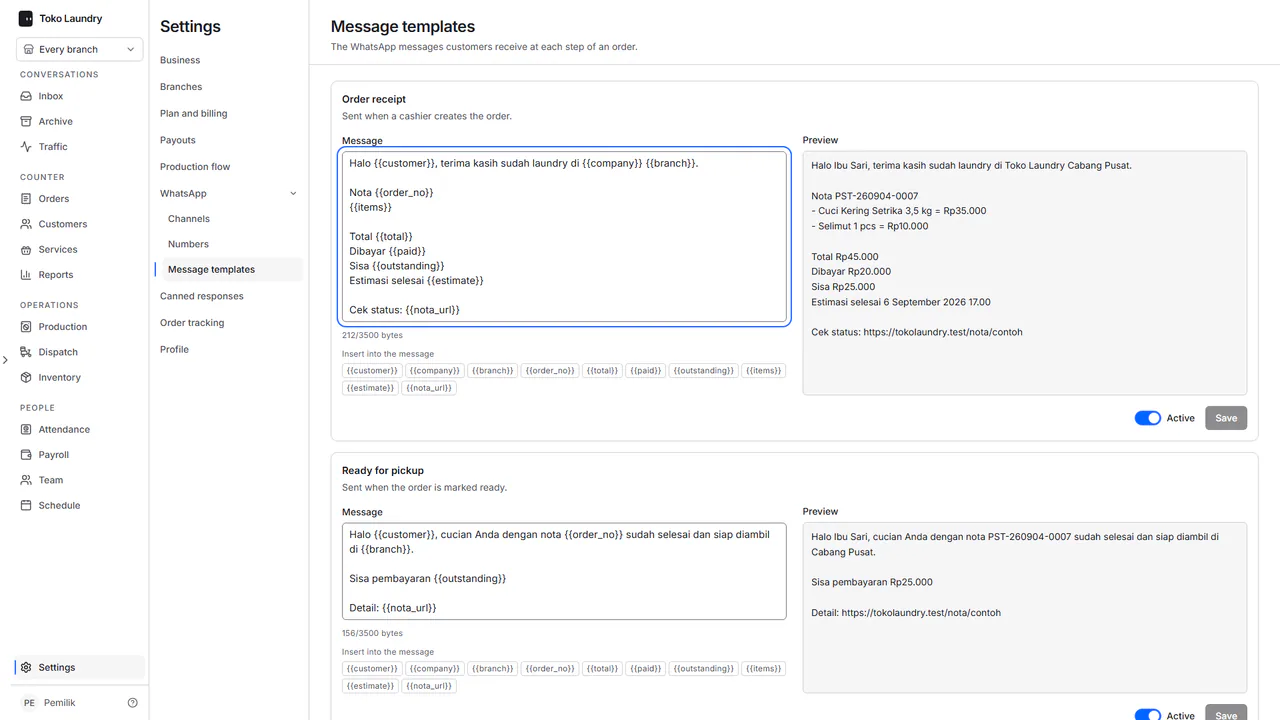
Open Settings > WhatsApp > Message templates. Each card holds one message, such as Order receipt or Ready for pickup, with a line saying when it goes out.
Edit the text in Message. Press a code under Insert into the message, such as
{{customer}}, to insert order data, then read the result in Preview.Press Save. Turn off Active if that message should not go out.
Customers who opt out
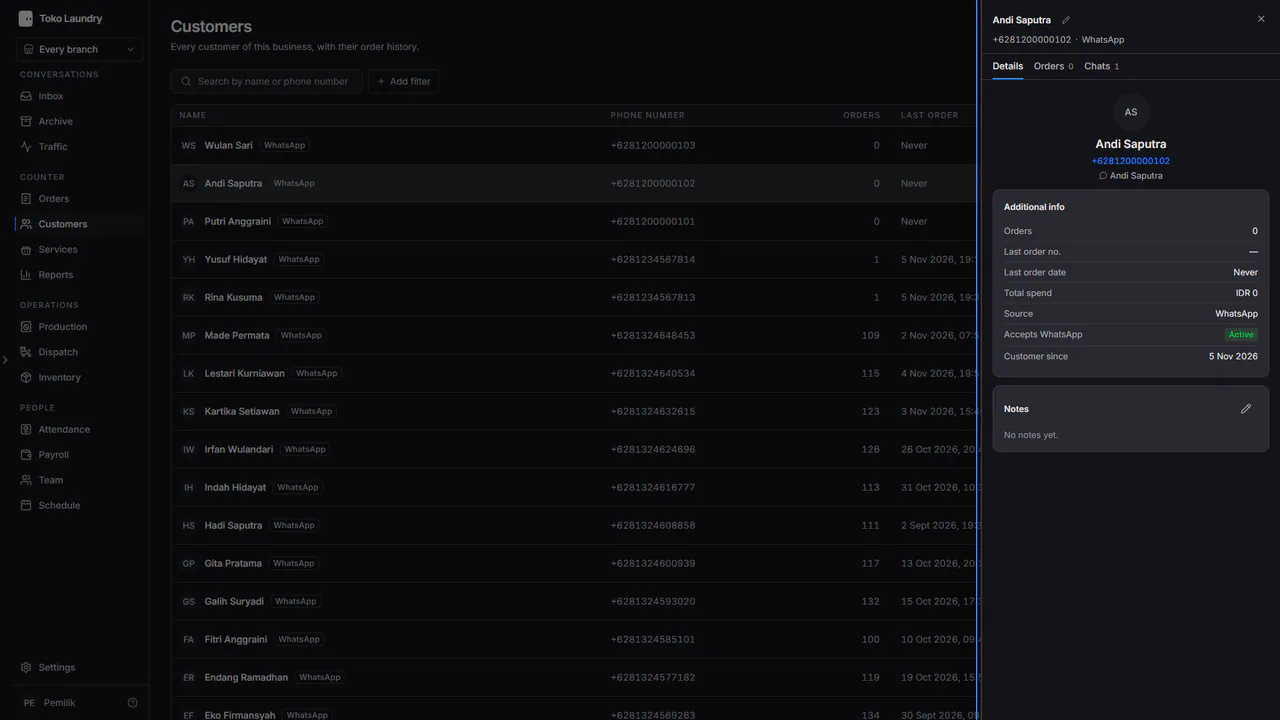
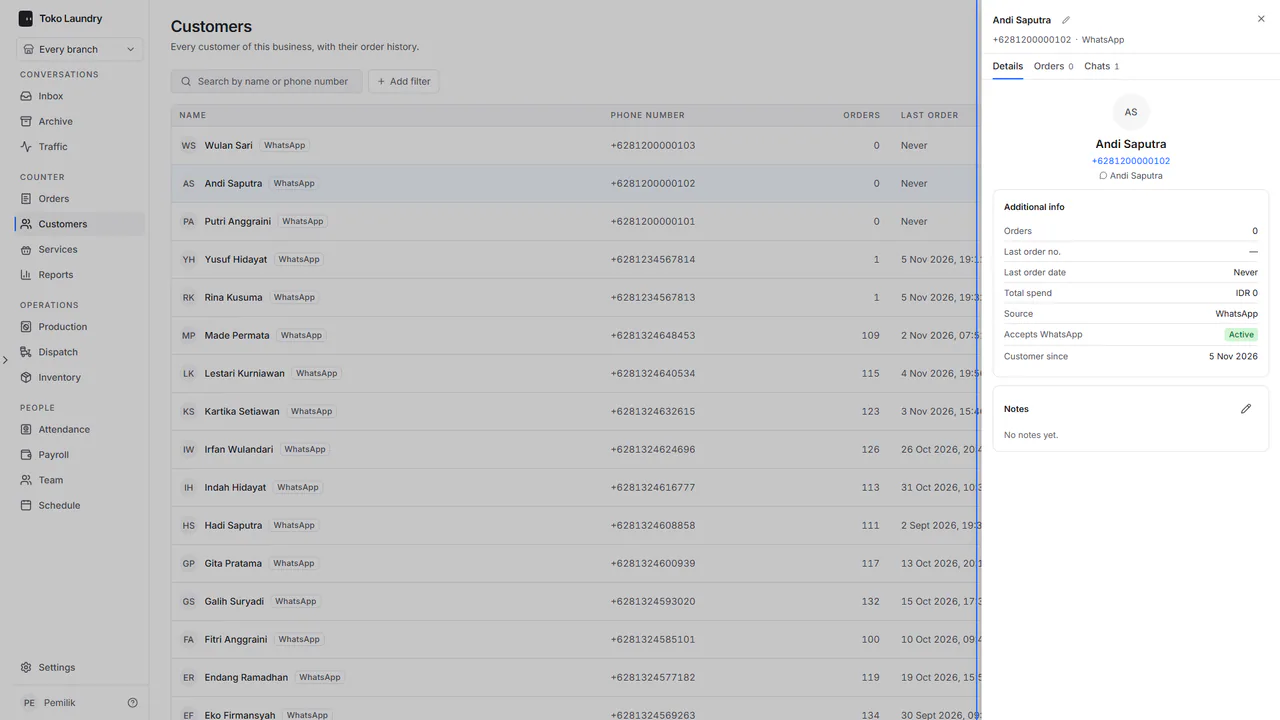
A customer who replies with the word STOP stops receiving messages. Open Customers and pick their name: the Accepts WhatsApp row shows their status. For that customer Send receipt is refused, but orders can still be created and printed.
If the business is no longer in Wavely
Someone deleted the business in Wavely. Toko Laundry keeps running: orders, customers, branches and members stay as they are. The Wavely screens (chat, Numbers, Channels, canned responses and Traffic) show a notice that the business is no longer connected to Wavely, with no retry button, and nothing is sent to WhatsApp. Reconnecting is not available in the app yet.
Turning WhatsApp on, the away reply and canned responses are in channels and canned responses. Answering customer chats is covered in WhatsApp chat.