Courier guide
For: Courier
Run today's pickups and drop-offs, with a photo at every stop.
The courier runs today's pickups and drop-offs. The system plans the route by distance and deadline, so the courier follows its order.
For couriers. After signing in, you land on Dispatch.
Steps to work a stop
Pick a stop in the list. The Pickups, Dropoffs and Done tabs separate them, and the nearest is marked Next. Open route opens Google Maps with every stop not yet done.
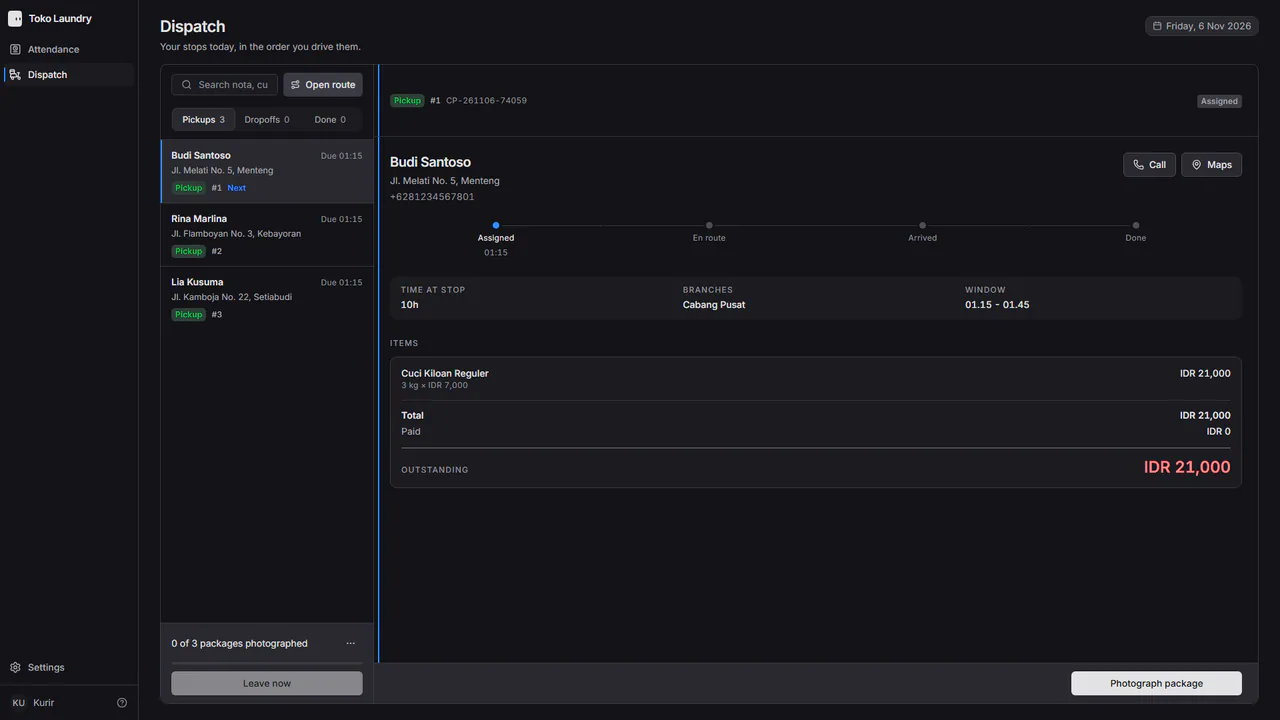
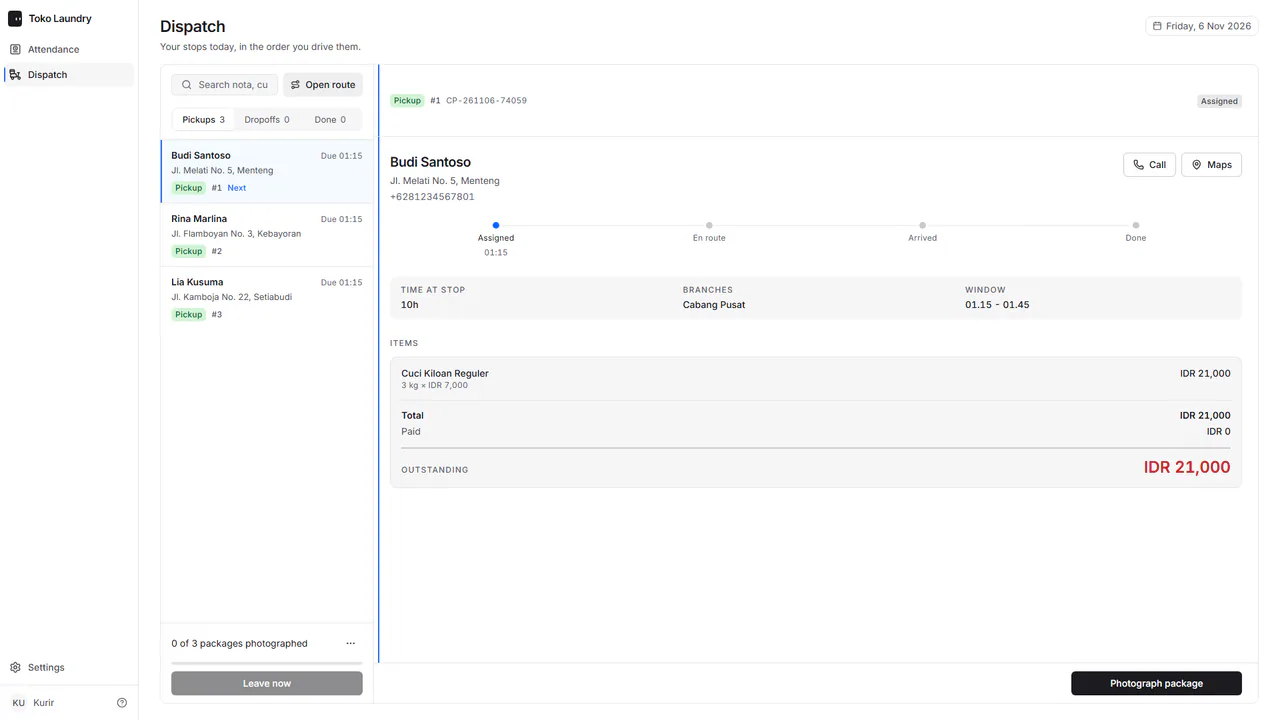
Press Start when you set off to that address. For a drop-off, the customer gets a WhatsApp message that the order is on its way.
Press Arrived when you get there.
Press Complete after handing over or collecting the laundry, then take the Proof photo there.
Steps to carry several packages
Two stops or more? Start puts them all in one round. A bar under the list counts the packages photographed, for example 0 of 3 packages photographed, with a meter and a Leave now button that cannot be pressed yet.
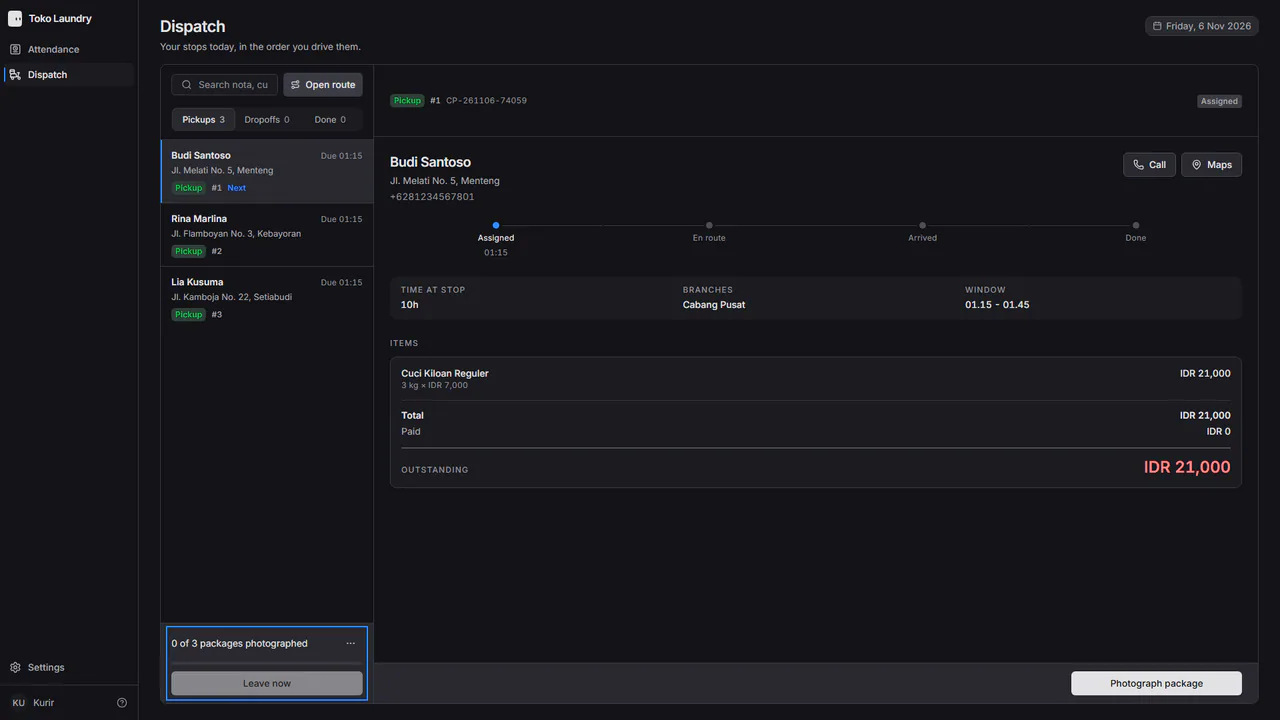
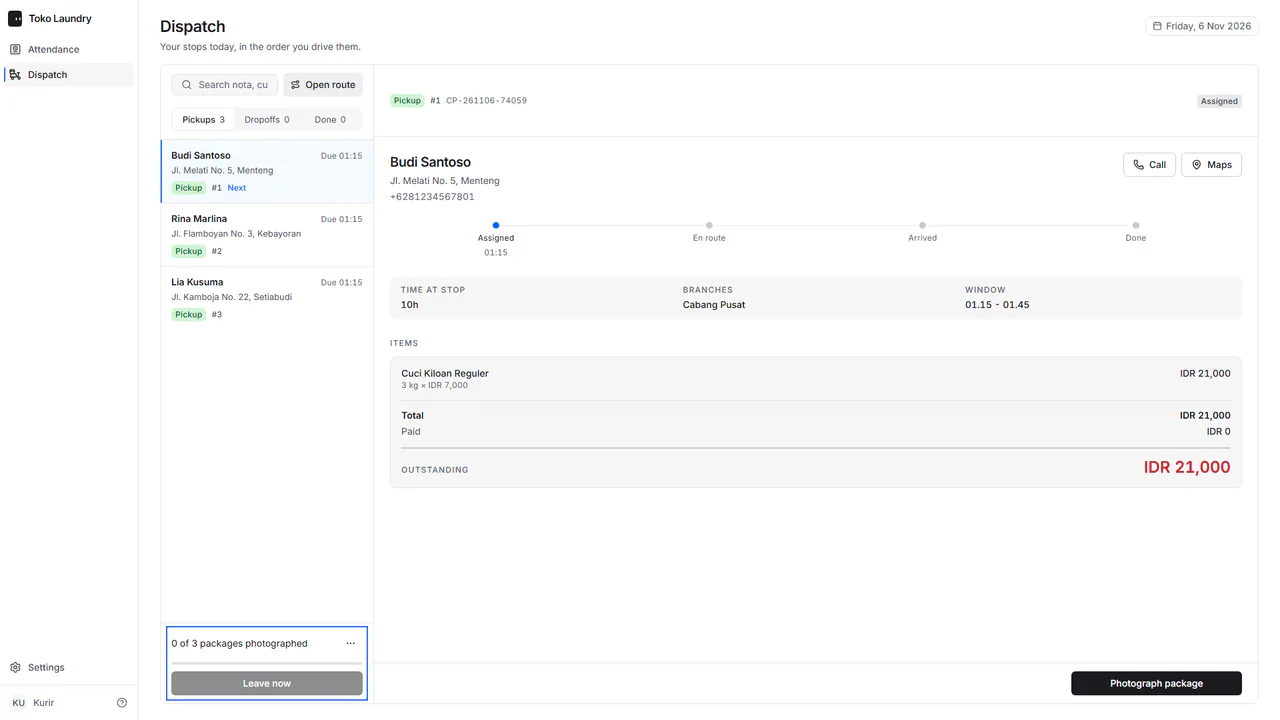
Pick a stop and press Photograph package. Press Take a photo to open the camera, photograph the package, then press Complete.
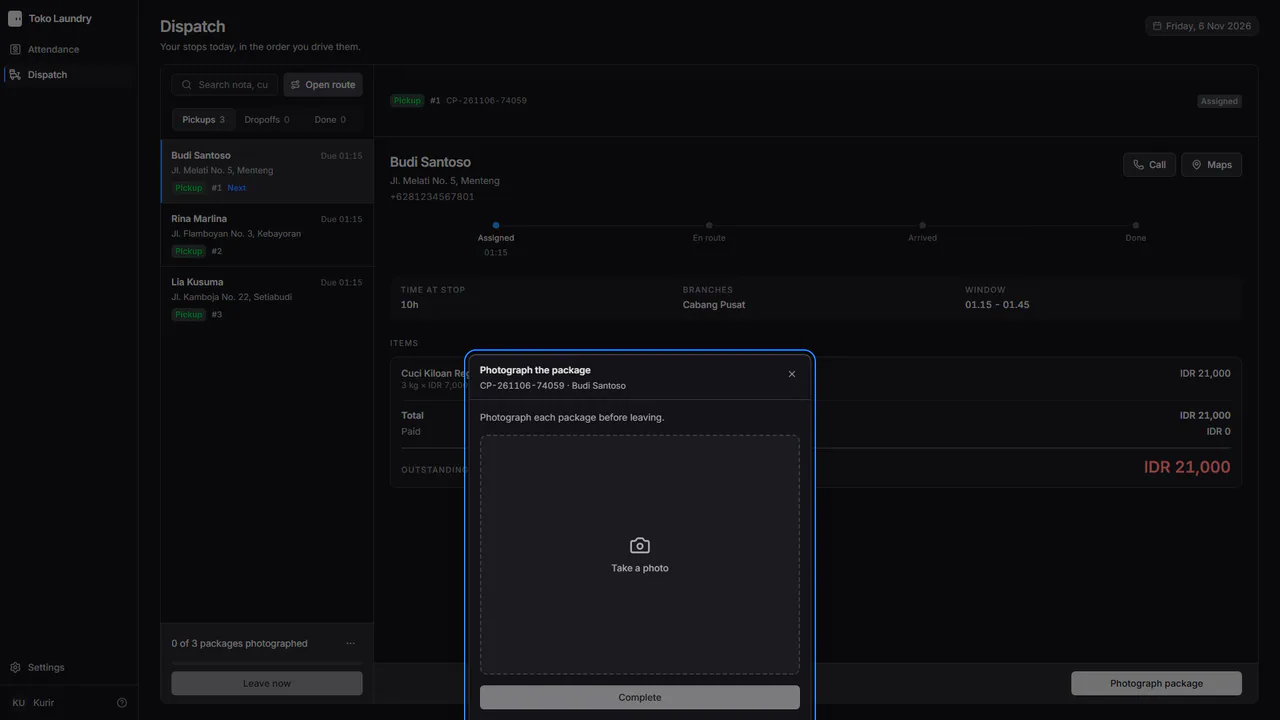
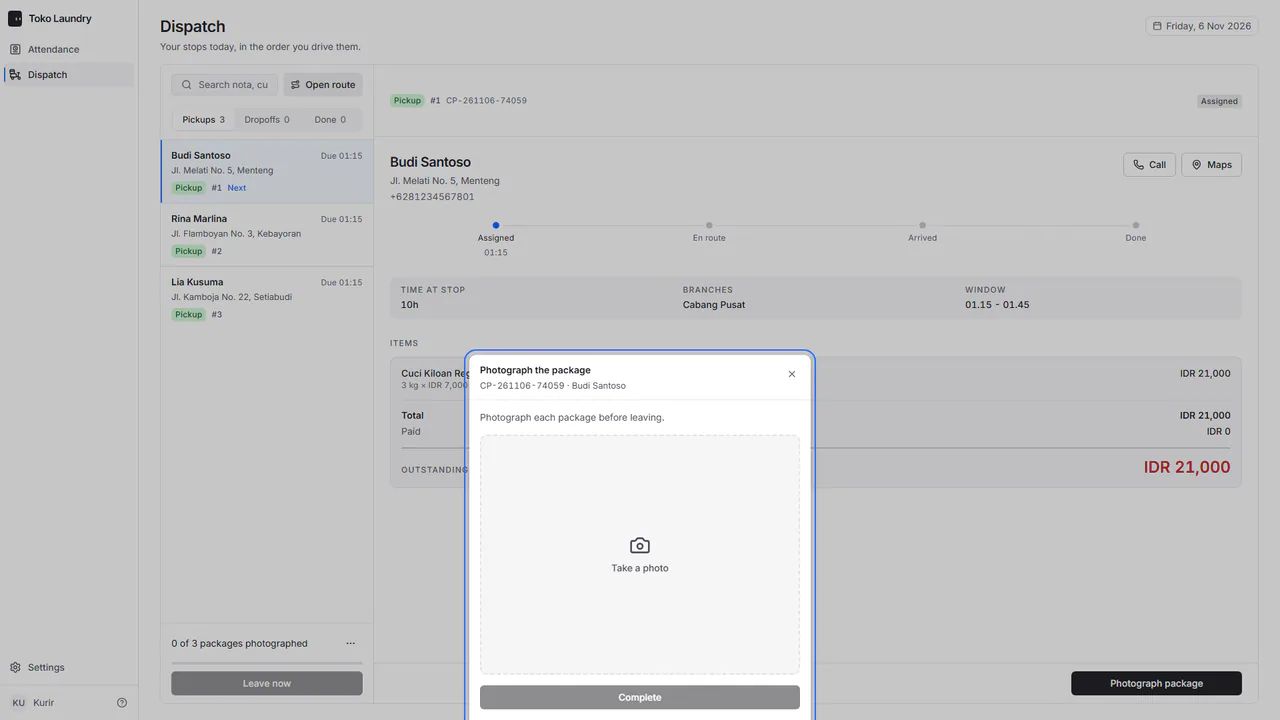
Repeat for each stop. A stop already photographed is marked Photographed on its row, and the meter on the bar fills.
Once every package is photographed, the bar says Every package is photographed. Press Leave now.
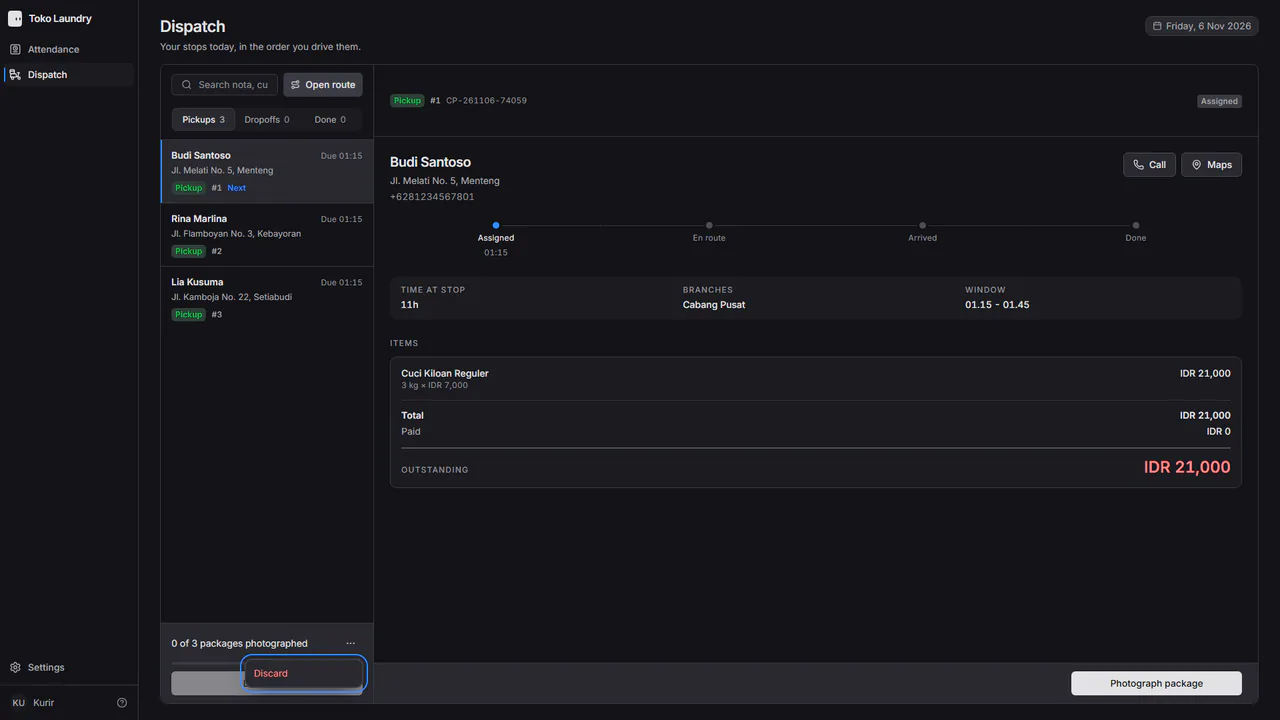
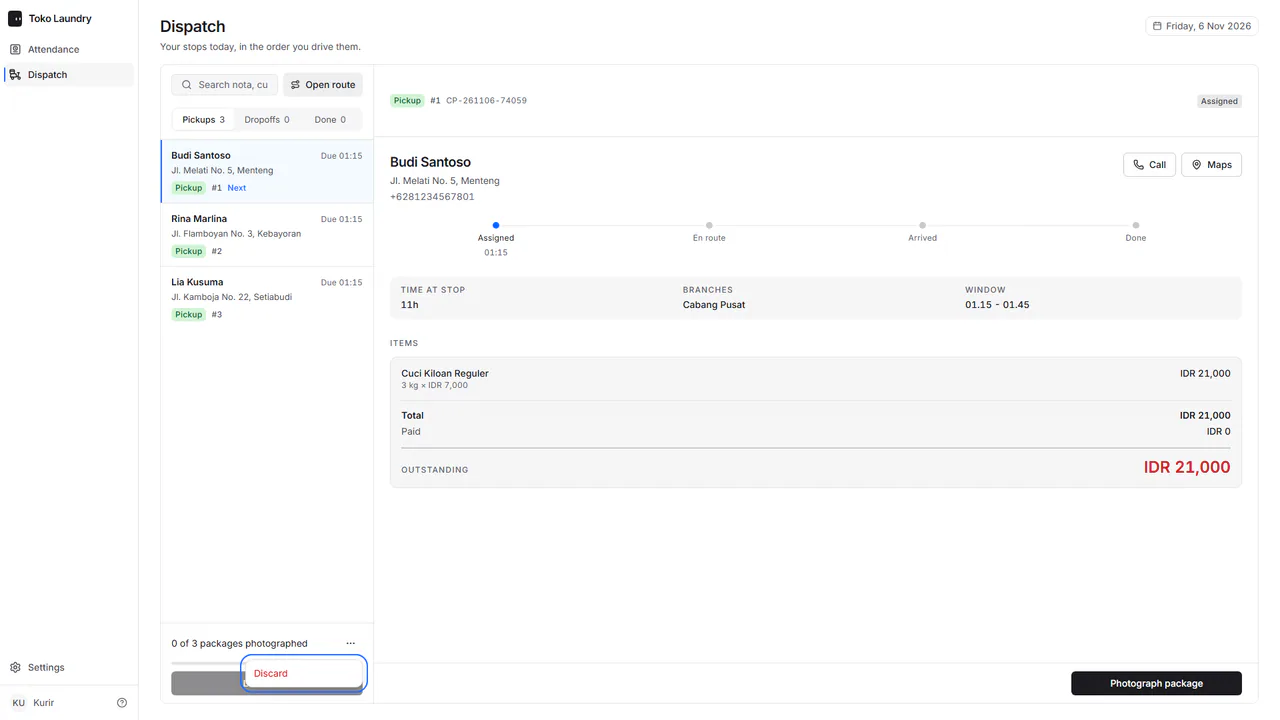
Opened by mistake? Press ⋯ on that bar and choose Discard. The stops go back to the list as they were.
When it does not work out
Press Failed, pick a Quick reason or write your own, then photograph the place. The address comes back as a new trip. Couriers also clock in under attendance. The full picture is in delivery.